![Opus1-3-icon-color-1.png]](https://kb.opus1.io/hs-fs/hubfs/Opus1-3-icon-color-1.png?height=50&name=Opus1-3-icon-color-1.png)
Applies to: Owner, Manager
PLUS Feature: No
Plan: All
Last updated: October 22, 2026
Table of Contents
- Overview
- Turn off reminders for one subscription
- Clients with more than one subscription
- What changes after you save
- What stays the same
- Which fix to use
- FAQ
- Related Articles
Overview
When a tuition invoice passes its due date and is still open, Opus1.io emails the payer a reminder, and keeps sending one about every 48 hours until the invoice is paid or closed. For most families that is exactly what you want: it collects money without your front desk making calls.
For a few families it is the wrong message. A student who pays after each lesson, a family making partial payments on a plan you agreed with them, or a parent you are already talking to about a balance will see the invoice as overdue for weeks. Every two days they get another email saying they owe you money, about an arrangement they are keeping.
Why: Turning off Payment reminders for that one subscription stops those emails without forgiving the balance, changing how the family pays, or affecting anyone else at your school. You keep track of what they owe yourself, from the client's profile or the overdue invoices report.
Turn off reminders for one subscription
Payment reminders in Opus1.io are set on each subscription, not on the client. Every subscription starts with them on.
- Go to the student's profile.
- In the Subscriptions card, find the subscription the reminders are about. If the card shows + N more - see all, choose See all subscriptions to see the rest.
- Choose Update on that subscription. The Update Subscription window opens.
- Turn off Payment reminders. It sits directly below the Auto-pay switch. The note under it says reminders go out every 48 hours for open, due invoices.
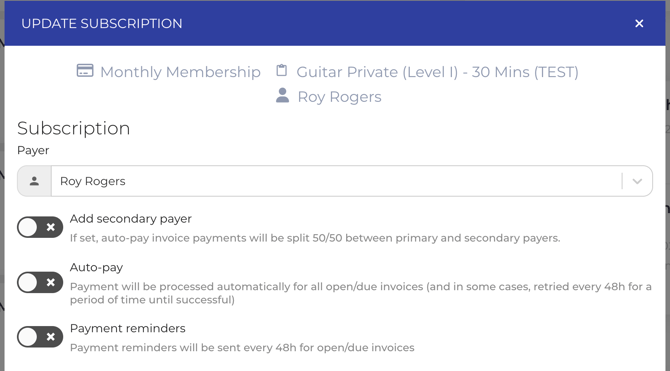
- Choose Update to save.
The reminder goes to whoever pays for the subscription, shown as Paid by on the subscription card. That is usually the parent or account manager, not the student. If you are not sure which subscription is sending the emails, match the payer named in the family's complaint to the Paid by name.
Clients with more than one subscription
A family with two children, or one student taking private lessons and a group class, often has several subscriptions. Each one has its own Payment reminders switch in Opus1.io. Turn it off on every subscription that should go quiet. A subscription you leave on will keep sending reminders for its own overdue invoices.
What changes after you save
- The next scheduled reminder for that subscription is skipped, and no more are sent while the switch stays off.
- Emails that already went out stay in the payer's inbox. Opus1.io cannot recall them.
- If you turn the switch back on later, reminders resume for any invoice on that subscription that is still open and past due.
- On the client's activity, a sent reminder appears as Batched overdue invoice reminder has been sent to followed by the payer's name. Checking the activity is the quickest way to confirm reminders have stopped.
When a payer has several overdue invoices with the same due date, Opus1.io sends one email that covers all of them rather than one per invoice. The subject line is Your subscription payment is due for a single invoice and Your subscription payments are due for several. Reminders are sent by email only, never by text message.
What stays the same
Turning off Payment reminders in Opus1.io changes only the reminder email. It does not change what the family owes or how they pay.
| Item | After you turn reminders off |
|---|---|
| Invoice balance | Still owed. The invoice stays open until it is paid, voided, or comped. |
| Auto-pay | Unchanged. If it is on, Opus1.io still charges the saved card or bank account on the charge date. |
| Late fees | Unchanged. A late fee is still added if the invoice is open past its late fee window. |
| Payment Failed emails | Unchanged. These come from Auto-pay, not from reminders. |
| Other subscriptions | Unchanged. Each subscription has its own switch. |
Note: If the family is on Auto-pay and their card keeps failing, the emails they are complaining about may be Payment Failed emails rather than overdue reminders. Each failed charge sends one, and Opus1.io retries a plain decline every 48 hours, up to five times. Turning off Payment reminders will not stop those. To stop them, turn off Auto-pay on the same subscription and collect the invoice by hand, or ask the family to update their card.
Which fix to use
Turning off reminders is the right fix when the money is still owed and you are collecting it another way. When the situation is different, another tool in Opus1.io usually fits better.
| Situation | What to do |
|---|---|
| The family pays per lesson, makes partial payments, or has an arrangement with you | Turn off Payment reminders on that subscription, as described above. |
| You also want to hold off the late fee | Move the late fee window on the invoice as well. See How do I change an invoice's due date and late fee window? |
| The family is taking a break, such as summer or a vacation | Put the subscription on hold, so invoices for those dates are adjusted instead of left overdue. See How do I use subscription holds? |
| The invoice should not be owed at all | Void the invoice or comp it. Reminders stop on their own once it is closed. |
| The family is getting emails about a failing card | Ask them to update their card, or turn off Auto-pay and collect by hand. |
| You want no overdue reminders for anyone | Use the school-wide setting in Stop overdue reminders for the whole school. |
FAQ
Do overdue reminders go out by text message?
No. Overdue payment reminders from Opus1.io are sent by email only. Turning off Payment reminders does not affect any text messages your staff send by hand.
Can I change what the reminder email says instead of turning it off?
Yes. You can add your own wording to the Payment Reminder email template, for example to tell families on a payment plan that they can ignore the email. Your text is added to what Opus1.io sends automatically. It applies to every family who gets the reminder, so it is not a substitute for turning reminders off for one family.
How do I keep track of what the family owes once reminders are off?
Their open invoices still show on the client's profile, and they still appear in the overdue invoices report. Many schools check that report weekly so families with reminders turned off are not forgotten.
Will the family be told that I turned reminders off?
Changing Payment reminders counts as a subscription update. If your school sends Subscription updates emails, the payer may receive one letting them know the subscription changed.
Related Articles
- How automatic payments work — when Auto-pay charges, how retries work, and how to turn it off for one family
- Client Automated Email Notifications — every email Opus1.io sends to families, including payment reminders
- How do I customize the Payment Reminder & Subscription Autopay Failed email templates? — add your own wording to the reminder email
- Are my clients notified when their payments are declined? — the Payment Failed email and manual retries
- How do I change an invoice's due date and late fee window? — hold off a late fee on one invoice
- Reporting: Overdue Invoices — see every family with a past-due balance