![Opus1-3-icon-color-1.png]](https://kb.opus1.io/hs-fs/hubfs/Opus1-3-icon-color-1.png?height=50&name=Opus1-3-icon-color-1.png)
Applies to: Owner / Manager / Staff
PLUS Feature: No
Plan: All
Last updated: October 21, 2026
Table of Contents
- Overview
- When auto-pay is on
- When the charge happens
- What gets charged
- When a payment fails
- How to turn auto-pay off
- Cards and bank accounts
- Putting auto-pay in your terms
- FAQ
- Related Articles
Overview
Auto-pay is what lets monthly tuition collect itself. Without it, every invoice waits until a family logs in to pay or your front desk runs the card by hand, and the first of the month turns into a round of reminder calls.
This article covers what Opus1.io does with auto-pay: when it turns on, when it charges, what happens after a decline, and how to stop it. The arrangement between your studio and your families, meaning what you tell them and what they accept, is set by your own terms and conditions, not by Opus1.io. The last section, Putting auto-pay in your terms, covers how to add that wording to your policy.
When auto-pay is on
In Opus1.io, a recurring subscription starts with Auto-pay on. That applies to recurring lessons and group classes alike, whether staff enter the enrollment or a family completes it online. A one-time plan is not charged automatically.
Accepting your terms and conditions is a separate step from auto-pay:
- Online booking. If the service has a T&C policy, the family has to accept each required term before they can finish booking.
- Enrollments your staff create. The payer is emailed a link to accept your terms, and the email repeats every five days until they do. Auto-pay can be on during that time.
Opus1.io doesn't add a separate auto-pay checkbox at checkout, and it doesn't add auto-pay wording to your terms.
💡 Tip: If you want your terms accepted before the first automatic charge, check acceptance first. The terms accepted column in Reporting > Subscriptions shows it, and so does the red warning icon on a subscription in the client's profile. You can leave Auto-pay off on that subscription until the family has accepted.
When the charge happens
By default, Opus1.io charges an invoice on its due date. Monthly tuition invoices are due on the 1st of the month, in your location's time zone.
You can move the charge earlier or later on any subscription. Open the client's profile, click Update on the subscription, and in the Plan section turn on Should the monthly invoice auto-pay be processed a certain number of days before or after the due date? Then slide to the number of days you want. Negative numbers charge before the due date and positive numbers charge after it. The offset can be up to 30 days in either direction.

Moving the charge date doesn't move the due date. The invoice is still due on the 1st. Why: Some studios charge a few days early so that a decline is sorted out before lessons start. Others charge a few days late to line up with families' paydays.
A bank debit takes longer than a card. It can take several business days to clear, so the invoice shows Processing until the money arrives.
What gets charged
On the charge date, Opus1.io charges each open invoice on the subscription that is due. It uses the payer's default payment method. Other cards on file are kept as backups and aren't charged automatically.
If the payer has no payment method on file, or the one on file can't be used (an expired card, for example), the charge doesn't run and the invoice stays open. Opus1.io can email the payer before the charge date when their payment method needs attention, and it can send reminders about open invoices afterward.
If two people share the cost of a student's lessons, see How to Split Auto-Pay Between Two Payers.
When a payment fails
When a card is declined, Opus1.io may try it again. It retries only when the bank's reason is a plain decline or insufficient funds. In those cases it waits 48 hours after the failure and tries again, up to five attempts on that card. Each failed attempt sends the payer a Payment Failed email.
An expired card, a wrong security code (the three or four digit code on the card) or a missing card is not retried. A failed bank debit is never retried automatically.
Updating the card doesn't close the invoice. After the family adds a working card and sets it as default, someone has to click Pay on the open invoice. Why was my client's card declined? explains how to read the decline reason and what to tell the family.
How to turn auto-pay off
For one subscription. Open the client's profile, click Update on the subscription, turn Auto-pay off, and click Update. Opus1.io stops charging that subscription. Open invoices stay open, and the family can still pay them from their account, or your staff can click Pay. Payment reminders have their own switch on the same subscription.
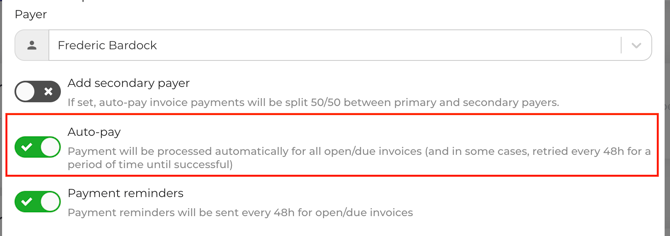
For all current students: Go to your subscriptions report and choose the correct filters to get all active and/or pending subscriptions, then click batch update > choose auto-pay and make sure it's toggled off:
Note that this is a one-time change for all subscriptions, not something that will automatically repeat for future students. You'll still need to disable for individual students as new enrollments occur, or constantly batch update your subscriptions.
Cards and bank accounts
When a family saves a card in Opus1.io, it stays on their account for later invoices. Whichever method is set as default is the one auto-pay charges.
To link a bank account, the family goes through a setup screen from Stripe, the company that processes Opus1 Payments. The wording on that screen comes from Stripe, varies by country, and isn't edited by Opus1.io. It is separate from your T&C policy. Bank debit is available in some countries only, and families can't choose it during online booking. They can add it from their account afterward and set it as default. Which cards and payment methods can families use? lists the countries.
Putting auto-pay in your terms
Opus1.io charges according to the settings described above. It doesn't write a description of that for your families. If you want families to read how your studio uses auto-pay, and to accept it when they enroll, add it as a required term in your T&C policy.
Families tend to ask the same few questions, and your terms are a good place to answer them: when they'll be charged, which payment method is used, what happens if a payment is declined, and who to contact to stop automatic charges. What your terms say is your studio's decision. If you're unsure about the wording, check with your own advisor.
To add or change a term, see Managing Terms and Conditions Policies. When you change a published policy, you can ask current families to accept the new version.
FAQ
Can a family turn off auto-pay themselves?
No. Families can't switch auto-pay off from their own account. They can change which card or bank account is their default. To stop automatic charges, they contact your studio, and your staff turn Auto-pay off on the subscription.
If a family pays an invoice themselves, will auto-pay charge them again?
No. Opus1.io only charges invoices that are still open. Once an invoice is paid, it's closed, and auto-pay skips it.
How do I pause auto-pay for a family's summer break?
Use a subscription hold instead of turning Auto-pay off. A hold pauses lessons and adjusts the invoices for the dates you choose, so auto-pay has nothing extra to charge for that time. See How do I use subscription holds?
Related Articles
- How do I delay an auto payment? — step-by-step for moving the charge date on a subscription
- Why was my client's card declined? — reading the decline reason and getting the invoice paid
- How are invoices generated from subscriptions? — when invoices are created and when they're due
- Which cards and payment methods can families use? — cards, bank debit by country, and what isn't supported
- Managing Terms and Conditions Policies — adding auto-pay wording to your terms
- Where can I see if my clients have accepted terms and conditions? — checking acceptance before the first charge