![Opus1-3-icon-color-1.png]](https://kb.opus1.io/hs-fs/hubfs/Opus1-3-icon-color-1.png?height=50&name=Opus1-3-icon-color-1.png)
Once your opus1.io account goes live, several automated notifications will begin sending to both clients and staff. These notifications cover onboarding, payments, services, credits, and more. They will be sent from no-reply@notifications.opus1.io; if someone responds to one of those emails, they will be directed to the email address set as the “Email From” address in your Business Settings.
There are Default Notifications toggles in your business settings which you can enable or disable globally for your entire business. View these by going to your left hand menu > gear > business > scroll down to Default Notifications. Click the pencil to customize those:

Toggling those on or off will set them as the default notification settings for all new clients and/or staff. Clients and/or staff can also customize their own individual settings via their own accounts as well. Note that adjusting them here doesn’t customize what is sent, but either enables or disables them globally for your entire business. Not all automated notifications sent from opus1.io are able to be globally adjusted like this. Below is an overview of all notifications you can expect to be sent, including where to customize them in your opus1.io account.
Note: All notification emails sent to your clients are also sent to their account managers, if applicable
In this article, we cover:
3. Service & Schedule Communications
5. Automated Conversion Emails
11. Terms & Conditions Reminder
Welcome Communications
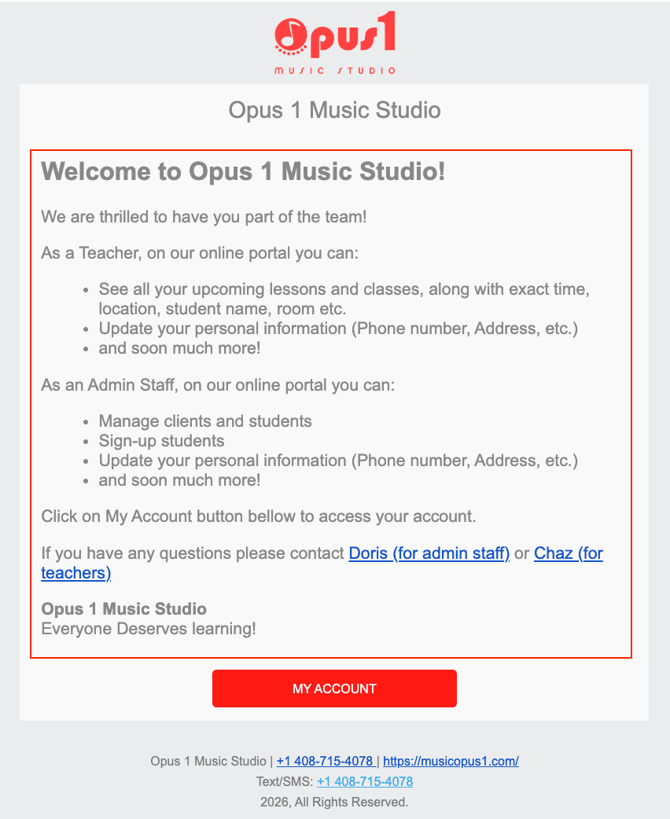
Welcome communications include messages sent when new clients or staff join your business. For both client & staff welcome messages, the entire body of the automated email will be whatever you set in your template:
How to edit welcome templates
-
Navigate to your left hand menu and click the gear icon > Business.
-
Open the Templates tab:

-
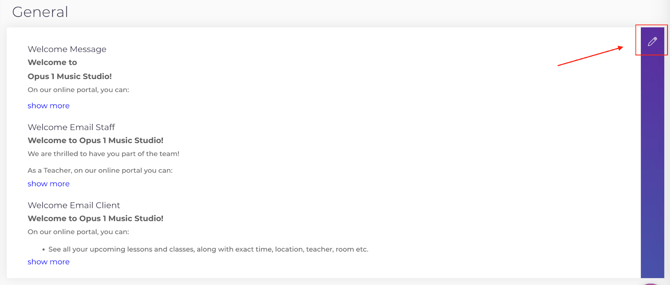
Under the General section, select the pencil icon to edit the welcome templates:
-
Welcome Message - this is what is displayed to clients on the self-registration page before they begin entering their information
-
Welcome Email Staff - this is what will be sent to new staff members’ accounts are created once you are live
-
Welcome Email Client - this is what will be sent to new clients’ accounts are created once you are live
Payment Communications
Payment communications notify clients about transactions and payment issues. They include:
- Payment receipts
- Overdue payment reminders
- Payment failure notifications
Some of these emails are editable, while others are automatically generated by the system. Payment related notifications begin to be sent after your school has gone live and auto-pay has been enabled on your opus1.io account. If auto-pay is enabled, all 3 payment related notifications will also be enabled account-wide. You can customize both auto-pay and payment related notifications at the subscription level for individual clients, but all are either globally on or globally off by default.
Editable payment notifications
The following templates can be customized:
-
Payment Failed - sent after auto-pay has attempted to run, but there is either a missing payment method on file or the payment method fails. Auto-pay runs every 48 hours for up to 5 times.
-
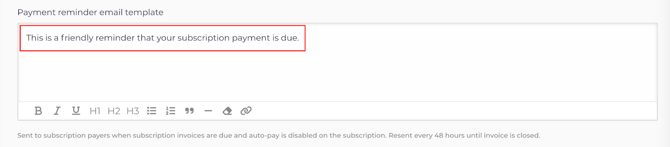
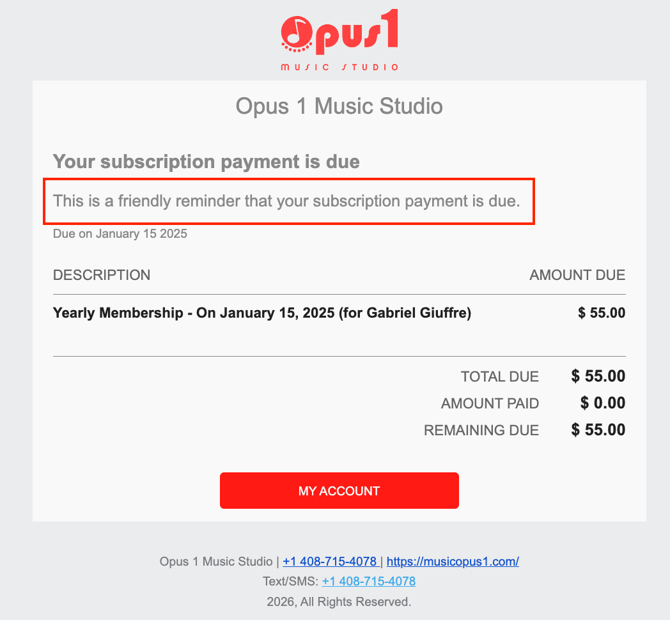
Payment Reminder - sent after an invoice has become overdue and auto-pay is disabled for the subscription. The reminder email will be resent every 48 hours until the invoice is closed.
How to edit payment templates
-
Navigate to your left hand menu and click the gear icon > Business.
-
Open the Templates tab:

-
Under the Payment section, select the pencil icon to edit the welcome templates:
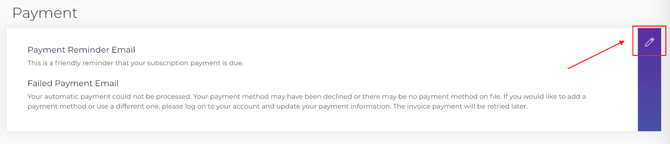
The wording you edit in these templates is added to what is automatically sent.
Service & Schedule Communications
Service notifications inform clients about lessons, appointments, and subscription changes:
- Appointment / Group Class Reminders
- Appointment / Group Class Confirmations
- Appointment / Group Class Cancellations
- Appointment / Group Class Updates
- Appointment / Group Class Subscription Updates
- Appointment / Group Class Credit Reminders
- Automated Conversion Emails (for trials only)
- Automated Follow Up Emails
Most of these notifications use editable service templates. Service templates can be customized by clicking Update on the service > notifications / templates > click the pencil icon on the section you’re wanting to edit:
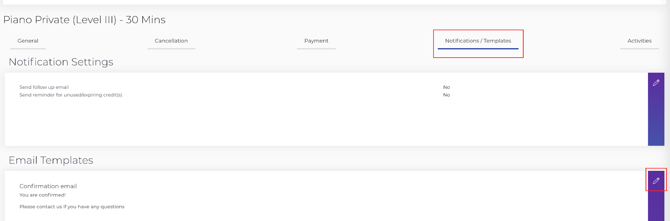
Service-related notifications above can be updated at the individual service level and in bulk. For more information on batch updating services, visit How do I update multiple services at one time?
Appointment / Group Class Reminders
Your clients receive a reminder email for their upcoming appointments & group classes.
In the example below, the highlighted text is customizable using the Reminder Email template in your service settings: 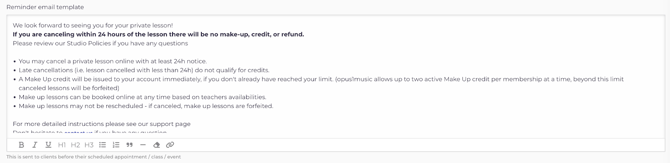
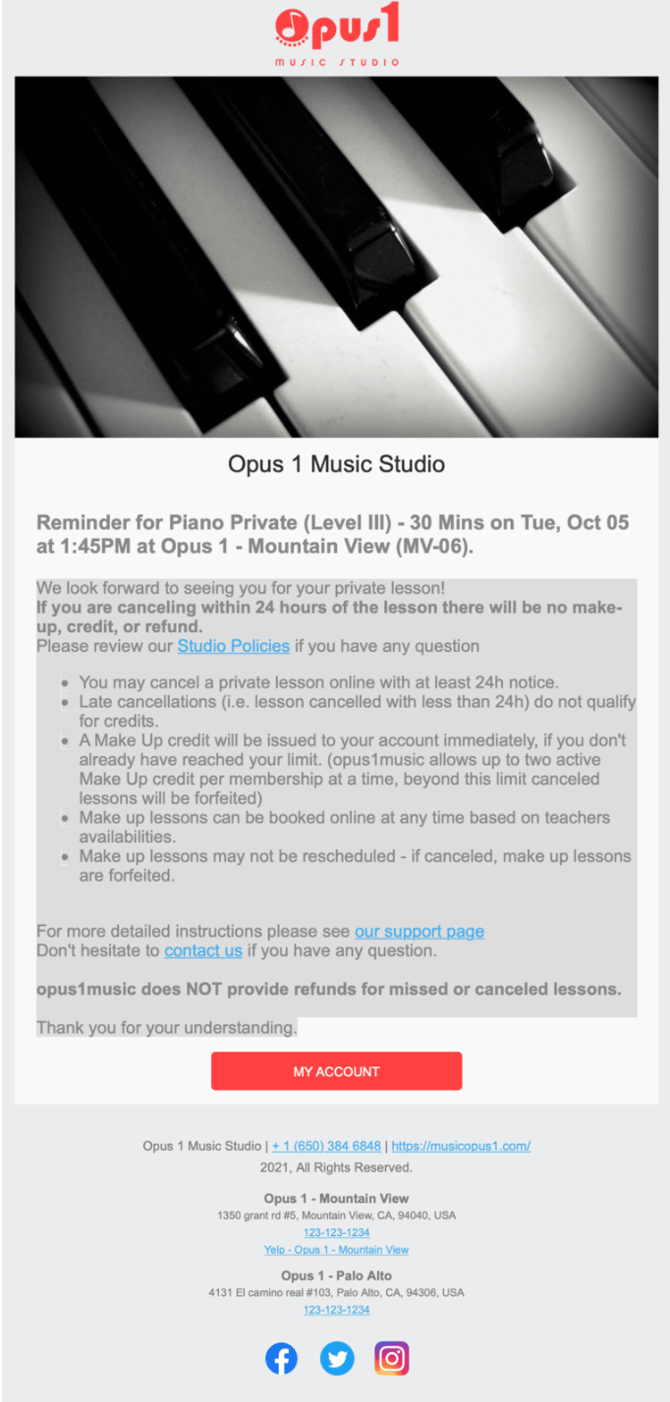
Reminder emails are called Appointment/Group Class Reminders in your business’s default notifications. They are sent via email at a specified amount of time prior to the start of your clients’ appointments / group classes. The timing is configured in your service’s Calendar settings:
Appointment / Group Class Confirmations
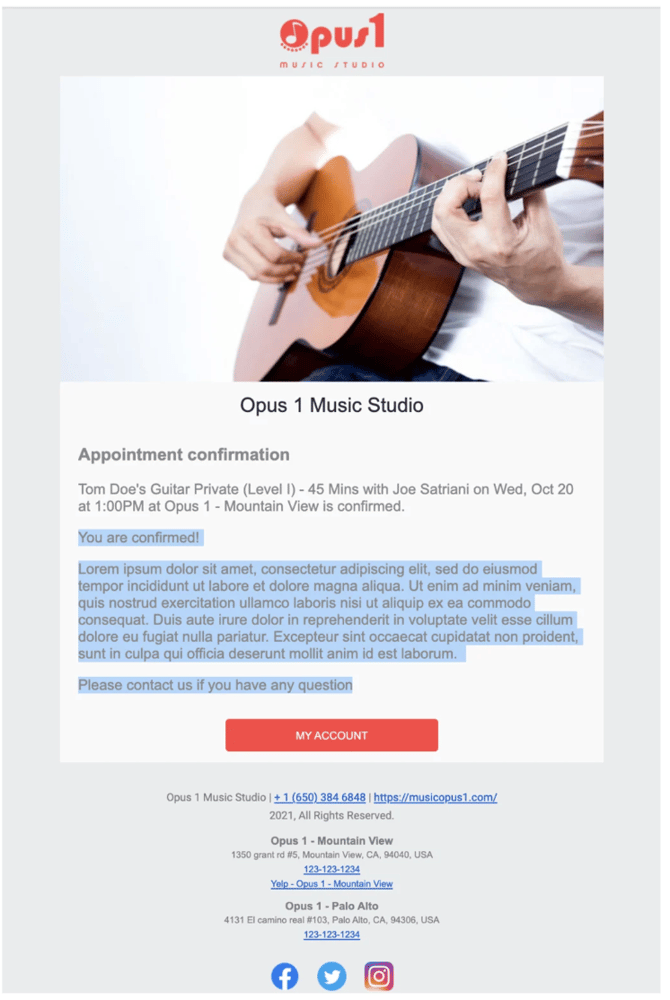
Your clients receive an email confirming their appointment / group class booking. In the example below, the highlighted text is customizable using the Confirmation Email template:
Confirmation emails are called Enrollments in your business’s default notifications, and are sent as soon as your client is enrolled in an appointment / group class and always include the details of their booked service:
Appointment / Group Class Cancellations
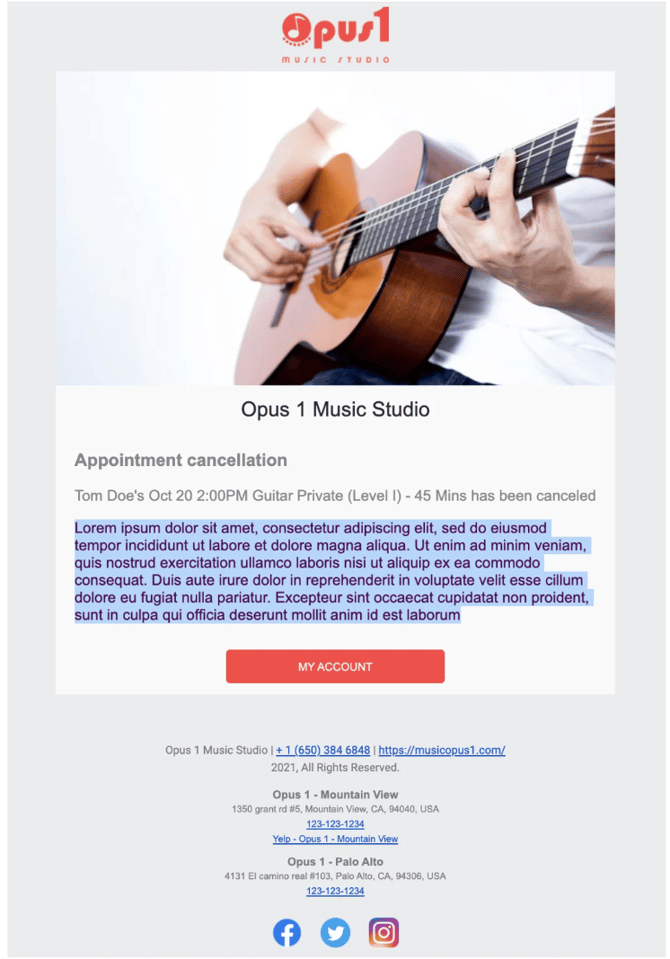
Your clients receive an email notification when their appointment / group class has been cancelled and are called Cancellations in your business’s default notifications and In the example below, the highlighted text is customizable using the Cancellation Email template:

Cancellation emails always include the name of your client’s cancelled appointment / group class:
Appointment / Group Class Updates
Whenever the details of your clients’ upcoming appointments / group classes are updated, your clients will receive an email notifying them of any changes made to their schedule. Changes that might be made include:
- Time change
- Date change
- Substitute teacher
- Room change
These email notifications are called Appointment/Group Class Updates (time/location/staff) in your business’s default notifications.
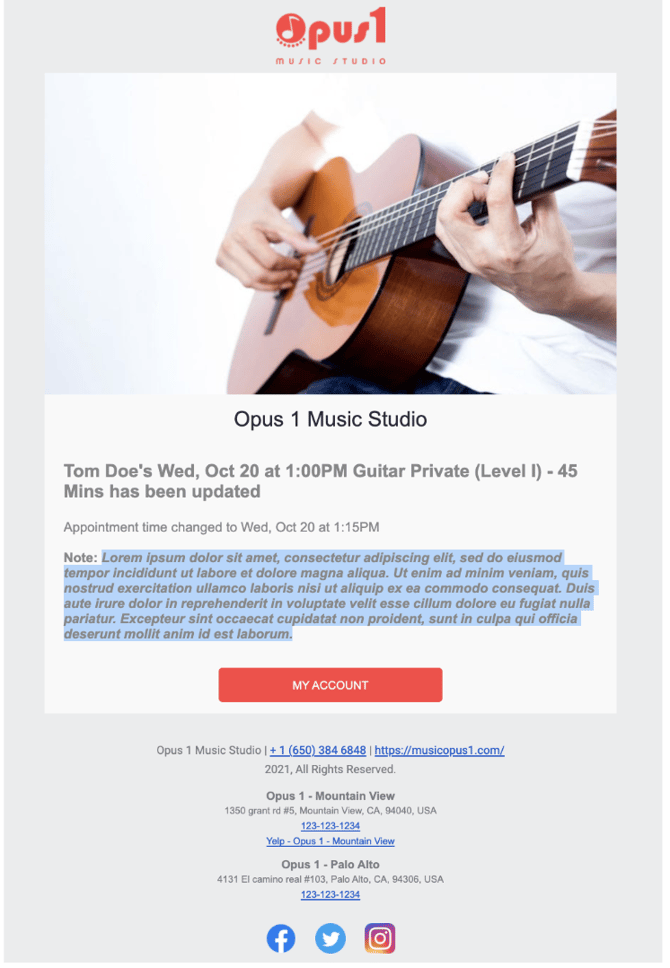
You have the option to leave a Notification Message when you are updating your clients’ appointments / group classes that will be included in the body of the email notification. The details of the update(s) to your clients’ schedules are always included in the body of the email notification.

In the below example, the Notification Message is highlighted:
In the case of updating your clients’ appointments / group classes to assign a substitute teacher, your client will also receive an email notification containing an introduction to their substitute teacher.
In the example below, Steve Vai has been assigned as a substitute teacher in an appointment update. Note that the introduction for the substitute teacher is pulled from their staff biography set up in their staff profile: 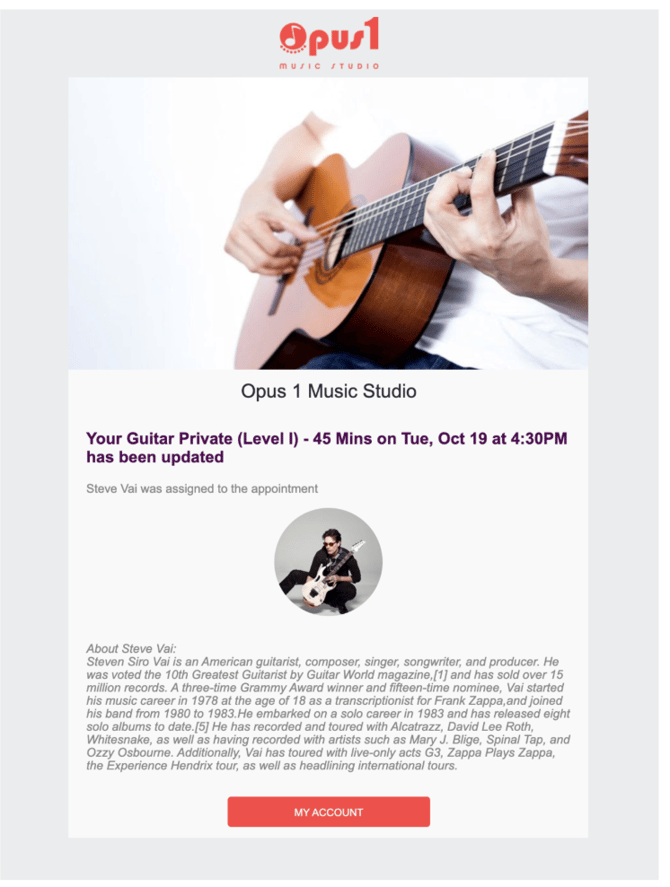
**Note that when updates are made to an appointment / group class, there will be a toggle where you can choose not to notify the client:
Appointment / Group Class Subscription Updates
Whenever the details or your clients’ subscriptions are updated, your client will receive an email notifying them of any changes made. Changes that might be made include:
- Payer change
- Auto-pay enabled or disabled
- Payment reminders enabled or disabled
- Discount added or removed
These email notifications are called Subscription updates in your business’s default notifications.
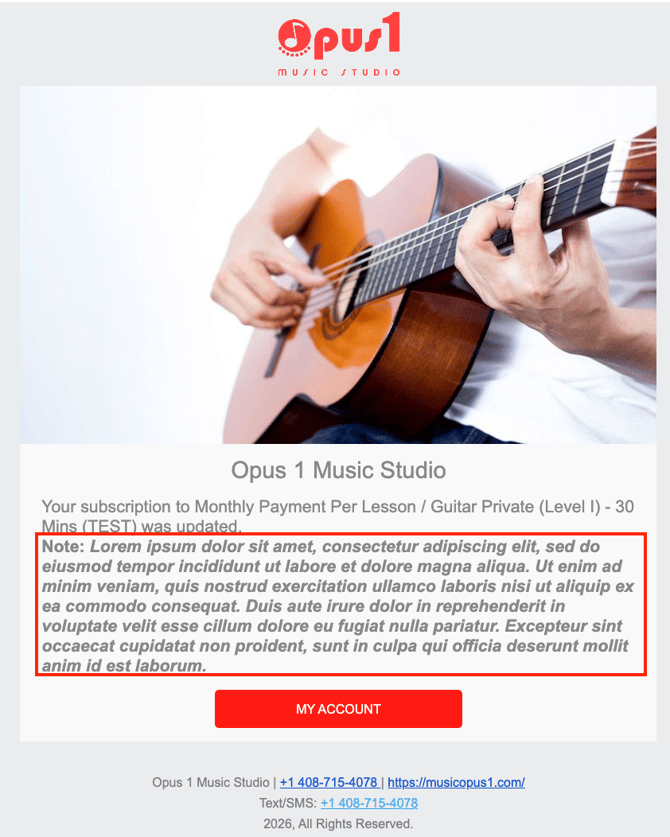
You have the option to leave a Notification Message when you are updating your clients’ subscriptions that will be included in the body of the email notification The details of the update(s) to your clients’ subscription are always included in the body of the email notification.

In the example below, the Notification Message is boxed:
Appointment / Group Class Credit Reminders
If a client has credits approaching their expiration date, you can set up and customize reminder emails that are sent to them. These email notifications are called Unused/Expiring Credits reminder in your business’s default notifications. More information about utilizing this feature can be found here.
To enable these at the service level and customize the cadence, navigate to the service > Notifications / Templates > Notification Settings. Note that the wording in these emails is not customizable.

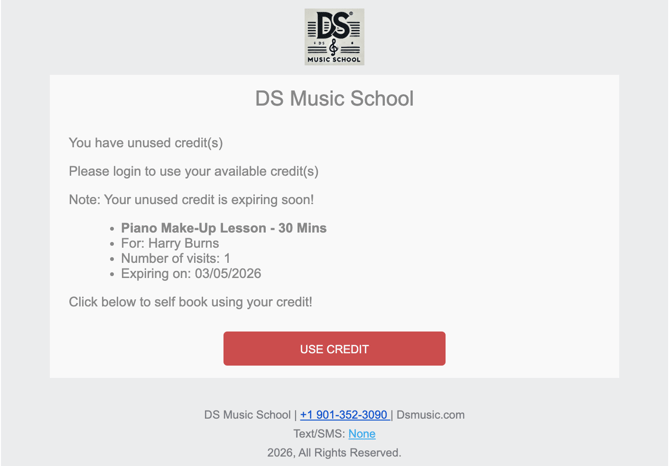
Toggle on Send reminder for unused/expiring credit(s) and then adjust the toggle(s) according to your preferences:
- Send reminder for unused/expiring credits before they expire (in days)
- Send reminder for unused/expiring credits once every (in days)
Automated Conversion Emails (for trials only)
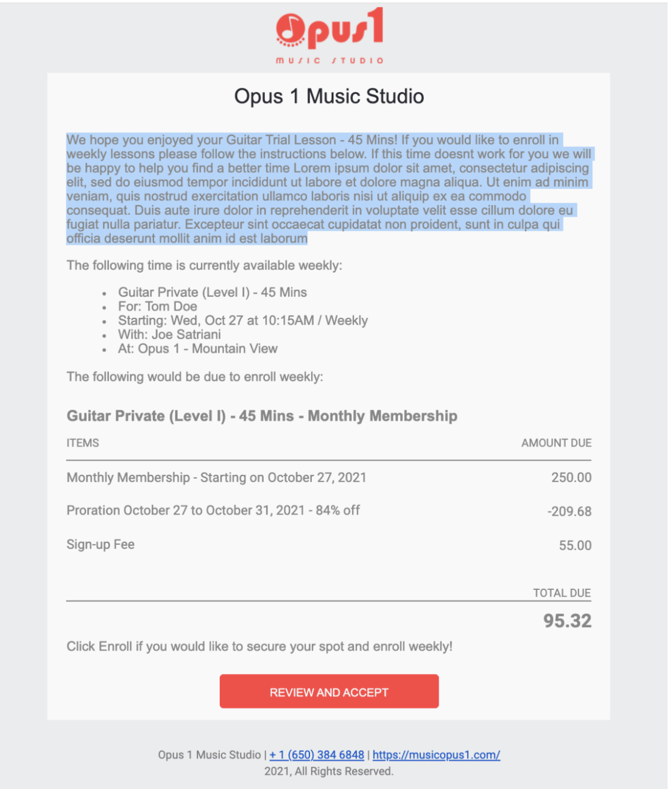
When automated conversions are enabled, your client will receive a notification email following the completion of a trial lesson containing a link to a proposal for recurring lessons if the time/day/teacher is also available on an ongoing basis. You can read more about automated conversions here.
In the example below, the highlighted text is customizable using the Automated Conversions Email template found in your services’ templates:
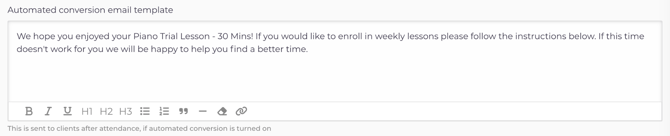
Automated conversion notifications always include the details of the proposed service (date, time, teacher, etc.) and a price quote:
Automated Follow Up Emails
When automated follow-ups are enabled, clients will receive a notification email once attendance has been taken for an appointment/group class.
Automated follow-ups are enabled on a per-service basis. If automated conversion and automated follow-ups are enabled for the same service, the automated follow-up email will only be sent if the automated conversion email cannot be sent due to schedule conflicts.
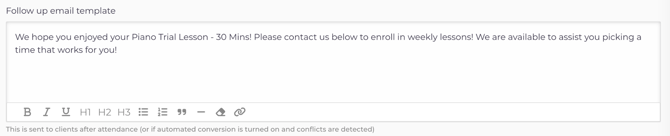
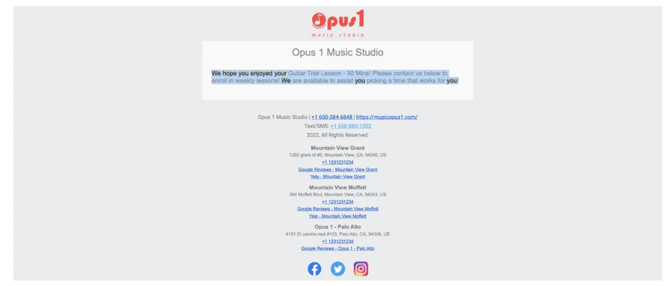
In the example below, the highlighted text is customizable using the Follow Up Email Template at the service level:
Waitlist Notifications
Waitlist notifications inform clients when a spot becomes available. There are two types of waitlist notifications:
- Appointment-based waitlist notifications
- Group class-based waitlist notifications
Appointment-Based Waitlist Notifications
These must be enabled by an administrator for individual clients. They allow clients to receive an automated email notification when a desired appointment spot has opened up. More information on enabling those as well as how they appear can be found in our article, Using Appointment Waitlist Notifications
Group Class-Based Waitlist Notifications
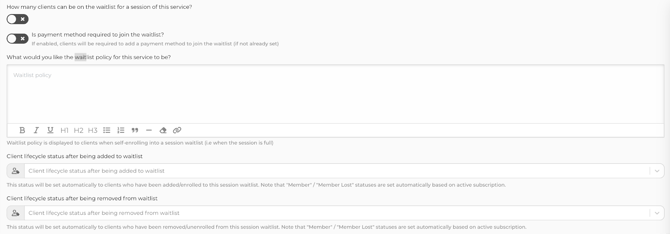
When configuring your group class services, you have the option to configure various aspects of waitlists for a class:
-
How many clients can be on a waitlist
-
If a payment method is required to join a waitlist
-
What you’d like the waitlist policy to say
-
Client’s lifecycle after being added and/or removed from the waitlist
Additionally, you have the ability to customize whether or not you want waitlists and waitlist notifications enabled at the individual group class level:

If a client is added to a waitlist, whether by an administrator or if they add themselves via a self-booking link, they’ll receive a confirmation email prompting them to finalize:
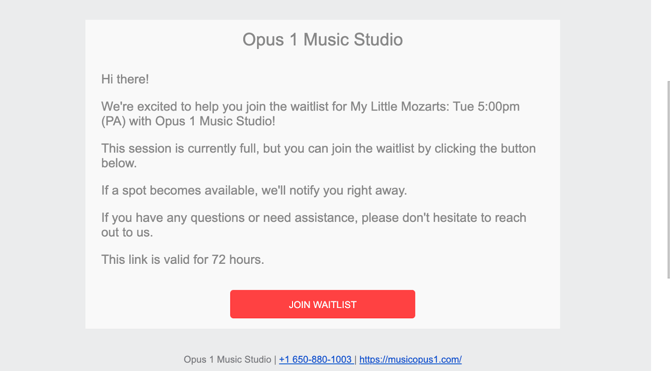
When a spot becomes available for the class, everyone on the waitlist receives an email notification. The email they receive will prompt them to contact your school to secure the spot: 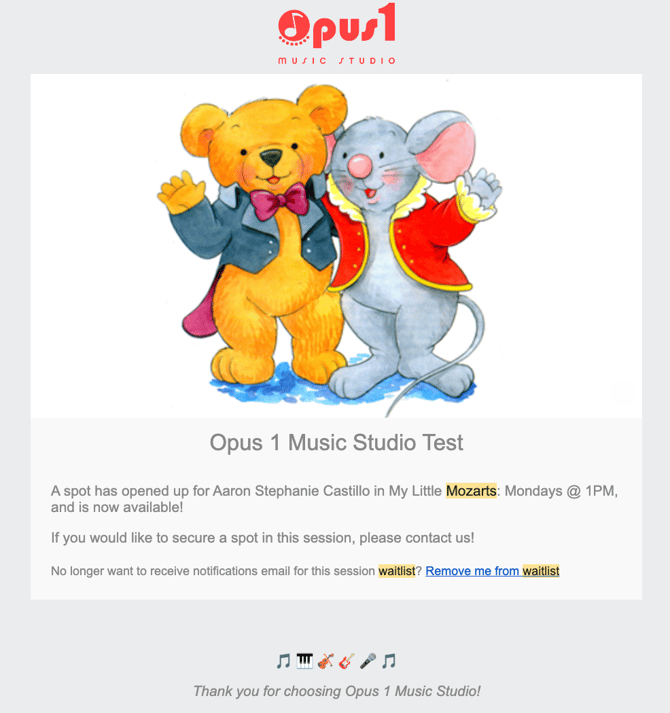
These notification templates are system-generated and not editable.
Proposals
You can send a client a proposal for appointments, which is a great way to facilitate getting a payment method on file for a new client. You can read more about sending proposals here.
When you send a proposal, you will have the option to include a one-time message, highlighted in the picture below.
The rest of a proposal email is populated with the details of the proposal - date/time/teacher/service - and a price quote for that proposal:
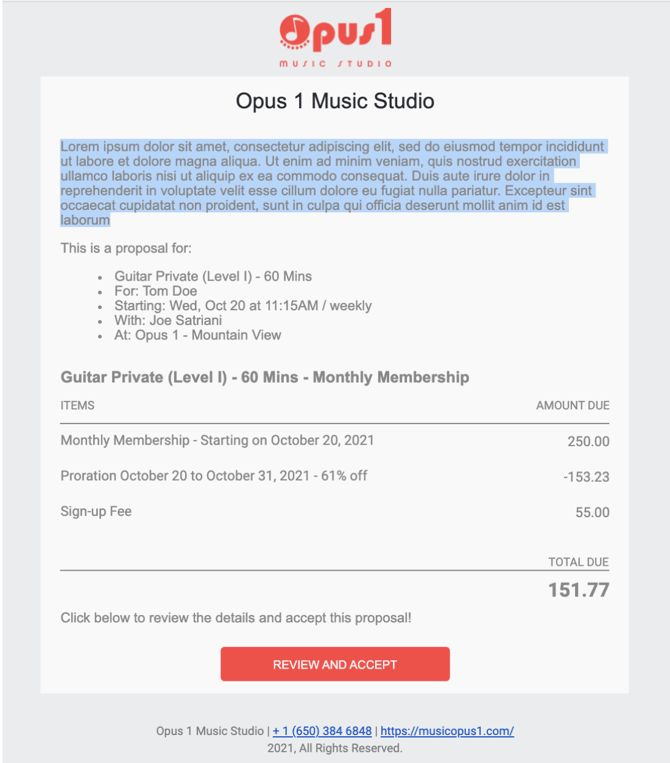
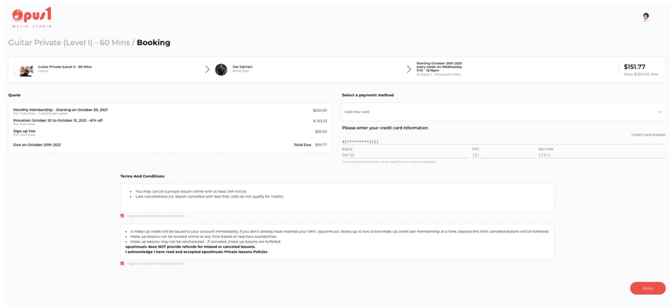
When your clients clicks REVIEW AND ACCEPT, above, they will be redirected to a self-booking portal with the details of their proposal (see below).
This self-booking portal is automatically populated with the details contained in the proposal email and requires your client to accept the terms and conditions associated with your services and provide payment information before booking:
Subscription End
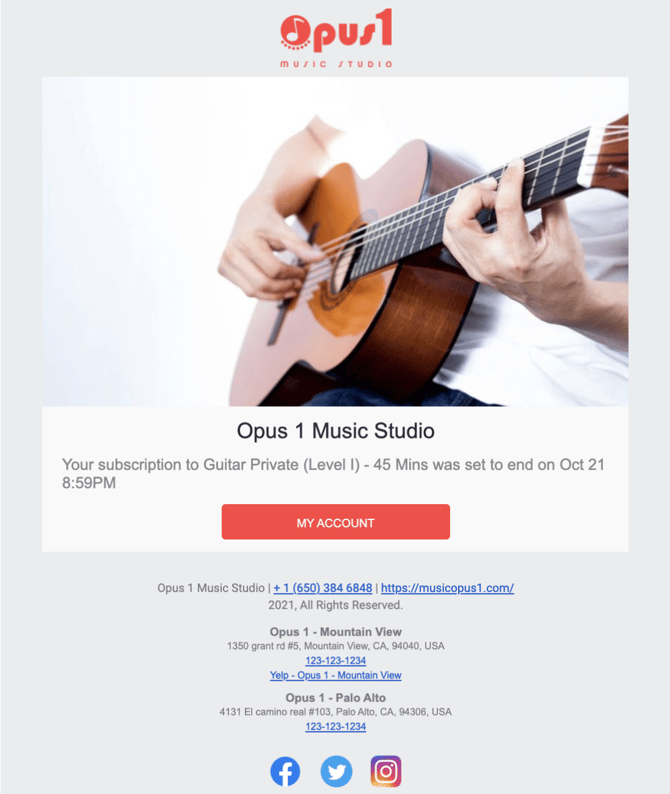
When your clients’ subscriptions have been set to end, they will receive a notification email informing them that their subscription has been set to end on the specified date, and this notification is also sent to your client’s account managers and the primary instructor for that subscription.
Subscription end notifications do not allow you to provide a custom message:
Birthday Messages
Birthday messages allow you to send automated greetings to clients on their birthdays.
These messages are fully customizable.
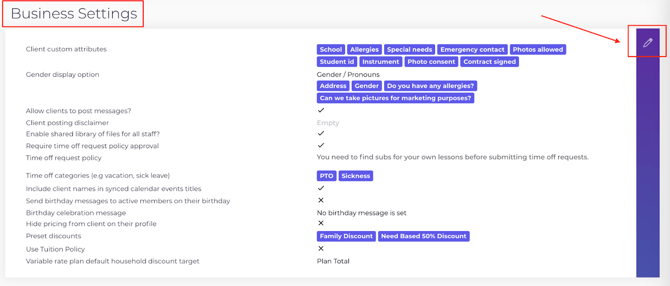
Enable and edit birthday messages
-
Navigate to your left hand menu and click the gear icon > Business
-
Open the General tab
-
Find Business Settings
-
Click the pencil icon to edit
You must toggle birthday messages on before the message field appears:
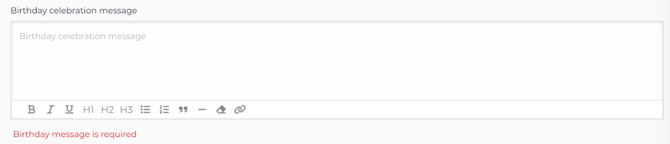
Note that similar to Welcome Emails, any wording you add in this template box will serve as the entire body of the automated message to the client.
Terms & Conditions Reminders
These reminders prompt clients to log in and accept Terms & Conditions if they were enrolled in a subscription by an administrator. Customers who self-enroll will be prompted to accept your terms & conditions at the time of enrollment.
- Reminder templates are not editable and will include the name of the subscription they are enrolled in
- Terms & Conditions content can be edited (read more: Managing Terms & Conditions)