---
title: How do I see a family's details while I'm texting them?
description: Check a parent's email, their kids, and the family's next two classes in Opus1.io SMS without leaving the text conversation you're replying to.
---

[Skip to content](https://kb.opus1.io/how-do-i-see-a-familys-details-while-im-texting-them#main-content)

English

Show submenu for translations

![Opus1-3-icon-color-1.png\]](https://kb.opus1.io/hs-fs/hubfs/Opus1-3-icon-color-1.png?height=50&name=Opus1-3-icon-color-1.png)

Open main navigation

Close main navigation

- English
  
  Show submenu for translations
- Go to opus1.io

 Go to opus1.io

 Hello. How can we help you?

- There are no suggestions because the search field is empty.

1. [opus1io Knowledge Base](https://kb.opus1.io/?hsLang=en)
2. [Communication](https://kb.opus1.io/communication?hsLang=en)
3. [SMS](https://kb.opus1.io/communication?hsLang=en#sms)

# How do I see a family's details while I'm texting them?

## See a family's email, their kids, and their next two classes while you text them, without leaving the conversation. In Opus1.io, open Clients \> Instant Messaging and select a conversation. The client details panel beside the thread shows the person you're texting, their email, the students on their account, and the family's next two upcoming classes, each labeled with the student it is for. The panel is read-only.

**Applies to:** Owner, Manager, Staff  
**PLUS Feature:** No  
**Plan:** Requires SMS  
**Last updated:** October 12, 2026

### **Table of Contents**

1. [Overview](https://kb.opus1.io/how-do-i-see-a-familys-details-while-im-texting-them#overview)
2. [Open and close the client details panel](https://kb.opus1.io/how-do-i-see-a-familys-details-while-im-texting-them#open-and-close-the-client-details-panel)
3. [What the panel shows](https://kb.opus1.io/how-do-i-see-a-familys-details-while-im-texting-them#what-the-panel-shows)
4. [Upcoming classes](https://kb.opus1.io/how-do-i-see-a-familys-details-while-im-texting-them#upcoming-classes)
5. [When the thread shows only a phone number](https://kb.opus1.io/how-do-i-see-a-familys-details-while-im-texting-them#when-the-thread-only-shows-a-phone-number)
6. [Where to make changes](https://kb.opus1.io/how-do-i-see-a-familys-details-while-im-texting-them#where-to-make-changes)
7. [Who can see the panel](https://kb.opus1.io/how-do-i-see-a-familys-details-while-im-texting-them#who-can-see-the-panel)
8. [FAQ](https://kb.opus1.io/how-do-i-see-a-familys-details-while-im-texting-them#faq)
9. [Related Articles](https://kb.opus1.io/how-do-i-see-a-familys-details-while-im-texting-them#related-articles)

---

#### **Overview**

A parent texts the studio number: "Is Maya still on for Thursday?" To answer, the front desk needs to know which family this is, which of their kids they mean, and what is on the schedule. Without the panel, that means leaving the conversation, finding the client profile, and then checking the schedule.

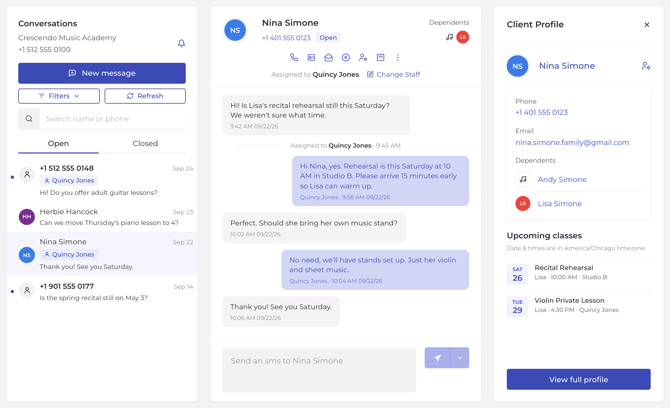
In Opus1.io, the client details panel keeps that lookup beside the thread. You see who the number belongs to, how to email them, which students are on their account, and the family's next two classes, then reply in the same window.

**Why:** Faster, more confident replies at the front desk. Staff answer from what is on screen instead of switching pages mid-conversation, and they are less likely to confirm the wrong child's class.

---

#### **Open and close the client details panel**

The panel appears once a conversation is open. There is nothing to turn on in Settings.

1. In Opus1.io, go to **Clients \> Instant Messaging**.
2. Select a conversation in the list.
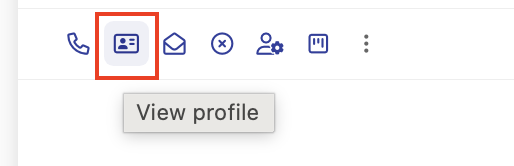
3. Click the **view profile** icon and the client card will open up next to the conversation thread
   
   ![Screenshot 2026-10-12 at 11.15.43 AM](https://kb.opus1.io/hs-fs/hubfs/Screenshot%202026-10-12%20at%2011.15.43%20AM.png?width=514&height=166&name=Screenshot%202026-10-12%20at%2011.15.43%20AM.png)

![SMS\_Inbox\_-\_Client\_Profile](https://kb.opus1.io/hs-fs/hubfs/SMS_Inbox_-_Client_Profile.png?width=670&height=408&name=SMS_Inbox_-_Client_Profile.png)

To give the thread more room, close the panel with the profile icon in the conversation header. Click the same icon to bring the panel back. If you closed it by accident and it seems to have disappeared, that icon is where to look.

When you select a different conversation, the panel switches to that person and their family. It never keeps the previous family on screen. Opening a conversation or reading the panel does not send anything to the family.

---

#### **What the panel shows**

The top of the panel in Opus1.io is the person whose phone number is on the thread. The students on that person's account also appear as small photos in the conversation header, so you can see at a glance which family you are talking to.

| What you see | Why it matters |
| --- | --- |
| **Name** | Confirms which family you are talking to before you reply |
| **Email** | Lets you follow up by email, or send something longer, without opening the profile |
| **Students** | Shows which of the kids the message is likely about |
| **Upcoming classes** | Answers "when is the next one?" without opening the schedule |

If the thread is a parent's phone, the panel shows that parent and the students on their account. If the thread is a student's own phone, the panel shows that student.

---

#### **Upcoming Classes**

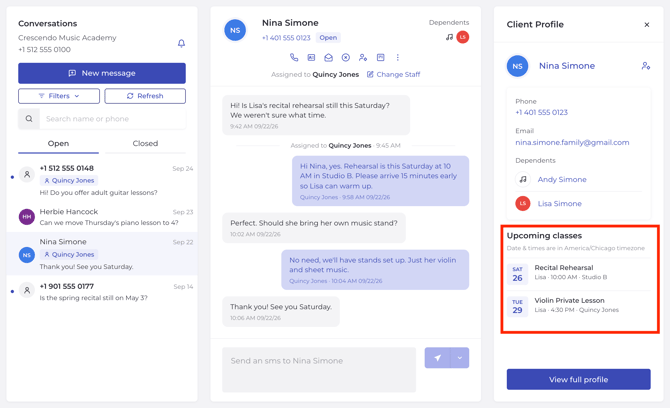
The bottom of the panel shows the family's **next two upcoming classes**.

- The limit is two classes for the whole family, not two per student. A family with four kids still shows two.
- Each class names the student it is for, so you can tell Maya's Thursday class from her brother's.
- For anything further out, open the client profile or the main schedule in Opus1.io.
![SMS\_Inbox\_-\_Client\_Profile-1](https://kb.opus1.io/hs-fs/hubfs/SMS_Inbox_-_Client_Profile-1.png?width=670&height=408&name=SMS_Inbox_-_Client_Profile-1.png)

---

#### **When the thread shows only a phone number**

The panel needs a client in Opus1.io to show. If the conversation title is still a phone number, nobody in your school has that number saved as their primary phone, so there are no details to display.

Use **Link to existing client** in the conversation header to match the number to a family already in Opus1.io, or create a new client from there if the person is new.

![Screenshot 2026-10-10 at 8.02.26 PM](https://kb.opus1.io/hs-fs/hubfs/Screenshot%202026-10-10%20at%208.02.26%20PM.png?width=670&height=114&name=Screenshot%202026-10-10%20at%208.02.26%20PM.png)  
Once the number is saved as their primary phone, the panel fills in with their details, students, and classes. The steps are in How do I link an SMS conversation to a client?for more help. 

If the panel shows the wrong person, the number is saved as the primary phone on the wrong profile. Correct the primary phone on the client profiles. The message history stays on the conversation.

---

#### **Where to make changes**

The panel is for reading. Changes happen in the same places they always have in Opus1.io.

| You want to… | Go to |
| --- | --- |
| Fix a name, phone number, or email | The client profile |
| Attach an unnamed number to a family | **Link to existing client** in the conversation header |
| Cancel, reschedule, or book a class | The main schedule |
| See the family's full schedule | The client profile or the main schedule |
| Leave an internal note or a note for the family | The comments on the client profile |

---

#### **Who can see the panel**

Anyone who can open Instant Messaging sees the panel on an open conversation. There is no separate permission for it.

Staff see every conversation on the selected studio SMS number, not only their own students. Families never see Instant Messaging or this panel. They text the studio number from their own phones.

SMS Instant Messaging is a premium add-on. If it is not on for your school, Opus1.io shows an upgrade message in place of the inbox, contact customer.success@opus1.io or [book time with our team here](https://meetings.hubspot.com/brianne-cardona/sms-inquiry?uuid=414d2d74-728d-4cfd-a00c-bfd2bffc8480).

---

#### **FAQ**

**Can I cancel or reschedule a class from the panel?**  
No. The class list is read-only. Make the change on the main schedule.

**Why do I see only two classes when the family has four kids?**  
The panel shows the family's next two classes in total, each labeled with the student it is for. Open the client profile or the main schedule for the rest.

**Can I fix a parent's email from the panel?**  
No. Name, phone, and email are edited on the client profile. The panel picks up the change the next time you open the conversation.

**The panel is missing, but a conversation is open.**  
It has probably been closed. Click the profile icon in the conversation header to show it again. If the thread title is a phone number rather than a name, link it to a client first.

---

#### **Related Articles**

- [How do I use SMS Conversations?](https://kb.opus1.io/how-do-i-use-sms-conversations?hsLang=en) — *a tour of the whole inbox, from the Open and Closed tabs to sending*
- [How do I link an SMS conversation to a client?](https://kb.opus1.io/how-do-i-link-or-relink-an-sms-conversation-to-a-client?hsLang=en) — *turning a phone-number thread into a named family, so this panel fills in*
- [How do I start a new SMS conversation?](https://kb.opus1.io/how-do-i-start-a-new-sms-conversation?hsLang=en) — *texting a family first instead of waiting for them*
- [How do I assign an SMS conversation to a teammate?](https://kb.opus1.io/how-do-i-assign-an-sms-conversation-to-a-teammate?hsLang=en) — *handing a family's question to the teacher who knows the answer*
- [How do I link dependents with their account managers?](https://kb.opus1.io/how-do-i-link-dependents-with-their-account-managers?hsLang=en) — *fixing which students appear under a parent*
- [Who can see client comments and staff comments?](https://kb.opus1.io/client-comments-vs-staff-comments?hsLang=en) — *where to leave notes about a family, since the panel does not take them*

- [Account & Troubleshooting](https://kb.opus1.io/account-troubleshooting?hsLang=en#main-content)

    - [General](https://kb.opus1.io/account-troubleshooting?hsLang=en#general)
    - [Login & Access](https://kb.opus1.io/account-troubleshooting?hsLang=en#login-access)
    - [Release Notes](https://kb.opus1.io/account-troubleshooting?hsLang=en#release-notes)
- [Business](https://kb.opus1.io/business?hsLang=en#main-content)

    - [General](https://kb.opus1.io/business?hsLang=en#general)
    - [Business Profile & Billing](https://kb.opus1.io/business?hsLang=en#business-profile-billing)
    - [Client Data & Forms](https://kb.opus1.io/business?hsLang=en#client-data-forms)
    - [Integrations](https://kb.opus1.io/business?hsLang=en#integrations)
    - [Locations & Rooms](https://kb.opus1.io/business?hsLang=en#locations-rooms)
    - [Self-Booking Links](https://kb.opus1.io/business?hsLang=en#self-booking-links)
    - [Terms & Conditions](https://kb.opus1.io/business?hsLang=en#terms-conditions)
- [Calendar & Scheduling](https://kb.opus1.io/calendar-scheduling?hsLang=en#main-content)

    - [General](https://kb.opus1.io/calendar-scheduling?hsLang=en#general)
    - [Batch Schedule Actions](https://kb.opus1.io/calendar-scheduling?hsLang=en#batch-schedule-actions)
    - [Calendar Notes & Display](https://kb.opus1.io/calendar-scheduling?hsLang=en#calendar-notes-display)
    - [Enrollment](https://kb.opus1.io/calendar-scheduling?hsLang=en#enrollment)
    - [Recurring & Rescheduling](https://kb.opus1.io/calendar-scheduling?hsLang=en#recurring-rescheduling)
    - [Substitutes](https://kb.opus1.io/calendar-scheduling?hsLang=en#substitutes)
- [Clients](https://kb.opus1.io/clients?hsLang=en#main-content)

    - [Account Managers & Dependents](https://kb.opus1.io/clients?hsLang=en#account-managers-dependents)
    - [Client Experience](https://kb.opus1.io/clients?hsLang=en#client-experience)
    - [Client Records](https://kb.opus1.io/clients?hsLang=en#client-records)
    - [Credits](https://kb.opus1.io/clients?hsLang=en#credits)
    - [Gift Cards](https://kb.opus1.io/clients?hsLang=en#gift-cards)
    - [Invoices](https://kb.opus1.io/clients?hsLang=en#invoices)
    - [Payments & Auto-Pay](https://kb.opus1.io/clients?hsLang=en#payments-auto-pay)
    - [Subscriptions](https://kb.opus1.io/clients?hsLang=en#subscriptions)
    - [Waitlist Notifications](https://kb.opus1.io/clients?hsLang=en#waitlist-notifications)
- [Communication](https://kb.opus1.io/communication?hsLang=en#main-content)

    - [Email & Notifications](https://kb.opus1.io/communication?hsLang=en#email-notifications)
    - [SMS](https://kb.opus1.io/communication?hsLang=en#sms)
    - [Voice](https://kb.opus1.io/communication?hsLang=en#voice)
- [Grow Your Music School](https://kb.opus1.io/grow-your-music-school?hsLang=en#main-content)

    - [Convert Prospects](https://kb.opus1.io/grow-your-music-school?hsLang=en#convert-prospects)
    - [Email Campaigns](https://kb.opus1.io/grow-your-music-school?hsLang=en#email-campaigns)
    - [Get Found & Capture Leads](https://kb.opus1.io/grow-your-music-school?hsLang=en#get-found-capture-leads)
    - [Reviews & Reputation](https://kb.opus1.io/grow-your-music-school?hsLang=en#reviews-reputation)
- [Payment Processing](https://kb.opus1.io/payment-processing?hsLang=en#main-content)

    - [General](https://kb.opus1.io/payment-processing?hsLang=en#general)
    - [Opus1 Payments (Stripe)](https://kb.opus1.io/payment-processing?hsLang=en#opus1-payments-stripe)
    - [Clover Connect (FiServ / Cardpointe)](https://kb.opus1.io/payment-processing?hsLang=en#clover-connect-fiserv-cardpointe)
- [Reporting](https://kb.opus1.io/reporting?hsLang=en#main-content)

    - [Attendance](https://kb.opus1.io/reporting?hsLang=en#attendance)
    - [Credits](https://kb.opus1.io/reporting?hsLang=en#credits)
    - [Invoices](https://kb.opus1.io/reporting?hsLang=en#invoices)
    - [Subscriptions](https://kb.opus1.io/reporting?hsLang=en#subscriptions)
    - [Transactions](https://kb.opus1.io/reporting?hsLang=en#transactions)
    - [Data Exports](https://kb.opus1.io/reporting?hsLang=en#data-exports)
- [Services](https://kb.opus1.io/services?hsLang=en#main-content)

    - [Appointments](https://kb.opus1.io/services?hsLang=en#appointments)
    - [Building Services](https://kb.opus1.io/services?hsLang=en#building-services)
    - [Cancellation](https://kb.opus1.io/services?hsLang=en#cancellation)
    - [Events](https://kb.opus1.io/services?hsLang=en#events)
    - [Optimization & Conversion](https://kb.opus1.io/services?hsLang=en#optimization-conversion)
    - [Payment Plans](https://kb.opus1.io/services?hsLang=en#payment-plans)
    - [Group Classes](https://kb.opus1.io/services?hsLang=en#group-classes)
    - [Subscription-Only](https://kb.opus1.io/services?hsLang=en#subscription-only)
- [Staff](https://kb.opus1.io/staff?hsLang=en#main-content)

    - [Availability & Self-Booking](https://kb.opus1.io/staff?hsLang=en#availability-self-booking)
    - [Calendar Sync](https://kb.opus1.io/staff?hsLang=en#calendar-sync)
    - [Onboarding & Offboarding](https://kb.opus1.io/staff?hsLang=en#onboarding-offboarding)
    - [Payroll & Compensation](https://kb.opus1.io/staff?hsLang=en#payroll-compensation)
    - [Roles & Permissions](https://kb.opus1.io/staff?hsLang=en#roles-permissions)
    - [Teacher Tools & Access](https://kb.opus1.io/staff?hsLang=en#teacher-tools-access)
    - [Time-off](https://kb.opus1.io/staff?hsLang=en#time-off)
- [Stats](https://kb.opus1.io/stats?hsLang=en#main-content)

    - [Conversions](https://kb.opus1.io/stats?hsLang=en#conversions)
    - [Client Metrics](https://kb.opus1.io/stats?hsLang=en#client-metrics)
    - [Dashboard](https://kb.opus1.io/stats?hsLang=en#dashboard)
    - [Group Class Enrollment](https://kb.opus1.io/stats?hsLang=en#group-class-enrollment)
    - [Today](https://kb.opus1.io/stats?hsLang=en#today)
    - [Utilization](https://kb.opus1.io/stats?hsLang=en#utilization)

[![Chill listening crop-3](https://kb.opus1.io/hs-fs/hubfs/Opus1-3-icon-color-2.png?width=35&height=24&name=Opus1-3-icon-color-2.png "Chill listening crop-3")](http://opus1.io)

<https://www.facebook.com/opus1.io/>

Copyright © 2025, Opus1.io