![Opus1-3-icon-color-1.png]](https://kb.opus1.io/hs-fs/hubfs/Opus1-3-icon-color-1.png?height=50&name=Opus1-3-icon-color-1.png)
Applies to: Owner / Manager / Staff
PLUS Feature: No
Plan: Requires SMS
Last updated: October 10, 2026
Table of Contents
- Why studios use a shared inbox
- Before you start
- Open the inbox
- Find the right conversation
- Start a new conversation
- Work inside a conversation
- Send a message
- Who on your team can use it
- Troubleshooting
- FAQ
- Related Articles
Why studios use a shared inbox
Most studios start out texting families from whichever phone is nearest. That works until the person who sent the text is teaching, out sick or gone, and nobody else can see what was agreed with the parent.
Using SMS in Opus1.io fixes that. Every text to and from your studio number lands in one inbox your whole front desk can see.
- Families always hear from the school. Replies come from the studio number, so a parent never gets a text from a teacher's personal mobile.
- Nothing walks out the door. Text history sits on the same family profiles you already use in Opus1.io, not on a phone that leaves with a staff member.
- Your team doesn't double up. You can see who has a conversation, who is typing, and what still needs a reply.
Before you start
Your studio needs the SMS Instant Messaging add-on. Without it, the page shows Instant Messaging / SMS is a premium feature currently not enabled for your account instead of the inbox. Follow this link to speak to someone on our team about how to set that up on your account.
You need a studio SMS number. If your school runs a different number per location, each location has its own inbox. The list only shows conversations for the number currently selected, so check you are looking at the right one before you reply.
To switch numbers, use the drop-down under Conversations in the Instant Messaging control on the left hand side. Note that it only appears when your school uses more than one number for SMS. Switching closes the thread you had open and reloads the list for the new number: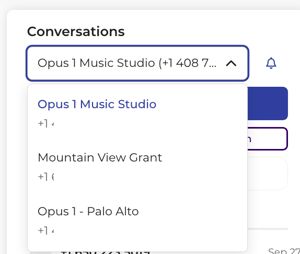
Open the inbox
There are two ways in, and both show the same conversations.
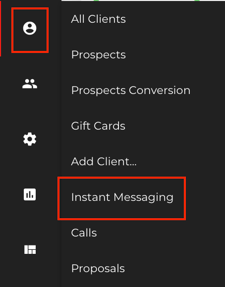
- The full page. Go to Clients > Instant Messaging. Use this when texting is the main job, such as working through the morning's replies:
- The Messages panel. Select the SMS icon in the top navigation. The panel opens beside whatever you're working on, so you can answer a parent without leaving the calendar or a client's profile. While you're on the full page, the icon is greyed out because you don't need it:

You can also jump straight into one family's thread from the SMS icon on their client profile, from the prospect board, or from a client's history.
Find the right conversation
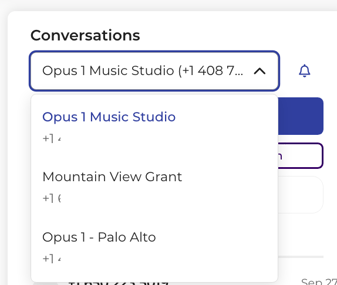
The list on the left shows your studio number under the Conversations heading. A school-wide number shows the business name, and a per-location number shows the location name, for example Westside Music School (555) 014-2200:
Open and Closed
Conversations sit on two tabs. Open holds threads that still need something from your team. Closed holds threads where the work is done. Closing a conversation doesn't delete it, and you can move it back to Open if you change your mind.
Reading a conversation doesn't close it. A text stays on Open after you've read it, until someone decides it needs nothing more and closes it. Closed conversations always count as read, so unread only matters on the Open tab.
Why: The Open tab becomes your to-do list. When it's empty, every family has an answer.
Search and filters
Use Search name or phone to find a family. Search matches names and phone numbers, not the words inside messages.
Use Filters to narrow the list, for example to staff only, prospects only, Assigned to me, everything assigned to one teammate, Show blocked only, or Unassigned. Remove the filter to see every conversation again. Select Refresh to pull in anything new.
What each row tells you
Each row tells you who you are dealing with before you open it.
| What you see | What it means |
|---|---|
| Photo | The number is matched to someone in Opus1.io. No photo means nobody has linked it yet. |
| Name, or a phone number | The family or prospect. A bare number means the texter isn't linked to anyone. |
| Contact or prospect label | Whether this is an enrolled family or a lead. Prospect status tags show here too. |
| Dot and bold name | Unread. Nobody on your team has opened the newest text yet. |
| Teammate's name | The staff member the conversation is assigned to. |
| Typing dots | A teammate is writing a reply right now. |
| Opt-out notice | This person has opted out of texts. You cannot text them. |
| Failed notice | The last message did not go out. |
Opening a conversation marks it read for everyone on your team. If you open one and can't deal with it yet, use the Mark as unread icon at the top of the thread so it stands out again: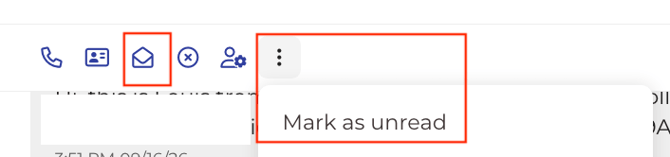
Start a new conversation
Select New message. In the same box you can either pick someone already in Opus1.io or type a phone number you've never texted before.
If you pick someone you already have a conversation with, Opus1.io jumps to that thread rather than starting a second one, so a parent's history stays in one place.
Work inside a conversation
Pick a conversation and it opens on the right. Until you do, that side shows No Conversation Selected, which only means the page is waiting for you.
The header
The header names the person you're texting. It shows their name if the number is linked, or the number itself if it isn't, with your studio number underneath. Select the name or the photo to open their client profile.
The first photo is the person you're texting. Their students' photos show beside it, so you know which children a parent is texting about before you read a word.
From the header you can also:
- Close or reopen the conversation.
- Mark as unread, to flag it for later.
- Call the person from the phone icon, when a quick conversation beats a string of texts.
- Block a number you never want to hear from again, such as a spammer. Choose Block number from the ⋯ menu and confirm. Texts from that number stop reaching your inbox, and you can’t text it until you choose Unblock number.
- Show or hide the client details beside the thread by clicking the 3 dots > view contact card
- Assign it to a teammate. Select Assign staff, search for the person and assign it. The bar then reads Assigned to with their name, and Change Staff hands it on.
Client details beside the thread
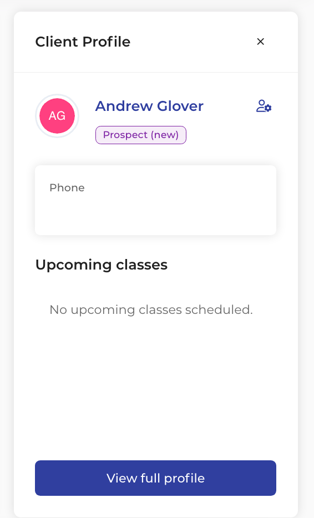
When the number is linked to a client, a details panel can show beside the thread with their email, their students, and the family's next two upcoming classes. Parents often text about exactly that, so you can answer "when is Maya's next class?" without opening their profile. If you want more room, you can close the panel when you're done viewing it.
A number nobody recognizes
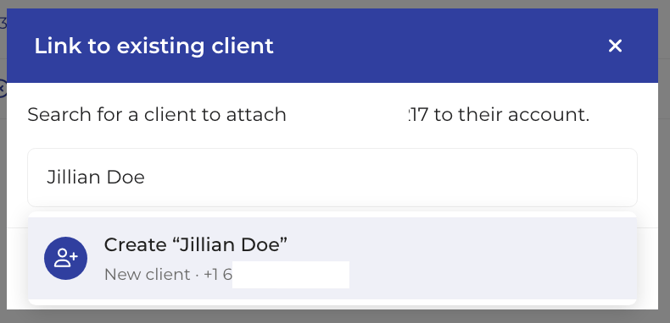
When a number isn't linked to anyone, use Link to existing client to match it to a family already in Opus1.io. If the texter is new, type their name in the same box, choose Create "Jordan Lee" and select Create and link. That creates a client with this number and links the thread in one step.
Messages in the thread
Each message shows who sent it and whether it was received, sent, delivered or failed. Managers and Owners can delete an individual message where they have that permission.
Send a message
The reply box sits at the bottom of an open conversation.
- Type and send. Select Send, or press Ctrl+Enter on Windows or Cmd+Enter on a Mac.
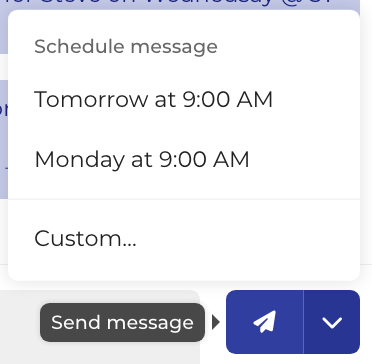
- Send it later. Select the arrow beside Send to schedule the text, for example for tomorrow at 9:00 AM, or pick a custom date and time. Only times still ahead of now are offered. This lets you reply at 10 PM without a parent's phone buzzing at 10 PM.
- Add photos. Use the image control or drag files onto the box. JPEG and PNG work, up to 3.4 MB each and 10 images per message.
- Use a template. Pick template drops in a saved message, such as your weather-closure text.

- Shorten links. A long web address can be shortened, and you can undo that if you'd rather not.
- Watch the counter. A message can be up to 2,000 characters.
If a teammate starts typing in the same conversation, you'll see it, for example Robert is typing. When two or more people are typing, it reads 2 users are typing…. That is your cue to let them finish rather than texting the parent twice. Families never see this.
Some situations stop a message going out, and each one tells you why on screen.
| What you see | What it means |
|---|---|
| Message is empty | Nothing is typed and nothing is attached. Hover over the message to see this reason. |
| Message is too large | The message is over 2,000 characters. Hover over the message to see this reason. |
| A banner where the reply box would be | This family has opted out of texts. You can't override it, and there's nothing to type into until they opt back in. |
| Failed to send message | The text didn't go. Check the number and try again. |
| Successfully sent message | It went, and the box clears. |
Who on your team can use it
| Role | Open the inbox | Send texts |
|---|---|---|
| Owner | Yes | Yes |
| Manager | Yes | Yes |
| Staff | Yes | Yes |
| Limited Staff | No | No |
Anyone who can open the inbox sees every conversation for the selected studio number, not only the families they teach. That's deliberate, because it is a shared inbox. Families never see this page. They text your studio number from their own phones and get a normal text back.
Troubleshooting
The page shows an upgrade message. The SMS add-on isn't turned on for your school. Contact customer.success@opus1.io or book time with our team here.
I can't find a conversation I know exists. Check the studio number in the list header first, because you may be in another location's inbox. Then check the Closed tab, clear the search box and clear any Filters.
Send is greyed out. The box is empty or the message is over 2,000 characters.
There’s a banner instead of a reply box. Either the family has opted out of texts, or someone on your team blocked the number. An opted-out family has to opt back in. A blocked number can be unblocked from the ⋯ menu with Unblock number.
A parent says they never got my text. Open the conversation and check the message's status. A failed message is also flagged on the row in the list. If the family has opted out, nothing will send until they opt back in.
FAQ
Can I search for something a parent said in a text? No. Search looks up names and phone numbers only. To find an old message, open the family's conversation and scroll back through it.
Why does a phone number show instead of a name? Nobody has matched that number to a person in Opus1.io yet. Use Link to existing client in the header, or create a new client from the same box.
Which number do my replies come from? The studio number shown at the top of the list. If your school has a number per location, switch numbers before replying so the family sees the right one.
Can teachers text families from their own login? Staff can, and their replies still come from the studio number. Limited Staff can't open the inbox, so a teacher on that role should ask the front desk to send it.
Related Articles
- How do I mark SMS conversations as closed?: closing threads once the family has an answer
- How to schedule a one-time text: set up a one-time text to send to a family the next day
- How do I create SMS templates?: saving messages you send often
- Batch SMS best practices: texting many families at once without hitting carrier limits