![Opus1-3-icon-color-1.png]](https://kb.opus1.io/hs-fs/hubfs/Opus1-3-icon-color-1.png?height=50&name=Opus1-3-icon-color-1.png)
Applies to: Owner, Manager, Staff, Limited Staff
PLUS Feature: No
Plan: All
Last updated: September 24, 2026
Table of Contents
- Overview
- Which board to use
- Where to find the comment boards
- Who can see and post on each board
- How families post client comments
- How to let a Limited Staff teacher see staff comments
- How @ mentions work
- Who can delete a comment
- FAQ
- Related Articles
Overview
Every client profile in Opus1.io has two comment boards, and they have different readers.
Client comments are shared with the family. Maya's teacher posts Tuesday's practice notes there, attaches the new sheet music, and Maya's mom gets an email with the note in it. The same note stays on Maya's profile for anyone who can see that board.
Staff comments are for your office. "Card declined twice, called and left a voicemail" or "Sibling on the waitlist for Thursday group class" belongs here. Families never see this board and are never emailed about it.
Why: Posting a private note on the wrong board is hard to undo. The family has already received the email by the time you notice. Choosing the board before you type is the whole decision.
Which board to use
| You want to… | Use | What happens |
|---|---|---|
| Send the family a lesson note or practice plan | Client comments | The client and their account managers are emailed the note |
| Share a file the family should keep, such as sheet music or a form | Client comments | Attach it with the paperclip. Staff comments have no paperclip |
| Record something the family must not see | Staff comments | No email to the family |
| Pull a coworker into an internal conversation | Staff comments | Type @ and pick their name. They get an email |
| Send the same note to every student in a group class | Message Session Clients on the class | Copies the note onto each student's client comments and emails each family |
| Send a text message | Instant Messaging | A separate channel from both boards |
When both tabs are on screen, hover over them to check which is which. Staff comments reads "Staff comments are only visible to staff and above." Client comments reads "Client comments are visible by limited staff and clients." That second line is the short version: Staff, Managers, and Owners can read client comments too.
In Opus1.io, posting a staff comment also updates Last follow up on that person, which is what prospect and CRM views show. A client comment does not change it. Logging a call from a prospect card, such as Called - left a voicemail, writes onto the same staff comments board.
Where to find the comment boards
Open a client's profile. On a computer, Comments sits to the right of the profile details. On a phone, the card starts collapsed, so tap Show More. See all comments opens the same boards on a taller page.
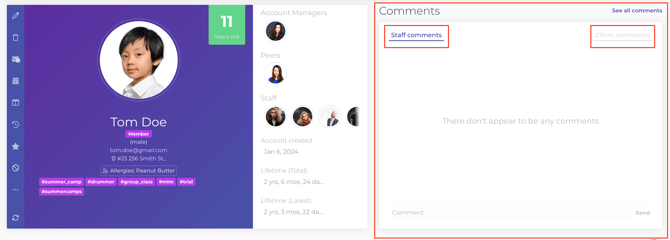
Each person in Opus1.io has their own boards. A parent's comments are on the parent. Maya's lesson notes are on Maya. If you open a parent's profile and the board is empty, Opus1.io prompts you to select a dependent to see their comments.
If you see only one tab, that is the only board your role can use on that profile. A staff member's own profile shows Staff comments only. Every staff member also has a client record, and their client comments live there.
Who can see and post on each board
In Opus1.io, a teacher's "own students" are the people they have taught in the last 15 days or are scheduled to teach in the next 15 days. Two teachers who share Maya both see her client comments. A teacher who does not teach Maya does not.
| Role | Client comments | Staff comments |
|---|---|---|
| Client | Read their own board. Post only if family posting is on | No tab |
| Account manager | Read their own board and each dependent's. Post only if family posting is on | No tab |
| Limited Staff | Read and post for their own students. Posting is on by default | Only for their own students, and only after you turn it on. Off by default |
| Staff | Read every client. Post for their own students | Read and post on every client |
| Manager | Read and post on every client | Read and post on every client |
| Owner | Read and post on every client | Read and post on every client |
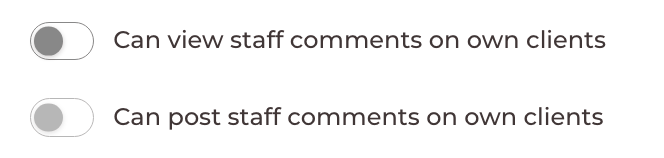
To stop a Limited Staff teacher from writing client comments while still letting them read the board, turn off Can post own client comments on their staff profile:

Staff, Managers, and Owners have no per-person toggle. Their access comes from the role.
How families post client comments
Opus1.io keeps family posting off until you allow it. Studio posts work either way, so teachers can write lesson notes whether or not families can reply.
- Go to Settings > Business > General.
- Click the pencil icon on Business Settings.
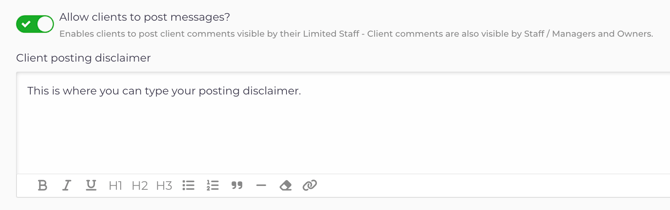
- Turn on Allow clients to post messages?
- Optionally, add a Client Posting Disclaimer. It appears in the family's comment box, so use it to say what belongs there and how quickly teachers reply.
- Click Update Business.
Only an Owner can change Business Settings.
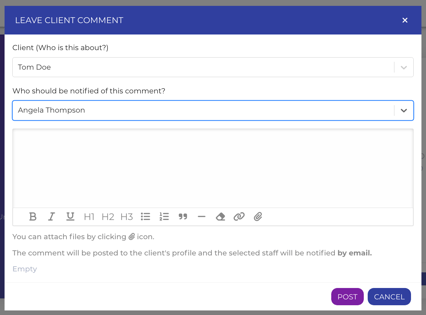
Once it is on, the family clicks Leave a comment on their own profile or their child's. They choose who the comment is about under Client (Who is this about?), then pick one of that student's teachers under Who should be notified of this comment? The Post button stays grayed out until they pick a teacher. They can attach files with the paperclip. The comment is saved on the student's profile and the chosen teacher is emailed.
How to let a Limited Staff see staff comments
In Opus1.io, Limited Staff teachers cannot see Staff comments until you allow it, and then only for their own students.
- Open the teacher's staff profile and click Update.
- Make sure Staff Role is set to Limited Staff, so the permission toggles appear.
- Turn on Can view and post Staff comments on own clients:
- Click Update Staff.
With it on, they can read the full staff thread for each of their students, post on it, and delete what they wrote. Two teachers who share a student and both have the toggle on see each other's notes.
Why: Some studios want teachers in the loop on billing or behavior notes for their own students. Others keep the office board to the office. The trade-off is visibility against privacy, so decide per teacher.
How @ mentions work
@ works only on Staff comments. Type @, pick a staff member, and they get an email with the subject You have been mentioned. It says who mentioned them, which client the comment is about, and includes the comment itself.
The email does not give them access to the board. If you mention a Limited Staff teacher who does not have Can view and post Staff comments on own clients, or who does not teach that student, they still receive the email with the full comment. They cannot log in and open the thread. Mention only the people who should read what you wrote.
Client comments have no @. When the studio posts there, Opus1.io emails the client and their account managers automatically.
Who can delete a comment
Click the trash icon on the comment. Opus1.io asks Delete Comment? before removing it.
| Role | Can delete |
|---|---|
| Limited Staff | Client comments they posted. Staff comments they posted, while the staff comments toggle is on |
| Staff | Comments they posted, on either board |
| Manager and Owner | Any comment on either board |
| Client and account manager | Nothing |
Deleting a comment removes it from the profile. It does not recall an email that has already been sent.
FAQ
A parent read a note I meant for the office. What happened?
It was posted on Client comments, which Opus1.io emails to the family. Delete it if needed, then post internal notes on Staff comments going forward.
Why can't parents leave a comment?
An Owner has to turn on Allow clients to post messages? in Business Settings. Until then, families see the board but have no Leave a comment button.
A teacher got an @ mention email but can't find the thread.
The email is all they get unless they can open staff comments for that student. For a Limited Staff teacher, turn on Can view and post Staff comments on own clients. It only covers students they teach.
Can two teachers see each other's notes on a shared student?
On client comments, yes. On staff comments, yes if both have staff comment access.
Related Articles
- Roles & Permissions — what each role can do across Opus1.io, including what counts as a teacher's own client
- Customizing Limited Staff Permissions — the other per-teacher toggles, including attendance and contact info
- How To Add A Messaging Disclaimer to Your Client Comments — writing the note families see before they post
- How do I leave lesson notes for an entire session roster? — one note to every student in a group class
- How do my staff share files with their clients? — the file library, for files you want kept outside a comment thread
- How do I add a new teacher or staff member? — setting the role before you set comment access