![Opus1-3-icon-color-1.png]](https://kb.opus1.io/hs-fs/hubfs/Opus1-3-icon-color-1.png?height=50&name=Opus1-3-icon-color-1.png)
Applies to: Owner, Manager, Staff
PLUS Feature: No
Plan: All
Last updated: November 9, 2026
Table of Contents
- Overview
- Who can enroll a student
- Before you start
- Enroll a student from their first class
- Enroll a student for a trial or drop-in dates
- Enroll several students at once
- Review the quote and finish
- When the class is full
- Send a proposal instead of enrolling now
- Other ways to open Enroll Students
- What enrolling will not do
- FAQ
- Related Articles
Overview
Group Piano meets Mondays at 4:00 PM. Maya's first class is the Monday three weeks from now. You put her on that class from that Monday forward, on the monthly plan the studio sells for Group Piano. Then you either take payment at the desk or leave the invoice open.
Opus1.io treats the date you pick as Maya's first visit. On a full-class plan or a monthly plan, she stays on every scheduled date after that until the class ends. A year-round class has no end date, so her first date sets everything on her roster and on her quote from then on.
Why: Picking the right first date decides two things together, the roster and the bill. If the date is right, families aren't charged for classes they never attended, and teachers aren't marking absences for students who were never coming.
| You pick | What the student is enrolled in | Plan that usually fits |
|---|---|---|
| One date | That date and every scheduled date after it | Full class payment, or a monthly membership |
| Several dates on the same class | Only those dates | Per visit, or single visit |
Who can enroll a student
Owners, Managers, and Staff who have permission to enroll students in classes can use Enroll Students in Opus1.io. They open it from the Enroll In Class icon in the top bar. If that icon is missing, the signed-in role does not have permission to enroll.
[IMAGE: Opus1.io top bar with the Enroll In Class icon highlighted] Alt: Opus1.io top navigation bar with the Enroll In Class icon highlighted
Families don't use this screen. They join through a group-class self-booking link, which only works while the class is open to online sign-ups. Staff can still enroll a student after that online window has closed. Staff can also put a student on a class date that has already happened, which families can't do. That is covered in How do I enroll a student on a past class date?
Before you start
You can only enroll a student into a class that is already on the calendar, and the student has to already be a client in Opus1.io.
- The group class exists and has a payment plan. Setup is covered in How do I create a group class? For help choosing a plan, see Choosing the Right Payment Plan for your Service.
- The class has dates. Add Date(s) has been saved on the class. A group class with no dates has nothing to enroll into.
- The class is active. A disabled class is closed to enrollment.
- The student is already a client. The search on this screen only finds people who are already saved in Opus1.io. If someone else pays, add the student and their account manager first.
Decide on the first date before you open the screen. If a class started in September, Maya's first date is the Monday she will actually attend. If you pick the class's original first date, Opus1.io puts her on every Monday since September and the quote charges for each of them.
Enroll a student from their first class
Click the Enroll In Class icon in the top bar. The page that opens is titled Enroll Students.
- The page first shows Start by filtering classes above to see availability. Use the Services and Classes filters, plus Ages, Teachers, and Locations if they appear, to choose the group class and its day and time, such as Beginners – Mondays at 4pm.
- The heading changes to Select a start date (or multiple dates for "drop-in" enrollment). Each row is one class date, showing how many drop-in seats and regular seats are left. Unlimited regular slots means the class has no size limit. Use Show more dates to see later dates.
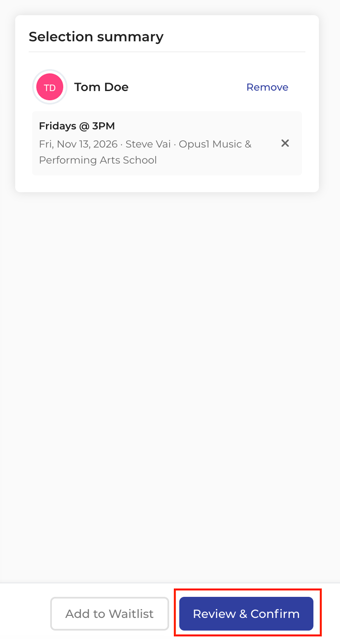
- Click the student's first date. In Search students by name or email, select Maya. She appears as a chip on that date and in the Selection summary on the right. If she is already on that date, Opus1.io shows Already enrolled.
- Don't select any other dates on this class. A single date is treated as a start date, and Opus1.io enrolls her from that date forward.
- Click Review & Confirm.
⚠️ Warning: Show previous dates lets you choose a date that has already happened. Only pick a past date when the student should appear on that past roster and be billed for it.
Enroll a student for a trial or drop-in dates
Use drop-in dates when Maya is sitting in on a couple of Mondays or trying the class once, rather than joining for the rest of the term.
- On Enroll Students, filter to the class.
- Add her to each date she will attend. When you select two or more dates on the same class, Opus1.io enrolls her on those dates only.
- Click Review & Confirm.
- On the quote, choose a per-visit or single-visit plan. The quote prices only the dates you selected.
A trial class works the same way: select one date and choose a single-visit plan. On a full-class or monthly plan, one date is a start date, and Opus1.io keeps her on every date after it. To set up a trial plan, see How do I create a trial payment plan for my group classes?
Enroll several students at once
Opus1.io lets you enroll several students into several classes at once. Add each student on the date of their first class. The Selection summary shows who is on which class. To remove a student, or to remove one class from a student, use the summary before you continue. Review & Confirm prices everyone in the summary, and students who share an account manager are billed on that account manager's invoice.
To enroll students who are already listed on a class roster, open that class and go to Roster / Waitlist. Select the students and click Enroll. In the Batch enroll from Roster window, pick their start date and click Review & Confirm. You can enroll up to 20 students at a time. Anyone already on that date is skipped and shown as Already enrolled.
Review the quote and finish
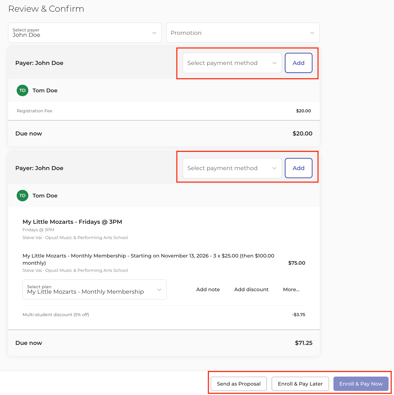
After Review & Confirm, Opus1.io shows a quote with a card for each payer. The card is labeled Payer: followed by their name, and that person receives the bill. The payer is usually the account manager.
- Check Due now before you charge anything. The amount depends on the plan and the start date. A monthly plan prorates the first month from the start date. A variable-rate full-class plan counts only the dates left in the class. A flat full-class plan charges the full package price no matter when the student starts.
- Set Select plan to the plan your studio sells for this class. It appears under the name you gave it, such as Group Piano – Monthly.
- Set Select payment method. Saved cards are listed, along with Cash, Check, and Use payment terminal. Add saves a new card or bank account to this payer.
- Use the row actions if you need them. The table below explains each one.
- Click the finish button that matches how you are collecting payment.
| Row action | When to use it |
|---|---|
| Add discount | Reduces the plan price or the signup fee. Set Recurring: Yes to keep the discount on future invoices, or Recurring: No for this invoice only. |
| Add note | Adds a line to the invoice that the family can see. |
| More... | Opens More options, which can include Use service credits, Use account balance, Do not notify the client(s), Skip deposit and charge full amount, and Skip first month proration. Leave Skip first month proration off if this month's charge should cover only the classes after the start date. |
| Promotion | Applies a current group class promotion. Promotions only discount the first invoice. For an ongoing tuition reduction, use a recurring discount instead. |
| Finish button | What happens |
|---|---|
| Enroll & Pay Now | Enrolls the student and charges the selected payment method. |
| Enroll & Pay Later | Enrolls the student and leaves the invoice open. |
| Enroll & Close Now | Appears instead when nothing is due. Enrolls the student and closes the invoice. |
| Send as Proposal | Sends the quote to the family instead of enrolling the student now. |
| Back | Returns to the dates and clears the plan and payment method you chose. |
When enrollment finishes, Opus1.io shows Clients have been enrolled in followed by the class name, which links to the class. Maya is on the roster from her start date, and not on any earlier dates.
When the class is full
A full class only stops families who sign up online. At the front desk, you can still go through Review & Confirm, and enrolling the student will put the class over its size limit.
If the student should wait for an open seat instead, click Add to Waitlist. For that button to work:
- The class must have a waitlist. On the group class, set how many students can wait, then click Enable Waitlist on the class.
- Only one class can be selected, along with the students you want to add.
- The class or date must be full, or its waitlist must be open.
Opus1.io adds the students to the waitlist and opens the class's Roster / Waitlist tab. Joining the waitlist doesn't create a tuition charge. If Enable Waitlist Notification is on, Opus1.io emails the next family when a seat opens. That family still has to enroll. The email doesn't add them to the roster.
To enroll someone from the waitlist, click Enroll in class on their row. Enroll Students opens with that student and class already chosen. You still need to pick the start date and the plan.
Send a proposal instead of enrolling now
Send as Proposal emails the quote to the family so they can accept it. The student isn't enrolled or charged until the family accepts. Sending a proposal doesn't hold the seat, so on a nearly full class someone else can take it first. For more detail, see If I send a proposal, is that spot automatically put on hold?
The payer needs an email address. If no payer on the quote has one, the button is turned off and Opus1.io explains that the proposal can't be sent. After you send it, Opus1.io confirms with A proposal has been sent for, and View Proposals opens your list of proposals.
Other ways to open Enroll Students
You don't have to start from the top bar. Opus1.io opens the same Enroll Students screen from these other places, with some details already filled in.
| Where you start | What to click | What is already filled in |
|---|---|---|
| The top bar | Enroll In Class | Nothing. Filter to the class, then choose the student and the date. |
| The student on the Prospect Board | Enroll in Class | The student. Filter to the class and pick the start date. |
| A class date on the calendar | Enroll Clients | That date, including a past date. Choose the student, then continue to payment. |
| A class roster | Roster / Waitlist, select students, Enroll | Those students. Pick the start date. |
| A waitlist row | Enroll in class | The student and the class. Pick the start date and the plan. |
What enrolling will not do
Opus1.io keeps enrollment separate from building and changing classes. Enrolling a student will not:
- Add class dates. Dates come from Add Date(s) on the class. You can only enroll into dates that already exist.
- Let a family sign up online. That needs a group-class self-booking link. See How to create and share a self-booking link.
- Switch a student who is already enrolled to another day. For one week, see How do I move a student to a different class date? To change their class from now on, see How do I transfer a student to another group class?
- Change the class size, teacher, or dates. Edit those on the class.
- Keep a discount on future invoices unless Recurring is set to Yes.
FAQ
A family says the website told them it's too late to join. Can I still enroll them? Yes. In Opus1.io, the join window only applies to online sign-ups. It is set on the group class under How many days after the start of the class can a client have their first scheduled date of the class? Enroll the student from Enroll In Class. This won't reopen online sign-ups for other families.
The quote charges the full term, but the student is starting halfway through. What do I do? This happens when the class uses a flat full-class plan, which charges the package price whatever the start date. Opus1.io still puts the student on the roster from the date you picked. Reduce the price with a one-time Add discount. If the group class also has a variable-rate plan, choose that one instead so Opus1.io charges only for the remaining dates.
I enrolled a student from the wrong date. How do I fix it? If nothing has been paid, unenroll the student and enroll them again in Opus1.io, starting from the date they will actually attend. If the invoice is already paid, credit the invoice for the extra classes. Don't click Enroll In Class a second time, because the first enrollment has already billed those dates.
Why isn't the class I need showing on Enroll Students? Opus1.io doesn't list any classes until you set a filter, so start by filtering to the group class. If you then see No date available, the class has no dates scheduled in that range. Click Show more dates, or add dates on the class with Add Date(s).
Related Articles
- How do I create a group class?
- How do I set up an individual class?
- Choosing the Right Payment Plan for your Service
- Full Group Class Payment Plans with Per-Visit Pricing
- How do I create a trial payment plan for my group classes?
- How do I enroll a student on a past class date?
- How do I move a student to a different class date?
- How do I transfer a student to another group class?
- How do I add a recurring discount to a subscription?
- How to create and share a self-booking link
- Using Promotional Links
- If I send a proposal, is that spot automatically put on hold?