![Opus1-3-icon-color-1.png]](https://kb.opus1.io/hs-fs/hubfs/Opus1-3-icon-color-1.png?height=50&name=Opus1-3-icon-color-1.png)
Applies to: Owner, Manager
PLUS Feature: No
Plan: All
Last updated: September 30, 2026
Table of Contents
- How a class fits inside a group class
- Who can set up a class
- Before you start
- Add the class
- Give the class its own settings
- Schedule the class dates
- Add another day or time
- Change a class you already set up
- Self-booking and the waitlist for one class
- FAQ
- Related Articles
How a class fits inside a group class
Say your school runs Group Piano for beginners: 45 minutes, billed monthly, up to eight students. It meets Mondays at 4pm, and a second group meets Tuesdays at 7pm. Same program and price, different students.
In Opus1.io, that is one group class with two classes inside it:
| Layer | What it holds | Example |
|---|---|---|
| Group class | The program you sell: length, payment plans, policies, emails | Group Piano – Beginners |
| Class | One day and time, with its own roster and teacher | Beginners – Mondays at 4pm |
| Class dates | The meetings on the calendar, in a room | Every Monday, 4:00–4:45, September to May |
Why: The price and policies stay on the group class, so Monday and Tuesday can never drift apart by accident. Each class still gets its own roster, so Monday's students never show up on Tuesday's list, and its own settings when one group is smaller, younger, or taught by someone else.
This article starts at the second layer. The group class itself, with its length, class size, and payment plans, is built first, in How do I create a group class?
A class is not a private lesson. Private lessons are appointment services, booked one student at a time on a teacher's open hours, and they have no classes inside them. See How Do I Set Up an Appointment-Based Service?
Who can set up a class
Adding, editing, and scheduling classes are Owner and Manager jobs in Opus1.io. Once a class has dates, the front desk can enroll students.
| Role | Add or edit a class | Schedule class dates | Enroll students |
|---|---|---|---|
| Owner | Yes | Yes | Yes |
| Manager | Yes | Yes | Yes |
| Staff | No | No | Yes |
Before you start
Build the group class first. In Opus1.io, a class can only be added inside a group class service that already exists and has at least one payment plan. If you have not built it yet, follow How do I create a group class? and come back here. That article walks through:
- Creating the service under Settings > Services > Add Service, with Group Class as the type.
- Setting the length and class size that every class inside it will share.
- Adding the payment plans families will choose from.
When the group class shows on your services list with a plan on its Payment tab, you are ready to add classes.
Then decide, for each class:
- Its day, time, and level, so you can name it clearly.
- Where it meets. You pick the location now and the room when you schedule dates.
- Who teaches it, if one teacher owns it.
- Whether it differs from the group class in size, age range, or description. If it differs in length or price, it needs its own group class instead.
Add the class
Where: open the group class, then Classes > Add Class
- Go to Settings > Services and open the group class.
- Open the Classes tab and click Add Class:

↓
- Enter a Class Name that says the day, time, and level, such as Beginners - Mondays at 4pm:
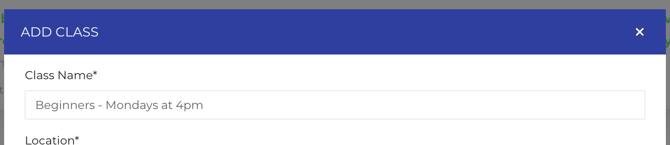
- Choose the Location:

- Fill in any of the optional settings:
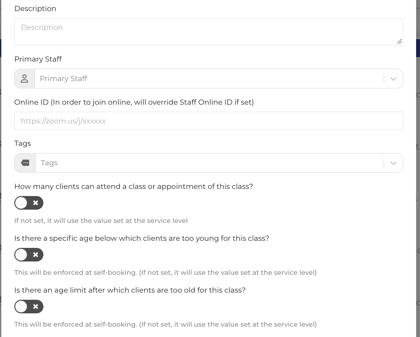
- Click Submit.
The class now appears on the Classes tab. It has no dates yet, so nothing is on the calendar and there is nothing to enroll students into.
Give the class its own settings
Every setting below is optional. Leave it empty and the class follows the group class. Set it and it applies only to this class in Opus1.io. You can set each one in Add Class, or later with Edit Class on the class.
| Setting | What it changes | Why you would set it |
|---|---|---|
| Primary Staff | The teacher families see when they sign up online, and the teacher shown on this class's subscriptions and invoices in reporting | A substitute can cover a date without families seeing a different teacher. Schools that pay teachers a share of class revenue can filter reports by teacher. |
| How many clients can attend a class or appointment of this class? | The class size, replacing the group class's size | One group meets in a smaller room, or you want a smaller beginner group. Online sign-up stops when the class is full. |
| Age limits | The ages allowed, replacing the group class's age range | One program for ages 10–16 can be split into classes for 10–11, 12–13, and 14–16. The limit applies when families sign up online. |
| Description | The text families read about this class when they sign up online | The format is the same but the content differs, such as a masterclass on a different topic each term. |
| Tags | Filters families can use to find this class when they sign up online | A group class with many classes (workshops by topic, level, or instrument) is easier to browse. Tags you have used before are offered again. |
A primary staff member is also filled in as the teacher when you schedule new dates for the class, unless you remove them.
Schedule the class dates
Where: open the class, then Add Date(s)
Scheduling dates is the step that puts a class on the Opus1.io calendar. The window is titled Schedule Class Date(s), and its location is already set from the class.
- Pick the Room. A class date holds that room from the moment it exists, even before anyone enrolls.
- Pick the Staff for these dates, if they are not already filled in from the primary staff.
- Set the Start Date and time. The end time follows the group class's length.
- Turn on Recurring for a weekly class, and choose when it ends: after a number of meetings, on a date, or never.
- Leave Skip scheduling date(s) when location is not available on so holidays and closures are skipped.
- Click Submit.
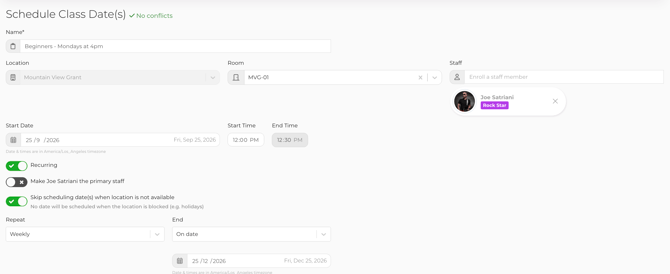
If the room or teacher is already booked at that time, Opus1.io warns you. You can change it or save anyway. For a winter term after fall, or more weeks on a class that keeps going, click Add Date(s) again.
To start filling the roster, click Enroll In Class at the top of the class. See How do I enroll my clients into group class services?
Add another day or time
Each day and time is its own class inside the same group class. In Opus1.io you can add it in either of two ways:
| Which way to use | How | Best when |
|---|---|---|
| Start fresh | Classes > Add Class again | The new class has a different teacher, size, or age range |
| Copy an existing class | Duplicate Class on a class you already built | The new class matches an existing one except for its name, day, and time |
A duplicate gets the same name with "(copy)" added. It does not copy class dates or enrolled students, and it copies the waitlist only if you turn on Include waitlist. Rename the copy with Edit Class, then schedule its dates.
A group class can hold as many classes as you run. Monday, Tuesday, and Wednesday Group Piano are three classes and three rosters, all at one price.
Change a class you already set up
Where: open the class, then Edit Class:
Use Edit Class to rename a class or change its primary staff, class size, age limits, description, or tags. Click Submit to save.
In Opus1.io, two changes reach further than the class itself:
- Changing or removing the primary staff updates the teacher on every pending and active subscription for the class, and on open and future invoices. Ended subscriptions and closed invoices keep the teacher they had.
- Editing the class does not move class dates you already scheduled. To change the day, time, room, or teacher of dates that exist, change the dates themselves.
Self-booking and the waitlist for one class
For families to sign up for a class online in Opus1.io, the group class has to be visible, a plan has to be enabled for self-booking, and the class has to have dates. The full checklist is in Let families enroll themselves on How do I create a group class?
Two settings live on each class:
- Self-booking. A new class allows families to sign up online. Click Disable Self-Booking on the class to keep it front-desk only, for example for a class you fill by invitation. Enable Self-Booking turns it back on.
- Waitlist. First set How many clients can be on the waitlist for a class of this service? on the group class. Then click Enable Waitlist on each class that should have one. Enable Waitlist Notification emails the next family when a spot opens.
FAQ
Can one class in a group class have a different price? No. Price lives on the group class's payment plans, and every class inside it shares them. If Tuesday costs more or runs longer, make it a separate group class.
How do I move a student from Monday to Tuesday? Use a class transfer from the student's class date or profile. It ends the Monday subscription and starts a Tuesday one. Opus1.io does not adjust billing for you, so check the new invoice before you finish. See How do I transfer a client to another group class?
A substitute is covering one week. Do I change the primary staff? No. Change the teacher on that class date only. The primary staff stays the teacher families see and the one reports show. See How do I assign a substitute teacher?
Can I set up a class before I know its schedule? Yes. Add the class now and leave Add Date(s) for later. Nothing appears on the calendar, and no room is held, until you schedule dates.
Related Articles
Before and after this step
- How do I create a group class? — the group class that each class sits inside
- How do I enroll my clients into group class services? — putting students on a class roster
- How to create and share a self-booking link — so families can find the class online
One class's settings in more detail
- How do I assign a primary staff to a group class? — including how it shows in reporting
- How do I set a class size for a specific group class?
- How do I set an age range for a specific group class?
Copying classes
- Batch Duplicating Group Classes — building group classes for other instruments or levels from one template