![Opus1-3-icon-color-1.png]](https://kb.opus1.io/hs-fs/hubfs/Opus1-3-icon-color-1.png?height=50&name=Opus1-3-icon-color-1.png)
Table of Contents
- Where to find the settings
- When a cancellation is "on time" vs. "late"
- Credit validity: how long a make-up credit lasts
- Caps: how many credits a student can earn
- How these settings work together
- FAQ
- Related Articles
Where to find the settings
Makeup credit mapping lives on the Cancellation tab of a service's edit page. Here's how to get there:
1. Open the Services page
Click services in the left hand navigation menu and you'll see all of your services listed
2. Click Update on the service you want to configure
Find the regular service you want to set up (for example, Piano Private Lessons - 30 min) and click the update button on the right:

This opens the service's edit page, which has several tabs across the top.
3. Open the Cancellation Tab
Click the cancellation tab. This is where all of the mapping happens. You'll see a Cancellation Policy section at the top, followed by three separate sections - one for each kind of cancellation.

↓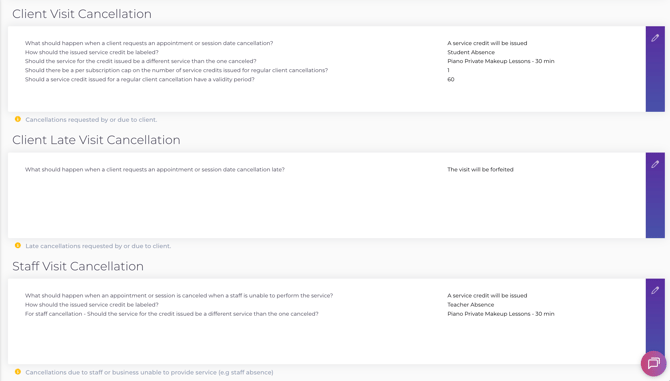
The three sections you'll configure are:
- Client Visit Cancellation - when a student cancels on time (or before the late cancellation cut-off)
- Client Late Visit Cancellation - when a student cancels after the cut-off (e.g. less than 24 hours before the lesson)
- Staff Visit Cancellation - when you or a teacher has to cancel (e.g. teacher absence)
Each one will have its own makeup credit mapping. They work the same way, so once you've done the first, the others will feel familiair.
When a cancellation is "on time" vs. "late"
Whether a cancellation is "on time" or "late" is the fork in the road that determines everything else — make-up credit issued, credit forfeited, or something in between, depending on your policy.
There are two ways to define that line. Your service uses one or the other, based on how you've configured late cancellation.
-
Hours-before mode
You set a number of hours before the lesson's scheduled start. Cancel before that window closes → on time. Cancel inside that window → late.
Why: This is the simplest setup and works well for most studios. A clear, consistent rule that families can understand and staff can explain in one sentence: "We need 24 hours' notice." -
Cutoff by day and clock time (advanced)
Instead of a fixed hour count, you define specific day-of-week and clock-time rules. For example: "Any Tuesday lesson becomes a late cancel after 8:00 PM the Monday before." The exact days and times come from your service configuration.
Why: Useful when your studio's real-world rhythm doesn't map cleanly to hours. A Monday–Friday studio might not want Saturday morning cancellations treated the same as a 2-hour notice mid-week. This mode gives you that precision.
ℹ️ Note: Only one mode applies per service. If you're not sure which your service uses, check your late cancellation settings under Settings > Services > [Service Name] > Cancellation Policy.
Credit validity: how long a make-up credit lasts
When your policy issues a make-up credit, you control how long the family has to use it. Two decisions shape this.
Validity length - set a number of days the credit remains usable. If no period is set, the credit may be treated as open-ended.
Why: Open-ended credits create scheduling pressure months later. A defined window — say, 60 or 90 days — encourages families to actually book the make-up, which keeps your schedule predictable and your revenue from sitting in limbo.
What day the clock starts
| Start point | How it works | Best for |
|---|---|---|
| From the cancellation date | Expiry counts from the moment the booking is canceled | Simpler to explain; good when the cancel date and lesson date are close |
| From the original lesson time | Expiry counts from the scheduled start of the lesson that was canceled | When you want "use this within X days of when that slot would have been" — gives families a fair window regardless of how far ahead they canceled |
You can set this separately for on-time and late cancellations (when your late policy still issues a credit rather than forfeiting it).
ℹ️ Note: Staff-initiated cancellations that issue a credit use a simpler calculation — days from when the credit was issued — rather than the original lesson start. This distinction only applies to the client cancellation options above.
Caps: how many credits a student can earn
Studios often apply two layers of limits on top of the on-time/late rules. Either limit can block a new credit from being issued.
1. Cap on outstanding credits (per subscription)
This sets the maximum number of unused make-up credits a student can hold at one time on a given subscription. You can set this separately for on-time cancellations and, if your late policy issues credits, for late cancellations as well.
Why: Without a cap, a family that cancels frequently can accumulate a backlog of credits that never get used — and eventually pressure you to honor all of them at once. This keeps the open balance manageable.
ℹ️ Note: This cap counts only unused credits. Once a student books a make-up and uses a credit, it no longer counts against their outstanding limit.
2. Rolling window cap (per subscription)
This sets a rate limit: up to x credits earned within the last x days, counted as a rolling window backward from today.
Why: The outstanding cap controls how many credits sit unused. The rolling window cap controls how fast they can be earned in the first place. Together, they protect against a pattern where a family cancels repeatedly, uses each credit quickly, and repeats — effectively getting unlimited make-ups.
⚠️ Important: Credits that have already been used still count toward the rolling window total. So if your setting allows 2 credits in a 90-day period and a student has already earned and used 2 credits in that window, they won't receive a third — even though their outstanding balance is zero.
ℹ️ Note: The rolling window counts all client-cancellation credits the same way, regardless of whether they came from an on-time or late cancellation path. Your on-time vs. late settings still determine whether a credit is offered at all; once it would be issued, the rolling window counts it.
These aren't independent switches — they form a decision chain:
- Is the cancellation on time or late? → Your hours or day/time rules decide.
- Does this path issue a credit? → Your on-time and late policies decide.
- Is the student under their caps? → The outstanding cap and rolling window check. If either limit is hit, no credit is issued.
- How long does the credit last? → Your validity length and start-point settings decide.
A student who hits their 90-day rolling window won't receive a credit for that cancellation, even if the cancellation was on time and would otherwise qualify. That's intentional — the window is there to set a ceiling on how often make-ups can be earned, not just how many sit unused.
FAQ
Q: A family says they canceled in time, but no credit appeared. What should I check?
A: Two likely causes. First, confirm the cancellation timestamp against your on-time window for that service. Second, check whether they've hit their outstanding credit cap or rolling window limit. If they're at either limit, a credit won't issue even for an on-time cancel.
Q: Can I set different validity lengths for on-time vs. late credits?
A: Yes. You can configure validity length and start point separately for on-time and late client cancellations.
Q: Does forfeiting a late-cancel credit still count against the rolling window?
A: No. The rolling window counts credits that were actually issued. A forfeited late cancellation doesn't add to the tally.
Q: What happens when a teacher cancels — does that use up the student's rolling window?
A: No. Staff-initiated cancellation credits are calculated separately and don't count against the student's client-cancellation rolling window.