![Opus1-3-icon-color-1.png]](https://kb.opus1.io/hs-fs/hubfs/Opus1-3-icon-color-1.png?height=50&name=Opus1-3-icon-color-1.png)
Applies to: Owner, Manager
PLUS Feature: No
Plan: All
Last updated: November 2, 2026
Table of Contents
- Overview
- What staff, managers, and owners can do
- What each make-up permission setting means
- How to set a teacher's make-up permission
- What your teachers will see
- How credits are assigned to teachers
- FAQ
- Related Articles
Overview
Every canceled lesson that issues a make-up credit is a lesson your school has already been paid for and still owes. Families can book make-ups themselves, but many don't, and credits expire unused. That costs goodwill with the family and often turns into a phone call to the front desk.
Opus1.io lets the teacher who owes the make-up see it and act on it. Each teacher's client list shows a credit count under every student, and the teacher can open those credits to book the make-up or send the family a proposed time.
Why: The teacher knows their schedule and talks to the family every week. Letting them handle make-ups gets them booked sooner and takes a recurring task off your front desk. You decide, teacher by teacher, how much of that a Limited Staff teacher can do on their own.
What staff, managers, and owners can do
Anyone with the Staff, Manager, or Owner role has the full feature by default, with nothing to turn on. That includes owners and staff who also teach.
From any teacher's profile, you can:
- Find the student on the teacher's Clients list. The credit count under their name is the number of credits assigned to that teacher, not every credit the student has.
- Choose View student credits from the student's three-dot menu (⋮) to see each credit, its visits left, and its valid dates.
- Choose Use Credit, then pick a time:
- Private lesson credits show all of the teacher's available slots, with the room filled in from their availability.
- Group class credits show a class and date picker, filtered to that teacher's classes. You can clear the filter.
- Choose Confirm and Book to book it now, or Send Proposal to email the family a link where they confirm and book. You can add an optional message to the proposal.
ℹ️ Note: This flow ignores your self-booking window and schedule optimization. It shows the teacher's full availability, as far ahead as you like. It has no custom time entry; to book a time outside the teacher's slots, use Book Appointment as usual.
⚠️ Warning: A proposal doesn't reserve the time. Until the family books, someone else can take the slot. If the family has already agreed to a time, Confirm and Book is the safer choice.
What each make-up permission setting means
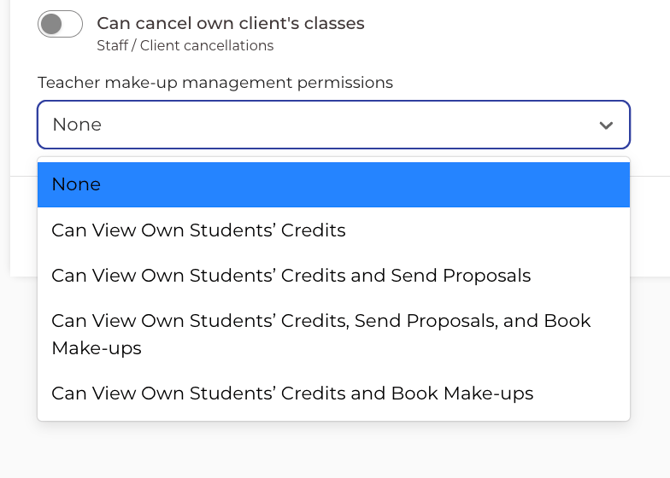
The Teacher make-up management permissions dropdown has five settings. Each one adds to what the Limited Staff teacher sees on their own Clients list in Opus1.io. The four settings other than None are combinations of three abilities: viewing credits, sending proposals, and booking make-ups. Every setting includes viewing, because a teacher can't propose or book a make-up for a credit they can't see.
Whatever the setting, a Limited Staff teacher only sees their own students, and only credits assigned to them.
None
What the teacher sees: Their client list exactly as before. There are no credit counts, no View student credits option, and no make-up buttons.
What they can do: Nothing new. Make-ups stay with the family and your front desk.
Why: Choose this for teachers who shouldn't see what families are owed, or while you're still deciding how your school wants to handle make-ups. Every Limited Staff teacher starts on None.
Can View Own Students' Credits
What the teacher sees: A credit count under each student's name, and a View student credits option that lists each credit with its visits left and valid dates.
What they can do: See credits, but not use them. There is no Use Credit button.
Why: The teacher can see who is owed a make-up and raise it with the family at the end of a lesson, but the booking still goes through your front desk. This suits schools that want make-ups booked centrally but want teachers to follow up.
Can View Own Students' Credits and Send Proposals
What the teacher sees: Everything in the view setting, plus a Use Credit button on each credit. After picking a time, they see Send Proposal only.
What they can do: Email the family a specific make-up time. The family confirms and books it from the link in the email. The teacher can't book it themselves.
Why: The family approves every make-up before it lands on the schedule. Choose this if you want families to confirm times, or if you want make-ups to follow your self-booking window.
Can View Own Students' Credits, Send Proposals, and Book Make-ups
What the teacher sees: Everything above. After picking a time, they see both Send Proposal and Confirm and Book.
What they can do: Either email the family a time, or book the make-up straight onto their schedule using the credit.
Why: This is the most flexible setting. It suits experienced teachers you trust with their own schedule. They can book on the spot when the family agrees at the lesson, and send a proposal when the family needs to check their calendar.
Can View Own Students' Credits and Book Make-ups
What the teacher sees: Everything in the view setting, plus Use Credit. After picking a time, they see Confirm and Book only.
What they can do: Book make-ups directly. They can't send proposals.
Why: This suits schools where make-ups are agreed in person, and the teacher simply books what the family has already said yes to. No emails are sent that the family might ignore.
Choosing between them
- Booking window: Teachers who can book directly aren't held to your self-booking window, the same as your front desk. If you want make-ups to stay inside the window families see, use Can View Own Students' Credits and Send Proposals.
- Availability: Teachers can only pick from times in their availability, and Limited Staff can't edit their own availability. If teachers will book make-ups, keep their availability current.
How to set a teacher's make-up permission
- Open the teacher's staff profile and click Update Profile.
- Go to the Roles and permissions tab.
- Confirm the role is Limited Staff. The make-up options only apply to Limited Staff.
- Scroll below the Limited Staff permission toggles to the Teacher make-up management permissions dropdown, and choose a setting. What each make-up permission setting means explains each one.
- Click Update Staff to save.
Opus1.io doesn't update make-up permissions for several teachers at once. Repeat these steps for each Limited Staff teacher. To take access away, choose None and save.
What your teachers will see
Once you save a setting, the teacher sees the change the next time they open Opus1.io. Nothing announces it, so it helps to walk them through it once. On a phone the layout is tighter, but the steps are the same. Here is the teacher's experience from start to finish.
- The teacher opens their own profile. Their Clients list now shows a credit count under each student who has make-up credits assigned to that teacher.
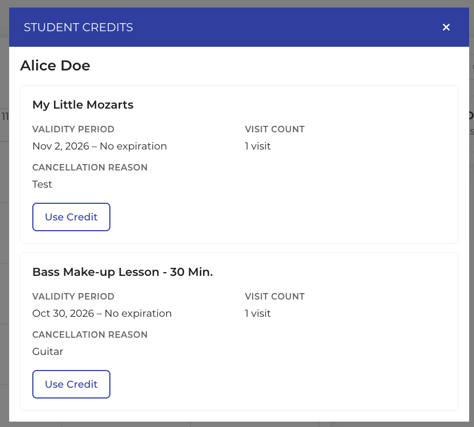
- They open a student's credits. From the three-dot menu (⋮) next to the student, they choose View student credits. They see each credit, what it's for, how many visits are left, and the dates it's valid.
- With a view-only setting, that's where it ends. The teacher can see what's owed and talk to the family, but there's no Use Credit button. Your front desk books the make-up.
- With any other setting, they tap Use Credit and pick a time.
- Private lesson credits show the teacher's own open times, with the room filled in.
- Group class credits show a class and date picker. It starts filtered to classes the teacher teaches or co-teaches, and the teacher can clear the filter.
- They finish with the button their setting allows.
- Send Proposal emails the family a link to confirm and book. The teacher can add an optional message.
- Confirm and Book books the make-up straight away and uses the credit. The make-up then appears on the teacher's schedule and in the class roster, and the family gets the usual confirmation.
What teachers can't do
Teachers will ask about these, so it helps to know them before you show them the feature:
- Other teachers' students: A teacher can't see or use credits for another teacher's students, or credits assigned to another teacher. That includes a substitute's credits.
- Times outside their availability: They can only pick times in their availability. Limited Staff can't add times themselves, so a missing time is something you open for them.
- Greyed-out credits: If a credit isn't valid yet, or comes from an unpaid lesson on a service that only allows make-ups for paid lessons, Use Credit is greyed out. A note under it tells the teacher why. Staff, managers, and owners can still book these credits.
- Changing their own setting: Teachers can't change their own make-up access. Only you can, from their profile.
💡 Tip: Show one teacher the flow on their own phone, at the end of a lesson day. Then share the teacher how-to, How do I book a make-up for my student?, with everyone you've given access to. It walks teachers through the same steps in their own words.
How credits are assigned to teachers
A teacher only sees a credit if they are its assigned staff, so the assignment decides who handles each make-up.
- Credits from cancellations: Opus1.io assigns the teacher of the canceled lesson or class automatically.
- Substitutes: If a substitute was on the canceled lesson, the credit goes to the substitute. Reassign it if the regular teacher should handle the make-up.
- Credits you add by hand: Create the credit first, then edit it to set the assigned staff. The staff field isn't available while you are creating the credit.
- Group classes: The class picker starts on the teacher's own classes, including ones they co-teach, but anyone using the credit can choose a different class. This is because shared group classes don't have a single owner.
FAQ
Will a teacher see make-up credits for another teacher's students?
No. Limited Staff teachers only see students on their own client list, and only credits assigned to them. Staff, managers, and owners can see credits on any teacher's profile.
Can families still book their own make-ups?
Yes. Nothing changes for families. Teacher access adds another way to get a make-up on the calendar.
Can I stop teachers from booking outside our self-booking window?
Yes. Give them Can View Own Students' Credits and Send Proposals. The family then books through the proposal, which follows your normal booking rules.
Why can't a teacher see a credit I know the student has?
The credit is assigned to a different teacher, often a substitute, or was added by hand without an assigned staff. Edit the credit and set the right teacher.
Related Articles
- Customizing Limited Staff Permissions — the other permissions you can give Limited Staff
- How Do I Set Up Makeup Lessons? — setting up the make-up service your credits book into
- How do I ensure make-ups are only booked with the staff of the original lesson? — keeping make-ups with the original teacher
- Can I set a makeup service credit to expire after a certain time? — expiry windows for make-up credits
- Sending Proposals — what families receive when a proposal is sent
- If I send a proposal, is that spot automatically put on hold? — reserving a time while the family decides