![Opus1-3-icon-color-1.png]](https://kb.opus1.io/hs-fs/hubfs/Opus1-3-icon-color-1.png?height=50&name=Opus1-3-icon-color-1.png)
Opus1 Payments can securely import your existing credit card data from your current payment processor. In most cases, these payment methods can then be automatically mapped to the corresponding customer accounts in Opus1.io. Alternatively, you may ask existing customers to re-enter their credit card information. However, this can create friction and is not ideal.
Important Notes
- This guide describes the standard migration scenario, where credit card data is transferred to one Opus1 Payments account per business entity.
- If you have a multi-entity setup where you would need to route payments to multiple bank accounts, you will need multiple Opus1 Payments accounts.
- Before proceeding with a multi-entity setup, please contact the opus1.io finance team by emailing finance@opus1.io.
- The migration process typically takes 2–4 weeks, so we recommend starting as early as possible.
- Ensure that names & email addresses are sent with payment information from your previous processor.
- Some payment processors may charge a fee to export credit card data.
Opus1 will never charge you any fee for importing payment data. - In rare cases, the processor may require a waiver or release agreement to be signed by Opus1 Payments before the export can occur.
Migration Process Overview
Step 1: Create Your Opus1 Payments Account
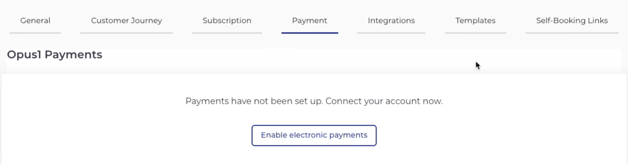
To enable online payments:
- Log in to Opus1.io.
- Navigate to Business Settings.
- Select the Payments tab.
- Click Enable Electronic Payments.
This will create your Opus1 Payments account.
Step 2: If You Already Have a Stripe Account
If you already use Stripe, follow Step 1 above to create your Opus1 Payments account first.
Once your new Opus1 Payments account is active, follow the instructions here for copying customers from your existing Stripe account to Opus1 Payments.
If you do not currently use Stripe, continue to Step 3.
Step 3: Submit a Migration Request in Stripe
The owner of your current (legacy) payment processor account must request an export of your credit card data to Stripe.
- Log in to your Opus1 Payments Stripe account.
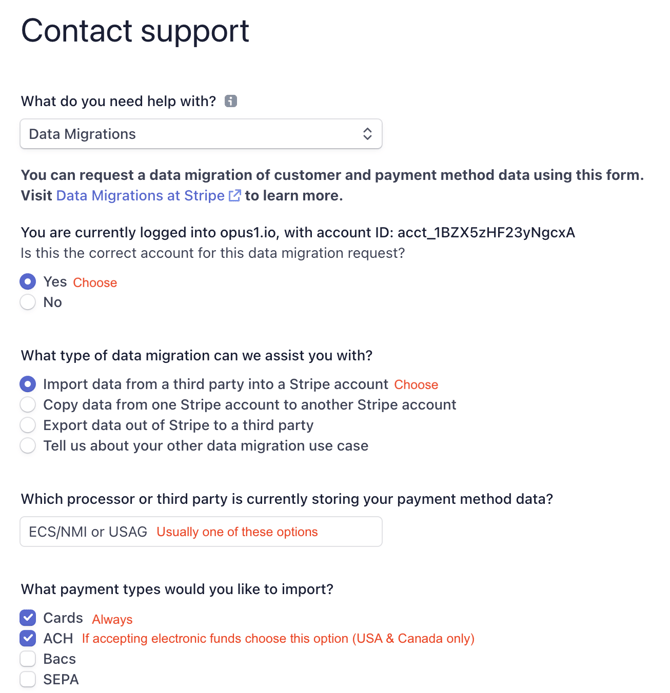
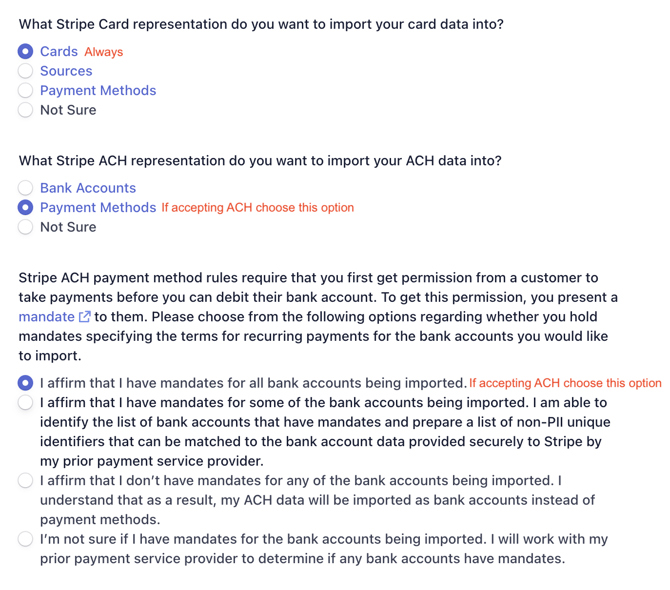
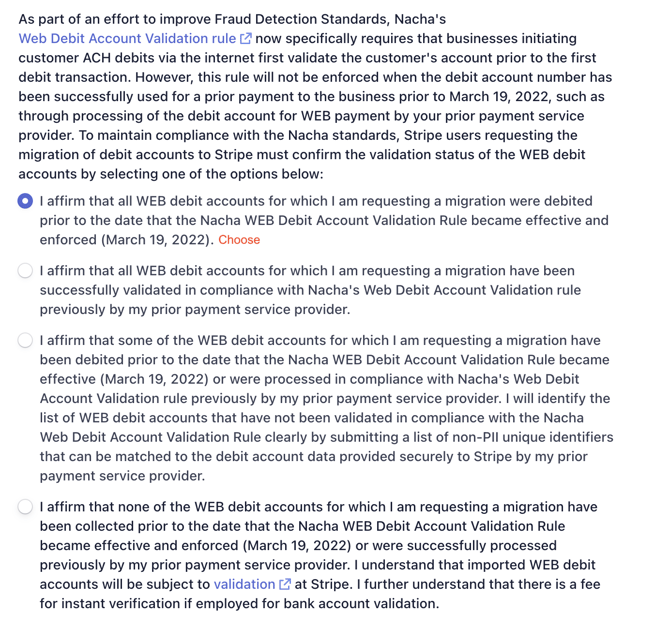
- Complete the Stripe data migration request form, linked here. You must be logged into your Opus1 Payments account to be able to access the link.
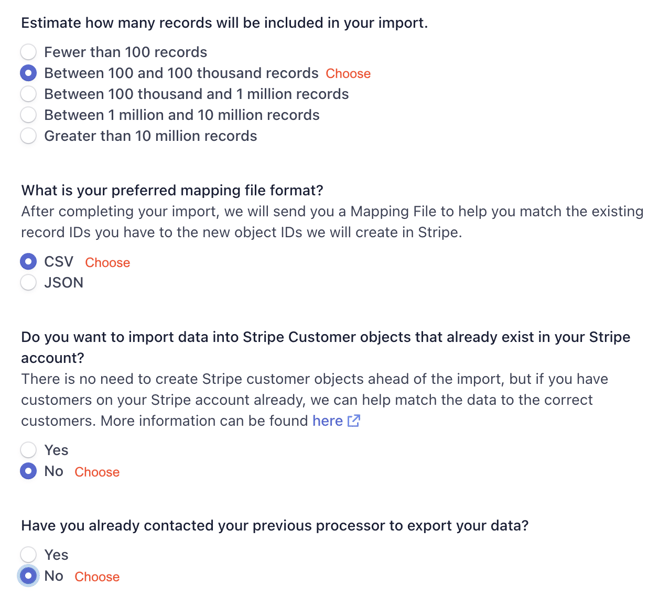
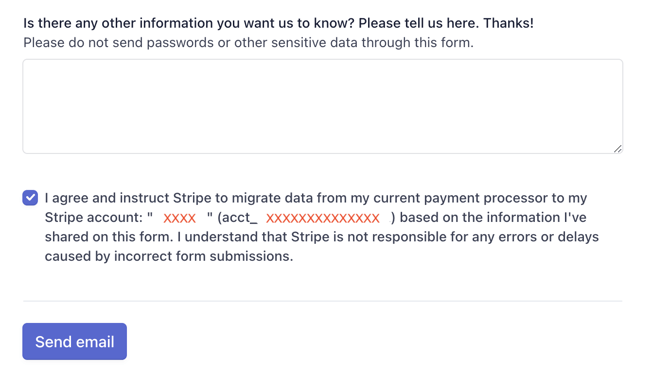
Step 4: Initiate the Secure Transfer
Once the migration request is submitted:
- Opus1 Payments will assign you a migration request number (format: mig_req_XXXXXXXXX).
- You will receive this number by email along with instructions from Stripe.
- Provide this information to your legacy payment processor.
- Ensure that all supplementary data (such as names and email addresses) is included alongside payment methods from your legacy payment processor. This information is required to accurately associate each payment method with the correct account within opus1.io.
Your processor will then work directly with Opus1 Payments and Stripe to securely transfer your credit card data in a PCI-compliant manner.
Step 5: Migration Confirmation
After Opus1 Payments receives the credit card data, you will receive a confirmation request in your email.
This step verifies that you are the owner of the migrated records.
Typically, you will be asked to confirm the last four digits of several credit cards.
Step 6: Finalization and Account Mapping
Once the records are verified:
- Opus1 Payments will finalize the import.
- You will receive a confirmation email from Stripe.
Please forward this confirmation email to: migrations@opus1.io
The Opus1 Migration Team will then map the imported payment methods to the correct customer accounts in Opus1.io.
Mapping requests are typically completed within 1–2 business days.
The mapping process may not be 100% exhaustive. For example:
- Some cards may be expired and will be skipped.
- Some accounts may not match because email addresses are missing or different in opus1.io.
After mapping is complete, you will receive a summary of the results.
Step 7: Resolve Unmapped Payers
If some payers were not mapped automatically, you can identify and correct them manually.
Find Accounts Missing Payment Information
- In opus1.io , navigate to the left-hand menu.
- Select Reporting → Invoices Report.
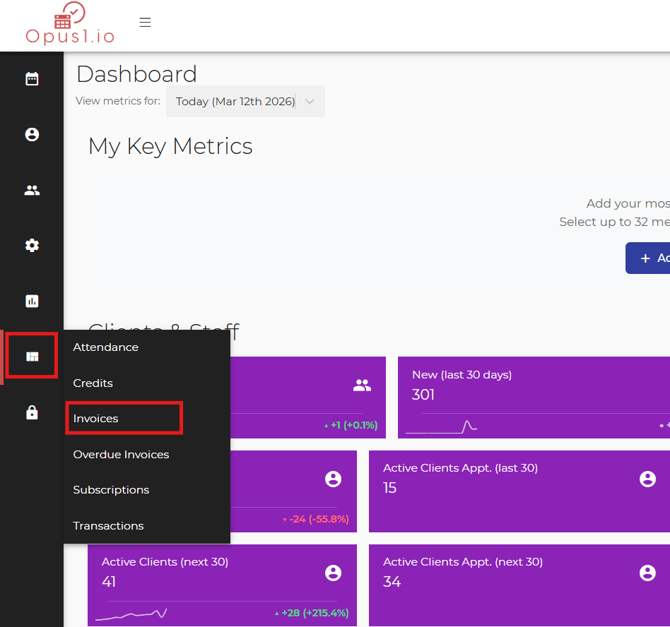
- Set the date filter to show upcoming invoices and the filter status to open
- Enable the toggle “Missing payment info only.”
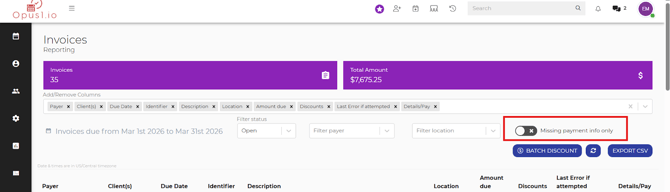
This will display only clients who do not currently have payment information on their profile in opus1.io.
Method 1: Manually Link a Customer to Opus1 Payments
To manually connect a migrated payment method:
- Right-click the payer and open their profile in a new tab.
- Locate the same customer in Opus1 Payments. You can do this using their:
- Name
- Last four digits of their card
- Copy the Opus1 Payments Customer ID (cus_xxxxxxxxx) from the customer profile on Opus1 Payments. You can find this on the right side of the page.
- Return to the Opus1.io payer profile.
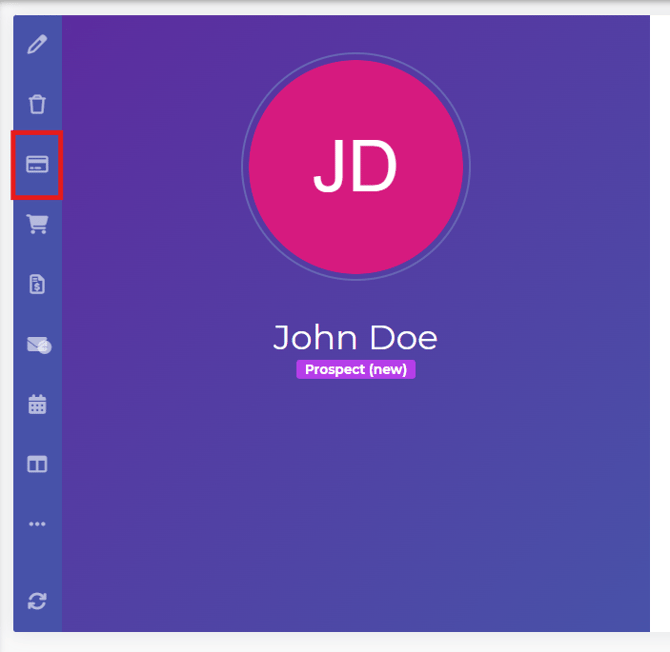
- Click the credit card icon in the blue menu of the opus1.io profile.
- Select Manually set account info (visible to owners accounts only).
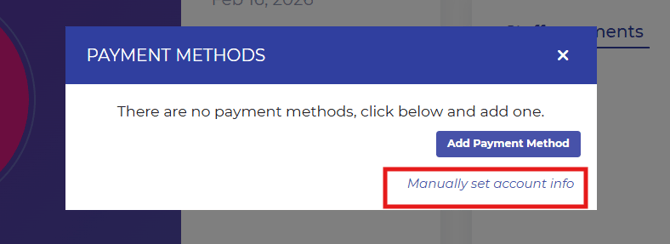
- Enter the Opus1 Payments Customer ID.
Save the changes to complete the manual mapping.
Method 2: Have Client Manually Add In Credit Card Information:
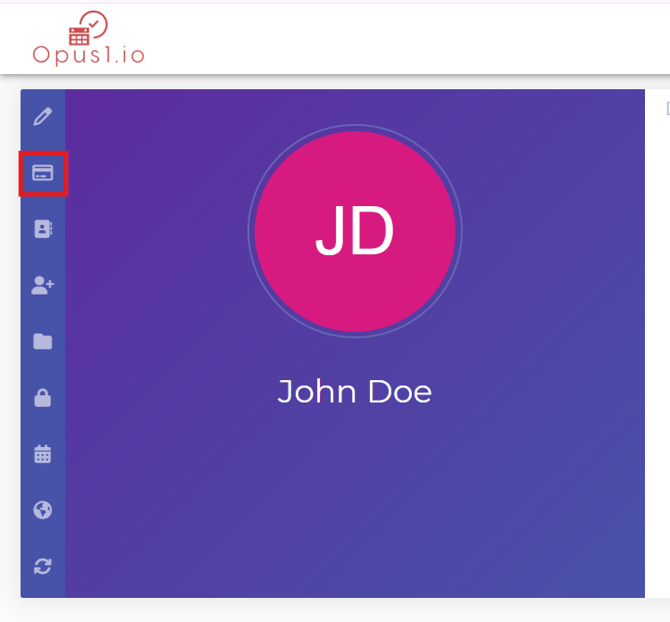
Clients can manually add in their credit card information by logging into their opus1.io profile and clicking the credit card icon.
You can also watch this video demonstration for a walkthrough of this process.