![Opus1-3-icon-color-1.png]](https://kb.opus1.io/hs-fs/hubfs/Opus1-3-icon-color-1.png?height=50&name=Opus1-3-icon-color-1.png)
Applies to: Owner, Manager
PLUS Feature: No
Plan: All
Last updated: October 27, 2026
Table of Contents
- Why tell families before you go live
- When to send it
- Before you send: five things to check
- How to email every family from the main schedule
- Copy-and-paste email template for families
- What families do to log in for the first time
- Inviting one family at a time
- FAQ
- Related Articles
Why tell families before you go live
When your school goes live, the Opus1.io team turns on automated notifications. From then on, families get lesson reminders, invoices, and payment receipts from no-reply@notifications.opus1.io. If that's the first they've heard of Opus1.io, those emails look like spam, or worse, like a phishing attempt asking for their card. Expect a stream of "is this legit?" calls to the front desk, and some invoices that never get opened.
Opus1.io doesn't send imported families a welcome email for you. The Welcome Email Client template only goes to clients added after you go live. The families you brought over from your old software hear about the change from you, or not at all.
Why: One clear email before go-live means families recognize Opus1.io messages when they arrive. They have a password ready before their first invoice. And payment details are on file before auto-pay runs, not chased down afterward.
For what changes on go-live day itself, see What Does It Mean to "Go Live"? This article covers the email you send before that day.
When to send it
Send the email after your Opus1.io setup is finished and before automated notifications are switched on. About a week ahead works well for most schools. That gives families a weekend to log in, and gives you time to help the few who get stuck.
💡 Tip: A short heads-up a couple of weeks earlier ("We're moving to a new family portal on September 8. Watch for an email with login steps.") makes the main email feel expected rather than random. Send a reminder two or three days before go-live to catch anyone who hasn't logged in yet.
Before you send: five things to check
Each of these changes either what goes in the email or who receives it.
- Find your Opus1.io login page. Every school has its own login page at yourschool.opus1.io/login, using your school's subdomain. If you're not sure of yours, log out of Opus1.io. The address in your browser is your login page.
- Put a login button on your website. Add a Family Login button or link on your school's website that points to your login page. Then send families to your website in the email, not straight to the Opus1.io address. Families learn one place to go, your site gets the visit, and you can change where the button points later without re-teaching anyone.
- Find out whether saved cards are coming across. Opus1 Payments can import saved cards from your previous payment processor. The transfer usually takes two to four weeks. If yours is done, families only need to check their card. If not, they need to add one. Families who paid by ACH (money taken straight from a checking account) always need to re-authorize it. The template has a version of the payment step for each case.
- Check whether Login with Google applies to you. Families with a Gmail address can skip the password and click Login with Google. It isn't available on the Starter plan, and it doesn't work in a private or incognito browser window. If your Opus1.io subscription plan doesn't include it, delete that line from the template.
How to email every family from the main schedule
Opus1.io builds the recipient list from the lessons on your calendar. It then opens the email in your own email program with every family in BCC (blind copy, so no family sees anyone else's address). The email comes from your school's address, which families already know and trust.
- Open the main schedule and switch to Month view.
- Go to your busiest month, so the list catches as many active families as possible.
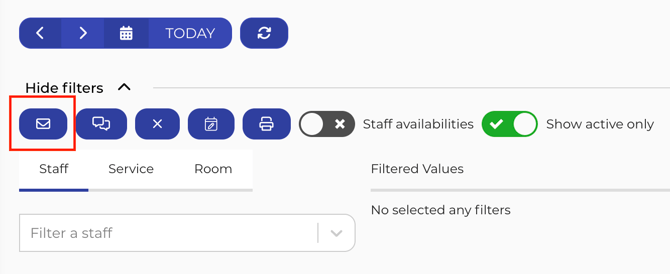
- Click Show filters, then click Email Clients.
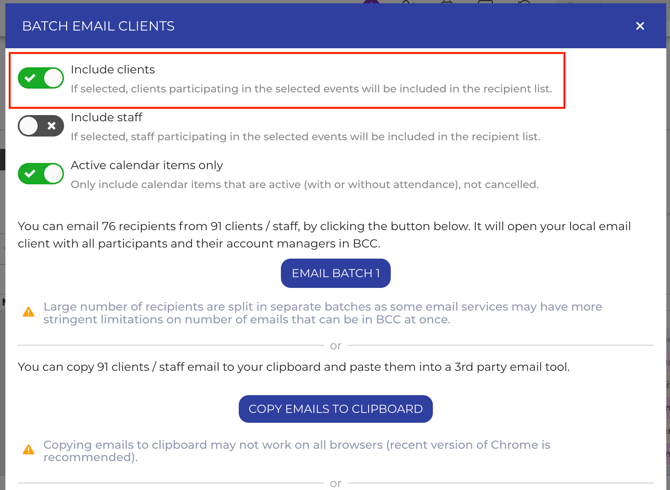
- Turn on Include client participants. Account managers (usually the parent who pays) are included with their students automatically. Leave Include staff participants off, because teachers need different instructions.
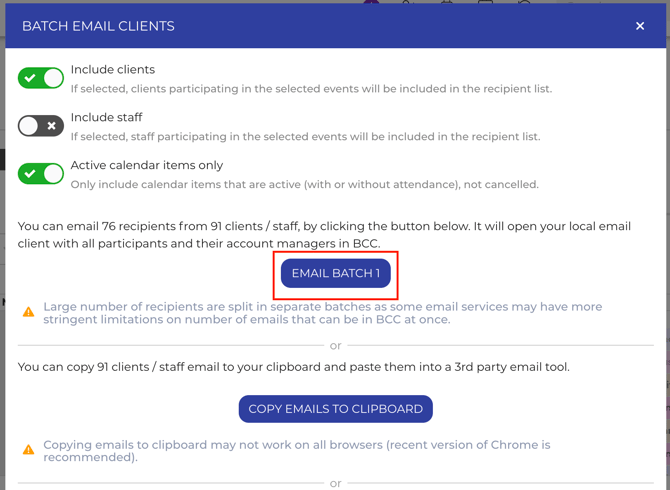
- Click Email Batch 1. Your default email program (set in your internet browser settings) opens with the families in BCC. Paste in the template, edit it, and send. If you have more than 200 families, Opus1.io splits them into Email Batch 2, Email Batch 3, and so on, because most email providers cap a single message at 200 recipients. Send each batch.
If Email Batch 1 doesn't open your email program, or you don't like what it opens (i.e. your personal email account), click Copy emails to Clipboard instead. Then start a new email in Gmail, Outlook, or whatever you use, and paste the addresses into the BCC field.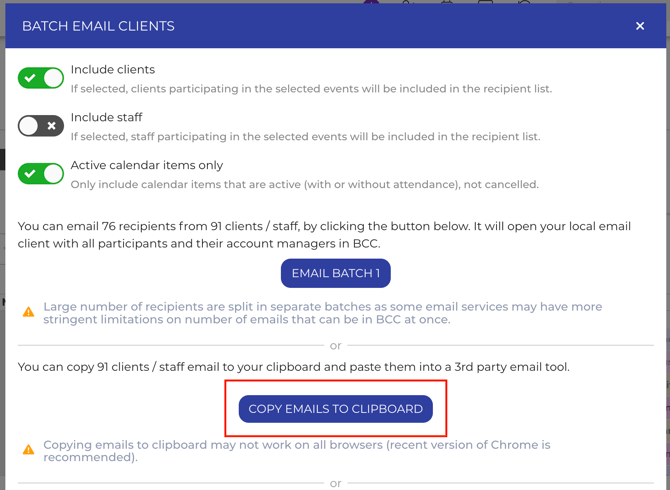
⚠️ Warning: The list only includes families with lessons on the calendar in the view you're looking at. A family on a break that month, or one booked only for a later term, won't be on it. Check the busiest month, then a quiet one, and send to anyone you missed. The Inviting one family at a time section covers single families.
ℹ️ Note: If you subscribe to Opus1 PLUS, you can click Create Scheduled Campaign in the same window to send the announcement from Opus1.io itself, with your logo and formatting saved as an email template. See How do I create an email template for batch emails / email campaigns?
Copy-and-paste email template for families
Copy everything in the box into your email. The bold parts are examples from a made-up school, so change them to your own. Everything else works as written. Delete the bold labels in brackets, such as (Version A), before you send.
Subject line options:
- Action needed: set up your new Riverside Music School family login
- We're moving to a new family portal on Monday, September 8
Hi there,
Riverside Music School is moving to Opus1.io for scheduling, billing, and lesson reminders, starting Monday, September 8. Your lessons, teachers, and lesson times aren't changing. What's changing is where you log in to see them.
With Opus1.io you can see your upcoming lessons, invoices, and payments in one place, and update your card any time.
Please set up your account by Friday, September 5. It takes about two minutes:
- Go to riversidemusic.com and click Family Login.
- Type the email address you receive our emails at, then click Get A Login Link by Email.
- Open the email from Opus1.io and click the link inside. The link expires after a short time, so use it right away. If it has expired, go back to step 1 for a new one.
- Click Change Password (the padlock icon next to your profile picture). Choose a password with at least 8 characters, including an uppercase letter, a lowercase letter, and a number. You'll use this password from now on.
- (Version A, if your cards were transferred) Click Update Payment Methods and check that the card we carried over from our old system is the one you'd like us to use. (Version B, if your cards were not transferred) Click Update Payment Methods and add the card you'd like us to use for tuition. Card details from our old system don't carry over.
(Optional, Login with Google) If your email is a Gmail address, you can click Login with Google in step 2 and skip steps 3 and 4.
If you're a parent, log in with your own email address. Your children's lessons are linked to your account.
From September 8, lesson reminders and invoices will come from no-reply@notifications.opus1.io. Please add that address to your contacts so our emails don't end up in spam.
Questions or trouble logging in? Reply to this email or call us at (555) 123-4567.
Thank you, The Riverside Music School team
💡 Tip: If you'd like to add screenshots to the email, take them from your own login page so families see your school's name and logo. A short screen recording of you logging in as a test family works even better.
What families do to log in for the first time
These are the steps the template walks families through. They're here so you can help a family who calls in.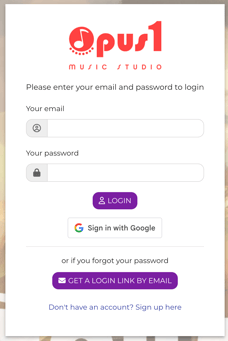
- Logging in without a password. On the login page, the family types their email address and clicks Get A Login Link by Email. Opus1.io emails them a one-time link that logs them straight in. The link expires, and if it has, they just request another. The address has to match the one on their profile exactly. That's the most common reason a family says "the link never came."
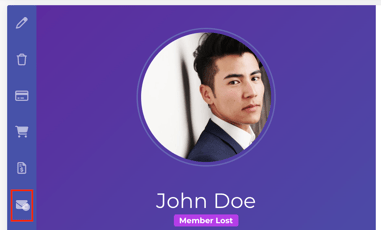
- Setting a password. Once logged in, they click Change Password, the padlock icon to the left of their profile picture. They enter a new password twice and click Reset Password. Passwords need at least 8 characters, with an uppercase letter, a lowercase letter, and a number.
- Adding or checking a card. The parent or other account manager clicks Update Payment Methods on their profile.
- Logging in with Google instead. Families whose email on file is a Gmail address can click Login with Google and skip the password entirely. If they're already signed in to Google, the button reads Sign in as, followed by their name.
⚠️ Warning: You can't test the login link from your own owner login. Get A Login Link by Email is turned off for owners for security reasons. To see what families see, create a test client with an email address you can open.
If a family still can't get in after trying the steps again, I am unable to Log in. How do I troubleshoot Login issues? covers browser, device, and VPN causes.
Inviting one family at a time
For a family the calendar list missed, or one who enrolls between your announcement and go-live, open their client profile and click Send Invitation Email. Opus1.io sends that family a link to set a password and log in. That also makes it the quickest fix when a family says they never got your announcement.
Teachers and staff log in the same way, from the same login page. Send them their own short note rather than the family template. How do my teachers and staff log in to my opus1.io? covers the steps.
FAQ
Do families have to log in before we go live?
No. Opus1.io doesn't require it, and their lessons stay on the schedule either way. But a family who hasn't logged in has no password ready when their first invoice arrives, and unless your saved cards were transferred, no card on file for auto-pay to charge.
A family says they never got the login link. What should I check?
First, check that the email address on their Opus1.io profile is the one they're typing, letter for letter. Then ask them to look in spam for a message from Opus1.io and to request a fresh link if it has been a while, since login links expire. If it still doesn't arrive, click Send Invitation Email on their profile.
Will Opus1.io send my existing families a welcome email when we go live?
No. The Opus1.io Welcome Email Client template only goes to clients added after you go live. Families imported from your previous software only hear about the change from your own announcement.
Related Articles
- What Does It Mean to "Go Live"?: what switches on when your school goes live, and what to finish first.
- Client Automated Email Notifications: every email Opus1.io sends families once you're live, and how to edit the welcome templates.
- Credit Card Data Migration (Opus1 Payments): how to bring saved cards over from your previous payment processor.
- What does a client see when they log in?: a tour of the family's profile, so you can answer "where do I find…" questions.
- I am unable to Log in. How do I troubleshoot Login issues?: what to check when a family or teacher still can't get in.
- How do I create an email template for batch emails / email campaigns?: save the announcement as a branded template (PLUS).