![Opus1-3-icon-color-1.png]](https://kb.opus1.io/hs-fs/hubfs/Opus1-3-icon-color-1.png?height=50&name=Opus1-3-icon-color-1.png)
Applies to: Owner / Manager / Staff
PLUS Feature: No
Plan: Requires SMS
Last updated: October 10, 2026
Table of Contents
- Overview
- Before you start
- Where the typing indicator appears
- When more than one person is typing
- Typing and assignment work together
- What typing changes and what it leaves alone
- Who sees the typing indicator
- If you never see the indicator
- FAQ
- Related Articles
Overview
The SMS inbox in Opus1.io is shared. Everyone at the front desk works from the same list of conversations, and every reply goes out from the studio SMS number. That keeps texts off personal phones, but it has one catch: two people can open the same parent's thread at the same moment and both start answering.
A parent asks whether Thursday's lesson can move to 5:00. Your office manager starts typing "Yes, 5:00 works." At the same time, a teacher between lessons writes "Thursday is full, but Friday at 4:30 is open." The parent gets both, a minute apart, and now has to ask which one is true.
The typing indicator prevents that. Before you start writing, you can see that a teammate is already on it, and wait for their reply instead of sending your own. It matters most when several people cover the inbox: busy afternoons, shift change, or a snow day when every family texts at once.
Why: families judge your studio on how organized it feels. One clear answer from the studio number reads as professional. Two conflicting answers read as nobody talking to each other.
Before you start
There is nothing to set up. The typing indicator is part of the Opus1.io SMS inbox, and there is no setting, role, or personal preference for it. You only need the inbox itself:
- The SMS Instant Messaging add-on. Without it, the page shows Instant Messaging / SMS is a premium feature currently not enabled for your account. Contact customer.success@opus1.io or book time with our team here to get that enabled.
- The same studio SMS number as your teammate. If your school runs a separate number for each location, the inbox only shows conversations for the number currently selected, and typing follows the same rule. You both need to be on the same number to see each other typing.
Where the typing indicator appears
Open the inbox from Clients > Instant Messaging, or from the SMS icon in the top bar, which opens your messages in a panel beside the page you are on. When a teammate types in the reply box of a conversation, Opus1.io shows it to everyone else who can see that conversation:
- In the conversation list, on that family's row, so you can see a thread is being handled before you open it.
- In the open conversation, if you already have that thread on screen.
- Beside the reply box, where you would start your own answer. This is where you see who it is, for example Robert is typing….
The dots are animated, which tells you the typing is happening now, not left over from earlier. They disappear on their own when your teammate sends or stops.
Nothing else triggers the indicator. Opening a conversation, scrolling through it, searching the list, or a new text arriving from a family does not show typing.
When more than one person is typing
If two or more teammates are typing in the same conversation, Opus1.io does not list every name. The indicator switches to a count, with the same animated dots:
2 Users are typing…
The count follows whoever is still typing. If one person stops, it goes back to a single name. If a third starts, the number goes up.
Seeing a count at all is a signal to stop and check with each other. More than one person is about to text the same family.
Typing and assignment work together
The typing indicator tells you who is replying right now. Assignment tells you who owns a conversation over time. A conversation assigned to a teammate shows Assigned to with their name at the top of the thread, and you can filter the list to see everything assigned to you or to someone else.
Use both. If a conversation is assigned to someone else, leave it to them unless they ask for help. If nobody is assigned and you see someone typing, let them finish, then assign it to them if the family is likely to text back. See How do I assign an SMS conversation to a teammate? for the steps.
What typing changes and what it leaves alone
The typing indicator is a live signal between staff, not a message. It is never saved to the conversation, and it does not show up in the history.
While someone is typing:
- The family receives nothing. A text goes out only when someone selects Send, or presses Ctrl+Enter on Windows or Cmd+Enter on a Mac.
- The conversation stays on the Open or Closed tab it was on. Typing does not close or reopen it.
- Typing does not change unread. Your teammate had to open the conversation to type in it, and opening a conversation marks it read for everyone, so by the time you see the dots it will usually already be read.
- The preview says "Robert is typing...". You'll be able to view the name of the staff member currently typing or see that more than 1 user is typing.
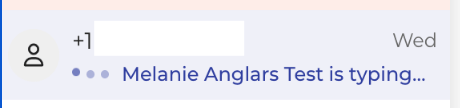
The indicator does not stop anyone from sending. It works best when your team agrees on a simple habit: if you see someone typing, let them finish.
Who sees the typing indicator
Anyone who can open the SMS inbox in Opus1.io shows up as typing when they write a reply, and sees teammates typing in conversations they can open.
| Role | Opens the inbox | Sees teammates typing | Shows as typing to others |
|---|---|---|---|
| Owner | Yes | Yes | Yes |
| Manager | Yes | Yes | Yes |
| Staff | Yes | Yes | Yes |
You do not see your own typing indicator. It is there to tell your teammates that you are writing.
Families never see a typing indicator. They text your studio number from their own phones and get a normal text back.
If you never see the indicator
If a teammate is clearly writing a reply and nothing shows on your screen, check these:
- You are on different studio numbers. At a school with a number per location, confirm you both have the same number selected at the top of the list.
- You are looking at a different conversation. The indicator only shows on the conversation your teammate is typing in.
- Your teammate is Limited Staff. Limited Staff cannot open the SMS inbox in Opus1.io, so they cannot type in a conversation at all.
If none of those apply, contact Opus1.io support with the studio number you were both using and roughly when it happened.
FAQ
Can families see when we are typing? No. The typing indicator is staff-to-staff only. Parents and students see nothing until a reply arrives.
Does the indicator stop two people from sending at the same time? No. It shows you that someone is typing but does not lock the conversation. If you see it, wait for your teammate's reply before you write your own.
The dots disappeared but no reply came through. What happened? Your teammate stopped has been typing for. more than 5 seconds OR they stopped typing. They may have deleted their draft, decided to call the family instead, or stepped away. Nothing went to the family. If the conversation still needs an answer, check with them or reply yourself.
Do I need to turn typing indicators on? No. There is no setting. If your school has SMS Instant Messaging, the indicator shows whenever a teammate types in a conversation you can see.
Related Articles
- How do I use SMS Conversations? — finding, opening, and replying to texts in the shared inbox
- How do I assign an SMS conversation to a teammate? — making one person responsible for a family's thread
- What do unread, open, and closed SMS conversations mean? — what the bold dot and the two tabs tell you
- How do I check my texts without leaving the page I'm on? — replying from the Messages panel in the top bar
- SMS: Frequently Asked Questions — cost, limits, and turning SMS on