![Opus1-3-icon-color-1.png]](https://kb.opus1.io/hs-fs/hubfs/Opus1-3-icon-color-1.png?height=50&name=Opus1-3-icon-color-1.png)
Applies to: Owners, Managers, Staff
PLUS Feature: No
Plan: All
Last updated: November 5, 2026
Table of Contents
- Overview
- Before you start
- Find the student's credits on the teacher's profile
- Book the make-up lesson
- Confirm and Book or Send Proposal?
- What happens after you confirm
- If a button is missing or greyed out
- FAQ
- Related Articles
Overview
A parent calls the front desk to say Thursday at 5:00 works for their daughter's make-up, or agrees to a time while they're at the studio. In Opus1.io you can book that lesson on the spot from the teacher's profile, without sending the family anything to confirm.
Why: Booking it directly takes the time off the teacher's open schedule right away. Nobody else can grab the slot, the make-up credit is used, and the family doesn't have to open an email and book it themselves.
This article covers private-lesson make-ups. A group-class credit opens a list of classes instead of open times.
Before you start
- Your role needs to be able to book appointments. Owners, managers, and staff can by default. In Opus1.io you'll see Confirm and Book when your role can book. If your role can also send make-up proposals, Send Proposal appears beside it.
- Book from the profile of the teacher who will teach the make-up. Credits are assigned to a teacher, and you only see the credits assigned to the teacher whose profile you opened.
- Teachers booking for their own students follow a separate, phone-friendly guide: How do I book a make-up for my student?
Find the student's credits on the teacher's profile
- Log in to Opus1.io and open Staff.
- Open the profile of the teacher who will teach the make-up.
- In the Clients card, find the student. The number under the student's name is how many credits they have with this teacher.
- Open the three-dot menu (⋮) next to the student and choose View student credits.
The Student Credits window opens. Each credit shows the service, the dates it's valid, the number of visits, and why it was issued (the cancellation reason).
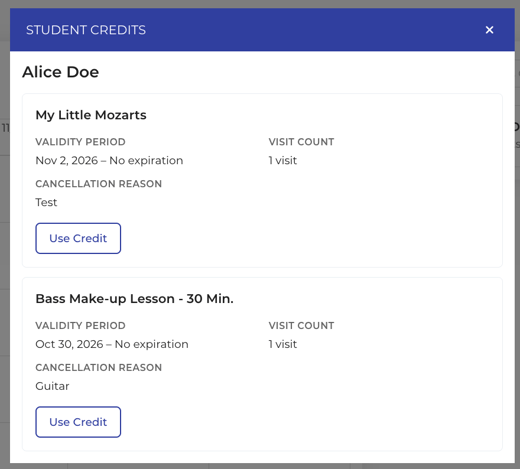
ℹ️ Note: The Clients card lists students who have a lesson with this teacher in the past 15 days or the next 15 days. If the student isn't there, book the make-up from the student's own profile with Use on the credit.
ℹ️ Note: If a family says their child has four credits and you see two, the other two are assigned to another teacher. That's often the substitute who covered the canceled lesson. Open that teacher's profile to see them.
Book the make-up lesson
- Choose Use Credit on the private-lesson credit.
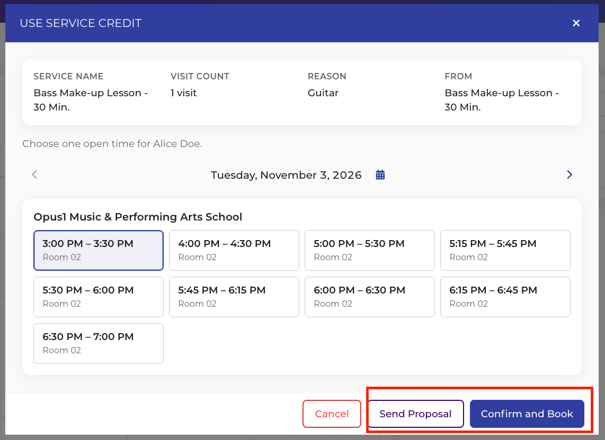
- The Use Service Credit window shows the credit, then Choose one open time for and the student's name.
- Move between dates with the arrows, or open the calendar. Days with an open time are highlighted. Past dates aren't available.
- Under the location name, choose a time. Each time shows its start and end, such as 5:00 PM – 5:30 PM, and the room.
- Choose Confirm and Book.
- On Review Booking, check the credit and the lesson details: location, room, date, and time.
- Choose Confirm.
Back on Review Booking returns you to the open times without booking anything. Cancel on the open times returns you to the student's credits.
Opus1.io only lists times this teacher already has open, at an open location, in an open room. You can't type in a different time. If the time the family wants isn't listed, add it to the teacher's availability first, or book the lesson with Book Appointment and apply the credit from the student's profile.
💡 Tip: If the family agrees to a make-up time while they're at the studio, book it before they leave. The credit is used immediately and the time comes off the teacher's open schedule.
Confirm and Book or Send Proposal?
Both start from the same window in Opus1.io. The difference is who finishes the booking, and whether the time is held in the meantime.
| Path | Holds the time? | When the credit is used | Use it when |
|---|---|---|---|
| Confirm and Book | Yes, it's booked | Immediately | The family has already agreed to the time |
| Send Proposal | No | Only when the family books from the email | You want the family to choose whether the time works |
⚠️ Warning: A proposal doesn't hold the time. Someone else can book the slot before the family confirms. When the family has already said yes, use Confirm and Book.
What happens after you confirm
Opus1.io shows a Booked window with a green check, the student's name, the service, and the date, time, room, and location. Choose Done.
- The credit is used. It leaves the unused list, and the count under the student's name goes down.
- The lesson appears on both schedules, the teacher's and the student's.
- The family isn't charged. The lesson is paid with the credit.
- Everyone gets the usual notifications. The student and any account managers on that notification get the normal appointment booking confirmation, and the teacher gets the normal staff booking notification.
- Your service's booking automations still run. If the service changes a student's status or adds a tag when a lesson is booked, that happens here too, the same as with Book Appointment.
If a button is missing or greyed out
Opus1.io turns buttons off rather than letting you book something that won't work. The note under the credit or the time usually tells you why.
| What you see | What it means | What to do |
|---|---|---|
| No Use Credit button | Your role can view credits but can't book or send proposals | Ask someone who can book appointments to book the make-up |
| This credit can be used from a date | The credit isn't valid yet | Book on or after that date. Confirm and Book and Send Proposal stay off until then |
| This credit can be used once the original lesson's invoice is paid | The canceled lesson hasn't been paid for | You can still Confirm and Book. Send Proposal stays off until the invoice is paid |
| A note that no one on the account has an email address | There's nowhere to send a proposal | You can still Confirm and Book. Add an email address to the student or an account manager to send proposals |
| Make-ups can't be booked for past times | That time has already started | Pick a later time |
| Both buttons off, with no note | No time is selected yet | Choose a time first |
| No open times on this date, or the time you want isn't listed | The teacher has no open time then | Pick another day, or add the time to the teacher's availability |
| An error after Confirm, and you stay on Review Booking | The time was taken, or the teacher or room is no longer free | Choose Back and pick another time. The credit hasn't been used |
| The credit you expected isn't in the list | It's assigned to another teacher | Open that teacher's profile, or reassign the credit |
| No credits available for the student with the teacher as the assigned staff | This teacher has no unused credits for the student | Check the other teachers the student has had lessons with |
FAQ
Can the family still book the make-up themselves?
Yes, until you use the credit. Families can book their own make-ups in Opus1.io with Use on the credit in their portal, or through a self-booking link set up for make-ups. Once you choose Confirm and Book, the credit is used and that time is taken.
Can I book the make-up with a different teacher?
Opus1.io shows a credit only on the profile of the teacher it's assigned to, and the open times come from that teacher's schedule. To book the make-up with someone else, reassign the credit to that teacher first, then book it from their profile.
Can I add a personal note to the family's confirmation?
No. There's no message box on Review Booking. The family gets your school's usual Opus1.io booking confirmation. If you want to add something, send it separately. A confirmation only arrives where the usual appointment emails can be delivered, so check that the account has an email address.
Does my self-booking window limit which times I can book?
No. When staff book a make-up from a teacher's profile in Opus1.io, the self-booking window doesn't apply. That window only limits how far ahead families can book themselves. You're limited to the teacher's open times, at an open location, in an open room.
Related Articles
- How do I book a make-up for my student? — the teacher's version of this guide
- How do I let teachers book their students' make-ups? — what each role can do with make-up credits, and the Limited Staff permission
- How Do I Set Up Makeup Lessons? — the make-up service and credit settings behind this flow
- If I send a proposal, is that spot automatically put on hold? — why a proposal doesn't reserve the time
- How do I modify service/monetary credits? — change a credit's details before booking
- How do I create a self-booking link for make-ups? — let families book make-ups themselves