![Opus1-3-icon-color-1.png]](https://kb.opus1.io/hs-fs/hubfs/Opus1-3-icon-color-1.png?height=50&name=Opus1-3-icon-color-1.png)
Last updated: August 27, 2026
Applies to: Owner / Manager | Plan: All
Feature: Reporting
PLUS Feature: No
Table of Contents
Overview
The All Clients CSV export gives Owners and Managers a complete snapshot of every client in your Opus1 account. Unlike filtered or partial exports, this full export includes account manager fields (the adult responsible for billing and communication) and any additional contact details stored on each client record.
Business owners use this export to sync client data with external tools—email marketing platforms, accounting software, or enrollment spreadsheets—without manually copying records. It also serves as a reliable backup before making bulk changes or migrating data.
ℹ️ Note: Only users with Owner or Manager roles can access the All Clients export. Staff and Limited Staff do not have permission to export full client lists.
Quick Reference Table
| Field Category | Included in Export? | Example Fields |
|---|---|---|
| Client name & status | ✅ | First name, last name, active/inactive |
| Account manager details | ✅ | Account manager name, email, phone |
| Additional contacts | ✅ | Secondary guardian, emergency contact |
| Enrollment history | ❌ | (Use Enrollment Report instead) |
| Payment history | ❌ | (Use Transaction Report instead) |
What the Export Includes
What it does
The All Clients CSV export generates a spreadsheet file containing one row per client. Each row includes the client's basic profile information, the account manager fields (name, email, phone of the responsible adult), and any additional contacts you have stored—such as a second parent, emergency contact, or authorized pickup person.
Why you'd use it
For business owners, this export eliminates the friction of maintaining a separate client list outside Opus1. When you need to send a studio-wide email through Mailchimp, update your holiday mailing list, or hand your accountant a roster for year-end reconciliation, you export once and have every client—plus the adults who pay and communicate on their behalf—in a single file. No more cross-referencing multiple screens or forgetting to include a secondary guardian's email.
What's included in the export
- Client first and last name
- Client status (active, inactive, prospect)
- Account manager name
- Account manager email address
- Account manager phone number
- Additional contact names and contact details
- Any custom fields configured for clients in your account
How to Export All Clients
How to configure it
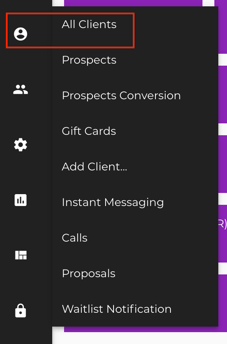
- Navigate to Clients in the left-hand menu:
- Click the Export button (or the download icon) in the upper-right corner of the client list:

The file will download to your computer with all client records, including account manager fields and additional contacts.
💡 Tip: If you only need a subset of clients, apply filters (by status, location, or service) before exporting. The export will respect your current filter settings.
⚠️ Warning: The export includes personal contact information. Handle the file according to your studio's privacy policy and do not share it publicly.
FAQ
Q: Can Staff members export the full client list?
A: No. The All Clients CSV export is restricted to Owner and Manager roles. Staff and Limited Staff can view individual client records but cannot export the full list.
Q: Does the export include students and guardians separately?
A: Each row represents a client record. If a student has an associated account manager (guardian), that guardian's details appear in the account manager columns on the same row. Additional contacts also appear in their own columns.
Q: How do I export only active clients?
A: Before clicking Export, use the status filter on the Clients page to show only Members . The export will include only the filtered results.
Q: Can I schedule automatic exports?
A: Opus1 does not currently support scheduled automatic exports. You will need to manually run the export each time you need updated data.
Q: What if a client has multiple account managers?
A: The primary account manager appears in the main account manager fields. Additional contacts—including secondary guardians—appear in the additional contact columns.
Related Articles
- Client Data Import — how to get client data *into* Opus1, including the full list of supported CSV column headers
- How do I link dependents with their account managers? — explains the dependent/account-manager relationship that drives the account manager columns in this export
- How Do I Use Client Custom Attributes? — set up the custom fields that appear as extra columns in your export
- Deleting / Merging Duplicate Accounts — clean up duplicates before exporting so your file doesn't carry them downstream