![Opus1-3-icon-color-1.png]](https://kb.opus1.io/hs-fs/hubfs/Opus1-3-icon-color-1.png?height=50&name=Opus1-3-icon-color-1.png)
What are Client Custom Attributes?
You can use client custom attributes to record information from your clients that is relevant to your business.
Client custom attributes are form-fillable and appear on each of your clients' profiles. The information recorded using client custom attributes is visible by default only to users with at least staff-level permissions (more on staff permissions here).
Commonly, schools use client custom attributes to record client information regarding allergies, special needs, medical conditions and emergency contacts, but you can use client custom attributes to record whatever information your school requires.
Read more below on how to create and utilize custom attributes in Opus1:
- How do I create Client Custom Attributes in Opus1?
- How do I add Client Custom Attributes to a clients profile?
- Using the Customer Journey to auto populate Client Custom Attributes
How do I create Client Custom Attributes in Opus?
To create client custom attributes, navigate to your Business settings by going to your left hand menu > gear icon > business: 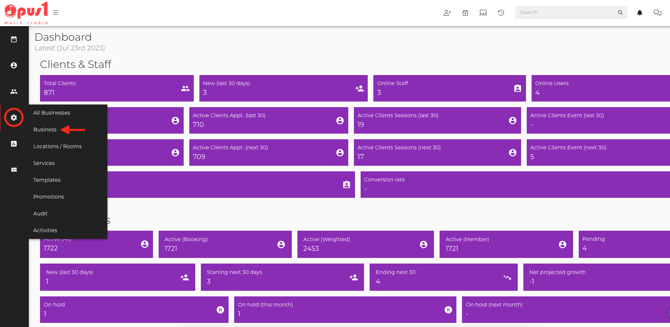
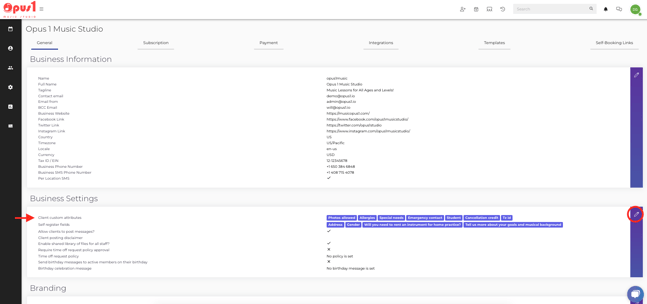
Next, under the general Tab, click the Edit button (the pencil icon) on the Business Settings section:
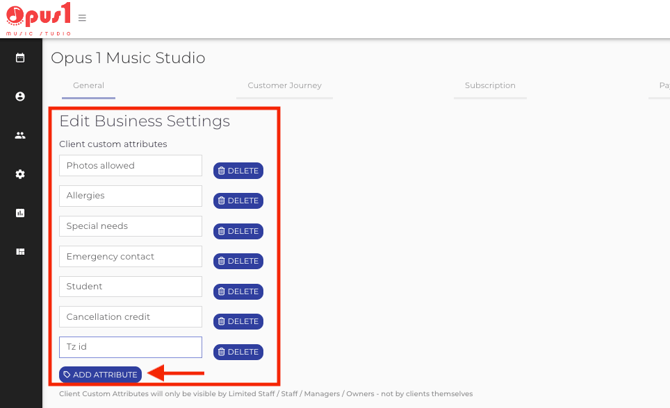
To create a new client custom attribute, click the Add Attribute button and name your attribute. Once you've named your new client custom attributes, click the Update Business button at the bottom of the page to save your changes:
How do I add client custom attributes to a client's profile?
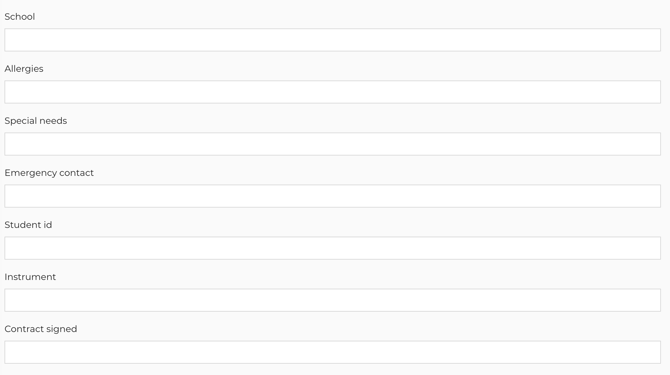
You can manually add client custom attributes for your clients by navigating to your client's profile and clicking the Update Profile button to the left of their profile picture.
Here you can record information using client custom attributes. Once you've filled in the client custom attribute fields, click the Update button to save your changes:
Now the information recorded using client custom attributes will be visible to users with staff-level permissions:
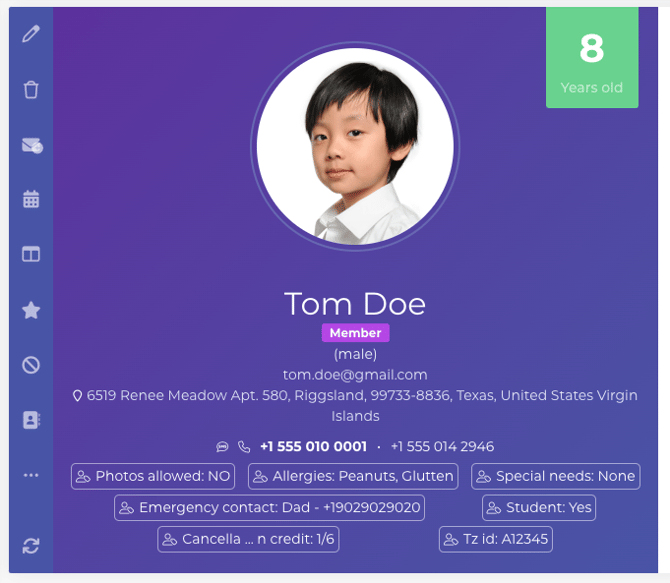
Additionally, if you've chosen to give your limited staff permission to see their students' contact information, they'll be able to see custom attribute answers as well.
How to get your prospects and clients to populate the custom client attributes when self-registering or self-booking.
After creating your client custom attributes, navigate to the Customer Journey (left hand menu > gear icon > business > customer journey). Here you will be able to customize the forms that prospects and clients see when interacting with your school.
For more information on configuring your Customer Journey, visit our article: How do I customize my Customer Journey?
When you add a question to your Customer Journey, you're given the option to choose which custom attribute as the place to store the answer to that question. If you choose not to assign a custom attribute, answers to self-register field questions will be sent to owners/managers via email and stored as a staff comment within the client's profile and prospect card (PLUS only).
When answers to self-register fields are linked to client custom attributes, answers are stored within the client's profile itself:

When stored in the client's profile rather than as a staff comment, the questions will not be asked of the client on future self-bookings. They are also exported in the All Clients csv export file.
If you'd prefer, watch the video below to learn how to create and use client custom attributes to record relevant information about your clients using Opus1: