![Opus1-3-icon-color-1.png]](https://kb.opus1.io/hs-fs/hubfs/Opus1-3-icon-color-1.png?height=50&name=Opus1-3-icon-color-1.png)
Applies to: Owner, Manager
PLUS Feature: Yes
Plan: Opus1 PLUS
Last updated: October 21, 2026
Table of Contents
- Overview
- Create an email template
- Build on the starting design
- Add each family's name with merge tags
- Show a section only to certain families
- Fix an invalid merge tag warning
- Send a test email to your staff
- Use the template on a campaign
- Find, duplicate, or delete a template
- Example: a spring recital email
- FAQ
- Related Articles
Overview
An email template is the reusable design behind the marketing emails you send with Opus1.io PLUS campaigns: a monthly newsletter, a follow-up after a trial lesson, a summer camp promotion, or a check-in for families who just started a membership. You design it once with your branding and wording, and Opus1.io fills in each family's details when the email is sent.
Why: A template keeps your studio's emails consistent and saves rebuilding the same layout every month. Because names and sections change per family, one email can greet a parent by name, mention their child, and show a piano paragraph to piano families and a guitar paragraph to guitar families.
With an Opus1.io email template you can:
- Design the email visually, with photos, buttons, social icons, and a YouTube video.
- Insert the reader's name, the student's name, your business name, and the current year.
- Show or hide a section depending on who is reading, or on the tags on the student's profile.
- Save the design, send a test to your staff, and attach it to as many campaigns as you like.
ℹ️ Note: These are campaign templates. The automatic emails Opus1.io sends when someone books, cancels, or is reminded of a lesson are set up separately. The FAQ at the end of this article says where to edit them.
Create an email template
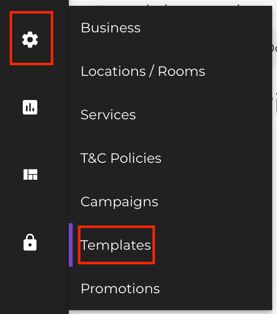
- Go to Settings > Templates.
- Select Create Email Template.
- Give the template a name. Save template stays unavailable until the name is filled in.
- Add template tags if you want to group designs later, such as newsletter, trial, or recital. Type a tag and create it.
- Design the message in the editor.
- Select Save template.
Template tags only organize your list of templates. They are a different set from the tags on a student or family profile, which the editor can use inside the email itself.

Start from a campaign instead. If you are already building a campaign, you do not need to leave it. On a one-time campaign, or on a stage of an ongoing campaign, turn on Send Email, then choose Create new next to Email Template. The Opus1.io designer opens in its own window. When you save, that window closes and the new template is already selected on the campaign.
Auto save. When you are editing a template you have already saved once, turn on Auto save to store changes as you work. Auto save pauses if the template contains a merge tag the editor does not recognize, until that tag is fixed.
More room to work. The maximize icon expands the designer to fill the screen. The template name and tags are hidden while it is expanded and come back when you minimize it.
Build on the starting design
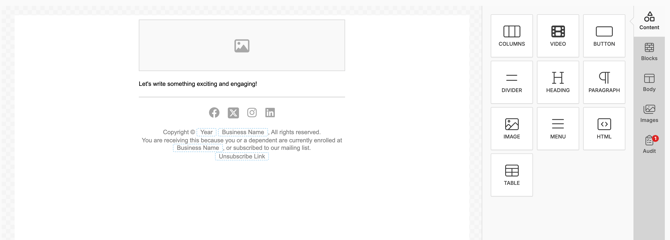
Every new Opus1.io template opens with a simple layout you can replace or build on:
- A placeholder image at the top. Select it and upload your logo or a photo of your studio.
- A text block that reads "Let's write something exciting and engaging!"
- A divider line.
- A row of social icons. Open the block and keep only the networks your studio uses.
- A footer with your business name, the year, a short note about why the family is receiving the email, and an unsubscribe link.
Before it is sent, the footer reads:
Copyright © 2026 , All rights reserved. You are receiving this because you or a dependent are currently enrolled at , or subscribed to our mailing list.
When the email goes out, becomes a link labeled unsubscribe that is unique to each family.
⚠️ Warning: Keep the unsubscribe link in the footer. Marketing email rules in the US, Canada, the UK, and the EU expect a working way to opt out, and families who cannot find one are more likely to mark your email as spam, which hurts delivery for everyone on your list.
From the content panel, drag in the blocks you need: text, images, headings, buttons, dividers, columns, menus, social icons, and video. Select any block to change its wording, colors, links, and spacing. Use the preview in the designer to check the email at desktop width and at phone width. Most families will open it on a phone.
Add a YouTube video
Drag in the Video block and paste a YouTube link. A regular watch link, a youtu.be short link, an embed link, and a YouTube Shorts link all work. Families see a thumbnail with a play button, and selecting it opens the video on YouTube. Email programs do not play video inside the message, so the thumbnail is the reliable way to share a recital clip or a teacher introduction.
If the link is not a YouTube address, the block shows "Invalid Youtube URL" so you can correct it before saving.
Add each family's name with merge tags
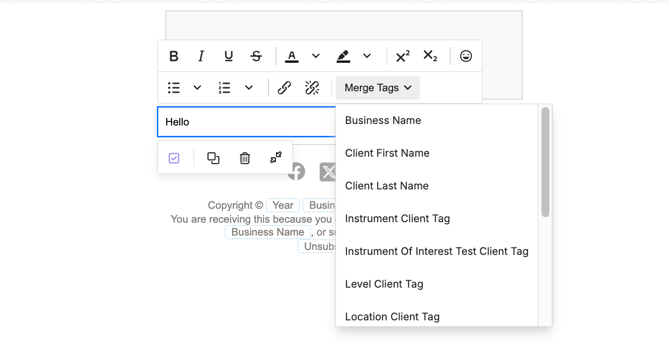
A merge tag is a placeholder that Opus1.io swaps for real details when the email is sent, such as becoming "Jordan." Insert merge tags from the merge tag menu in a text block rather than typing them, so the spelling is always right.
Why: "Hi Jordan, Maya is confirmed for the spring recital" gets read. "Dear family" gets skimmed.
These merge tags work in the body of an Opus1.io email template:
| What you want to insert | Merge tag | What the family sees |
|---|---|---|
| The person reading the email | and |
The inbox owner's name. Often a parent or account manager. |
| The student | and |
The student's name, even when the email goes to their parent. |
| Your studio | |
Your business name. |
| The current year | 2026 |
The year when the email is sent, in your business time zone. |
| Unsubscribe | |
A link labeled unsubscribe. |
| The membership they are on | |
The service name, on one kind of campaign only. See below. |
is only filled in on an ongoing campaign whose audience is based on subscriptions, such as a 30-day check-in for everyone who just started a Monthly Tuition guitar plan. On a one-time newsletter, and on a test send, it is left blank. Use it only in templates for those ongoing subscription campaigns.
A good pattern is to greet the reader and talk about the student by name:
Hi , is confirmed for the spring recital.
When a parent receives it, that becomes "Hi Jordan, Maya is confirmed for the spring recital." When an adult student receives their own email, both names are theirs.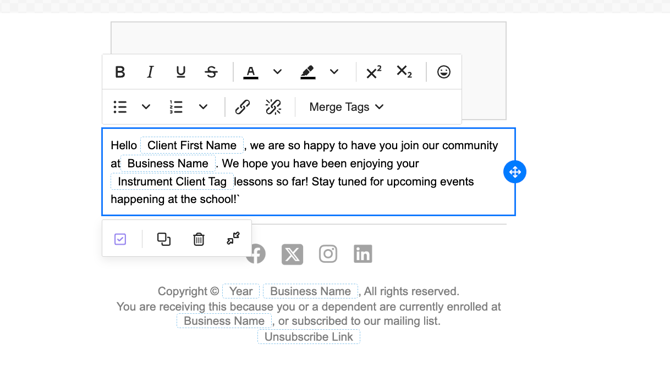
Merge tags in the subject line
The subject line is not part of the template. You write it in Email subject on the one-time campaign, or on each stage of an ongoing campaign. The subject accepts these merge tags, written exactly like this:
Note the difference: the reader's name is recipient_first_name in the subject and rcpt_first_name in the body. A subject such as , Maya's recital is next Friday sends with the reader's first name filled in. If you paste into the subject, Opus1.io reports it as an invalid placeholder.
Insert the student's instrument or another client tag
If you group client tags into categories in your business settings, each category becomes its own merge tag in the Opus1.io editor. A category named Instrument can drop the student's instrument straight into a sentence.
Insert the category from the merge tag menu. The merge tag is the category name in lower case followed by _client_tag, and any hyphen in the category name becomes an underscore. Instrument becomes .
The family sees one tag from that category on the student's profile, with underscores turned into spaces and each word capitalized. If Maya is tagged jazz_piano under Instrument, the sentence can read "Maya's Jazz Piano lesson." If a student has more than one tag in the same category, only one of them is inserted. When you need a whole paragraph for every student with a particular tag, use a display condition instead, described next.
Show a section only to certain families
Any block or row in an Opus1.io template can have a display condition: a rule that decides whether that part of the email is included for each reader. Families who do not match still receive the email. They just do not see that section.
Why: One recital email can carry a piano paragraph, a guitar paragraph, and a note for students without an instrument tag, and each family only reads the part that applies to them. That replaces three separate campaigns with one.
Change the wording for parents and students
Under Recipient Type, choose one of:
- Client is recipient — include this section when the student is reading their own email.
- Recipient is the account manager of the client — include this section when someone else, such as a parent, receives the email for the student.
Use this when the wording should change with the reader. A student might see "See you at your lesson." A parent might see "See you at Maya's lesson."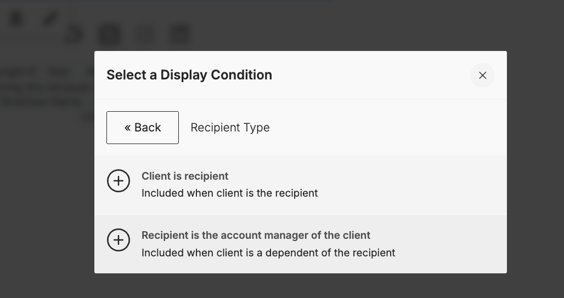
Opus1.io compares first and last names to decide this. If a parent and a student share the same first and last name, the parent is treated as the student. For families like that, write one version of the sentence that makes sense to both.
Show a section based on the student's tags
Each client tag category adds three kinds of display conditions:
- Has any tag — the student has at least one tag in that category.
- A specific tag — the student has that exact tag, such as
Instrument - piano. - Not tagged — the student has no tag in that category.
These conditions always look at the student's tags, including when the email is addressed to their parent.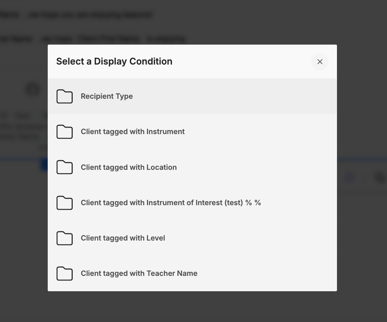
Fix an invalid merge tag warning
If a template contains a merge tag the Opus1.io editor does not offer, usually because of a typo such as , two things happen:
- A message lists the invalid merge tags, and Save template explains that the template contains invalid merge tags. Save template stays unavailable until you fix it.
- On the templates list, the template name shows a warning icon. Hover over it to see which tags need fixing.
To fix it, delete the misspelled tag, insert the correct one from the merge tag menu, and save again.
Send a test email to your staff
A test lets you read the email exactly as a family will, in a real inbox, before a campaign goes out. Opus1.io sends tests to staff members you choose. There is no field for an outside email address, so to test with your own inbox, make sure you are selected as a staff member.
- On Settings > Templates, find the template.
- Select the paper-plane icon, Send Test.
- Under Recipients, select one or more staff members.
- Select Send Test.

The test's subject line is TEST: followed by the template name. The campaign's Email subject is only used when the campaign itself sends.
What a test fills in:
| Detail | What the test shows |
|---|---|
| Business name, year, and unsubscribe link | Filled in |
| Reader's name | The staff member who received that copy |
| Student's name, client tag merge tags, and tag display conditions | The first staff member you selected. Put the person whose tags you want to preview first in the list. |
| Membership name | Blank. Preview it by reading the template, or send a real campaign to a small audience you control. |
⚠️ Warning: The unsubscribe link in a test is real for that staff member's email address. Check that it is there and looks right, but do not select it unless that staff member wants to stop receiving marketing email.
Use the template on a campaign
A template does not send on its own. A campaign decides who receives it, the subject line, and when it goes out. Before any Opus1.io campaign can send email, your studio's email domain needs to be verified.
From the templates list, Create Campaign starts an email campaign that already uses that template. You can also choose the template from inside the campaign:
- On a one-time campaign, turn on Send Email, write the Email subject, and choose the template.
- On an ongoing campaign, each stage has its own Send Email switch, subject, and template, so a welcome email, a 30-day check-in, and a review request can each look different.
On Opus1.io PLUS, Create Scheduled Campaign on the main schedule also starts a campaign, and you choose the template the same way.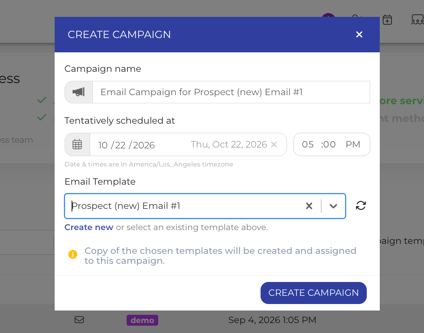
Templates that belong to a campaign. A template created from inside a campaign shows "Used with campaign" and the campaign's name. These are hidden from the list until you turn on Show campaign templates. Edit them from the campaign's Email Template tab, or with Edit Campaign. The pencil and trash can icons on the templates list are for templates that stand on their own.
Once a campaign is Scheduled, Processing, or Completed, its email template opens as view-only. Duplicate the template if you need a version you can change.
Find, duplicate, or delete a template
As your Opus1.io template list grows, these tools help you find the one you need:
- Search by name matches the template name.
- Filter by type set to Email hides your SMS templates.
- Filter by tags uses the template tags you added when creating the template.
- Show campaign templates adds designs that belong to a campaign. It is off by default.

Each row has these actions:
- Create Campaign starts a campaign from a standalone template.
- Send Test sends a preview to staff.
- Duplicate copies the design so you can adapt it without changing the original. The copy can be edited and deleted like any other standalone template.
- Update opens the designer.
- Delete removes a template that is not attached to a campaign.
💡 Tip: Duplicating is the safest way to make this season's version of a newsletter you already like. Last season's version stays exactly as it was sent.
Example: a spring recital email
Here is one way to put the Opus1.io template tools together for a recital announcement that speaks to piano and guitar families differently.
- Create a template named
Spring recital - familiesand tag itrecital. - Replace the placeholder image with your recital graphic.
- Write the greeting with merge tags:
Hi , is on the spring recital program. - Add a Video block with a short YouTube clip from last year's performance.
- Add two text blocks with your piano and guitar details. Give one a display condition for students tagged
Instrument - pianoand the other forInstrument - guitar. Add a third block with Not tagged for students without an instrument tag yet. - Keep the footer, including
. - Save, then send a test with a staff member first in the list who has an instrument tag on their profile, so you can see a display condition switch on.
- Open the test on your phone and read it the way a family would.
- Create the campaign, set the Email subject to
, the spring recital is coming up, choose the audience, and schedule it.
FAQ
I edited my template, so why didn't my campaign change?
When you choose a template on an Opus1.io campaign, the campaign keeps its own copy of the design. Later edits on the Templates page do not change a campaign that already uses it. Open the campaign's Email Template tab and update the design there, or choose the template on the campaign again.
Where do I change the booking confirmation and reminder emails?
Those automatic emails are not campaign templates. In Opus1.io, booking confirmations, reminders, cancellations, and follow-ups after attendance are written on each service, and a few studio-wide notifications have their own settings. The Client Automated Email Notifications article lists every automatic email and where to edit it.
Can I make text message templates too?
Yes. Opus1.io keeps SMS templates on the same Templates page, and Filter by type switches between the two. SMS templates are plain text without the visual designer. See How do I create SMS templates? for the steps.
What happens when a family selects unsubscribe?
That family stops receiving Opus1.io campaign emails and is counted under Marketing opt-outs in campaign reports. Future campaigns skip them automatically, so you do not need to remove them from your audience by hand.
Related Articles
- How do I create an email campaign? — send a template once to an audience you choose
- How do I create an ongoing campaign? — a series of emails that runs on its own, with a template on each stage
- PLUS - Email Campaigns: Verifying Your Domain — the setup step required before any campaign email sends
- Client Automated Email Notifications — the booking, reminder, and payment emails Opus1.io sends automatically
- How do I create SMS templates? — reusable text messages for conversations and batch SMS
- How do I configure my payment plans to auto-tag clients when they enroll? — tag students automatically so display conditions have something to match