---
title: How do online payments work?
description: Learn how to enable Opus1 Payments, accept recurring online payments, and manage transactions, payouts, and reporting.
---

[Skip to content](https://kb.opus1.io/what-payment-processors#main-content)

English

Show submenu for translations

![Opus1-3-icon-color-1.png\]](https://kb.opus1.io/hs-fs/hubfs/Opus1-3-icon-color-1.png?height=50&name=Opus1-3-icon-color-1.png)

Open main navigation

Close main navigation

- English
  
  Show submenu for translations
- Go to opus1.io

 Go to opus1.io

 Hello. How can we help you?

- There are no suggestions because the search field is empty.

1. [opus1io Knowledge Base](https://kb.opus1.io/?hsLang=en)
2. [Payment Processing](https://kb.opus1.io/payment-processing?hsLang=en)
3. [General](https://kb.opus1.io/payment-processing?hsLang=en#general)

# How do online payments work?

## Opus1 offers the convenience of automatic monthly billing for both you and your clients. To begin receiving recurring online payments from clients through Opus1, you will first need to create and connect an Opus1 Payments account.

**About Opus1 Payments:**

- Available internationally, including the **United States and Canada**
- Supports **credit card payments**
- Supports **ACH payments** and regional equivalents in the **UK, Australia, and Canada**
- Allows **separate payment processing accounts for each location**
- **Quick and easy signup process**
- Google Pay
- Apple Pay
- Surcharge billing models are not supported

Existing customer? Reach out to [finance@opus1.io](mailto:finance@opus1.io) to discuss transitioning to Opus1 Payments.

#### **Enable Opus1 Payments**

Follow these steps to begin setting up **Opus1 Payments** in your opus1.io account as a new client:

### **Step 1: Access Business Settings**

1. Log in to your **opus1.io account**.
2. Click the **gear icon** to open **Business Settings**.

### **Step 2: Navigate to Payment Settings**

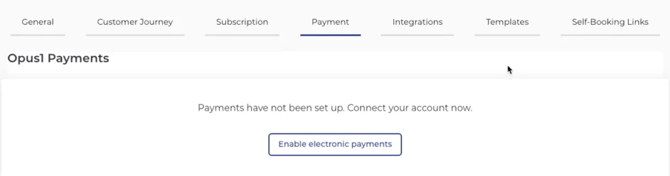
1. In **Business Settings**, select the **Payment** tab.
2. Click **Enable Electronic Payments**.  
   **![](https://kb.opus1.io/hs-fs/hubfs/undefined-Mar-25-2026-04-49-57-0483-PM.png?width=670&height=176&name=undefined-Mar-25-2026-04-49-57-0483-PM.png)**

### **Step 3: Confirm Account Details**

1. Confirm your **country** and **currency** when prompted.
2. After confirmation, you will be redirected to create your **Opus1 Payments profile**.

Once your profile is created, you can proceed with completing your payment setup.

We recommend running a test charge when your Opus1 Payments profile is completed. For more information on running a test charge, [please click here.](https://kb.opus1.io/how-do-i-run-a-test-charge-after-enabling-opus1-payments?hsLang=en)

### FAQs:

**How do I research a transaction on Opus1 Payments?** You can research a transaction by logging into your Opus1 Payments profile and navigating to the Transactions page.

Transactions are displayed in chronological order. You can use the available filters to narrow down the list and locate specific transactions.

Click on any transaction to view additional details.

**How do I view monthly statements?** Opus1 Payments does not provide a traditional monthly statement. Instead, leverage the Balance Change From Activity report, which provides a detailed breakdown of all incoming and outgoing funds and fees.

To access this report:

1. Log into your Opus1 Payments profile
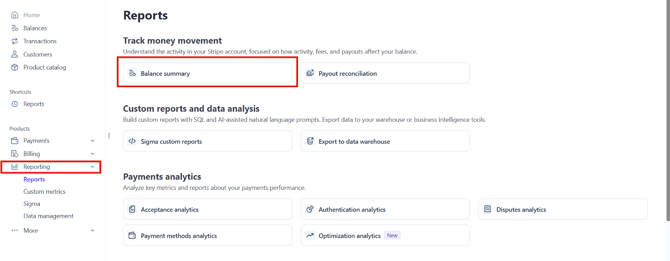
2. Navigate to Reporting → Reports in the left-hand menu
3. Click Balance Summary  
   ![](https://kb.opus1.io/hs-fs/hubfs/undefined-Mar-25-2026-04-52-55-1935-PM.png?width=670&height=261&name=undefined-Mar-25-2026-04-52-55-1935-PM.png)
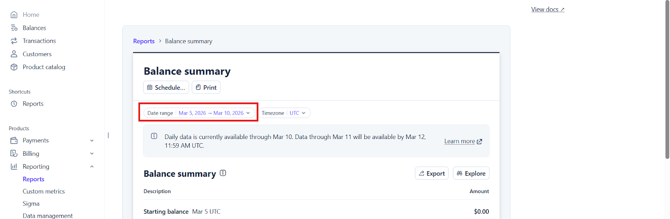
4. Set your desired date range  
   ![](https://kb.opus1.io/hs-fs/hubfs/undefined-Mar-25-2026-04-52-54-8243-PM.png?width=670&height=219&name=undefined-Mar-25-2026-04-52-54-8243-PM.png)
5. Export the Balance Change From Activity report. 

**How long until I receive proceeds from a transaction?:** Recurring transactions typically are ready for payout in a T+2 timeline (transaction date + 2 business days) for businesses in the United States, or T+3 timeline for international businesses. Your first Opus1 Payments transaction has an elevated payout time of T+7 (7 days after the transaction is initiated). Because of this, we recommend performing a test charge after completing your Opus1 Payments profile.

Instant Payouts are available for immediate access to your funds. \*certain eligibility and fees apply

**I would like to know more about Instant Payouts.** Instant Payouts allow you to transfer funds to your bank account within minutes, including weekends and holidays.

Key details:

- Funds typically settle within 30 minutes
- Limits increase over time based on account activity
- You can request up to 10 instant payouts per day
- Your current instant payout eligibility and limits are displayed on your dashboard

**How do I enable ACH/Direct Debit payments?** ACH/Direct Debit payments are enabled by default. New merchant accounts processing limits may apply. The processing limit will increase automatically over time based on account activity.

If you need your ACH limit increased, please reach out to [finance@opus1.io](mailto:finance@opus1.io) to discuss next steps.

**Do I have daily payout limits?** Standard payouts do not have daily limits. However, payouts larger than $1,000,000 may experience delays.

Instant Payouts do have limits. Your current Instant Payout limit can be viewed directly on your dashboard.

**How do I update business information on Opus1 Payments?** You can update your information by logging directly into your Opus1 Payments profile and navigating to Settings → Account details. From here, you can update business information, personal details, or bank account information as needed.

**How do I refund a customer?** [Click here for a full walkthrough](https://kb.opus1.io/how-do-i-issue-a-refund-on-an-invoice?hsLang=en) of how to issue a refund.

**Need to integrate Opus1 Payments with a third party solution (IE QuickBooks)?** Reach out to [finance@opus1.io](mailto:finance@opus1.io) and they will assist with determining the best path forward.

If you have any other questions, feel free to reach out to [finance@opus1.io](mailto:finance@opus1.io).

- [Account & Troubleshooting](https://kb.opus1.io/account-troubleshooting?hsLang=en#main-content)

    - [General](https://kb.opus1.io/account-troubleshooting?hsLang=en#general)
    - [Login & Access](https://kb.opus1.io/account-troubleshooting?hsLang=en#login-access)
    - [Release Notes](https://kb.opus1.io/account-troubleshooting?hsLang=en#release-notes)
- [Business](https://kb.opus1.io/business?hsLang=en#main-content)

    - [General](https://kb.opus1.io/business?hsLang=en#general)
    - [Business Profile & Billing](https://kb.opus1.io/business?hsLang=en#business-profile-billing)
    - [Client Data & Forms](https://kb.opus1.io/business?hsLang=en#client-data-forms)
    - [Integrations](https://kb.opus1.io/business?hsLang=en#integrations)
    - [Locations & Rooms](https://kb.opus1.io/business?hsLang=en#locations-rooms)
    - [Self-Booking Links](https://kb.opus1.io/business?hsLang=en#self-booking-links)
    - [Terms & Conditions](https://kb.opus1.io/business?hsLang=en#terms-conditions)
- [Calendar & Scheduling](https://kb.opus1.io/calendar-scheduling?hsLang=en#main-content)

    - [General](https://kb.opus1.io/calendar-scheduling?hsLang=en#general)
    - [Batch Schedule Actions](https://kb.opus1.io/calendar-scheduling?hsLang=en#batch-schedule-actions)
    - [Calendar Notes & Display](https://kb.opus1.io/calendar-scheduling?hsLang=en#calendar-notes-display)
    - [Enrollment](https://kb.opus1.io/calendar-scheduling?hsLang=en#enrollment)
    - [Recurring & Rescheduling](https://kb.opus1.io/calendar-scheduling?hsLang=en#recurring-rescheduling)
    - [Substitutes](https://kb.opus1.io/calendar-scheduling?hsLang=en#substitutes)
- [Clients](https://kb.opus1.io/clients?hsLang=en#main-content)

    - [Account Managers & Dependents](https://kb.opus1.io/clients?hsLang=en#account-managers-dependents)
    - [Client Experience](https://kb.opus1.io/clients?hsLang=en#client-experience)
    - [Client Records](https://kb.opus1.io/clients?hsLang=en#client-records)
    - [Credits](https://kb.opus1.io/clients?hsLang=en#credits)
    - [Gift Cards](https://kb.opus1.io/clients?hsLang=en#gift-cards)
    - [Invoices](https://kb.opus1.io/clients?hsLang=en#invoices)
    - [Payments & Auto-Pay](https://kb.opus1.io/clients?hsLang=en#payments-auto-pay)
    - [Subscriptions](https://kb.opus1.io/clients?hsLang=en#subscriptions)
    - [Waitlist Notifications](https://kb.opus1.io/clients?hsLang=en#waitlist-notifications)
- [Communication](https://kb.opus1.io/communication?hsLang=en#main-content)

    - [Email & Notifications](https://kb.opus1.io/communication?hsLang=en#email-notifications)
    - [SMS](https://kb.opus1.io/communication?hsLang=en#sms)
    - [Voice](https://kb.opus1.io/communication?hsLang=en#voice)
- [Grow Your Music School](https://kb.opus1.io/grow-your-music-school?hsLang=en#main-content)

    - [Convert Prospects](https://kb.opus1.io/grow-your-music-school?hsLang=en#convert-prospects)
    - [Email Campaigns](https://kb.opus1.io/grow-your-music-school?hsLang=en#email-campaigns)
    - [Get Found & Capture Leads](https://kb.opus1.io/grow-your-music-school?hsLang=en#get-found-capture-leads)
    - [Reviews & Reputation](https://kb.opus1.io/grow-your-music-school?hsLang=en#reviews-reputation)
- [Payment Processing](https://kb.opus1.io/payment-processing?hsLang=en#main-content)

    - [General](https://kb.opus1.io/payment-processing?hsLang=en#general)
    - [Opus1 Payments (Stripe)](https://kb.opus1.io/payment-processing?hsLang=en#opus1-payments-stripe)
    - [Clover Connect (FiServ / Cardpointe)](https://kb.opus1.io/payment-processing?hsLang=en#clover-connect-fiserv-cardpointe)
- [Reporting](https://kb.opus1.io/reporting?hsLang=en#main-content)

    - [Attendance](https://kb.opus1.io/reporting?hsLang=en#attendance)
    - [Credits](https://kb.opus1.io/reporting?hsLang=en#credits)
    - [Invoices](https://kb.opus1.io/reporting?hsLang=en#invoices)
    - [Subscriptions](https://kb.opus1.io/reporting?hsLang=en#subscriptions)
    - [Transactions](https://kb.opus1.io/reporting?hsLang=en#transactions)
    - [Data Exports](https://kb.opus1.io/reporting?hsLang=en#data-exports)
- [Services](https://kb.opus1.io/services?hsLang=en#main-content)

    - [Appointments](https://kb.opus1.io/services?hsLang=en#appointments)
    - [Building Services](https://kb.opus1.io/services?hsLang=en#building-services)
    - [Cancellation](https://kb.opus1.io/services?hsLang=en#cancellation)
    - [Events](https://kb.opus1.io/services?hsLang=en#events)
    - [Optimization & Conversion](https://kb.opus1.io/services?hsLang=en#optimization-conversion)
    - [Payment Plans](https://kb.opus1.io/services?hsLang=en#payment-plans)
    - [Sessions](https://kb.opus1.io/services?hsLang=en#sessions)
    - [Subscription-Only](https://kb.opus1.io/services?hsLang=en#subscription-only)
- [Staff](https://kb.opus1.io/staff?hsLang=en#main-content)

    - [Availability & Self-Booking](https://kb.opus1.io/staff?hsLang=en#availability-self-booking)
    - [Calendar Sync](https://kb.opus1.io/staff?hsLang=en#calendar-sync)
    - [Onboarding & Offboarding](https://kb.opus1.io/staff?hsLang=en#onboarding-offboarding)
    - [Payroll & Compensation](https://kb.opus1.io/staff?hsLang=en#payroll-compensation)
    - [Roles & Permissions](https://kb.opus1.io/staff?hsLang=en#roles-permissions)
    - [Teacher Tools & Access](https://kb.opus1.io/staff?hsLang=en#teacher-tools-access)
    - [Time-off](https://kb.opus1.io/staff?hsLang=en#time-off)
- [Stats](https://kb.opus1.io/stats?hsLang=en#main-content)

    - [Conversions](https://kb.opus1.io/stats?hsLang=en#conversions)
    - [Client Metrics](https://kb.opus1.io/stats?hsLang=en#client-metrics)
    - [Dashboard](https://kb.opus1.io/stats?hsLang=en#dashboard)
    - [Session Enrollment](https://kb.opus1.io/stats?hsLang=en#session-enrollment)
    - [Today](https://kb.opus1.io/stats?hsLang=en#today)
    - [Utilization](https://kb.opus1.io/stats?hsLang=en#utilization)

[![Chill listening crop-3](https://kb.opus1.io/hs-fs/hubfs/Opus1-3-icon-color-2.png?width=35&height=24&name=Opus1-3-icon-color-2.png "Chill listening crop-3")](http://opus1.io)

<https://www.facebook.com/opus1.io/>

Copyright © 2025, Opus1.io