![Opus1-3-icon-color-1.png]](https://kb.opus1.io/hs-fs/hubfs/Opus1-3-icon-color-1.png?height=50&name=Opus1-3-icon-color-1.png)
Applies to: Owner, Manager, Staff
PLUS Feature: No
Plan: Requires the Opus1 Voice add-on
Last updated: September 17, 2026
Table of Contents
- Why the Outcome column matters
- Where to find the Calls log
- The four call outcomes
- How Opus1 Voice decides which label an incoming call gets
- Missed does not mean a voicemail was left
- Calls that show no outcome
- Build your callback list
- Settings that change which label you get
- Who can see the Calls log
- FAQ
- Related Articles
Why the Outcome column matters
A parent calls during open hours. The front desk is with a family, the phone rings out, and by the afternoon nobody remembers it happened. During enrollment season that is a lost trial lesson.
The Outcome column is how Opus1 Voice marks every finished call so you can tell, at a glance, who still needs a human. Nobody on your staff types these labels — Voice writes them when the call ends, and they cannot be edited afterward. Your job is to filter them and return the calls.
⚠️ Missed does not mean the caller left a voicemail, and an outgoing call that nobody picks up is not labeled Missed.
Where to find the Calls log
Open Clients > Calls. The page is titled Calls, and it opens showing the last three days by default.
Expand the filters to change the date range or to narrow by client, staff member, Select call outcome, Select call direction, or Select client sentiment: 
Direction (Inbound or Outbound — calls that came in, and calls your staff placed) is its own column and its own filter. The Outcome column never tells you the direction, which is why outgoing calls behave differently from what most people expect:
You can also reach the same information by going to the individual client's profile and look at the call entries in their client history. On a phone, each call appears as a card rather than a table row, with the same outcome on it: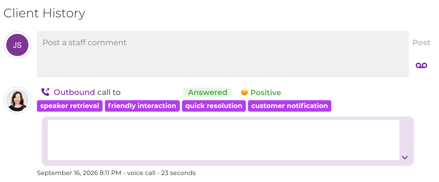
If Opus1 Voice is not enabled for your school, Clients > Calls shows the Voice upgrade page instead of a log. There is no separate setting to switch outcomes on — they are written automatically.
The four call outcomes
These are the only named outcomes in Opus1 Voice. If you are looking for a label that is not on this list — Voicemail, Failed, Busy — it does not exist.
| Outcome | When you see it | How it looks | |
|---|---|---|---|
| Answered | Someone picked up. On an incoming call, that means a staff member with Accept incoming calls turned on connected. On an outgoing call, it means the person you dialed answered. | Green tag | 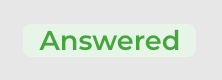
|
| Missed | An incoming call came in while the location was open (or while someone had Accept incoming calls on), rang through the waiting greeting, and nobody answered. | Red tag | 
|
| Missed (Outside of open hours) | An incoming call arrived outside the location's business hours and nobody had Accept incoming calls on. | Yellow tag | 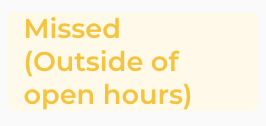
|
| Missed (Closed) | An incoming call arrived while the location was explicitly closed — a holiday, for example — and nobody had Accept incoming calls on. | Yellow tag |
The two yellow labels are not a coverage failure. They tell you a family tried to reach you when you were legitimately shut, which is still worth a call back the next morning.
How Opus1 Voice decides which label an incoming call gets
Opus1 Voice matches the incoming call to the location that owns the number it was dialed on, then checks whether that location is open.
If the location is open, or if anyone has Accept incoming calls switched on, the caller hears your opening greeting, staff who are accepting calls are notified, and the waiting greeting plays on a loop up to four times. If someone picks up during that window, the call is Answered. If nobody does, the caller hears your Unable to connect greeting and the call is recorded as Missed.
If the location is outside its business hours and nobody is accepting calls, the caller hears your after-hours greeting and the call is recorded as Missed (Outside of open hours).
If the location is explicitly closed — a holiday or a closure you set — and nobody is accepting calls, the caller hears your closed greeting and the call is recorded as Missed (Closed).
The Accept incoming calls toggle is the one that surprises people. It sits on the Voice panel and each person turns it on for themselves when they are ready to take calls. Turning it on after hours or on a holiday tells Opus1 Voice you are available, so those calls follow the open-hours path — and an unanswered one is labeled plain Missed, not one of the yellow labels.
For exactly what the caller hears at each step, see the Call Flows Guide.
Missed does not mean a voicemail was left
Missed means one thing: an incoming call was not answered. It says nothing about whether the caller stayed on the line.
Whether a voicemail was even possible depends on the Allow voicemails setting on that location. With it on, the caller hears a tone after the greeting and can leave a message of up to five minutes, which Opus1 Voice records, transcribes, and summarizes for you. With it off, the call simply ends.
Either way, the outcome stays Missed. There is no separate Voicemail outcome, so a row marked Missed may or may not have a recording attached. To see which do, turn on Show recordings / voicemails in the filters on desktop.
Calls that show no outcome
On the desktop Calls table, a call with no stored outcome shows a dash (-). That is a placeholder, not a fifth status, and you will not find it in the Select call outcome filter. On a phone and in a client's history, the same empty outcome may read Unknown instead. Both mean the same thing: Opus1 Voice has no named outcome for that row.
You will normally see it in three situations:
- The call is still in progress.
- Your staff placed an outgoing call and the person did not pick up. The missed labels are for incoming calls only — there is no equivalent for an outgoing call that rings out.
- An incoming call ended partway through the wait, before the Unable to connect greeting — the caller hung up while on hold.
So if you are hunting for outgoing calls that did not connect, do not filter for Missed. Widen the date range, set Select call direction to Outbound, and look for the rows with no outcome.
Build your callback list
The fastest path, once or twice a day:
- Open Clients > Calls.
- Expand the filters.
- Set Select call outcome to Missed. Add Missed (Outside of open hours) and Missed (Closed) if you also want the families who called while you were shut.
- Set Select call direction to Inbound to keep outgoing calls out of the list.
- Widen the date range if you need more than the last three days.
Then call back from the Opus1 Voice panel, or open the client from the row if you want their history in front of you first.
Your dashboard carries the same signal in summary form: the Missed Calls (last 3 days) metric counts unanswered incoming calls, so a number climbing there is your cue to work the list above. See Understanding Your Dashboard & Metrics for the rest of the Voice metrics.
Settings that change which label you get
You cannot relabel a call after the fact. What you can change is how the next call is classified, and whether a recording exists to listen to.
| Setting | Where it lives | What it changes |
|---|---|---|
| Open hours and holiday closures | Location settings | Decides between Missed, Missed (Outside of open hours), and Missed (Closed) |
| Accept incoming calls | Opus1 Voice panel, per person | Sends after-hours and holiday calls down the open-hours path, so an unanswered one is Missed |
| Allow voicemails | Location > Voice Calls Settings | Decides whether a caller can leave a message after a miss. The outcome stays a missed label either way |
| Show recordings / voicemails | Calls filters, desktop | Shows the recording column. Does not change any outcome |
Greetings, Allow voicemails, and the recording options sit together under the location's Voice Calls Settings and are edited by Owners. Opus1 enables Voice for your school and assigns the numbers — that is not a switch you will find in your own settings.
Who can see the Calls log
There is no separate permission for call outcomes. Anyone who can open Clients > Calls sees the Outcome column.
| Role | Open Clients > Calls | See the Outcome | Listen to voicemails | Listen to answered-call recordings |
|---|---|---|---|---|
| Owner | Yes | Yes | Yes | Yes |
| Manager | Yes | Yes | Yes | Yes |
| Staff | Yes | Yes | Yes | No |
Limited Staff cannot use Opus1 Voice at all, so your teachers are not on this log and will not be answering the studio line. Families never see it either — they simply dial your number from their own phones.
FAQ
Can I change a call's outcome after the fact?
No. Outcomes are written by Opus1 Voice when the call ends and are not editable. Adjust your open hours, holidays, greetings, or Allow voicemails to change how future calls are classified.
Can my teachers see the Calls log?
No. Limited Staff do not have access to Opus1 Voice, so they cannot open Clients > Calls, place calls, or see outcomes.
Who can listen to a voicemail versus a call recording?
Staff, Managers, and Owners can listen to voicemails. Recordings and full transcripts of answered calls are restricted to Managers and Owners.
A call I know happened isn't in the log at all. What now?
That is worth reporting rather than troubleshooting. Contact support with the details in the next section.
Related Articles
- Call Flows Guide — what the caller actually hears at each stage, including the after-hours and holiday greetings
- Opus1 Voice FAQ — cost, who can use Voice, voicemail, call forwarding, and recording disclosure
- Voice Best Practices — microphone, speaker, and browser setup so calls get answered cleanly
- Understanding Your Dashboard & Metrics — the Voice metrics on your dashboard, including Missed Calls
- Letter of Authorization Template — what you sign to port your existing number to Opus1 Voice