![Opus1-3-icon-color-1.png]](https://kb.opus1.io/hs-fs/hubfs/Opus1-3-icon-color-1.png?height=50&name=Opus1-3-icon-color-1.png)
Last updated: July 2, 2026
Applies to: Owner | Manager
PLUS Feature: No
Table of Contents
- What are Landing Pages?
- Who can use Landing Pages?
- How to Create a Landing Page
- Sharing Your Landing Page
- Connecting Landing Pages to Campaigns
- FAQ
- Related Articles
Overview
Landing Pages in Opus1.io are standalone, shareable web pages you can create to showcase specific services, promotions, or events. Each Landing Page groups two or more self-booking links behind a single URL, so visitors see a branded menu of options and choose the path that fits them.
Unlike a Self-Booking Link, which directs clients into one booking flow for a single service type (group classes, appointments, or events), a Landing Page can combine links from more than one service type on the same page. For example, if you hire a new piano teacher and want to promote their offerings, you could create a Landing Page that lists both their private piano lessons and their piano group classes—each as its own card, each leading into the appropriate booking flow.
Unlike a Promotional Link, which applies a discount code, a Landing Page gives you a dedicated space to tell your story, highlight what makes an offering special, and guide visitors toward booking.
Use Landing Pages when you want more control over the client's first impression—for example, when promoting a summer camp, a trial lesson package, a new teacher's full roster of offerings, or a limited-time offer.
ℹ️ Note: Landing Pages are available to all Opus1.io subscribers. Some advanced customization options (such as custom domains or embedded forms) may require a PLUS subscription.
1. What are Landing Pages?
What it does
A Landing Page is a public menu page hosted by Opus1.io at a single URL. You choose which self-booking links appear on the page; each link is displayed as a visual card with its title, photo, and description. When a visitor clicks a card, they enter that specific self-booking flow (group class, appointment, or event). The page uses your business branding—logo, colors, and fonts—and includes Login and Register options in the header.
Why you'd use it
Landing Pages help you convert more visitors into clients by giving them one clear entry point and letting them self-select the right path—instead of juggling multiple URLs or explaining which link to use. They are ideal for:
- Trial lesson promotions — Offer trial private lessons and trial group classes on one page
- Seasonal camps or workshops — Combine group class enrollments and event registrations in one place
- New service or staff launches — Promote everything a new teacher offers (e.g., private piano lessons and piano group classes) from a single link
- Event registrations — Pair event sign-ups with related group class or appointment options on the same page
- Campaigns with multiple enrollment paths — Share one URL in email, SMS, social media, or print; prospects pick the option that fits them
How Landing Pages differ from other links
| Feature | Purpose | Best For |
|---|---|---|
| Self-Booking Link | Sends clients directly to your booking calendar | Existing clients or simple scheduling |
| Promotional Link | Applies a discount code automatically | Coupon campaigns |
| Landing Page | Dedicated page with branding, description, and CTA | Marketing campaigns, new client acquisition |
2. Who Can Use Landing Pages?
Landing Pages are available to all Opus1.io subscribers. Owners and Managers can create, edit, and publish Landing Pages. Staff members with appropriate permissions may view Landing Page performance but cannot create or modify pages.
3. How to Create a Landing Page
How to configure it
- Navigate to Business > Self-Booking Links > Landing Pages:
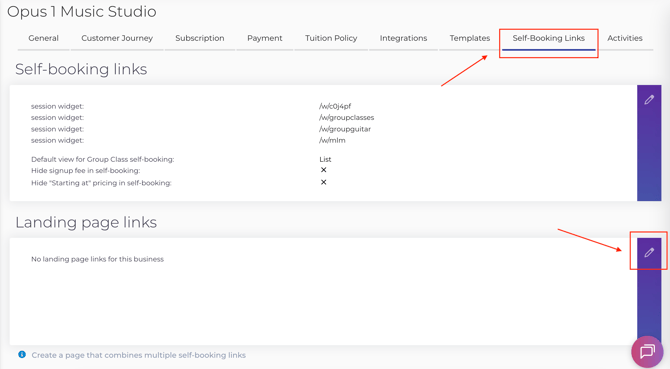
- Click + New Landing Page:

- Enter a Link Name for your page (this appears as part of the URL people see)
- Select the Booking Links(s) you want to feature on this page (re-order as applicable)
- Click Update Business to save the link
⚠️ Warning: Once a Landing Page is published, the URL becomes active immediately, but you need to choose where & when you publish it.
4. Sharing Your Landing Page
What it Does
Each Landing Page has a unique URL you can share via email, social media, text message, or anywhere else you connect with potential clients.
How to share
- Open the Self-Booking Links page in your Business Settings
- Right click the landing page you want to share
- Paste the link into your email, social post, campaign, or website
5. Connecting Landing Pages to Campaigns
Why you'd use it
Pairing a Landing Page with an email or SMS campaign creates a seamless experience: your message grabs attention, and the Landing Page closes the deal.
How to connect
- Create your Landing Page and copy its URL
- Navigate to PLUS > Campaigns and create a new email or SMS campaign
- In your campaign content, add a button or link that points to your Landing Page URL
- Send or schedule your campaign
💡 Tip: Use a clear, action-oriented button label in your campaign (e.g., "Learn More" or "Reserve Your Spot") to encourage clicks.
6. FAQ
Q: What is the difference between a Landing Page and a Self-Booking Link?
A: A Landing Page groups two or more self-booking links behind one shareable URL. Visitors see a branded menu of self-booking links (each with its own image, title, and description) and choose the path that fits them. A Landing Page can include links from different service types on the same page—for example, a new piano teacher’s private lessons and group classes together.
Use a Self-Booking Link when you want a direct path to one offering. Use a Landing Page when you want one URL that lets clients choose among several related options.
Q: Can I use a Landing Page for a limited-time promotion?
A: Yes. You can unpublish a Landing Page at any time to remove it from public view. This is useful for seasonal offers or events that have ended.
Q: Do I need a PLUS subscription to create Landing Pages?
A: No. All Opus1.io subscribers can create and publish Landing Pages.
Q: Can Staff members create Landing Pages?
A: No. Only Owners and Managers can create or edit Landing Pages. Staff members may view performance data if granted access.
Related Articles
- Creating Self-Booking Links — learn how to generate direct booking links for your services
- Using Promotional Links — set up discount codes that apply automatically when clients book
- How can I embed the lead capture form in my website? (PLUS) — embed booking forms on your own site
- How do I create an email campaign? (PLUS > Campaigns) — build email campaigns to drive traffic to your Landing Pages