![Opus1-3-icon-color-1.png]](https://kb.opus1.io/hs-fs/hubfs/Opus1-3-icon-color-1.png?height=50&name=Opus1-3-icon-color-1.png)
Online reviews are often one of the first things prospective families look at before reaching out to a school. This feature allows you to encourage satisfied families to leave public reviews while giving less satisfied families a way to share feedback privately.
Why This Works
opus1.io's Reputation Management feature creates a smart feedback funnel:
- Happy families are guided to public Google reviews
- Unhappy families are routed to private feedback
- Studio owners get the chance to resolve issues before they appear online
Best Practices for Growing Reviews
To build a strong reputation:
- Ask for reviews soon after positive experiences
- Use QR codes in lesson rooms and at the front desk
- Send occasional campaigns to active students
- Encourage teachers to remind happy families to leave feedback
Step 1: Add Your Google Review Link
Before using any reputation management tools, you must first add the Google review link associated with your business location. This allows opus1.io to direct happy families to the correct Google review page.
How to add your Google Review link
- Go to your left hand menu > gear > Locations / Rooms
- Click Update on the location you want to configure
- Scroll to Enable Google Reviews:
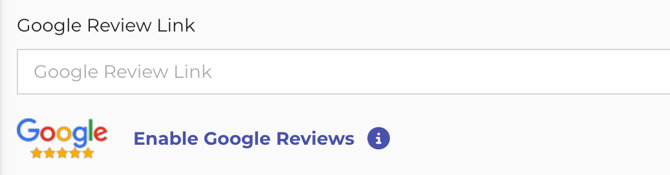
- If your business is not connected, click Enable Google Reviews and find your business name
- Copy & paste your review link tied to your business in the given field
- Click Update Location at the bottom of the page to finalize the change
Once your Google review link is added, you can begin requesting reviews through opus1.io. After setup, there are four different ways to collect reviews from families.
View this video or read below to start collecting reviews from your families.
Step 2: Send a Review Request
- From a customer profile
- Using a QR code
- Include the Review Link in Ongoing Campaigns or Newsletters
- Send a Google Review Prompt
Send a Review Request from a Customer Profile
You can request a review directly from a customer's profile in just a few clicks:
-
Navigate to the customer's profile
- Locate the purple box with the star icon & click the star icon:
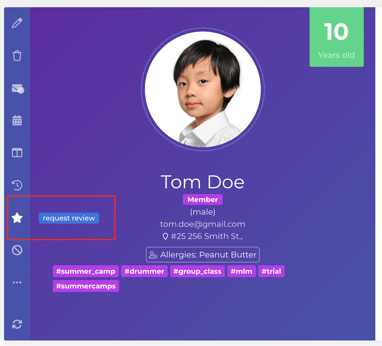
- Select the location and whether or not you want to send an email and/or SMS request
- Click Send Review Request
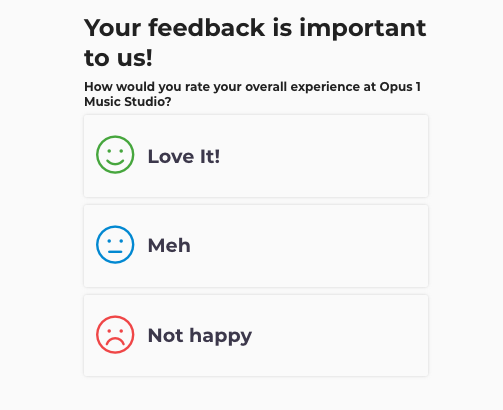
The family will receive a link asking them to rate their experience, and are prompted to choose one of three responses:
-
If they select Love It, they are directed to your Google review page to leave a public review
-
If they select Meh or Not Happy, they are prompted to leave private feedback instead, which is sent directly to your inbox
This built-in process helps protect your reputation by encouraging positive reviews publicly while giving you the opportunity to address concerns privately.
Use a QR Code
opus1.io also allows you to generate a review link or QR code that you can place around your studio to make leaving reviews quick and easy.
This is especially effective right after a great lesson, when parents are already feeling positive about the experience.
How to generate the review link or QR code:
-
Go to your left hand menu > gear > Locations / Rooms
- Find the location > Get 5-star Google Reviews and you'll be able to click link or QR code
You can then:
- Print the QR code and display it at your front desk
- Place it in lesson rooms
- Add it to posters or signage
- Share the link digitally
Many studios place the QR code in lesson rooms so teachers can simply say "If you're enjoying lessons here, feel free to scan this to leave us a quick review."
Include the Review Link in Ongoing Campaigns or Newsletters
Another effective way to capture reviews is by including your review link in email or SMS campaigns. For example, you might send a campaign to:
- Current active students
- Families after a recital
- Students who recently completed a trial
- Summer camp participants
An example message is, "We love having your family at the studio! If you've been enjoying your lessons, we would greatly appreciate a quick Google review."
This approach helps you consistently generate reviews over time without manually sending individual requests.
Send a Google Review Prompt
opus1.io PLUS also allows you to automatically include a Google review invitation at the bottom of your automated messages. This helps you collect reviews consistently without needing to manually request them each time.
When enabled, the system will append a Google review prompt and link to automated communications sent from opus1.io, giving families an easy way to leave a review after interacting with your studio.
To enable your Google Review Prompts:
- Navigate to your left hand menu > gear > Business
- Click Templates in the horizontal menu
- Scroll down to the Marketing Plus section > click the pencil to edit
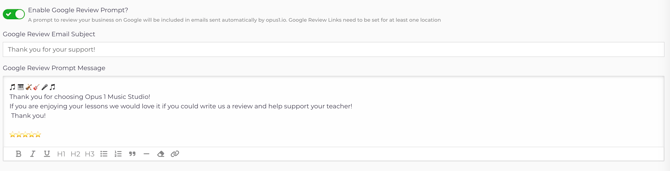
- Toggle on Enable Google Review Prompt
- Enter your Email Subject and Prompt Message:
- Update your business to save those changes
With Reputation Management in opus1.io PLUS, you can proactively grow your online reputation, increase visibility, and convert more prospective families, all with just a few clicks.
If you do not have PLUS and would like to learn more, please click here: Learn More About PLUS