![Opus1-3-icon-color-1.png]](https://kb.opus1.io/hs-fs/hubfs/Opus1-3-icon-color-1.png?height=50&name=Opus1-3-icon-color-1.png)
Last updated: September 4, 2026
Applies to: Owner / Manager (change the setting); Staff (share links, diagnose)
PLUS Feature: No
Plan: All
Table of Contents
- Overview
- Why the setting exists
- Choose the right access setting for each link
- How to check which setting a link is using
- How to open a link to visitors
- How to test it properly
- What your clients experience, before and after
- If the link opens but shows nothing
- Landing pages and promotional links
- Who can change this
- Troubleshooting
- FAQ
- Related Articles
Overview
Every self-booking link in Opus1 carries its own access setting. A link is either open to the public or restricted to people who are signed in.
When a restricted link is opened by someone who is not signed in, Opus1 does not show the booking flow. It shows a red "Not logged in — please login before continuing" message and sends them to your studio's login page.
Nothing is broken and the link has not expired. Opus1 is enforcing what the link is configured to do.
The reason this catches so many studios: when you create a new self-booking link, Make accessible by visitors starts off. A brand-new link is private until you turn it on. Build a link, copy the URL, paste it into a newsletter without touching that toggle, and every prospect who clicks it lands on a login screen.
One detail worth knowing: someone who does sign in is returned to the booking link they originally clicked. Existing families get through. Prospects with no account cannot, and most leave rather than registering from a bare login page.
Why the setting exists
It is tempting to assume every link should be public and this toggle is a trap. It is not. Clients only is the right answer for a real and common set of offerings.
A visitor is anyone browsing without being signed in — a prospect who found you on Google, a parent who clicked a Facebook ad, someone forwarded a link by a friend. A client is someone with an account at your studio.
When restricted is correct
- Make-up lessons. Only current students should claim make-up slots. A public make-up link invites strangers into your teachers' recovery time.
- Member-only pricing. A plan priced for enrolled families exposes that rate to anyone if the link is public.
- Recital and rehearsal slots. Accompanist time, dress rehearsals, and studio time belong to families already in the program.
- Add-ons for existing students. Extra lessons, second instruments, or intensives priced on the assumption of existing enrollment.
- Capacity you are protecting. A teacher you are deliberately not marketing, or a class you want to fill from your own roster first.
For all of those, leaving the toggle off is the feature working correctly. It keeps an offering out of public reach without hiding the service from your catalog entirely.
When open is correct
For anything you are actively marketing, an open link is the difference between a booking and a bounce.
A login wall stops the exact people you paid to reach. Prospects clicking your ad or your Google listing have no account, so a login page is a dead end. Money spent driving traffic to a restricted link is spent sending people to a door they cannot open.
Enrollment happens outside business hours. A parent deciding on lessons at 9pm on a Sunday cannot call you. An open link lets them browse instruments, see real availability, and hold a trial slot while they are still motivated.
Account creation still happens, just later and in context. Turning the toggle on does not skip registration. Visitors browse services and times freely, then create an account or sign in inside the booking flow, on your branded pages, at the point where they already want the slot. Same account, same data, very different ask.
Your marketing links start behaving like marketing links. Promotional links, landing pages, campaign URLs, and printed QR codes all depend on a stranger being able to open them. Each of those channels is only as public as the self-booking link underneath it.
Rule of thumb: if the link's purpose is to bring in someone who is not yet a client, it needs visitor access. If its purpose is to serve someone already enrolled, leave it restricted.
Choose the right access setting for each link
You are not choosing one setting for your whole studio. Each link is set independently, so public and restricted links run side by side.
| Your goal | Setting | Who can open the link | Typical uses |
|---|---|---|---|
| Attract new families | Make accessible by visitors: On | Anyone with the URL | Trial lessons, group class enrollment, camps, open house, ad and campaign landing spots, QR codes, website buttons |
| Serve enrolled families only | Make accessible by visitors: Off | Anyone signed in to your studio's Opus1 | Make-ups, member pricing, recital rehearsals, add-on lessons, roster-first classes |
Ways to give people access, from most open to most controlled
- A public self-booking link. Toggle on. Anyone with the URL browses and books, creating an account at the end. The standard choice for anything you advertise.
- A public landing page grouping several links. One URL presents a branded menu — a new piano teacher's private lessons and group classes together, for example. Each option still needs its own visitor access on. See Using Landing Pages in Opus1.io.
- A public link carrying a promotion. The same public link with the promo ID appended, so the discount applies at checkout. Requires visitor access, since the point is reaching people who are not clients yet. See How do I create and share promotional links?.
- A restricted link emailed from Opus1. Leave the toggle off and send the link through Opus1 to someone already on file. Those emails can carry a temporary access token that signs the recipient in on click. Good for member-only offers you do not want circulating.
- A restricted link plus a booking link proposal. Staff send one family a specific booking path. The most controlled option. See Sending Proposals.
- No client-facing link at all. Staff book on the family's behalf at the desk or by phone, which works regardless of how any link is configured.
A studio commonly runs 1, 2, and 4 at once: public trial and class links for marketing, a landing page for a campaign, and a private make-up link for enrolled students.
How to check which setting a link is using
You do not need to open a link's settings to see this.
- Go to Settings → Business
- Hover the business logo and choose the Self-Booking Links tab
- Click Edit:
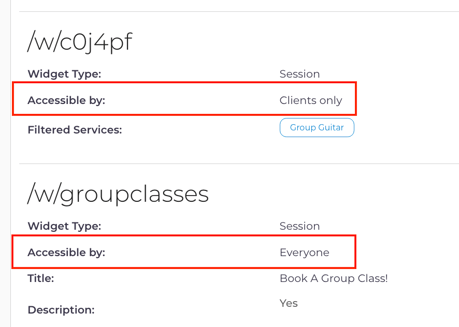
| What it says | What it means |
|---|---|
| Everyone | Public. Visitors can open it |
| Clients only | Restricted. Anyone not signed in is sent to the login page |
If the link people are complaining about says Clients only, you have found your answer.
How to open a link to visitors
- Go to Settings → Business.
- Hover the business logo and open the Self-Booking Links tab.
- Click Edit.
- Find the link and click Update. The Edit Link window opens.
- Turn on Make accessible by visitors. The helper text confirms the behavior: "If turned off, only logged-in clients will be able to access the link."

- Click Update Link.
- Click Update Business.
Step 7 is not optional. The window closes when you click Update Link, which makes it look finished, but nothing is saved until you click Update Business and see "Business updated successfully." Leaving the settings page before that discards the change — and it is the most common reason a studio reports they already turned it on while the link still asks for a login.
Verify by returning to the link list. Accessible by should now read Everyone.
How to test it properly
Test as a stranger, not as yourself.
Any signed-in account can open a restricted link — clients, staff, managers, and you. Testing while logged in as the owner always succeeds, whether or not the setting is right, which is why this problem usually reaches you as a client complaint rather than something you caught.
To test the way a prospect experiences it:
- Open the link in a private or incognito window, or
- Open it on a phone that has never signed in to your studio
If the booking flow loads with no login prompt, visitors are getting through.
One more trap: do not test by clicking a link inside an Opus1 email sent to your own address. Those links can carry a temporary access token that signs you in automatically, so a restricted link will appear to work perfectly. Copy the URL into a private window instead.
What your clients experience, before and after
Before — Make accessible by visitors: Off
- They click your link.
- A red "Not logged in" message appears.
- They land on your login page with no context about what they were trying to book.
- Existing families can sign in and are returned to the booking flow. Prospects have no account and usually leave.
After — Make accessible by visitors: On
- They click your link.
- Your branded booking flow opens immediately.
- They browse services, teachers, locations, and real availability, and pick a time.
- They create an account or sign in inside the booking flow, at the point of commitment.
- They complete checkout and receive the standard confirmation.
The account still gets created. It happens after they have chosen something they want, which is why the same traffic converts better.
If the link opens but shows nothing
Visitor access controls whether someone can open a link. It does not override the visibility of what the link is meant to show. If the login page is gone but the flow is empty, something is hiding content from visitors specifically.
Three settings do that, and each defaults to visible, so they only matter if someone turned one off:
| Where to look | Setting |
|---|---|
| Service settings | Can visitors see this service? |
| Location settings | Can visitors see this location? |
| Staff settings | Can visitors see this staff? |
The service setting spells out the trap directly: "If off, it will still be visible to client / staff / managers & owners, make sure you log out to see it take effect as a visitor." An owner testing while signed in sees a complete, healthy-looking booking flow that visitors see as empty. Full steps are in How do I make my services visible to clients/visitors?.
If content is missing for everyone, including signed-in clients, the cause is elsewhere: the link's own service, location, staff, or payment plan filters, plans not enabled for self-booking, missing open hours, or no staff availability. The checklist in Creating Self-Booking Links covers those.
Landing pages and promotional links
A landing page can look fine and still send people to a login page. A landing page is publicly viewable, but the individual self-booking links behind its cards are not automatically public. A visitor can load your branded menu, click a card, and hit a login screen. When you publish a landing page, confirm Make accessible by visitors on every link included on it.
Promotional links inherit the restriction. A promotional link is a self-booking URL with the promo ID on the end. If the underlying link is restricted, the discount never gets a chance to apply, because the visitor never reaches checkout. Any promotion aimed at new families needs visitor access on the link it points to.
Who can change this
| Role | Change the setting | Share links | See the setting |
|---|---|---|---|
| Owner | Yes | Yes | Yes |
| Manager | Yes | Yes | Yes |
| Staff | No | Yes | No |
| Limited Staff | No | No | No |
Opus1 business settings state that only managers and owners may modify business settings. If you cannot open Settings → Business, ask an Owner or Manager to make the change.
Troubleshooting
Clients say the link asks them to log in. The link is set to Clients only. Turn on Make accessible by visitors and save with Update Business.
I turned the toggle on and it still asks for a login. You almost certainly did not click Update Business after closing the link window. Check the link list — if Accessible by still reads Clients only, the change was never saved. Redo it and confirm you see "Business updated successfully."
It works for me but not for my clients. You are signed in, and any signed-in account can open a restricted link. Retest in a private window or after logging out.
It works from the link in my email but not when I paste it into a browser. Opus1 emails to known recipients can carry a temporary sign-in token. Always test by pasting the URL into a private window.
My landing page loads, but the options on it ask for a login. The landing page is public; the links behind its cards are not. Turn on visitor access for each self-booking link on that page.
My promotional link goes to a login page. The underlying self-booking link is restricted. Open it to visitors, then re-share the promotional URL.
I want new families to book but not see member pricing. Use two links: a public one filtered to the services and plans you market, and a restricted one for member-only offerings.
A stranger booked something meant for enrolled students. That link should be restricted. Turn Make accessible by visitors off, save, and share it by Opus1 email or a booking link proposal instead.
I cannot find the setting. It lives inside the individual link rather than on the tab: Settings → Business → Self-Booking Links → Edit → Update on the link. Only Owners and Managers can get there.
FAQ
Is one setting applied to all my links? No. Every self-booking link in Opus1 has its own, so public and restricted links can coexist and changing one does not touch any other.
Does opening the link to visitors mean people book without an account? No. They browse without an account and create one inside the booking flow before checkout. The setting changes when they register, not whether.
Why is the default off for new links? New links start restricted so nothing becomes publicly bookable in Opus1 before you have decided it should be. It is a safe default that needs one deliberate click for anything you plan to market.
Will turning it on expose my prices publicly? Anyone with the URL can see the services, teachers, availability, and prices that link is filtered to show. Use the link's service, location, staff, and payment plan filters to control what is on display, or turn off visitor visibility for a specific service, location, or teacher.
Does this control search engine indexing? No. It controls whether an unauthenticated person who already has the URL can open it. It is an access setting rather than a publishing or SEO setting.
Related Articles
Setting up the link
- Creating Self-Booking Links — the setup checklist for links that are not working as expected
- How do I make my services visible to clients/visitors? — the visitor visibility cascade
- How do I enable my payment plans for self-booking?
- How do I prevent my teachers from being available for self-booking?
Sharing the link
- Using Landing Pages in Opus1.io — grouping several booking options behind one URL
- How do I create and share promotional links? — discounts on a public link
- Sending Proposals — sending one family a specific booking path
Measuring the result
- Conversions Stats — whether traffic is turning into enrollments
- How do I enable conversion tracking?
- Setting up payment plans for your appointment-based services