![Opus1-3-icon-color-1.png]](https://kb.opus1.io/hs-fs/hubfs/Opus1-3-icon-color-1.png?height=50&name=Opus1-3-icon-color-1.png)
Batch Updating Payment Plans | Opus1.io
Opus1.io's improved batch update for payment plans allows you to update your services' payment plan settings using service names, tags, plan name filters, and price pattern matching.
Things to remember:
- Batch updating payment plans does not affect pending / active subscriptions. If you wish to raise the subscription prices of current clients, for example, you will need to use batch update for subscriptions.
- Not all payment plan settings are currently batch updatable.
- You can only update one payment plan setting at a time.
- Different service types cannot be updated simultaneously (appointments and sessions, for example).
How to batch update payment plans:
- Use service names or tags to filter for a subset of services
- Select BATCH UPDATE and then Payment Plans under Attribute(s) to batch update
- Select a payment plan setting to batch update
- Apply plan name filters (if necessary)
- Add additional price update patterns (if necessary)
6. Review & click BATCH UPDATE to confirm
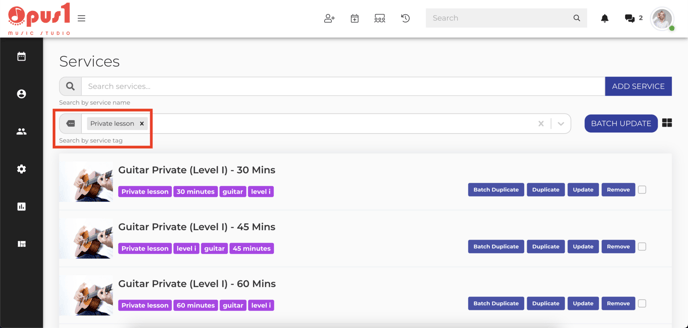
Step 1: Use service names or tags to filter for services to batch update
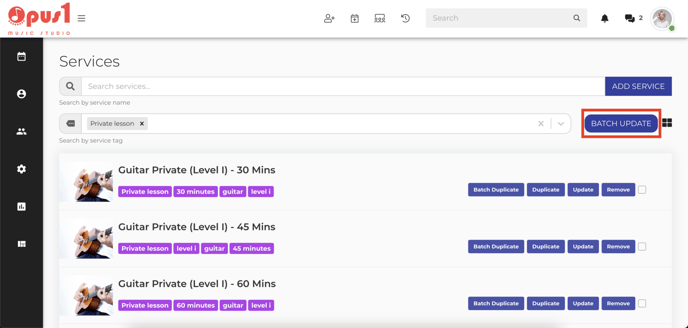 Step 2a: Select BATCH UPDATE
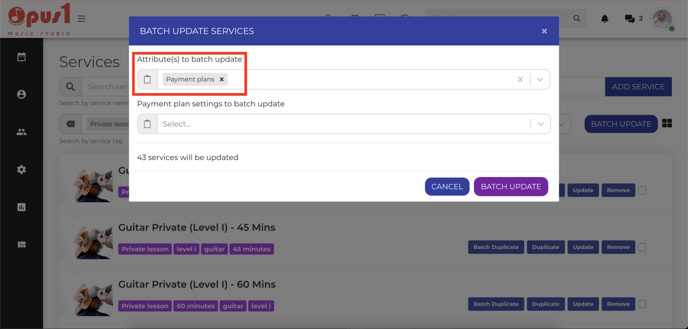 Step 2b: Select Payment Plans under Attribute(s) to batch update
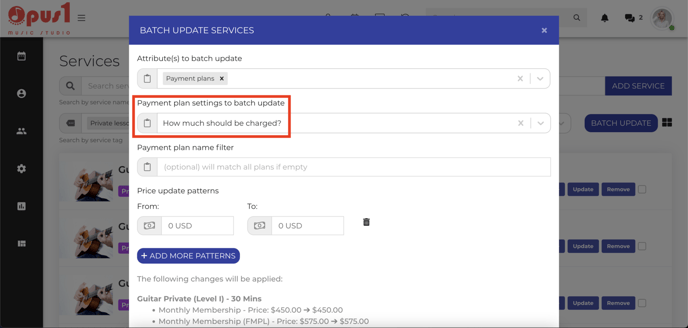 Step 3: Select payment plan setting to batch update
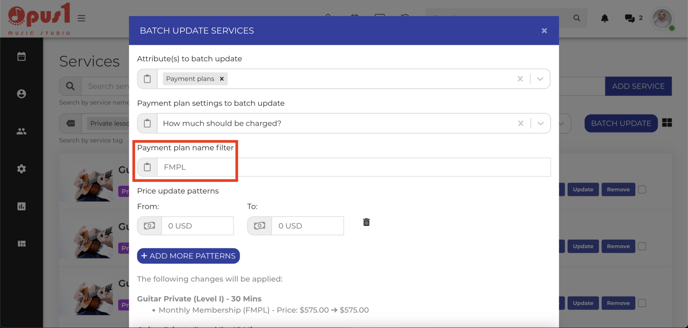 Step 4: Apply plan name filters if necessary
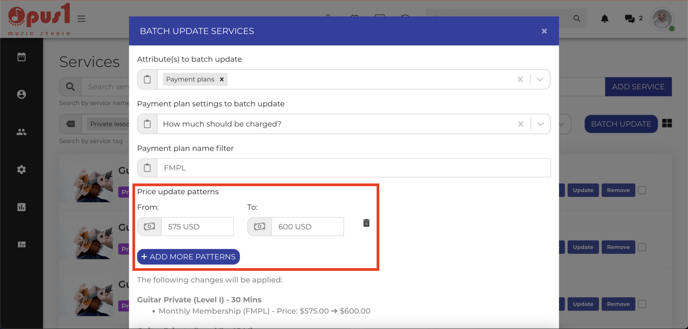 Step 5: Provide price update patterns if necessary
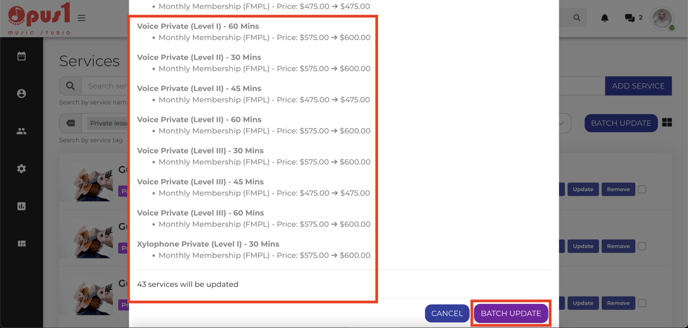 Step 6: Review and click BATCH UPDATE to batch update your services