![Opus1-3-icon-color-1.png]](https://kb.opus1.io/hs-fs/hubfs/Opus1-3-icon-color-1.png?height=50&name=Opus1-3-icon-color-1.png)
Applies to: Owner / Manager / Staff
PLUS Feature: No
Plan: SMS required
Last updated: September 18, 2026
Table of Contents
- Overview
- Who can start a conversation
- Before you start
- How to start a new message
- What happens when you pick someone
- Writing and sending the message
- Where the conversation goes afterward
- Other ways you land in a conversation
- Which path to use
- FAQ
- Related Articles
Overview
Instant Messaging is where your front desk texts one family at a time from the studio's own number instead of from a staff member's personal phone. Starting a conversation is the step where you choose who — the message itself comes after.
Two things make this worth a minute of reading. The first is that a parent who texted about a makeup lesson in March, a waitlist question in June, and a late pickup last Tuesday should have one conversation, not three — so when you pick someone who has texted with your school before, Opus1.io opens the conversation that already exists. The second is that the person you want to reach does not have to be in your contacts at all. A contact and a typed-in phone number are now the same box, so texting a parent you have not added yet is the same three clicks as texting one you have.
ℹ️ Note: SMS is a premium feature. Opus1.io turns it on for your school after setup — it is not a switch you flip in your settings. If Instant Messaging shows an upgrade message instead of an inbox, SMS is not enabled yet.
Who can start a conversation
There is no separate permission for starting a conversation. Anyone who can open Instant Messaging in Opus1.io can start one and send a text.
| Role | Open Instant Messaging | Start a conversation and send |
|---|---|---|
| Owner | Yes | Yes |
| Manager | Yes | Yes |
| Staff | Yes | Yes |
| Limited Staff | No | No |
Staff see every conversation on the selected studio number, not only the families they teach. Families never see this inbox at all — they receive a text from your studio number and reply to it from their own phone.
Before you start
Two things need to be true before the steps below will work in Opus1.io:
- SMS is enabled for your school
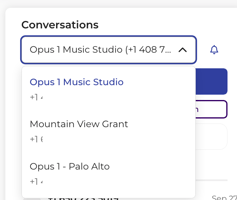
- The right studio number is selected. Schools using per-location SMS have a separate number per location, and conversations belong to the number that is currently selected.
⚠️ Warning: Pick the studio number before you start the conversation. Switching numbers afterward clears the open conversation and shows you the conversations belonging to the number you just switched to.
How to start a new message
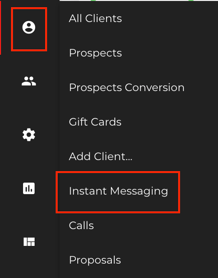
- Open Instant Messaging. Go to Clients > Instant Messaging for the full page, or click the messages icon in the top bar to open it as a side panel over whatever you are already looking at.
- If your school has more than one studio number, confirm the correct one is selected.
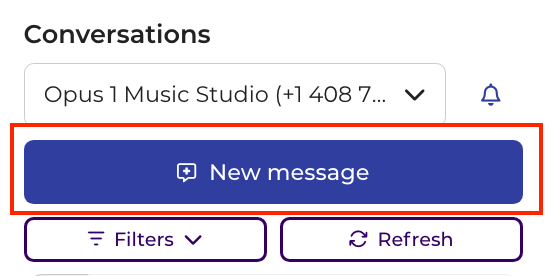
- Click New message.
- Either start typing the person's name and pick them from the matching contacts, or type the phone number you want to text. Both go in the same box — you do not have to decide which kind of recipient you have before you start typing.
Note for non-US numbers, you'll need to enter + country code - The conversation opens on the right, ready for your first message.
What happens when you pick someone
Picking the recipient is the moment Opus1.io decides whether to open something that already exists or begin something new.
| Who you picked | What happens |
|---|---|
| A contact who already has a conversation on the studio number you have selected | If the conversation is still open, it jumps straight to that conversation; a closed thread opens an empty compose box. No second one is created. |
| A contact with no conversation on this number yet | A new conversation opens, empty and ready for your first message. |
| A phone number you typed in | A conversation opens for that number. If the number already has one, you land in it rather than beside it. |
Conversations are matched on the phone number together with the studio number you are texting from. If your school runs per-location SMS, the same parent can have one conversation on the downtown number and a separate one on the uptown number. Opus1.io reuses the conversation on the number you have selected; it does not merge conversations across two different studio numbers.
A conversation you had already closed opens the same way. Closed does not mean deleted or locked — it means nobody needs to act on it.
Writing and sending the message
Starting the conversation does not send anything. Nothing reaches the family's phone until you write a message and send it.
From the conversation you can:
- Type your message and click Send, or press Ctrl+Enter (Cmd+Enter on a Mac) with the message box focused.
- Send it later instead: click the arrow beside Send and choose a time, such as tomorrow morning, rather than texting a family at 10pm because that is when you got to it.
- Insert a saved SMS template instead of retyping wording you use often.
- Attach an image, or shorten a long link with the Opus1.io URL shortener before you paste it in.
Opus1.io will stop the send in three situations:
- The message is empty and there is no image attached.
- The message is longer than the character limit — you will see Message is too large.
- The client has opted out of texts, meaning they replied STOP to an earlier message. You will see This person has opted-out of text messages, and you cannot text them again until they opt back in.
Sent texts cannot be recalled, so read it once before you send.
Where the conversation goes afterward
Instant Messaging in Opus1.io splits the list in two. Open is everything still in play. Closed is everything finished. A conversation you just started sits in Open until you close it, and you can reopen a closed one at any time.
Inside Open, a conversation in bold with a dot beside it has a message nobody has read yet. Reading it clears the dot, but the conversation stays in Open — read and closed are different things, and a family's reply is not handled just because somebody glanced at it. That is the whole point of keeping the two separate: the dot tells you what is new, the tab tells you what still needs a person.
Other ways you land in a conversation
New message is the manual route in Opus1.io, but it is not the only way a conversation opens in front of you:
- Clicking a conversation in the list.
- Using the SMS control on a client's profile.
- Opening the notification for a text a family has just sent you.
- Opening the messages side panel from the top bar while you are on the calendar or a client's profile, so you can read and reply without losing your place.
All of these lead to the same single conversation for that phone number on that studio number, so none of them leaves you with a duplicate to clean up later.
Which path to use
| What you need to do | Where to go |
|---|---|
| Text one parent or student | This article |
| Text everyone in a group class | How do I send an SMS to all clients in a group class? |
| Text a big list without it being filtered by the carriers | Batch SMS Best Practices |
| Save wording you send over and over | Creating and Using SMS Templates |
| Fit a long link into a text | Using the URL Shortener on Opus1.io |
| Get new texts to buzz on your phone | How can I add my opus1.io to my home screen on iPhone and Android |
FAQ
I picked a parent I have texted before. Did I just create a duplicate? No. If that phone number already has a conversation on the studio number you have selected, Opus1.io jumps to the existing conversation, history and all. You only get a new one when there genuinely isn't one.
Can I text someone who isn't in Opus1.io yet? Yes. Type the phone number into the same box you would use to search for a contact. That is the point of having one box — a plumber, a recital venue, or a parent you have not added yet all work the same way.
We have two studio numbers. Why did a family we text regularly come up with an empty conversation? Conversations belong to the studio number they happen on. An empty one usually means you are on the other location's number. Switch to the number you normally text that family from and their history will be there.
Can a teacher with limited access start a conversation? No. Limited Staff cannot open Instant Messaging in Opus1.io, so they cannot start or send a one-to-one text. Owners, Managers, and Staff can.
Related Articles
- Creating and Using SMS Templates — saved wording for individual and batch texts
- SMS: Frequently Asked Questions — enabling SMS, eligible numbers, message limits, and pricing
- How do I send an SMS to all clients in a session? — texting a whole group class instead of one family
- Batch SMS Best Practices — how to keep a large send from being filtered by the carriers
- Using the URL Shortener on Opus1.io — fitting a booking link into a text
- How can I add my opus1.io to my home screen on iPhone and Android — push notifications when a family replies