---
title: How do I schedule a one-time text to send later?
description: Writing to a parent late at night? Schedule the text in Opus1.io for tomorrow morning or any later time, and cancel it any time before it sends.
---

[Skip to content](https://kb.opus1.io/how-do-i-schedule-a-text-to-send-later#main-content)

English

Show submenu for translations

![Opus1-3-icon-color-1.png\]](https://kb.opus1.io/hs-fs/hubfs/Opus1-3-icon-color-1.png?height=50&name=Opus1-3-icon-color-1.png)

Open main navigation

Close main navigation

- English
  
  Show submenu for translations
- Go to opus1.io

 Go to opus1.io

 Hello. How can we help you?

- There are no suggestions because the search field is empty.

1. [opus1io Knowledge Base](https://kb.opus1.io/?hsLang=en)
2. [Communication](https://kb.opus1.io/communication?hsLang=en)
3. [SMS](https://kb.opus1.io/communication?hsLang=en#sms)

# How do I schedule a one-time text to send later?

## Schedule a text to a parent for tomorrow morning, Monday, or any later time, so you can write it tonight without their phone buzzing at 10 PM. In an open conversation, select the arrow beside Send and choose Tomorrow at 9:00 AM, Monday at 9:00 AM, or your own date and time. The text waits above the reply box, and you can cancel it until it goes out.

**Applies to:** Owner / Manager / Staff   
**PLUS Feature:** No   
**Plan:** Requires SMS  
**Last updated:** October 10, 2026

### **Table of Contents**

1. [Why studios schedule texts](https://kb.opus1.io/how-do-i-schedule-a-text-to-send-later#why-studios-schedule-texts)
2. [Before you start](https://kb.opus1.io/how-do-i-schedule-a-text-to-send-later#before-you-start)
3. [Schedule a text](https://kb.opus1.io/how-do-i-schedule-a-text-to-send-later#schedule-a-text)
4. [Check what's waiting to send](https://kb.opus1.io/how-do-i-schedule-a-text-to-send-later#check-whats-waiting-to-send)
5. [Change or cancel a scheduled text](https://kb.opus1.io/how-do-i-schedule-a-text-to-send-later#change-or-cancel-a-scheduled-text)
6. [What happens at send time](https://kb.opus1.io/how-do-i-schedule-a-text-to-send-later#what-happens-at-send-time)
7. [Which time zone Opus1.io uses](https://kb.opus1.io/how-do-i-schedule-a-text-to-send-later#which-time-zone-opus1io-uses)
8. [Who on your team can schedule texts](https://kb.opus1.io/how-do-i-schedule-a-text-to-send-later#who-on-your-team-can-schedule-texts)
9. [What scheduling covers](https://kb.opus1.io/how-do-i-schedule-a-text-to-send-later#what-scheduling-covers)
10. [FAQ](https://kb.opus1.io/how-do-i-schedule-a-text-to-send-later#faq)
11. [Related Articles](https://kb.opus1.io/how-do-i-schedule-a-text-to-send-later#related-articles)

#### **Why studios schedule texts**

Front desk work often finishes after the last lesson. The makeup offer, the waitlist update and the "can you bring Maya's recital form tomorrow?" note all get written at 9:30 at night. Until now, that left two bad options: text the parent late, or write a reminder to yourself and hope you remember at 9 the next morning.

Scheduling in Opus1.io removes that choice. You write the text while it's on your mind, pick when it should arrive, and move on. The family gets it at a sensible hour, from your studio number, like any other text.

**Why:** Late-night texts feel unprofessional and are easy to miss. A text that lands at 9:00 AM gets read and answered.

When a parent is waiting on you right now, just select **Send**. Scheduling is there for the texts that don't need to go yet.

#### **Before you start**

**Your studio needs the SMS Instant Messaging add-on and a studio SMS number.** If the Instant Messaging page shows an upgrade message instead of your inbox, contact customer.success@opus1.io to enable SMS or [book time with our team here](https://meetings.hubspot.com/brianne-cardona/sms-inquiry?uuid=414d2d74-728d-4cfd-a00c-bfd2bffc8480) to talk it through. There is no separate setting for scheduling; it comes with the reply box.

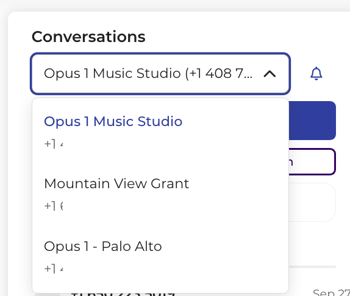
**Check the studio number first if your school has more than one location.** Each location's number has its own inbox, and a scheduled text goes out from the number you're on. It also follows that location's time zone.
![Screenshot 2026-10-10 at 6.19.40 PM](https://kb.opus1.io/hs-fs/hubfs/Screenshot%202026-10-10%20at%206.19.40%20PM.png?width=350&height=296&name=Screenshot%202026-10-10%20at%206.19.40%20PM.png)

**The family must still accept texts.** If they have opted out, Opus1.io shows a banner where the reply box would be, and there is nothing to send or schedule until they opt back in.

#### **Schedule a text**

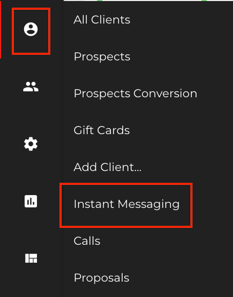
1. Go to **Clients \> Instant Messaging** and open the family's conversation. You can also reach it from the Messages panel in the top navigation or the SMS icon on their client profile.
   
   ![Screenshot 2026-10-10 at 6.22.06 PM](https://kb.opus1.io/hs-fs/hubfs/Screenshot%202026-10-10%20at%206.22.06%20PM.png?width=233&height=298&name=Screenshot%202026-10-10%20at%206.22.06%20PM.png)
2. Type your message in the reply box. Templates, photos and shortened links all work the same way they do for a text you send straight away.
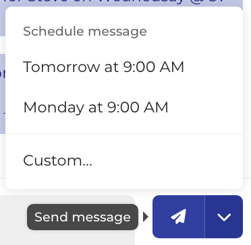
3. Select the arrow beside **Send**.
   
   ![Screenshot 2026-10-10 at 6.37.53 PM](https://kb.opus1.io/hs-fs/hubfs/Screenshot%202026-10-10%20at%206.37.53%20PM.png?width=251&height=246&name=Screenshot%202026-10-10%20at%206.37.53%20PM.png)
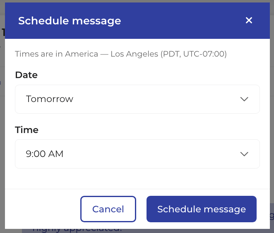
4. Choose **Tomorrow at 9:00 AM** or **Monday at 9:00 AM**, or choose **Custom** to set your own date and time.
5. If you picked your own time, select **Schedule message** to confirm.
   
   ![Screenshot 2026-10-10 at 6.57.47 PM](https://kb.opus1.io/hs-fs/hubfs/Screenshot%202026-10-10%20at%206.57.47%20PM.png?width=274&height=234&name=Screenshot%202026-10-10%20at%206.57.47%20PM.png)

*Note that custom times are available in 15-minute intervals.*

Opus1.io only offers times that are still ahead of you. If you schedule for later today, earlier times don't appear.

**Send**, and Ctrl+Enter on Windows or Cmd+Enter on a Mac, still send immediately. The arrow is the only way to choose a later time, so you won't schedule a text by accident.

#### **Check what's waiting to send**

A scheduled text sits above the reply box in that conversation, showing the message and the date and time it will go out. It isn't in the message history yet, because it hasn't been sent.

![Screenshot 2026-10-10 at 6.59.21 PM](https://kb.opus1.io/hs-fs/hubfs/Screenshot%202026-10-10%20at%206.59.21%20PM.png?width=670&height=81&name=Screenshot%202026-10-10%20at%206.59.21%20PM.png)

The family can't see it. Nothing reaches their phone until the scheduled time.

Your teammates can see it, because the conversation belongs to the shared inbox. That's useful when someone else covers the front desk in the morning: they open the thread and can tell a reply is already on its way, so the parent doesn't get two answers.

Closing the page, logging out or closing the conversation doesn't stop a scheduled text. Opus1.io sends it at the chosen time whether or not anyone is signed in.

#### **Change or cancel a scheduled text**

To stop a scheduled text, open the conversation and cancel it from where it waits above the reply box via the trash can icon. The family never receives it.

![Screenshot 2026-10-10 at 7.00.11 PM](https://kb.opus1.io/hs-fs/hubfs/Screenshot%202026-10-10%20at%207.00.11%20PM.png?width=670&height=81&name=Screenshot%202026-10-10%20at%207.00.11%20PM.png)

Opus1.io doesn't let you edit a scheduled text's wording or time. To change either, cancel it and schedule a new one. It takes a few seconds, and it means nobody has to wonder which version will go out.

You can only cancel while the text is still waiting. Once it has been sent, it's on the parent's phone and can't be pulled back.

#### **What happens at send time**

| When | What your team sees | What the family sees |
| --- | --- | --- |
| You schedule the text | It waits above the reply box with its date and time | Nothing yet |
| You cancel it | It disappears | Nothing |
| The scheduled time arrives | It moves into the conversation as a normal sent text, then shows delivered, or failed if the carrier couldn't deliver it | A normal text from your studio number |

If the conversation was on the **Closed** tab, a scheduled text going out moves it back to **Open**, the same as any text you send.

If a family opts out of texts after you schedule something, Opus1.io won't send it to them. Cancel it anyway, so nobody on your team thinks the parent received it.

#### **Which time zone Opus1.io uses**

Scheduled texts go out on your school's clock, not the clock on the computer you're using and not the parent's.

- **One studio number for the whole school:** the business time zone.
- **A number for each location:** the time zone of the location whose number you're texting from.

So **Tomorrow at 9:00 AM** means 9:00 AM where your school or that location is. If a scheduled time looks an hour or more off, an Owner should check the time zone set for the business or the location before anything else.

#### **Who on your team can schedule texts**

| Role | Schedule a text | Cancel a scheduled text | Turn on texting or set the studio number |
| --- | --- | --- | --- |
| Owner | Yes | Yes | No. Contact Opus1.io. |
| Manager | Yes | Yes | No |
| Staff | Yes | Yes | No |
| Limited Staff | No | No | No |

Anyone who can send a text in Opus1.io can schedule one. Limited Staff can't open Instant Messaging, so a teacher on that role should ask the front desk to schedule a text for them.

#### **FAQ**

**Can I schedule the same text to go every week?** No. Each scheduled text sends once. For regular lesson reminders, use the automatic SMS notifications on your services, which go out before every lesson without anyone scheduling them.

**Can a teammate cancel a text I scheduled?** Yes. A scheduled text belongs to the conversation, not to you, so anyone who can open that conversation can see it and cancel it.

**I scheduled a text for 9:00 AM and it went at a different time. Why?** Opus1.io uses the business time zone, or the location's time zone if you text from a location number. If that zone is set wrong, every scheduled time will be off by the same amount. Ask an Owner to check it.

**How far out can I schedule a text?** Today you are able to schedule a text up to 59 days in the future.

**Does the parent know the text was scheduled?** No. It arrives as an ordinary text from your studio number at the time you chose.

#### **Related Articles**

- [How do I create SMS templates?](https://kb.opus1.io/how-do-i-create-sms-templates?hsLang=en): save messages you send often, then drop them into a scheduled text
- [How do I assign a text to a teammate](https://kb.opus1.io/how-do-i-assign-an-sms-conversation-to-a-teammate?hsLang=en)<https://kb.opus1.io/how-do-i-assign-an-sms-conversation-to-a-teammate?hsLang=en>: ask another staff member to take over a conversation
- [Using the URL Shortener on Opus1.io](https://kb.opus1.io/using-the-url-shortener-on-opus1.io?hsLang=en): keep links short so a text stays within one or two segments
- [How do I send an SMS to all clients in a group class?](https://kb.opus1.io/how-do-i-send-an-sms-to-all-clients-in-a-session?hsLang=en): texting a whole class at once, which sends immediately
- [Batch SMS Best Practices](https://kb.opus1.io/batch-sms-best-practices?hsLang=en): texting many families without hitting carrier limits
- [SMS: Frequently Asked Questions](https://kb.opus1.io/frequently-asked-questions?hsLang=en): turning texting on, monthly limits and pricing

- [Account & Troubleshooting](https://kb.opus1.io/account-troubleshooting?hsLang=en#main-content)

    - [General](https://kb.opus1.io/account-troubleshooting?hsLang=en#general)
    - [Login & Access](https://kb.opus1.io/account-troubleshooting?hsLang=en#login-access)
    - [Release Notes](https://kb.opus1.io/account-troubleshooting?hsLang=en#release-notes)
- [Business](https://kb.opus1.io/business?hsLang=en#main-content)

    - [General](https://kb.opus1.io/business?hsLang=en#general)
    - [Business Profile & Billing](https://kb.opus1.io/business?hsLang=en#business-profile-billing)
    - [Client Data & Forms](https://kb.opus1.io/business?hsLang=en#client-data-forms)
    - [Integrations](https://kb.opus1.io/business?hsLang=en#integrations)
    - [Locations & Rooms](https://kb.opus1.io/business?hsLang=en#locations-rooms)
    - [Self-Booking Links](https://kb.opus1.io/business?hsLang=en#self-booking-links)
    - [Terms & Conditions](https://kb.opus1.io/business?hsLang=en#terms-conditions)
- [Calendar & Scheduling](https://kb.opus1.io/calendar-scheduling?hsLang=en#main-content)

    - [General](https://kb.opus1.io/calendar-scheduling?hsLang=en#general)
    - [Batch Schedule Actions](https://kb.opus1.io/calendar-scheduling?hsLang=en#batch-schedule-actions)
    - [Calendar Notes & Display](https://kb.opus1.io/calendar-scheduling?hsLang=en#calendar-notes-display)
    - [Enrollment](https://kb.opus1.io/calendar-scheduling?hsLang=en#enrollment)
    - [Recurring & Rescheduling](https://kb.opus1.io/calendar-scheduling?hsLang=en#recurring-rescheduling)
    - [Substitutes](https://kb.opus1.io/calendar-scheduling?hsLang=en#substitutes)
- [Clients](https://kb.opus1.io/clients?hsLang=en#main-content)

    - [Account Managers & Dependents](https://kb.opus1.io/clients?hsLang=en#account-managers-dependents)
    - [Client Experience](https://kb.opus1.io/clients?hsLang=en#client-experience)
    - [Client Records](https://kb.opus1.io/clients?hsLang=en#client-records)
    - [Credits](https://kb.opus1.io/clients?hsLang=en#credits)
    - [Gift Cards](https://kb.opus1.io/clients?hsLang=en#gift-cards)
    - [Invoices](https://kb.opus1.io/clients?hsLang=en#invoices)
    - [Payments & Auto-Pay](https://kb.opus1.io/clients?hsLang=en#payments-auto-pay)
    - [Subscriptions](https://kb.opus1.io/clients?hsLang=en#subscriptions)
    - [Waitlist Notifications](https://kb.opus1.io/clients?hsLang=en#waitlist-notifications)
- [Communication](https://kb.opus1.io/communication?hsLang=en#main-content)

    - [Email & Notifications](https://kb.opus1.io/communication?hsLang=en#email-notifications)
    - [SMS](https://kb.opus1.io/communication?hsLang=en#sms)
    - [Voice](https://kb.opus1.io/communication?hsLang=en#voice)
- [Grow Your Music School](https://kb.opus1.io/grow-your-music-school?hsLang=en#main-content)

    - [Convert Prospects](https://kb.opus1.io/grow-your-music-school?hsLang=en#convert-prospects)
    - [Email Campaigns](https://kb.opus1.io/grow-your-music-school?hsLang=en#email-campaigns)
    - [Get Found & Capture Leads](https://kb.opus1.io/grow-your-music-school?hsLang=en#get-found-capture-leads)
    - [Reviews & Reputation](https://kb.opus1.io/grow-your-music-school?hsLang=en#reviews-reputation)
- [Payment Processing](https://kb.opus1.io/payment-processing?hsLang=en#main-content)

    - [General](https://kb.opus1.io/payment-processing?hsLang=en#general)
    - [Opus1 Payments (Stripe)](https://kb.opus1.io/payment-processing?hsLang=en#opus1-payments-stripe)
    - [Clover Connect (FiServ / Cardpointe)](https://kb.opus1.io/payment-processing?hsLang=en#clover-connect-fiserv-cardpointe)
- [Reporting](https://kb.opus1.io/reporting?hsLang=en#main-content)

    - [Attendance](https://kb.opus1.io/reporting?hsLang=en#attendance)
    - [Credits](https://kb.opus1.io/reporting?hsLang=en#credits)
    - [Invoices](https://kb.opus1.io/reporting?hsLang=en#invoices)
    - [Subscriptions](https://kb.opus1.io/reporting?hsLang=en#subscriptions)
    - [Transactions](https://kb.opus1.io/reporting?hsLang=en#transactions)
    - [Data Exports](https://kb.opus1.io/reporting?hsLang=en#data-exports)
- [Services](https://kb.opus1.io/services?hsLang=en#main-content)

    - [Appointments](https://kb.opus1.io/services?hsLang=en#appointments)
    - [Building Services](https://kb.opus1.io/services?hsLang=en#building-services)
    - [Cancellation](https://kb.opus1.io/services?hsLang=en#cancellation)
    - [Events](https://kb.opus1.io/services?hsLang=en#events)
    - [Optimization & Conversion](https://kb.opus1.io/services?hsLang=en#optimization-conversion)
    - [Payment Plans](https://kb.opus1.io/services?hsLang=en#payment-plans)
    - [Group Classes](https://kb.opus1.io/services?hsLang=en#group-classes)
    - [Subscription-Only](https://kb.opus1.io/services?hsLang=en#subscription-only)
- [Staff](https://kb.opus1.io/staff?hsLang=en#main-content)

    - [Availability & Self-Booking](https://kb.opus1.io/staff?hsLang=en#availability-self-booking)
    - [Calendar Sync](https://kb.opus1.io/staff?hsLang=en#calendar-sync)
    - [Onboarding & Offboarding](https://kb.opus1.io/staff?hsLang=en#onboarding-offboarding)
    - [Payroll & Compensation](https://kb.opus1.io/staff?hsLang=en#payroll-compensation)
    - [Roles & Permissions](https://kb.opus1.io/staff?hsLang=en#roles-permissions)
    - [Teacher Tools & Access](https://kb.opus1.io/staff?hsLang=en#teacher-tools-access)
    - [Time-off](https://kb.opus1.io/staff?hsLang=en#time-off)
- [Stats](https://kb.opus1.io/stats?hsLang=en#main-content)

    - [Conversions](https://kb.opus1.io/stats?hsLang=en#conversions)
    - [Client Metrics](https://kb.opus1.io/stats?hsLang=en#client-metrics)
    - [Dashboard](https://kb.opus1.io/stats?hsLang=en#dashboard)
    - [Group Class Enrollment](https://kb.opus1.io/stats?hsLang=en#group-class-enrollment)
    - [Today](https://kb.opus1.io/stats?hsLang=en#today)
    - [Utilization](https://kb.opus1.io/stats?hsLang=en#utilization)

[![Chill listening crop-3](https://kb.opus1.io/hs-fs/hubfs/Opus1-3-icon-color-2.png?width=35&height=24&name=Opus1-3-icon-color-2.png "Chill listening crop-3")](http://opus1.io)

<https://www.facebook.com/opus1.io/>

Copyright © 2025, Opus1.io