![Opus1-3-icon-color-1.png]](https://kb.opus1.io/hs-fs/hubfs/Opus1-3-icon-color-1.png?height=50&name=Opus1-3-icon-color-1.png)
Last updated: September 3, 2026
Applies to: Owner / Manager / Staff
Plan: All
Table of Contents
- Overview
- Why you'd use it
- Which report should I use?
- Who can run these reports
- Before you start
- Overdue Invoices report (past due)
- Invoices report (all open invoices)
- Invoices Statuses
- Export the list as CSV
- Unpaid invoices for one family
- If you need paid history instead
- Troubleshooting
- FAQ
- Related Articles
Overview
Opus1 tracks unpaid balances under Reporting, and two reports answer the question depending on how much you want to see.
| Report | Menu | What it includes |
|---|---|---|
| Overdue Invoices | Reporting → Overdue Invoices | Open invoices whose due date is already in the past |
| Invoices | Reporting → Invoices | Invoices you filter by status and due-date range. For unpaid balances, set status to Open |
Two status words do most of the work here. Open means the invoice still has a balance. Overdue means the invoice is open and past its due date. So an invoice that is open but not yet due appears on the Invoices report with status Open, and not on Overdue Invoices.
Both reports let you filter by payer and location, show a running count and Total Amount, and produce a spreadsheet through export csv. From the Overdue report you can also take payment on the spot with Pay.
Location: Bottom icon → Overdue Invoices or Bottom icon → Invoices
Why you'd use it
Two different jobs sit behind the phrase "outstanding invoices," and the Opus1 report you want depends on which one you are doing.
Chasing late payments. You want a call list and a number: who is behind, and by how much. Overdue Invoices is built for exactly this. The running total tells you what is at stake before you start, and because Pay sits on each row, a collections pass happens on one screen instead of opening thirty family profiles one at a time.
Looking at expected cash. Overdue shows only money that is already late, which says nothing about the tuition due next week. Reporting → Invoices with status Open gives you everything still owed, due or not — the number you want when the question is what is coming in rather than what has gone wrong.
Both jobs end the same way. export csv turns either list into a spreadsheet you can sort, share with a bookkeeper, or work through as a call sheet.
Which report should I use?
| What you need | What to do |
|---|---|
| A list of past-due invoices for the school | Overdue Invoices, then export csv if you need a file |
| A list of all unpaid invoices (past due and not yet due) | Invoices, status Open, then export csv (Owner only) |
| Unpaid invoices for one payer | Filter payer on either report, or open that client's Invoices list |
| A printable copy of one invoice | Invoice Details → Save as PDF |
| A month- or year-end record of what a family has paid | Client Invoice statement — closed invoices only |
Who can run these reports
| Role | Overdue Invoices | Invoices report |
|---|---|---|
| Owner | Yes | Yes |
| Manager | Yes | No |
| Staff | Yes | No |
| Limited Staff | No | No |
Managers and staff who need all open invoices, including those not yet due, should use Overdue Invoices for past-due items or open a client's Invoices list in Opus1. Ask an Owner to run Reporting → Invoices with status Open when the school-wide open list is what you need.
Before you start
- Both lists work from invoice due dates
- The table loads in pages. Scroll, or click Load everything, before you trust the Invoices and Total Amount cards at the top — those cards describe what is currently loaded until the full set is in.
- On the Invoices report, the due-date range for a CSV cannot be longer than 12 months.
Overdue Invoices report (past due)
Start here when the question is who still owes the school money.
- Go to Bottom icon → Overdue Invoices.
- Review the two summary cards: number of loaded invoices and Total Amount.
- Optionally narrow the list:
- Filter payer — one account manager / payer
- Filter location
- Add Primary Staff under Add/Remove Columns, then Filter primary staff
- Click Load everything so the table and totals cover the full overdue set. Scrolling also loads more.
- On a row, click Details for line items, payments, and Save as PDF, or click Pay to take payment now.
- To generate a file, click export csv.

This report works from a fixed definition rather than a date picker: every open invoice with a due date on or before now. Open invoices that are not yet due sit on the Invoices report instead.
A yellow warning icon next to a payer means missing payment info on that payer's profile.
Invoices report (all open invoices)
Use this Opus1 report when outstanding should include invoices that are open but not overdue yet, or when you need Closed, Voided, or Processing as well.
Owners only. Managers and staff use Overdue Invoices, or a client's invoice list.
- Go to Bottom icon → Invoices.
- Set Filter status to Open. This is the default.
- Set the due-date range — the control that reads Invoices due from … to …. The default is roughly the last three months through today. Widen it to catch older open invoices.
- Optionally filter by payer, location, or primary staff after adding that column, or turn on Missing payment info only.
- Click Load everything so the on-screen table and totals cover every match.
- Click export csv.

Invoice statuses
| Status | Meaning |
|---|---|
| Open | Still unpaid, or still has a remaining balance. This is what outstanding means. |
| Closed | Paid in full. A closed invoice reopens if you apply a refund. |
| Voided | Canceled. Not due and not auto-paid. |
| Processing | ACH payment in flight. Stays processing until it settles, then closes, or fails, then reopens. |
You can Pay any Open row and open Details on any row. Batch Discount is available when the list is open invoices.
For statuses and filters in more detail, see Reporting: Invoices.
Export the list as CSV
- Apply the filters you want — status and dates on Invoices, payer and location on either report.
- Click export csv.
- Wait until the file is ready, then download it.
The Opus1 CSV is a spreadsheet of invoice rows. Columns include identifier, payer name and email, whether payer payment info is set, total due, taxes, discounts, due date, closed date, description, location, status, last attempt error, clients, services, subscriptions, primary staff, and tags — enough to sort by amount, group by location, or build a call sheet.
Overdue Invoices CSV follows the overdue definition: open, with a due date in the past. That export carries no date-range limit.
Invoices CSV uses the status and due-date range set on the page. If the range is longer than 12 months, shorten it and export in more than one file.
Unpaid invoices for one family
For a single household, go to the family rather than the school-wide report.
- Open the payer (account manager) profile in Opus1.
- Open Invoices. Open invoices on that profile are what that family still owes. See all invoices shows history as well.
- Click Details on an invoice, then Save as PDF to print or attach that invoice.
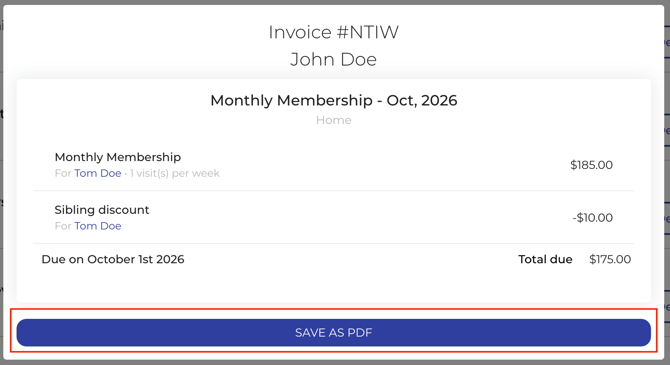
Opus1 produces one PDF per invoice. For a household carrying several unpaid invoices, filter either report by payer and export csv, or send each invoice PDF separately.
If you need paid history instead
Sometimes the request is the opposite of a collections list — a family wants a record of what they have already paid, usually at tax time.
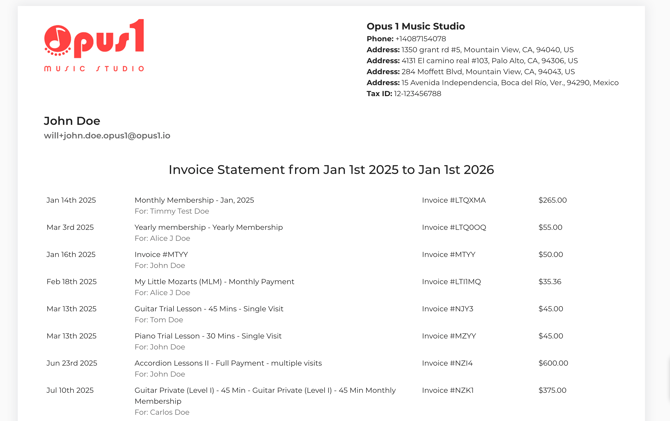
That document is Invoice statement, on the client's all invoices page. It opens a monthly or yearly PDF of closed (paid) invoices for that payer, and your business Tax ID / EIN appears on it when saved in business settings.
Invoice statement covers closed invoices only, so use the reports above when you need unpaid balances.

Troubleshooting
The Overdue report is missing an invoice I know is unpaid. Confirm the invoice is Open and its due date is in the past in the report timezone. Open invoices that are not yet due belong on Invoices with status Open. Voided invoices are not outstanding.
Totals look too small. The summary cards follow loaded rows until you click Load everything, or scroll through the full list. After that, the cards show the complete filtered set.
I don't see the Invoices report. That page is Owner only in Opus1. Use Overdue Invoices, or ask an owner to run the Open invoices report.
Export CSV fails or never finishes on Invoices. Shorten the due-date range to 12 months or less. The Overdue export does not use that range limit.
I want one PDF listing everything a family still owes. Opus1 produces one PDF per invoice. Filter a report by payer and export csv for a single file covering the household, or send each invoice PDF.
Invoice statement came back empty. Invoice statement lists closed invoices in the month or year you selected. If the family has paid nothing in that window, the PDF is empty — their unpaid invoices are on the reports above.
A payer shows a warning triangle. A payment method is not on file. Those payers still appear on the overdue and open lists. On the Invoices report, Missing payment info only isolates them.
FAQ
Where do I find a statement of outstanding invoices? In Opus1 that list is a report. Use Bottom icon → Overdue Invoices for past-due balances, or Invoices with status Open for everything unpaid, then export csv.
Does Overdue Invoices include invoices that are open but not due yet? No. Those appear only on Invoices in Opus1, with status Open and a due-date range that includes them.
Can I email a report to all families from the report page? No. Export csv for your own outreach, or use your usual Opus1 pay and reminder flows. Automated overdue reminders are separate — see Client Automated Email Notifications.
Can I filter overdue invoices by date range? Not on Overdue Invoices, since that list is defined as open and already due. To limit by due date, use Invoices in Opus1 with status Open and the due-date range.
Will the CSV include invoices I haven't scrolled to yet? The Opus1 export uses your filters, not only the visible rows. On screen, the totals may still be partial until you click Load everything.
Related Articles
Other invoice reports
- Reporting: Invoices — statuses, filters, Pay and Details on the owner Invoices report
- Reporting: Overdue Invoices — the overdue report page reference
- Reporting — other money and attendance reports
Working with what you find
- How do I download a PDF of a client's invoice? — per-invoice PDF
- How do I create an invoice? — one-time unpaid bills via Charge/Invoice Client
- Are my clients notified when their payments are declined? — failed autopay, and paying from Overdue Invoices
- Client Automated Email Notifications — overdue reminders compared with these reports
- How do I add my business's federal tax ID/EIN to my clients' invoices? — Tax ID on Invoice statement