![Opus1-3-icon-color-1.png]](https://kb.opus1.io/hs-fs/hubfs/Opus1-3-icon-color-1.png?height=50&name=Opus1-3-icon-color-1.png)
Customer Journey Customization
In the Business section of your school, locate the “Customer Journey” section. Here you will be able to customize the forms that prospects and clients see when interacting with your school.

You can read more below about the three forms you will see:
-
Registration
- Self-booking
Lead Form (PLUS customers only)
This is a web based form that can be filled out by visitors to your site who are looking for more information about your offerings. At the bottom of the Customer Journey section there are two additional customizable templates:
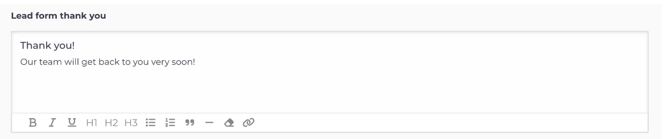
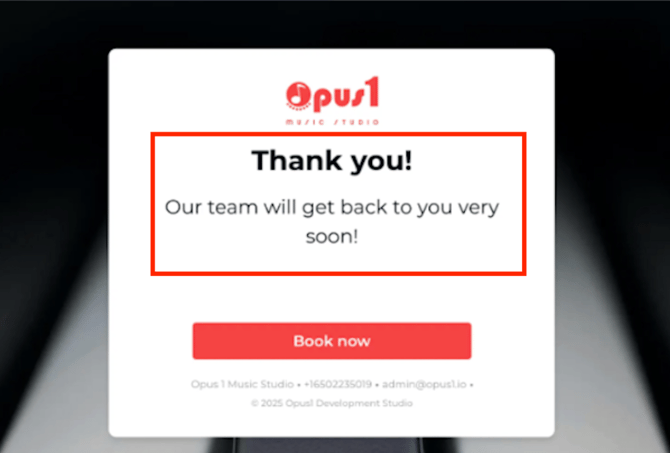
- Lead form thank you - this is what prospects see after submitting the lead form. Anything you type in this box will appear once someone has submitted the Lead Form.
↓
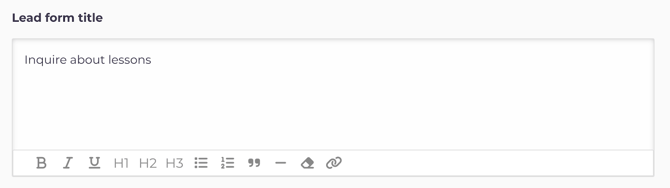
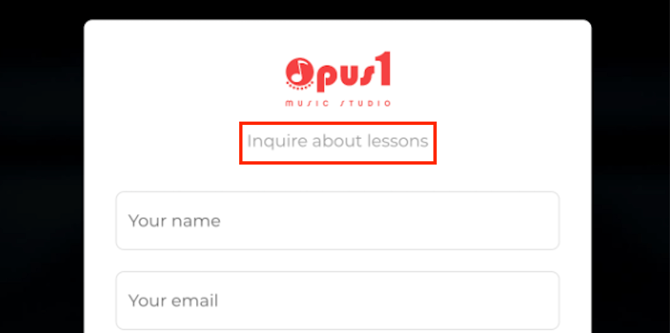
2. Lead form title - allows you to customize the title of your lead form. Anything you type in this box will appear as the title when customers engage with your Lead Form.
↓
Self-Registration Form
The self-registration form is what clients first fill out when creating their opus1.io account, whether that's via a self-booking flow or by simply visiting your website and interacting with a self-register link (mybusiness.opus1.io/register). 
By default, Opus1.io will ask for:
- First and Last Name(s)
- Email Address
- Phone Number
- Student Name (if different from the person filling out the form)
- Birthdate for dependents
You can, however, add custom questions you’d like to be answered by new clients when they register for the first time. Examples of these include, “How did you hear about us,” “Do you have any allergies,” “Tell us more about your musical background,” etc.
If you are adding custom questions to your registration form, we recommend first setting up Client Custom Attributes in your business settings to create a place for the responses to custom questions to be stored in the client's profile. Otherwise, answers will be stored as a staff comment on the client's profile and on their prospect card (PLUS only) and the client may be asked the same questions again when self-booking at a later time.
For more information on creating and using custom attributes you can read more here.
To add questions to your Self-Registration form, navigate to your Customer Journey and find the middle column:
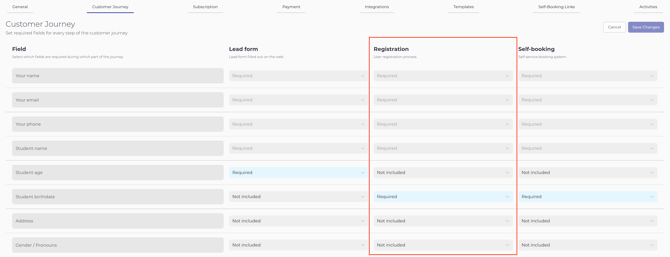
To add a custom question, you will click "Add Field" and fill in the following information:

- Question - the question you are asking
- On the same row as the question, you will see a drop down under each of your form types (Lead (PLUS), Registration, Self-booking). You can use the drop down to determine for each form whether the question is
- Required
- Optional
- Not included
- On the same row as the question, you will see a drop down under each of your form types (Lead (PLUS), Registration, Self-booking). You can use the drop down to determine for each form whether the question is
- Question Type - Drop down menu for answer type
- Custom Attribute - Optionally you can select which client custom attribute as the place to store the answer to your question. By selecting this, the question will only need to be answered one time by your client.
There are five different question types you can specify:
- Text - best for anything one sentence and under, and anything you don't mind being open-ended and not easily searchable at a later point (ex. Allergies)
- Long Text - best for more than one sentence, and anything you don't mind being open-ended (ex. "Tell us more about your musical background.")
- Yes/No
- Single Selection - you will need to provide the choices for the client to choose from and they will be able to choose one option. Best choice if you want clients to choose one answer from predesignated options (ex. "How did you hear about us?")
- Multiple Selection - you will need to provide the choices for the client to choose from and they will be able to choose one or more options. Best choice if you want clients to choose one or more answers from predesignated options (ex. "Which class(es) are you most interested in?

When Single selection or Multiple selection is selected, you will see an additional field populate where you can enter the options to choose from. Type the text for your option and click "Create" to confirm each option.


Additionally, if you've chosen Single selection or Multiple selection, a toggle will appear that gives you the option to auto-tag clients with the answer(s) they select. For example, if your question is "How did you hear about us?" and you'd like clients to be tagged with the answers (Google, Facebook, etc.) make sure that toggle is enabled. Tags are another way to sort your client data and can also be used for campaigns as part of Opus1 PLUS.
When Single selection is selected, you will have the option to add on a conditional question that relates to what the client selects. For example, if you want the client to tell you which instrument they are interested in and follow that up by asking their experience level, you would click Add Conditional Field.
-
Fill out your Question and choose question type: Single selection and add your options.
-
Click Add conditional field and fill in your question and create your conditional field options
-
Assign your conditional field options to your options from Step 1

Once complete, make sure to click Save Changes at the bottom right hand side of the page.
Regardless of which question type you choose, if you choose not to assign a custom attribute, answers to self-register field questions will be sent to owners/managers via email and stored as a staff comment within the client's profile and prospect card (PLUS only). When answers to self-register fields are linked to client custom attributes, answers are stored within the client's profile itself and are included in the All Clients CSV export:
