![Opus1-3-icon-color-1.png]](https://kb.opus1.io/hs-fs/hubfs/Opus1-3-icon-color-1.png?height=50&name=Opus1-3-icon-color-1.png)
Last updated: September 3, 2026
Applies to: Owner / Manager / Staff
Plan: All
Table of Contents
- Overview
- Where recurring invoices come from
- Why you'd use it
- Which path should I use?
- Who can create an invoice
- Before you start
- How to create a one-time invoice
- Invoice now vs Process Charge
- What happens after you create it
- How families pay
- Troubleshooting
- FAQ
- Related Articles
Overview
Most invoices in Opus1 are created for you. When a family enrolls in lessons, classes, or another service, the payment plan on that service generates invoices on a schedule. You do not build those invoices by hand.
When people ask "How do I create an invoice?", they usually mean a one-time bill that is not part of a subscription: a registration fee, a book or instrument, studio rental, a makeup not tied to a pack, or any other ad-hoc amount.
That one-time bill is created from the client's account manager profile with Charge/Invoice Client. To leave the invoice open (unpaid), use Invoice now / Charge later.
To collect money in the same step, use Process Charge — that path is covered in How do I run a one-time charge to my clients?. This article sits beside that one: same screen, unpaid invoice vs. paid charge.
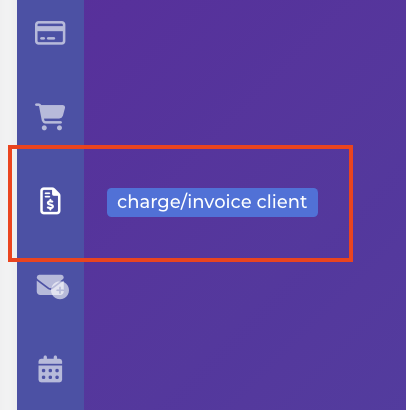
There is no separate "Create Invoice" item in the main Opus1 menu. The invoice-dollar icon on the profile is the tool. Location: Client profile (account manager) → Charge/Invoice Client (invoice-dollar icon):
Where recurring invoices come from
If you are coming from other scheduling or studio software, this is the part that works differently, and it is worth reading before you go looking for an invoice button.
In many systems, enrolling a student and billing a student are two separate jobs. You register the family on the calendar, and then — separately, often monthly — you run billing, generate invoices, and send them out. Two processes, two moments, two places something can go wrong.
Opus1 collapses those into one. Enrolling the client is what creates the billing. There is no monthly billing run to remember, and no "generate invoices" step waiting for you at the end of the month.
The subscription is the thing that bills
When you enroll a client on a service that has a recurring payment plan, Opus1 creates a subscription on that client. The subscription is the durable object: it knows the service, the price, the payer, and the schedule. From then on, the subscription issues invoices on its own.
This is why so many invoice questions in Opus1 resolve to subscription questions. Changing what a family pays every month, pausing billing over the summer, or switching who gets billed are all changes to the subscription, not edits to individual invoices. Editing one invoice changes one month; editing the subscription changes every month after it.
What the payment plan decides
The payment plan attached to the service is where the billing behavior is configured, before anyone enrolls. A plan bundles six things: frequency, amount, basis (flat rate or per lesson), renewal date, proration, and visit period. Those settings are what determine the invoices your client receives.
The full breakdown of plan types by service type lives in Choosing the Right Payment Plan for your Service — start there if you are still setting up services, because the plan you choose is harder to change after families are enrolled on it.
When recurring invoices issue
All recurring monthly plans in Opus1 renew on the 1st of the calendar month. That is the invoice due date. Autopay can be configured to run on a different date, so the day money moves and the day the invoice is due are not necessarily the same day.
This is a common surprise for studios migrating in. Opus1 does not bill each family on their own anniversary date — there is one monthly cycle for everyone, anchored to the 1st.
The first invoice is the exception
The first invoice on a new subscription follows its own rules, which is where most "why is this amount wrong?" questions come from.
For a recurring appointment booked with Enroll Now and Pay Later, the first invoice is due on the date the subscription becomes active: either the 1st of the month in which the appointments begin, or the day of the first appointment, depending on the payment plan's settings. For a single non-recurring appointment, the invoice is due on the day of the appointment. For an ongoing group class enrollment, the first invoice is due on the date of the first group class. The details are in What does "Enroll Now and Pay Later" do?.
The amount can also differ from the flat rate, because the plan's proration setting adjusts the first month for a partial month of lessons. When a month has fewer lessons than usual — a holiday week, for instance — proration can produce a first invoice that looks wrong to the family even though it is arithmetically correct. You can override it at checkout with Skip first-month proration, covered in Overriding First-Month Proration for Appointments.
What this means in practice
- You will not find a "create invoice" or "run billing" action for recurring tuition. Enroll the student, and Opus1 handles the rest.
- To change recurring amounts, pause billing, or change the payer, edit the subscription. See How do I use subscription holds? and How do I change the payer on an invoice/subscription?.
- Only genuinely one-off amounts need the manual path described in the rest of this article.
Why you'd use it
Because Opus1 already handles recurring billing, everything left over is one-time by definition — and one-time amounts split into two very different situations depending on whether the family is in front of you.
A parent is at the front desk buying a method book. They have a card out and they expect to pay right now. Use Process Charge. Opus1 creates the invoice and takes the payment in one step, so there is no open balance to reconcile later and nothing to chase.
Fall registration fees are going out to forty families. Nobody is at the desk, and running forty saved cards without warning generates exactly the kind of surprise-charge email that costs a morning. Use Invoice now / Charge later. Each family gets an open invoice on their account, visible in their client login, which they can pay at their next lesson or online on their own time.
Choosing the wrong option at checkout is the most common reason families end up frustrated. Process Charge on a batch of registration fees runs cards families were not expecting. Invoice now / Charge later on a book sale at the desk leaves an open balance the front desk has to remember to collect.
The other reason to know this screen exists: it keeps your service list clean. Without it, studios tend to build a dummy service with a payment plan just to bill a one-off fee, which then shows up in reporting, self-booking, and enrollment lists forever.
Which path should I use?
| What you need | What to do |
|---|---|
| Recurring tuition or class fees | Enroll the student on a service with a payment plan. Opus1 generates invoices from the subscription. |
| A one-time amount, billed now, paid later | Charge/Invoice Client → fill the form → Invoice now / Charge later |
| A one-time amount, collected immediately (card, cash, check, terminal, or account balance) | Charge/Invoice Client → fill the form, including payment method → Process Charge |
| Change an invoice that already exists | Open it from the profile Invoices list or Reporting → Invoices, then update, discount, or pay it |
Do not enroll someone in a dummy service just to produce a one-off invoice. Use Charge/Invoice Client for simple charges.
Who can create an invoice
| Role | Create a one-time invoice (Charge/Invoice Client) |
|---|---|
| Owner | Yes |
| Manager | Yes |
| Staff | Yes |
| Limited Staff | No |
| Client | No |
In Opus1, the Charge/Invoice Client control appears on an account manager (payer) profile. The control is hidden on a dependent-only profile. If you are looking at a student who is not the payer, open the parent or account manager instead.
Before you start
Have these ready before you open the Opus1 Charge/Invoice Client form:
- Who pays — the account manager — and, if it is not the same person, which student the charge is for.
- The location the charge belongs to. Location drives reporting and sales tax.
- A short description families will recognize, for example "Fall registration fee" or "Method book — piano."
- The amount.
- A payment method (saved card, cash, check, or account balance) if you will Process Charge now. Invoice now / Charge later does not need one.
Two limits worth knowing up front. Sales tax can be applied only when that location has sales tax configured in Opus1. And this form creates a single charge line plus tax — for several unrelated amounts, create several invoices.
How to create a one-time invoice
1. Open the payer's profile
Search for the account manager (the person who should be billed), not only the student, unless the student is also the payer.
2. Open Charge/Invoice Client
On the profile, click the invoice-dollar icon. The tooltip reads charge/invoice client. The page title is Charge / Invoice Client:
3. Fill in the charge
Complete the fields:
| Field | Required? | Notes |
|---|---|---|
| Location | Yes | Primary, online, or home locations. Closed locations cannot be charged. |
| Charge Description | Yes | Becomes the invoice line item families see. |
| Amount | Yes | The charge amount before tax. |
| Client | No | Choose a dependent when the charge is for a student on this account. Defaults to the payer if you leave it blank. |
| Apply Sales Tax | No | Available when the location has sales tax set up. |
| Tags | No | Used in invoice and transaction CSV exports. |
| Payer | Yes | The account manager or the client themselves. |
| Payment Method | Only for Process Charge | Not required for Invoice now / Charge later. |
| Use account balance | No | Applies monetary credit on the payer's account toward the quote. |
Wait for the quote to load so you can confirm the total, including tax or account balance if used.
4. Choose how to finish
- Invoice now / Charge later — Creates an open invoice. Payment is not taken.
- Process Charge — Creates the invoice and collects payment in the same step.
Invoice now vs Process Charge
Both buttons create an invoice in Opus1. The only difference is whether money moves at the same time — but that difference decides who has to do something next.
Invoice now / Charge later — bill them, don't run the card
- Does not require a payment method on the form.
- Leaves an open invoice with a remaining balance.
- The due date for this kind of one-time invoice is today, so it is due as soon as it is created.
- Choose this when the family is not present, when the amount is going out to more than one family at once, or when someone has agreed to pay but hasn't yet. The next action belongs to the family or the front desk.
Process Charge — collect it now
- Requires a valid payment method when there is still a balance: card, cash, check, terminal, or a $0 remaining quote.
- The invoice is typically closed when the payment succeeds. ACH may sit in processing until it settles.
- Choose this when the family is standing at the desk, when you have already taken cash or a check in hand, or any time leaving an open balance means someone will have to chase it. The next action belongs to nobody.
- This is the path documented in How do I run a one-time charge to my clients?.
What happens after you create it
- The invoice is attached to the payer.
- The invoice appears in the Invoices section on the client profile — open invoices on the profile, See all invoices for history.
- The invoice appears in Reporting → Invoices in Opus1, where you can filter by date, status, and location.
- You can open the invoice to add a discount, pay it, or continue other invoice actions your role allows.
One-time invoices from this screen are simple charges. They are not a subscription, and they will not generate next month's tuition on their own. Recurring billing still comes from enrolling on a payment plan.
How families pay
After Invoice now / Charge later:
- Staff can open the invoice in Opus1 and use Pay.
- The payer can pay from their client login whenever they have an open invoice.
- A saved card on the payer is useful for later checkout or for subscription autopay on other invoices. Autopay for tuition is driven by the subscription, not by this one-time invoice tool.
If you already collected cash or a check at the desk, use Process Charge with Cash or Check instead of leaving an open invoice.
Troubleshooting
I don't see Charge/Invoice Client. You may be on a dependent profile. Open the account manager instead. Limited Staff do not get this control in Opus1 — confirm you are Staff, Manager, or Owner.
I only see Process Charge, not Invoice now / Charge later. The invoice-later button appears when the quote has a remaining balance and the rest of the form, except payment method, is valid. Wait for the quote to finish loading, and confirm location, description, amount, and payer are filled.
I enrolled the student but I still want a separate invoice for a fee. Enrollment already created the tuition invoice from the plan. Add the extra fee with Charge/Invoice Client, or as a sign-up fee on the plan if that is how you always charge it. Don't create a second subscription for a one-off.
I created an invoice by accident. Open the invoice. If it is a one-time simple charge and is still open, you can typically void it. Invoices tied to an active subscription cannot be voided in Opus1; those are discounted to $0 and closed instead. See How do I void an invoice?
The family says they never got a bill. Point them to their client login and the open invoice on the account manager. Confirm you billed the correct payer.
I need this same charge every month. Put it on a subscription-only service or on the lesson/class payment plan so Opus1 generates the invoices automatically — see How do I charge my clients once per month or year for rentals or membership fees? Charge/Invoice Client is one invoice, one time.
FAQ
Is there a Create Invoice button on the calendar or in Reports? No. One-time invoices in Opus1 start from the account manager profile → Charge/Invoice Client. Reports are for finding and paying invoices that already exist.
Does Invoice now / Charge later charge the card? No. Invoice now / Charge later only creates the open invoice. Process Charge is the button that runs the payment in Opus1.
Can I invoice a student who isn't the payer? Yes. Open the payer in Opus1, then set Client to the dependent. The payer must be an account manager of that client.
Will this invoice autopay with their monthly tuition? No. Tuition autopay follows the subscription's due date and autopay settings. A one-time invoice from this Opus1 tool is a separate open invoice that staff or the family pay on its own.
Can I apply a discount while creating it? Not on this form. Create the invoice in Opus1, choose Invoice now / Charge later, then go to the account manager's profile, open the invoice, then use Add Discount. See How do I add a discount to an invoice?
Related Articles
The other path on this screen
- How do I run a one-time charge to my clients? — same screen, Process Charge path (paid invoice)
Recurring billing
- Choosing the Right Payment Plan for your Service — which plan types each service type supports
- What does "Enroll Now and Pay Later" do? — due dates on the first invoice of a new subscription
- Can I set the start date of my clients' subscriptions?
- Overriding First-Month Proration for Appointments
- How do I use subscription holds? — pausing billing without ending the subscription
- How do I charge my clients once per month or year for rentals or membership fees?
Working with an invoice that already exists
- How do I add a discount to an invoice?
- How do I void an invoice?
- How do I issue a refund on an invoice?
- How do I change an invoice's due date and late fee window?
- How do I change the payer on an invoice/subscription?
- How do I add a recurring note to an invoice? — notes on plans and subscriptions, not this one-time form
- Reporting: Invoices — find open, closed, voided, and processing invoices