![Opus1-3-icon-color-1.png]](https://kb.opus1.io/hs-fs/hubfs/Opus1-3-icon-color-1.png?height=50&name=Opus1-3-icon-color-1.png)
Applies to: Owner, Manager
PLUS Feature: No
Plan: All
Last updated: September 25, 2026
Table of Contents
- How a group class is built
- Who can create a group class
- Before you start
- Create the service
- Add a payment plan
- Add a class for each day and time
- Schedule the class dates
- Let families enroll themselves
- FAQ
- Related Articles
How a group class is built
Say your school runs Group Piano for beginners: 45 minutes, eight students, one teacher, billed monthly. It meets Mondays at 4pm, and there is a second group on Tuesdays at 7pm. Same price and length, different students.
Opus1.io builds that in three layers. The group class is the offering you sell. Each day and time is a separate class inside it, with its own roster. Each class then gets its class dates, the individual meetings on the calendar.
| Layer | What it holds | Example | Why it is separate |
|---|---|---|---|
| Group class (the service) | Length, class size, payment plans, emails | Group Piano – 45 min | You set price, policies, and reminder emails once, and every class inherits them. |
| Class | A name, a location, and optionally a teacher and its own class size | Monday 4pm Beginners | Each day and time keeps its own roster, so Monday's students never show up on Tuesday's list. |
| Class dates | The meetings on the calendar, in a room | Every Monday, 4:00–4:45, September to May | The calendar only changes when you schedule dates, so you can build a class before you know its term. |
Why: Families compare classes side by side. Keeping the price and policies on the group class means Monday and Tuesday can never drift apart by accident, while each still gets its own roster and schedule.
The two most common setup surprises both come from skipping a layer. Choosing Appointment for a group means there is no class roster, because appointment services are built for private lessons booked one at a time. And clicking Create Service, then looking for Monday on the calendar, finds nothing, because the calendar only changes when you schedule class dates.
Who can create a group class
Building the group class, its classes, and their dates is a job for Owners and Managers in Opus1.io. Once class dates exist, the front desk can enroll students.
If Add Service is missing from your Services page, check that you are signed in with the Owner or Manager role.
Before you start
Opus1.io saves whatever you enter, so decide these five things before you open Add Service. Changing them after families enroll is much more work than getting them right now.
- One group class per offering. Group Piano at 45 minutes is one group class, and its Monday and Tuesday times are two classes inside it. A different length or a different price usually means a second group class.
- Length and class size. Every class date ends when the length says it does. Set the usual class size on the group class; a smaller room on Tuesdays can have its own limit on that class.
- How families pay. Pay for the whole term up front, pay monthly while the class runs, drop in, or take a trial class first. Each is a different payment plan.
- Where and who. Each class needs a location. The room and teacher are picked when you schedule class dates, and a teacher is optional.
- Who enrolls. Front desk only, or families too. Finish the group class, its plan, and its dates before you let families sign themselves up.
If you use rooms, add this group class to the Applicable services on each room it meets in. Otherwise scheduling into that room warns Service not available for room. Owners and Managers can still save, but the warning is a sign the room is set up for something else.
Create the service
Where: Settings > Services > Add Service
- Click Add Service.
- Choose Group Class (e.g. Group Classes, Courses, Workshops):
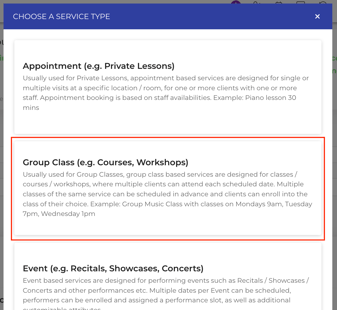
- Click Continue.
The page that opens is titled New group class service (e.g. Group Lessons). Name, Short Description, and Description are required, and a calendar color is already picked for you, but you can customize what you'd like. Then set these before you save:
| On the configuration page | What to enter | Why it matters |
|---|---|---|
| Name | The offering families recognize, like Group Piano - 45 min | The day and time belong on each individual class, not here, or your second time slot will be misnamed. |
| What is the duration of each appointment or class? | The real length of one meeting (i.e. 45 min) | Every class date's end time comes from this number. |
| How many clients can attend a class or appointment of this service? | Turn it on and enter your usual class size | Left off, there is no limit, and self-booking will keep accepting families. |
| Is there a specific age below which… and Is there an age limit after which… | Optional age limits | Opus1.io enforces them when families sign up online. |
| How many days after the start of the class can a client have their first scheduled date of the class? | It starts at 15. Set 1 for a term that must start in week one. Turn it off for a class people can join any week. | This is the window families have to join online. The front desk can still enroll after it closes. |
| Can visitors see this service? and Can clients see this service? | On only if families should find it online | Turning on visitors also turns on clients. |
| Tags | Words you will filter by, like group class or ages 5 - 7 |
Makes a long services list easier to sort. |
Click Create Service at the bottom of the page. You will see Service created and land back on your services list. The group class exists, but nothing is on the calendar yet.
Open the group class to find its tabs: General, Cancellation, Payment, Classes, Notifications / Templates, and Activities. Read through Notifications / Templates before the first family enrolls, so confirmations and reminders say what you want them to:
Add a payment plan
Where: the group class's Payment tab
A group class can be saved with no plan, but no one can be usefully enrolled until it has one. In Opus1.io, pick the plan template that matches how you sell the class:
| How you sell it | Plan template |
|---|---|
| The whole term, paid once | Full Class Payment |
| Monthly while the class runs | Recurring Payment / Membership for Class |
| Drop-in, one date or a few | Per visit payment (cash or credit) |
| A trial class | Single visit (cash or credit) |
| A pack of visits, paid up front | Multiple Visits - Pre-paid |
Name each plan the way your front desk will recognize it, like Group Piano - Monthly or Group Piano - Trial. If families will choose between plans online, the plan's description is what they read. Every template is explained in Choosing the Right Payment Plan for your Service, and trials have their own walkthrough, both linked under Related Articles below.
Enable for Self Booking on each plan stays off until you turn it on. Leave it off if only your front desk enrolls students. Save with Create Service on a new group class, or Update Service if you are editing one.
Note: if the button says 'disable for self-booking,' that means the payment plan is already enabled for self-booking
Add a class for each day and time
Where: open the group class, then Classes > Add Class:
Each class is one day-and-time group with its own roster. In the Add Class window:
- Class Name (required). Name the day, time, and level, like Beginners - Mondays at 4pm
- Location (required). Where the class meets. You pick the room later, when you schedule dates.
- Primary Staff (optional). The teacher who owns this class. Families see this teacher when they sign up online, even when a substitute covers a date.
- How many clients can attend a class or appointment of this class? (optional). Leave it off to use the group class's size. Turn it on to give this class its own limit.
- Age limits, Description, and Tags (optional). Use these when this class is for a narrower age group or level than the group class as a whole.
Click Submit.
For the next time slot, click Add Class again, or use Duplicate Class on a class you already built. A duplicate gets the same name with "(copy)" added. It does not copy class dates or enrolled students, and it copies the waitlist only if you turn on Include waitlist. Rename the copy with Edit Class, then schedule its dates.
A group class in Opus1.io can hold as many classes as you run. Monday, Tuesday, and Wednesday Group Piano are three classes and three rosters, all at one price.
Schedule the class dates
Where: open the class, then Add Date(s): 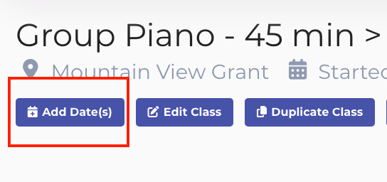
This is the step that puts the class on your Opus1.io calendar. Until it is done there is nothing on the schedule and nothing to enroll students into. The page is titled Schedule Class Date(s), and its location is already set to the class's location.
- Name (required). Often the term, like Fall 2026 or Beginners - Mondays at 4pm
- Room. The studio the class meets in. A class date holds that room from the moment it exists, even with no one enrolled yet.
- Staff (optional). The teacher for these dates. Set primary staff makes the first teacher you pick this class's primary staff.
- Start Date and time. The end time follows the group class's length.
- Recurring. Turn it on for a weekly class. Repeat Weekly, Bi-Weekly, or Daily, and end After a number of meetings, On date, or Never for a class that keeps going.
- Skip scheduling date(s) when location is not available. On by default, so holidays and other closures are skipped.
Click Submit. If the room or teacher is already booked at that time, Opus1.io warns you about the conflict. You can go back and change it, or save anyway.
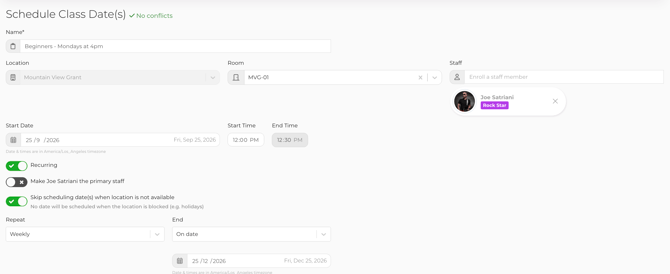
The class dates now show on the class and on the main calendar. Add the next block later with Add Date(s) again, for a winter term after fall or more weeks on an ongoing class. Edit Class changes the class itself, such as its name or class size. It does not move class dates you already scheduled.
To start filling the roster, click Enroll In Class at the top of the class. The full walkthrough is How do I enroll my clients into group classes?
Let families enroll themselves
Your front desk can enroll students as soon as a plan and class dates exist. For families to sign up online through Opus1.io, every one of these has to be in place:
| What | Where | What goes wrong if it is missed |
|---|---|---|
| The group class is visible | Can visitors see this service? and Can clients see this service? on the group class | Families never see the group class. |
| A plan families can buy | Enable for Self Booking on the plan | The class shows up, but there is nothing to pay for at checkout. |
| The class allows it | Enable Self-Booking or Disable Self-Booking on the class | A class marked Self-booking disabled stays front-desk only. New classes allow self-booking unless you turn it off. |
| Class dates exist | Add Date(s) | Families join dates you have scheduled; they cannot pick their own time. |
| The join window is open | How many days after the start of the class… on the group class | After the window closes, families see the class as too late to join. |
Families also need a self-booking link that includes this group class. See Creating Self-Booking Links.
Waitlist. A waitlist is off until you set it up. On the group class, set How many clients can be on the waitlist for a class of this service?, then click Enable Waitlist on each class that should have one. Enable Waitlist Notification emails the next family when a spot opens. If you want a card on file before anyone joins the waitlist, turn on Is payment method required to join the waitlist? on the group class's payment plan.

FAQ
We run the same class on Monday and Tuesday. One group class or two?
One group class with two classes inside it, as long as the length and price match. If Tuesday runs longer or costs more, make it a second group class.
Do I have to assign a teacher?
No. Opus1.io lets you leave both Primary Staff and the teacher on class dates empty. Add a teacher when someone should show on the class, appear to families at sign-up, and be paid for it.
Families say the class is too late to join, but it runs all year.
The join window on the group class starts at 15 days after the first class date. Turn off How many days after the start of the class can a client have their first scheduled date of the class? so families can join any week. Your front desk can enroll them in the meantime.
Can I set up a class before I know the dates?
Yes. Create the group class and the class, and leave Add Date(s) for later. Nothing appears on the calendar and no room is held until you schedule dates.
Related Articles
Next steps
- How do I enroll my clients into group classes? — putting students on a class roster once dates exist
- Choosing the Right Payment Plan for your Service — every group class plan template, compared
- How do I create a trial payment plan for my group classes? — a single-visit trial that can hold a spot for the rest of the term
- Creating Self-Booking Links — so families can find and join the class online
Setting up individual classes
- How do I assign a primary staff to a class? — which teacher families see, and how it shows in reporting
- How do I set a class size for a specific class? — a smaller limit for one class
- Batch Duplicating Group Classes — copying one finished group class for other instruments or levels