![Opus1-3-icon-color-1.png]](https://kb.opus1.io/hs-fs/hubfs/Opus1-3-icon-color-1.png?height=50&name=Opus1-3-icon-color-1.png)
Applies to: Owner, Manager, Staff, Limited Staff (as applicable to your school)
PLUS Feature: No
Plan: All
Last updated: October 22, 2026
Table of Contents
- Overview
- Who can choose the timing
- What each cancellation type does
- How Opus1.io picks the default
- Cancel an appointment
- Cancel one student from a group class
- Examples
- FAQ
- Related Articles
Overview
Your cancellation policy is a rule, and most of the time you want Opus1.io to apply it without anyone thinking about it. A family who cancels three days ahead gets a makeup credit; a family who cancels an hour before the lesson does not.
Every studio also has exceptions. A family calls at 7 a.m. because their child woke up with a fever, and you want to give them the regular makeup even though they are inside the late window. Or a family has canceled at the last minute four weeks running, and this time you want the late rule to apply even though they gave a day's notice.
Before this option existed, an exception meant cancelling the lesson and then adding or removing a credit by hand. Now the Owner makes the call on the cancel screen, and Opus1.io applies the credit, forfeit, or billing change for whichever timing they choose.
Why: Exceptions get handled in one step, the right credit is issued with the right name and expiry, and nobody has to remember to fix the credit later.
Who can choose the timing
| Role | What they see in Cancellation type | Can choose the other client timing? |
|---|---|---|
| Owner | Client cancellation, Client late cancellation, and Staff cancellation | Yes |
| Manager | Staff cancellation and the one client timing the service policy selects | No |
| Staff | Staff cancellation and the one client timing the service policy selects | No |
| Limited Staff (with Can cancel own client's appointments turned on) | Staff cancellation and the one client timing the service policy selects | No |
For everyone except the Owner, nothing about cancelling changes apart from clearer labels. The client option that does not apply is hidden, so a teacher cannot pick the wrong one by accident.
ℹ️ Note: Opus1.io checks the role again when the cancellation is saved, so the Owner-only choice holds even if someone else reaches the cancel screen another way.
What each cancellation type does
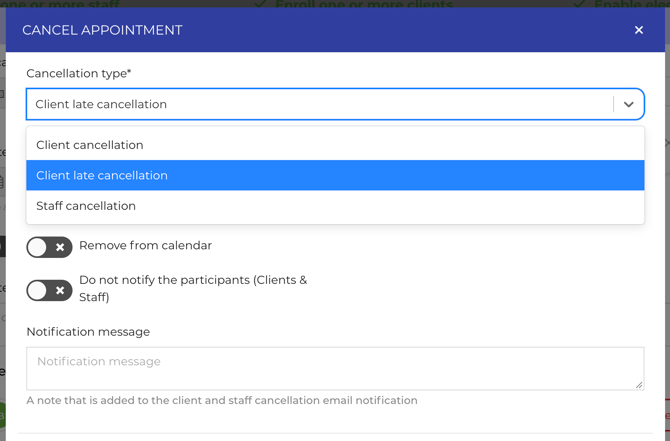
Each option uses a different section of the service's Cancellation tab in Opus1.io.
| Cancellation type | Settings it uses | Visit is marked | Use it when |
|---|---|---|---|
| Client cancellation | Client Visit Cancellation | Client canceled | The family gave enough notice, or the Owner is waiving the late rule this once |
| Client late cancellation | Client Late Visit Cancellation | Client late canceled | The family canceled inside the late window, or the Owner is applying the late rule this once |
| Staff cancellation | Staff Visit Cancellation | Staff canceled | Your studio cannot teach the lesson, for example the teacher is out sick |
Whichever client option you choose, everything that option controls follows it: whether a makeup credit is issued, the credit's name, the cap on how many credits a student can hold, and how long the credit stays valid. If your service forfeits late cancellations, choosing Client late cancellation means no credit.
When you change Cancellation type, the Cancellation reason changes to the credit name for that option. Families see that name on the credit in their account, so edit it if you want it to read differently for this one lesson.
If the service would issue a credit and you do not want one for this lesson, turn on Don't issue credit(s). That switch works on its own, separate from regular or late.
⚠️ Warning: The timing you pick can also change teacher pay. Pay rates have separate settings for paying on cancellations and on late cancellations, so if your rates pay for late cancellations but not regular ones, switching a late cancellation to Client cancellation means the teacher is not paid for that lesson. Check the teacher's pay rate before you make an exception.
How Opus1.io picks the default
Opus1.io opens the cancel screen with the timing your service's Cancellation Policy calls for:
- Hours before the lesson. A cancellation inside the window is late. With a 24-hour window, cancelling a lesson that starts in 3 hours is late, and cancelling a lesson three days away is regular.
- Cutoff by day and time. A cancellation after the day-and-time cutoff on the service is late, for example after 8:00 PM the evening before.
For how to set either rule, see Understanding Cancellation Makeup Credit Settings.
Choosing different timing on one cancellation leaves the service's policy exactly as it is. The next cancellation on that service starts from the policy again.
Cancel an appointment
- Open the appointment on the calendar, or from the client's schedule, and click Cancel Appointment.
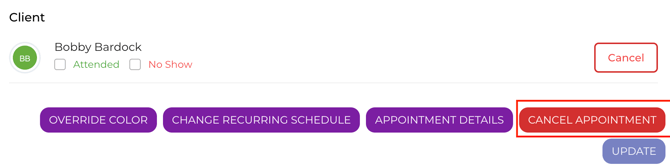
- In Cancellation type, keep the selected option or, as the Owner only, choose the other client timing. Choose Staff cancellation if the studio is the reason the lesson cannot happen.
- Check the Cancellation reason. The text you enter here is visible to families on any credit issued.
- Turn on Don't issue credit(s) if you do not want a credit for this lesson.
- Confirm the cancellation.
Cancel one student from a group class
When one student will miss a class date, cancel that student only. The rest of the class stays on the schedule, and that student's spot is marked Client canceled or Client late canceled.
From the student's schedule
- Open the student's profile and find the class date in their schedule.
- Start the cancellation.
- In Cancellation type, keep the selected option or, as the Owner, switch between Client cancellation and Client late cancellation. Other staff see only the option the policy selects.
- Confirm the cancellation.
From the calendar
- Open the class date on the calendar and click Cancel Class.
- Click cancel to the right of the student's name you're wishing to cancel.
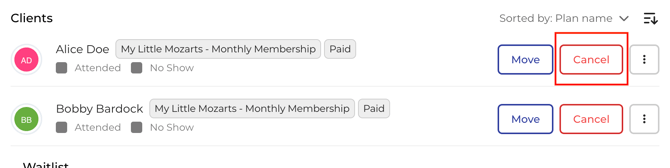
- Choose Client cancellation or Client late cancellation.
- Confirm the cancellation.
⚠️ Warning: On this screen, choosing Staff cancellation cancels the whole class date for everyone and clears the student you selected. Use it only when the class itself is not happening.
When the whole class is canceled
Cancelling a whole class date is always a staff cancellation, for every role including the Owner. Credits for each enrolled student follow the service's Staff Visit Cancellation settings. If one student should be treated as a regular or late client cancellation instead, cancel that student on their own first, using the steps above.
Taking attendance is a separate action. Regular and late are chosen on the cancel screen, not when you mark attendance.
Examples
- Plenty of notice. A family cancels a week ahead and the service treats anything inside 24 hours as late. Leave Client cancellation selected. The student receives the regular makeup credit.
- A sick child, the morning of the lesson. The cancellation is inside the late window, but your studio wants to give the regular makeup. The Owner selects Client cancellation instead of Client late cancellation.
- A repeat pattern. A family cancels several days ahead for the fifth week in a row, and your policy is to treat this one as late. The Owner selects Client late cancellation, and the service's late credit, forfeit, or billing change applies.
- The teacher is out. The whole class cannot meet. Use Staff cancellation on the class date. The client options do not apply.
FAQ
A Manager wants to make an exception for a family. What should they do?
Ask the Owner to cancel that lesson, since only the Owner sees both client options in Opus1.io. If the lesson has to be canceled right away, the Manager can cancel with the policy timing and then add or remove the credit by hand on the student's profile.
I already saved the cancellation with the wrong timing. Can I change it?
The cancel screen sets the timing only at the moment you cancel. Afterward, an Owner or Manager can change the visit's status with Override Appointment Status. That does not reverse or reissue credits, so adjust the student's credits by hand. See Using Override Appointment Status under Related Articles.
If I waive a late cancellation, does the credit still count toward the student's limits?
Yes. The credit is issued under the Client Visit Cancellation settings, so it counts toward that cap and toward the rolling limit on how many credits a student can earn, like any other regular cancellation. If the student has already reached either limit, no credit is issued, and you can add one by hand if you still want to.
Related Articles
- How do I update my services' cancellation policies? — where the late window and the three cancellation sections live
- Understanding Cancellation Makeup Credit Settings: Timing, Validity, and Limits — how the late window, credit expiry, and caps work together
- Types of Cancellations — client, late, and staff cancellations side by side
- Using Override Appointment Status — change a visit's status after it has been canceled
- How do I cancel a full day of appointments/group classes? — batch cancel a day when your studio cannot teach
- What is the difference between fixed and hourly staff pay rates? — whether teachers are paid for regular and late cancellations