![Opus1-3-icon-color-1.png]](https://kb.opus1.io/hs-fs/hubfs/Opus1-3-icon-color-1.png?height=50&name=Opus1-3-icon-color-1.png)
Last updated: August 5, 2026
Applies to: Owner
Plus Feature: No
Table of Contents
- Overview
- Who Can Use This Feature
- How to Access Bulk Import Staff
- Using the Staff Importer
- After Importing
- FAQ
- Related Articles
Overview
Bulk Import Staff lets Owners add multiple staff members to Opus1.io in one action, instead of creating each profile individually. It is especially useful when setting up a new account, onboarding seasonal staff, or migrating from another system.
The importer creates basic staff profiles (names, role, email, and similar fields). It does not set availabilities, pay rates, services, or login access.
ℹ️ Note: Available to all Owner-role users on all plans — no special setup or plan upgrade required.
Who Can Use This Feature
| Role | Access to Bulk Import Staff |
|---|---|
| Owner | ✅ |
| Manager | ❌ |
| Staff | ❌ |
| Limited Staff | ❌ |
Only Owners can open and use the Staff Importer. Managers can still add staff one at a time with Add Staff. If you are a Manager or Staff member and need a bulk import, contact your business Owner.
How to Access Bulk Import Staff
What it does
The Bulk Import Staff button opens the Staff Importer, where you load staff from a CSV or website, review the results in a grid editor, then create multiple profiles at once.
Why you'd use it
Instead of entering each staff member one by one, you prepare a roster (or let Opus1 pull it from your public staff page) and import everyone in a single session — ideal for large teams or migrations.
How to configure it
-
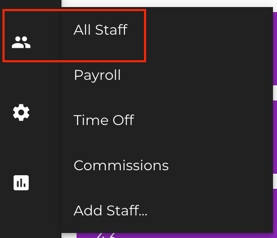
Go to Staff in your left-hand navigation menu:
-
On the All Staff page, click Bulk Import Staff:

-
The Staff Importer opens for your business
If you provided a business website when you created your account, Opus1 will try to find your public staff/teachers page and auto-load whatever information it can into the importer when it opens. You can keep that list, replace it with a CSV, or scan a different URL.
💡 Tip: Before you start, gather names and email addresses for each person. Emails are needed later for staff to log in.
Using the Staff Importer
🎥 Watch: Importing Your Staff | Opus1— short walkthrough of Bulk Import Staff (website or CSV → grid → Process Import).
What it does
The Staff Importer lets you load basic staff fields from either:
- An uploaded CSV, or
- A website URL where your staff are listed (including the auto-load from your business website)
After load, Opus1 shows the staff in a grid editor (like a spreadsheet). You review, edit, and fix issues there, then click Process Import to create the profiles.
Why you'd use it
CSV upload is best when you already have a roster in a spreadsheet. Website scan is best when teachers or staff are already listed publicly. The grid lets you correct names, emails, and other fields — and add anyone who was missing — before anything is saved.
How to configure it
Choose either CSV upload or website data — you do not need to do both.
Option A — Upload a CSV
- On the Staff Importer page, click View field requirements if you need the full list of supported fields
- Click Download our Staff Importer Template
- Open the template in Excel, Google Sheets, or another spreadsheet tool
- Fill one row per staff member, keeping the template column headers exactly as provided, then save as a CSV
- Under Upload your CSV, click Click here to upload a CSV file and select your file
- Click Upload File
The downloaded template is the source of truth for column names and formatting.
⚠️ Warning: If staff data is already loaded from a website and you upload a CSV, the CSV replaces everything currently in the grid.
Option B — Use website staff data
- If Opus1 already auto-loaded staff from your business website, review that list in the grid, or
- Under Scan a website for staff, enter the exact URL where staff are listed (placeholder example: http://your-studio.com/our-team)
- Click Scan URL for Staff
💡 Tip: For best results, provide the exact URL where your staff are listed (for example http://yourbusiness.com/staff), not only your homepage. You do not need the CSV template for this option.
Review staff in the grid editor
- Wait until Opus1 finishes loading and parsing your data into the grid editor
- Review each row — names, staff role, email, and other basic profile fields
- Fix any formatting errors flagged in the grid (misformatted values need to be corrected)
- Edit cells directly as needed
- If someone is missing, add a new row in the importer and fill in their details
Required to create a profile: first name and last name only. Full legal names are not required — initials (for example Nina S.), a shared label like Teacher, or a formal style like Mr. Anderson are all fine, as long as both name columns have something in them.
Email: not required to process the import, but is required later for login (schedules, messages, parent communication). Each email must be unique — two staff cannot share the same address. If an email is missing, Opus1 shows a warning; you can still import that person, but they will not be able to log in until you add an email.
Optional fields you can include before importing (if you have them):
- Employee ID (for payroll systems)
- Address
- Phone number
- Online video conference link (per teacher, for online lessons)
Process Import stays unavailable until staff data is loaded and ready for review.
Process the import
- When the grid looks correct, click Process Import
- Opus1 creates the staff profiles from the grid (for example, several Limited Staff or Staff accounts at once)
- To leave without importing, click Cancel
- When the import finishes, new staff profiles appear on All Staff (profiles that already existed from a previous import are not recreated)
⚠️ Warning: Double-check email addresses before processing if those staff will need to log in. Each login needs a unique email.
After Importing
Imported staff appear in your All Staff list, but they cannot log in yet (unless you already invited them separately).
To finish setup for each person:
- Open their staff profile
- Add key details such as services, availabilities, pay rates, and any custom permissions
- Send a login invitation so they can set their password (requires an email on the profile)
See How do I add my staff to Opus1.io? for invitation steps.
ℹ️ Note: Bulk Import Staff creates basic profiles only. Availabilities, pay rates, services, bios, photos, tags, and permissions are configured on each profile after import.
FAQ
Q: Can Managers use Bulk Import Staff?
A: No. Only Owners can. Managers can add staff individually with Add Staff.
Q: What information do I need to import staff?
A: Only first name and last name are required to create a profile. Include an email if the person should log in later (emails must be unique). If you use CSV upload, download our Staff Importer Template and follow View field requirements. If you use website data, Opus1 pulls what it can, then you review and complete fields in the grid.
Q: Will imported staff automatically be able to log in?
A: No. After importing, invite each staff member from their profile. They need a unique email, then set their own password.
Q: Should I use CSV upload or website scan?
A: Use website data when staff are already listed on a public page (Opus1 may auto-load from your business website). Use CSV when you have a more complete roster in a spreadsheet. Uploading a CSV replaces any website data already in the grid.
Q: What happens after I upload a CSV or scan a URL?
A: Opus1 loads the staff into a grid editor. Edit, fix errors/warnings, and add missing rows there, then click Process Import. Nothing is saved to All Staff until you process the import.
Q: Can I add someone who was not on the CSV or website?
A: Yes. Add a new row directly in the grid editor and fill in their details before you process the import.
Q: Is there a limit to how many staff I can import at once?
A: There is no strict published limit. For very large imports, consider smaller batches so you can review the grid carefully before clicking Process Import.
Q: What happens if two staff share the same email?
A: Emails must be unique. Resolve duplicates in the grid before completing the import.
Q: Does Bulk Import Staff replace Add Staff?
A: No. Use Add Staff for one or two people when you want to set full profile details in the same flow. Use Bulk Import Staff when you need many basic profiles quickly.
Related Articles
- How do I add my staff to Opus1.io? — Step-by-step instructions for inviting staff to log in as well as updating pay rates, availabilities, etc.
- Roles & Permissions — Understand what each role can access and do in Opus1.io
- How do my teachers and staff log in to my Opus1.io? — Guide for staff members on accessing their accounts