![Opus1-3-icon-color-1.png]](https://kb.opus1.io/hs-fs/hubfs/Opus1-3-icon-color-1.png?height=50&name=Opus1-3-icon-color-1.png)
Applies to: Owner, Manager, Staff
PLUS Feature: No
Plan: SMS required
Last updated: September 18, 2026
Table of Contents
- Overview
- Who can block and unblock
- Before you block
- How to block a phone number
- What happens while a number is blocked
- How to unblock a phone number
- Finding blocked conversations
- Blocked, closed, unread, and opted out
- What blocking does not affect
- FAQ
- Related Articles
Overview
Your studio shares one SMS number, and most of what arrives on it is parents. Some of it is not: a wrong number that keeps replying, a spam thread, a sender who has turned unpleasant, or a number that used to belong to a family and now belongs to a stranger.
Closing that conversation is not a fix. Closing moves a thread to the Closed tab, and the next inbound text puts it straight back on Open. Blocking is the harder stop: while a number is blocked, its texts do not arrive in Instant Messaging at all, and no one on your team can text it back by accident.
Block a number in Opus1.io when you want the texts to stop until your team decides otherwise — not until the next message arrives. The history you already have stays readable, and the client record is untouched.
ℹ️ Note: Instant Messaging is part of the Opus1.io SMS premium feature, which the Opus1.io team enables for your school. If SMS is not enabled, Instant Messaging shows an upgrade message instead of the inbox.
Who can block and unblock
There is no block list in Business Settings and no separate permission to hand out. Blocking is an action taken on a conversation, and anyone who can open Instant Messaging and send a one-to-one text can do it.
| Role | Opens Instant Messaging | Blocks and unblocks | Notes |
|---|---|---|---|
| Owner | Yes | Yes | Same shared inbox as staff |
| Manager | Yes | Yes | Same shared inbox as staff |
| Staff | Yes | Yes | Sees every conversation on the selected studio SMS number, not only their own clients |
| Limited Staff | No | No | Teachers do not have access to Instant Messaging |
The inbox is shared, so a block is not a personal mute. Every owner, manager, and staff member working that studio SMS number sees the same blocked conversation, and any of them can lift it.
Before you block
Check three things first, because two of them are easy to get wrong:
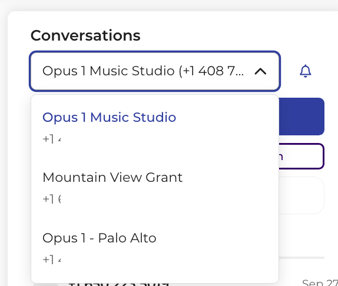
- You are on the right studio SMS number. Schools with more than one location can have one SMS number per location, and conversations belong to the number currently selected. Blocking on the wrong number leaves the unwanted texts arriving on the other one.
- You want the texts to stop, not just the thread off your list. If you only want the conversation marked as needing no further action, close it instead — see How do I mark SMS conversations as closed?.
- This is a staff decision, not a client opt-out. If a family texted STOP, they have already opted out of your outbound texts. Blocking is something your team does, and it works differently.
How to block a phone number
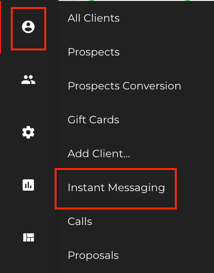
- Go to Clients > Instant Messaging.
- If your school uses more than one SMS number, confirm the right number is selected.
- Open the conversation for the phone number you want to block.
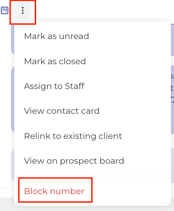
- In the conversation header choose the " ... " and select Block number.
- Review the confirmation and confirm.
The block applies the moment you confirm. Nothing else creates one: a closed thread, a failed send, or a family texting STOP does not block a number.
What happens while a number is blocked
- The conversation shows a blocked banner, so any teammate who opens it can see the state without going into the menu.
- There is a banner, "This number is blocked". No one on your team can send to that number from Instant Messaging.

- New texts from that number do not arrive in Instant Messaging. They do not start a new conversation, they do not move this one back to Open, and they do not mark it unread.
- Everything already in the thread stays readable. Blocking does not delete messages, the conversation, or the client record.
- The block holds until someone unblocks it. Closing or reopening the conversation does not clear it.
Texts the person sends while blocked are not held for you. They will not appear later when you unblock.

⚠️ Warning: If the number belongs to a current family, blocking it means you will not see anything they text, including a cancellation for tonight's lesson. Use it for numbers you genuinely want silent, and unblock as soon as that changes.
How to unblock a phone number
- Go to Clients > Instant Messaging.
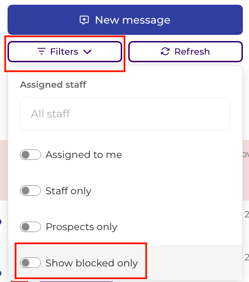
- Open the blocked conversation. If you cannot see it in the list, filter for blocked conversations.
- In the conversation header, select Unblock number.
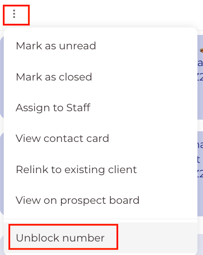
Once it is unblocked, the banner clears, the message box works again, and new texts from that number arrive as usual from that point forward. Anything sent while the number was blocked is gone — it is not delivered late.
Nothing unblocks a number on its own. Not an inbound text, not closing the thread, not reopening it.
Finding blocked conversations
Blocked conversations do not sit at the top of your list waiting to be noticed, so there is a filter for them on the conversation list in Clients > Instant Messaging, alongside the other list filters. Turn it on to see only the numbers currently blocked, open one to unblock it, and turn the filter off to get your usual list back.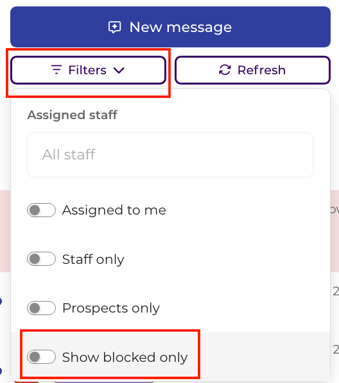
The filter works on its own terms: it shows blocked conversations in each of the Open or Closed tabs, depending on which you're working in, and whether or not they are unread.
Blocked, closed, unread, and opted out
These three get confused constantly, usually at the moment someone is trying to work out why a message will not send.
| State | What it means | Can they text the studio? | Can staff text them? | How it ends |
|---|---|---|---|---|
| Blocked | Your team stopped SMS with this phone number in Instant Messaging | No | No, the message box is disabled | Someone selects Unblock number |
| Closed | This conversation needs no further action right now | Yes, and a reply puts it back on Open | Yes, and sending puts it back on Open | A reply, or your team sends a message |
| Open | This conversation may still need a reply | Yes | Yes | Your team closes it |
| Unread | Nobody on your team has opened this conversation yet. It sits on Open in bold with a dot beside it | Yes | Yes | Someone opens it, or marks it read again from the header |
| Opted out (STOP) | The person asked to stop receiving texts from your studio | Yes, their texts still arrive | No, automated and batch texts skip them too | They text back to resume, or your team clears the opt-out on their profile |
The short version: unread is about whether your team has looked, closing is housekeeping, blocking is a stop your team controls, and opting out is the family's choice.
Unread tracks your side only. It tells you nobody at the studio has opened the conversation — it does not tell you whether the family has read what you sent. No text system can tell you that, which is why Opus1.io has never shown a read receipt on an outgoing message.
What blocking does not affect
Blocking a number in Opus1.io is narrower than most people expect. It does not:
- delete the conversation, the messages, or the client record
- close the conversation, or reopen it — blocking and closing are independent
- mark the conversation read or unread
- unsubscribe anyone from your automated notifications, batch texts, or campaigns, which follow opt-out instead
- stop phone calls, email, or client comments
- act as a personal mute, since the inbox is shared
- cover your other locations, because each studio SMS number has its own conversations
FAQ
Why can't I send a message to this number? Either the number is blocked, or the person has opted out. Check the conversation header: if it offers Unblock number, the number is blocked and you can lift it. If instead you see a notice that the client has opted out of SMS, that is the family's own choice and not something your team applied — they need to opt back in.
Why aren't new texts from this number showing up? If the number is blocked, nothing new from it arrives. Filter for blocked conversations to find the thread, and unblock if those texts should be coming through. A closed conversation behaves differently — an inbound text puts it back on Open, in bold and unread — so a silent thread usually means it is blocked, or you have a different studio SMS number selected.
Does the family know we blocked them? No. Families never see Instant Messaging, and Opus1.io does not tell them. Texts they send while blocked simply do not reach you.
Does blocking also stop lesson reminders and batch texts? No. Blocking only stops SMS with that number inside Instant Messaging. Automated reminders, batch texts, and campaigns follow opt-out status instead, so a blocked number that has not opted out can still receive them. If you want someone to stop receiving everything, that is an opt-out, not a block.
Are texts from a blocked number discarded, or held and delivered after unblocking? Texts from a blocked number are discarded. They are not saved in the conversation, and unblocking does not bring them back. Only texts that arrive after the number is unblocked show up. While the number is blocked, Opus also will not send to it. A text scheduled for that number fails instead of sending if the block is still in place when the send time comes
We use a different SMS number at each location. Does one block cover all of them? No. Conversations belong to the studio SMS number they arrived on, so block on the number where the unwanted texts are landing. If the same person is texting two of your numbers, block on both. If the sender keeps getting through after you have blocked, email support@opus1.io with the phone number and which studio SMS number was selected.
Related Articles
- How do I mark SMS conversations as closed? — the lighter alternative to blocking, for threads that just need clearing
- What is the difference between Read/Unread and Active/Closed conversations? — the Active/Closed inbox, and why no text system can tell you a family has read your message
- SMS: Frequently Asked Questions — enabling SMS, eligible numbers, limits, and delivery
- Roles & Permissions — what Limited Staff, Staff, Managers, and Owners can each reach