---
title: How do I assign an SMS conversation to a teammate?
description: Hand a parent's text to a coworker in Opus1.io. Assign SMS conversations to staff so everyone knows who's replying, then filter to texts assigned to you.
---

[Skip to content](https://kb.opus1.io/how-do-i-assign-an-sms-conversation-to-a-teammate#main-content)

English

Show submenu for translations

![Opus1-3-icon-color-1.png\]](https://kb.opus1.io/hs-fs/hubfs/Opus1-3-icon-color-1.png?height=50&name=Opus1-3-icon-color-1.png)

Open main navigation

Close main navigation

- English
  
  Show submenu for translations
- Go to opus1.io

 Go to opus1.io

 Hello. How can we help you?

- There are no suggestions because the search field is empty.

1. [opus1io Knowledge Base](https://kb.opus1.io/?hsLang=en)
2. [Communication](https://kb.opus1.io/communication?hsLang=en)
3. [SMS](https://kb.opus1.io/communication?hsLang=en#sms)

# How do I assign an SMS conversation to a teammate?

## Hand a parent's text to a coworker so everyone knows who is replying. In Clients \> Instant Messaging, open the conversation and click Assign staff (or Change Staff if someone already has it), then pick one teammate. Their name shows on the thread and in the conversation list, and they can find it under Filters \> Assigned to me. Families never see who is assigned, and anyone on staff can still reply.

**Applies to:** Owner, Manager, Staff  
**PLUS Feature:** No  
**Plan:** Requires SMS  
**Last updated:** October 11, 2026

### **Table of Contents**

1. [Why assign a conversation](https://kb.opus1.io/how-do-i-assign-an-sms-conversation-to-a-teammate#why-assign-a-conversation)
2. [Who can assign conversations](https://kb.opus1.io/how-do-i-assign-an-sms-conversation-to-a-teammate#who-can-assign-conversations)
3. [What you need first](https://kb.opus1.io/how-do-i-assign-an-sms-conversation-to-a-teammate#what-you-need-first)
4. [How to assign a conversation](https://kb.opus1.io/how-do-i-assign-an-sms-conversation-to-a-teammate#how-to-assign-a-conversation)
5. [Change or remove the assigned teammate](https://kb.opus1.io/how-do-i-assign-an-sms-conversation-to-a-teammate#change-or-remove-the-assigned-teammate)
6. [Where the assigned teammate shows up](https://kb.opus1.io/how-do-i-assign-an-sms-conversation-to-a-teammate#where-the-assigned-teammate-shows-up)
7. [Find the conversations assigned to you](https://kb.opus1.io/how-do-i-assign-an-sms-conversation-to-a-teammate#find-the-conversations-assigned-to-you)
8. [What assigning does not change](https://kb.opus1.io/how-do-i-assign-an-sms-conversation-to-a-teammate#what-assigning-does-not-change)
9. [FAQ](https://kb.opus1.io/how-do-i-assign-an-sms-conversation-to-a-teammate#faq)
10. [Related Articles](https://kb.opus1.io/how-do-i-assign-an-sms-conversation-to-a-teammate#related-articles)

---

#### **Why assign a conversation**

Instant Messaging in Opus1.io is a shared inbox. Every text a family sends to your studio number lands in one list, and anyone at the front desk can answer it. That works well until nobody is sure whose job a thread is.

A parent texts on Tuesday afternoon asking whether her son can switch from piano to guitar in January. The office manager reads it, knows the answer depends on the guitar teacher's openings, and means to come back to it. The teacher checking the inbox between lessons assumes the office manager has it. By Friday the parent has heard nothing.

Assigning the conversation fixes that. You put one teammate's name on the thread, and everyone who opens the inbox can see that it is theirs. The teammate can pull up every conversation assigned to them in one list, so nothing waits on memory.

**Why:** A family judges your studio on whether someone gets back to them. Naming an owner means every text has a person responsible for the reply, even on the busiest afternoon or at shift change.

---

#### **Who can assign conversations**

Opus1.io has no separate permission for assigning conversations and no setting to turn it on. If you can open Instant Messaging, you can assign a conversation, change who has it, or remove the assignment.

| Role | Can open Instant Messaging | Can assign, change, or remove | Can be assigned a conversation |
| --- | --- | --- | --- |
| Owner | Yes | Yes | Yes |
| Manager | Yes | Yes | Yes |
| Staff | Yes | Yes | Yes |
| Limited Staff | No | No | No |

You can only assign a conversation to someone who works the inbox, which means an Owner, Manager, or Staff member. Limited Staff cannot open Instant Messaging, so they do not appear in the list of people you can choose.

Families never see who a conversation is assigned to. They text your studio number from their own phones, and every reply they get comes from that number, whoever typed it.

---

#### **What you need first**

There is nothing to configure. Assigning is built into the Instant Messaging inbox in Opus1.io. What needs to be in place is the inbox itself:

1. **The SMS premium feature is enabled for your school.** The Opus1.io team turns it on for you; owners cannot enable it from Settings. If it is off, **Clients \> Instant Messaging** shows a message that SMS is a premium feature not enabled for your account. To add it, contact customer.success@opus1.io or [book time with our team here](https://meetings.hubspot.com/brianne-cardona/sms-inquiry?uuid=414d2d74-728d-4cfd-a00c-bfd2bffc8480).
2. **You have the right studio SMS number selected.** If your school has more than one SMS number, for example one per location, each number has its own list of conversations. An assignment belongs to the conversation under the number it came in on. Select that number before you look for the thread.
3. **The teammate you want is an active Owner, Manager, or Staff member.** If someone is missing from the list, check their role and that their staff profile is active.

---

#### **How to assign a conversation**

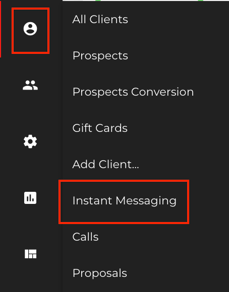
1. In Opus1.io, go to **Clients \> Instant Messaging**.
   
   ![Screenshot 2026-10-10 at 6.22.06 PM](https://kb.opus1.io/hs-fs/hubfs/Screenshot%202026-10-10%20at%206.22.06%20PM.png?width=229&height=293&name=Screenshot%202026-10-10%20at%206.22.06%20PM.png)
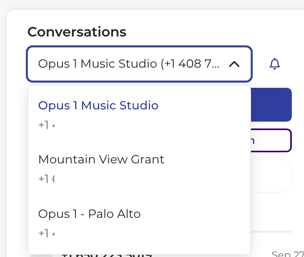
2. If your school has more than one SMS number, select the number the family texted.
   
   ![Screenshot 2026-10-10 at 6.19.40 PM](https://kb.opus1.io/hs-fs/hubfs/Screenshot%202026-10-10%20at%206.19.40%20PM.png?width=304&height=257&name=Screenshot%202026-10-10%20at%206.19.40%20PM.png)
3. Click the conversation to open it.
4. At the top of the thread, find the bar that reads **No staff assigned**, and click **Assign staff**.
   
   ![Screenshot 2026-10-11 at 11.34.04 AM](https://kb.opus1.io/hs-fs/hubfs/Screenshot%202026-10-11%20at%2011.34.04%20AM.png?width=670&height=40&name=Screenshot%202026-10-11%20at%2011.34.04%20AM.png)
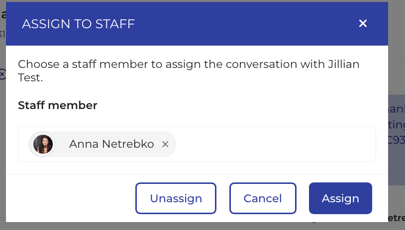
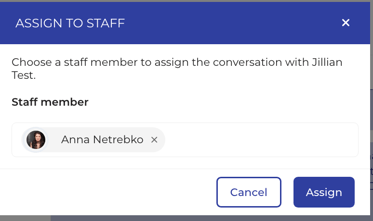
5. In the window that opens, search for your teammate by name, or pick them from the list.
   
   ![Screenshot 2026-10-11 at 11.35.49 AM](https://kb.opus1.io/hs-fs/hubfs/Screenshot%202026-10-11%20at%2011.35.49%20AM.png?width=373&height=222&name=Screenshot%202026-10-11%20at%2011.35.49%20AM.png)
6. Click **Assign**.

The bar now reads **Assigned to**, followed by your teammate's name, for example **Assigned to Joe**. The same name appears on that conversation's row in the list:

![Screenshot 2026-10-11 at 11.36.26 AM](https://kb.opus1.io/hs-fs/hubfs/Screenshot%202026-10-11%20at%2011.36.26%20AM.png?width=670&height=40&name=Screenshot%202026-10-11%20at%2011.36.26%20AM.png)

Nothing assigns a conversation on its own. A new text from a family, a reply from your team, or a brand-new conversation all start with **No staff assigned** until someone picks a teammate.

---

#### **Change or remove the assigned teammate**

A conversation in Opus1.io has one assigned teammate at a time.

**To hand it to someone else,** open the conversation, click **Change Staff** on the assignment bar, and choose the new teammate. The new name replaces the old one.

![Screenshot 2026-10-11 at 11.39.02 AM](https://kb.opus1.io/hs-fs/hubfs/Screenshot%202026-10-11%20at%2011.39.02%20AM.png?width=670&height=40&name=Screenshot%202026-10-11%20at%2011.39.02%20AM.png)  
**To remove the assignment,** open the conversation, click **Change Staff**, and click **Unassign**.

![Screenshot 2026-10-11 at 11.41.04 AM](https://kb.opus1.io/hs-fs/hubfs/Screenshot%202026-10-11%20at%2011.41.04%20AM.png?width=405&height=231&name=Screenshot%202026-10-11%20at%2011.41.04%20AM.png)

On a phone, **Change Staff** appears as an icon beside the teammate's name rather than as a word.

---

#### **Where the assigned teammate shows up**

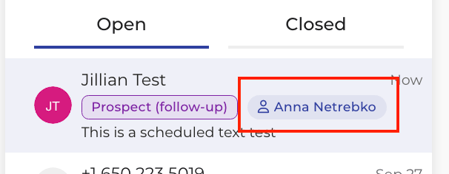
Once a conversation is assigned in Opus1.io, you can see who has it in two places:

- **On the thread,** in the assignment bar at the top: **Assigned to** and the teammate's name.
- **In the conversation list,** on that family's row, so you can see who has each thread without opening it.
  
  ![Screenshot 2026-10-11 at 11.42.01 AM](https://kb.opus1.io/hs-fs/hubfs/Screenshot%202026-10-11%20at%2011.42.01%20AM.png?width=449&height=175&name=Screenshot%202026-10-11%20at%2011.42.01%20AM.png)

The assignment stays with the conversation. When the family texts again next week, the thread still belongs to the same teammate until someone changes it.

---

#### **Find the conversations assigned to you**

**Filters**, at the top of the conversation list, narrows the list to one person's conversations. It works on the studio SMS number you have selected.

| Filter | What it shows | When to use it |
| --- | --- | --- |
| **Assigned to me** | Conversations assigned to you | Work through your own follow-ups |
| **Assigned staff** | Conversations assigned to a teammate you pick | Cover for someone who is out, or see how the inbox is split |
| **Unassigned** | Conversations nobody has | Hand out new texts at the start of a shift |

To go back to every conversation, remove the filter.

The filters work alongside the **Open** and **Closed** tabs. **Assigned to me** on the **Open** tab is the list of texts still waiting on you. Filters only change which conversations you see. They do not assign anything or send a text.

---

#### **What assigning does not change**

Assigning a conversation in Opus1.io is a label for your team. It does not change who can work the thread or what the family sees.

- **Everyone on staff can still read and reply.** Assigning a conversation to one teammate does not hide it from anyone else who can open Instant Messaging.
- **The family is not told.** No text goes out when you assign, change, or remove a teammate.
- **Your teammate is not notified.** Assigning does not email, text, or send an alert to the person you chose. They find the conversation on their **Assigned to me** list.
- **Open or Closed stays as it was.** Assigning does not close or reopen a conversation.
- **The prospect record is separate.** If the family is a prospect, the **Assigned staff** on their prospect card and the teammate assigned to their text conversation are two different things. Changing one does not change the other.

---

#### **FAQ**

**Can two people be assigned to the same conversation?**  
No. A conversation has one assigned teammate at a time. Choosing someone new with **Change Staff** replaces the current one.

**Do staff members get notified when they're assigned a text?**  
No, there is no notification sent but they're able to see their assigned texts by using **assigned to me** filter.

**A parent just texted us for the first time. Who has it?**  
Nobody yet. New conversations start as **No staff assigned**. Use the **Unassigned** filter to find them and hand them out.

**I assigned a conversation to myself, but it isn't under Assigned to me.**  
Check that you have the same studio SMS number selected that the family texted, and that you are on the right tab. **Assigned to me** on the **Open** tab does not show conversations that have been closed.

**Does auto-assigning staff to new prospects also assign their texts?**  
No. **Automatically assign staff to new prospects**, in Business Settings, only sets the assigned staff on the prospect record. Text conversations in Opus1.io are always assigned by hand.

---

#### **Related Articles**

- [How do I mark SMS conversations as closed?](https://kb.opus1.io/what-do-unread-open-closed-sms-conversations-mean?hsLang=en) — close a conversation once the family's question is answered
- [How do I automatically assign my staff to prospects in my pipeline?](https://kb.opus1.io/how-do-i-automatically-assign-my-staff-to-prospects-in-my-pipeline?hsLang=en) — assign staff to new leads, which is separate from assigning a text conversation
- [How do staff get notified about prospects and follow-ups?](https://kb.opus1.io/how-do-staff-get-notified-about-prospects-and-follow-ups?hsLang=en) — what staff hear about when a prospect is assigned to them
- [SMS: Frequently Asked Questions](https://kb.opus1.io/frequently-asked-questions?hsLang=en) — enabling SMS, pricing, message limits, and which phone numbers work

- [Account & Troubleshooting](https://kb.opus1.io/account-troubleshooting?hsLang=en#main-content)

    - [General](https://kb.opus1.io/account-troubleshooting?hsLang=en#general)
    - [Login & Access](https://kb.opus1.io/account-troubleshooting?hsLang=en#login-access)
    - [Release Notes](https://kb.opus1.io/account-troubleshooting?hsLang=en#release-notes)
- [Business](https://kb.opus1.io/business?hsLang=en#main-content)

    - [General](https://kb.opus1.io/business?hsLang=en#general)
    - [Business Profile & Billing](https://kb.opus1.io/business?hsLang=en#business-profile-billing)
    - [Client Data & Forms](https://kb.opus1.io/business?hsLang=en#client-data-forms)
    - [Integrations](https://kb.opus1.io/business?hsLang=en#integrations)
    - [Locations & Rooms](https://kb.opus1.io/business?hsLang=en#locations-rooms)
    - [Self-Booking Links](https://kb.opus1.io/business?hsLang=en#self-booking-links)
    - [Terms & Conditions](https://kb.opus1.io/business?hsLang=en#terms-conditions)
- [Calendar & Scheduling](https://kb.opus1.io/calendar-scheduling?hsLang=en#main-content)

    - [General](https://kb.opus1.io/calendar-scheduling?hsLang=en#general)
    - [Batch Schedule Actions](https://kb.opus1.io/calendar-scheduling?hsLang=en#batch-schedule-actions)
    - [Calendar Notes & Display](https://kb.opus1.io/calendar-scheduling?hsLang=en#calendar-notes-display)
    - [Enrollment](https://kb.opus1.io/calendar-scheduling?hsLang=en#enrollment)
    - [Recurring & Rescheduling](https://kb.opus1.io/calendar-scheduling?hsLang=en#recurring-rescheduling)
    - [Substitutes](https://kb.opus1.io/calendar-scheduling?hsLang=en#substitutes)
- [Clients](https://kb.opus1.io/clients?hsLang=en#main-content)

    - [Account Managers & Dependents](https://kb.opus1.io/clients?hsLang=en#account-managers-dependents)
    - [Client Experience](https://kb.opus1.io/clients?hsLang=en#client-experience)
    - [Client Records](https://kb.opus1.io/clients?hsLang=en#client-records)
    - [Credits](https://kb.opus1.io/clients?hsLang=en#credits)
    - [Gift Cards](https://kb.opus1.io/clients?hsLang=en#gift-cards)
    - [Invoices](https://kb.opus1.io/clients?hsLang=en#invoices)
    - [Payments & Auto-Pay](https://kb.opus1.io/clients?hsLang=en#payments-auto-pay)
    - [Subscriptions](https://kb.opus1.io/clients?hsLang=en#subscriptions)
    - [Waitlist Notifications](https://kb.opus1.io/clients?hsLang=en#waitlist-notifications)
- [Communication](https://kb.opus1.io/communication?hsLang=en#main-content)

    - [Email & Notifications](https://kb.opus1.io/communication?hsLang=en#email-notifications)
    - [SMS](https://kb.opus1.io/communication?hsLang=en#sms)
    - [Voice](https://kb.opus1.io/communication?hsLang=en#voice)
- [Grow Your Music School](https://kb.opus1.io/grow-your-music-school?hsLang=en#main-content)

    - [Convert Prospects](https://kb.opus1.io/grow-your-music-school?hsLang=en#convert-prospects)
    - [Email Campaigns](https://kb.opus1.io/grow-your-music-school?hsLang=en#email-campaigns)
    - [Get Found & Capture Leads](https://kb.opus1.io/grow-your-music-school?hsLang=en#get-found-capture-leads)
    - [Reviews & Reputation](https://kb.opus1.io/grow-your-music-school?hsLang=en#reviews-reputation)
- [Payment Processing](https://kb.opus1.io/payment-processing?hsLang=en#main-content)

    - [General](https://kb.opus1.io/payment-processing?hsLang=en#general)
    - [Opus1 Payments (Stripe)](https://kb.opus1.io/payment-processing?hsLang=en#opus1-payments-stripe)
    - [Clover Connect (FiServ / Cardpointe)](https://kb.opus1.io/payment-processing?hsLang=en#clover-connect-fiserv-cardpointe)
- [Reporting](https://kb.opus1.io/reporting?hsLang=en#main-content)

    - [Attendance](https://kb.opus1.io/reporting?hsLang=en#attendance)
    - [Credits](https://kb.opus1.io/reporting?hsLang=en#credits)
    - [Invoices](https://kb.opus1.io/reporting?hsLang=en#invoices)
    - [Subscriptions](https://kb.opus1.io/reporting?hsLang=en#subscriptions)
    - [Transactions](https://kb.opus1.io/reporting?hsLang=en#transactions)
    - [Data Exports](https://kb.opus1.io/reporting?hsLang=en#data-exports)
- [Services](https://kb.opus1.io/services?hsLang=en#main-content)

    - [Appointments](https://kb.opus1.io/services?hsLang=en#appointments)
    - [Building Services](https://kb.opus1.io/services?hsLang=en#building-services)
    - [Cancellation](https://kb.opus1.io/services?hsLang=en#cancellation)
    - [Events](https://kb.opus1.io/services?hsLang=en#events)
    - [Optimization & Conversion](https://kb.opus1.io/services?hsLang=en#optimization-conversion)
    - [Payment Plans](https://kb.opus1.io/services?hsLang=en#payment-plans)
    - [Group Classes](https://kb.opus1.io/services?hsLang=en#group-classes)
    - [Subscription-Only](https://kb.opus1.io/services?hsLang=en#subscription-only)
- [Staff](https://kb.opus1.io/staff?hsLang=en#main-content)

    - [Availability & Self-Booking](https://kb.opus1.io/staff?hsLang=en#availability-self-booking)
    - [Calendar Sync](https://kb.opus1.io/staff?hsLang=en#calendar-sync)
    - [Onboarding & Offboarding](https://kb.opus1.io/staff?hsLang=en#onboarding-offboarding)
    - [Payroll & Compensation](https://kb.opus1.io/staff?hsLang=en#payroll-compensation)
    - [Roles & Permissions](https://kb.opus1.io/staff?hsLang=en#roles-permissions)
    - [Teacher Tools & Access](https://kb.opus1.io/staff?hsLang=en#teacher-tools-access)
    - [Time-off](https://kb.opus1.io/staff?hsLang=en#time-off)
- [Stats](https://kb.opus1.io/stats?hsLang=en#main-content)

    - [Conversions](https://kb.opus1.io/stats?hsLang=en#conversions)
    - [Client Metrics](https://kb.opus1.io/stats?hsLang=en#client-metrics)
    - [Dashboard](https://kb.opus1.io/stats?hsLang=en#dashboard)
    - [Group Class Enrollment](https://kb.opus1.io/stats?hsLang=en#group-class-enrollment)
    - [Today](https://kb.opus1.io/stats?hsLang=en#today)
    - [Utilization](https://kb.opus1.io/stats?hsLang=en#utilization)

[![Chill listening crop-3](https://kb.opus1.io/hs-fs/hubfs/Opus1-3-icon-color-2.png?width=35&height=24&name=Opus1-3-icon-color-2.png "Chill listening crop-3")](http://opus1.io)

<https://www.facebook.com/opus1.io/>

Copyright © 2025, Opus1.io