![Opus1-3-icon-color-1.png]](https://kb.opus1.io/hs-fs/hubfs/Opus1-3-icon-color-1.png?height=50&name=Opus1-3-icon-color-1.png)
Applies to: Owner, Manager
PLUS Feature: No
Plan: All
Last updated: September 17, 2026
Table of Contents
- Overview
- Who can add staff
- What you need before you start
- Create the staff profile
- Choose the staff role
- What else you can fill in on the same form
- Invite them to log in
- Other ways to add someone
- What creating a profile does not do
- FAQ
- Related Articles
Overview
A new piano teacher starts Monday. Until they exist in Opus1.io, you cannot put them on the schedule, pay them, or let families book them.
Adding them is two separate actions, and that split is deliberate:
- Create the profile. This is the person in Opus1.io. It takes a first and last name.
- Send the invitation. This is their login. It takes an email address, and you send it only when they need to get in.
Why: You can build next week's schedule and set a pay rate before your new teacher has a password, and you can hire an office person without their name appearing on your booking page before their hours are real.
The cost of not knowing this is a phone call on Sunday night. Owners regularly create a profile and assume the teacher was notified. They were not. Nothing is emailed until you send the invitation.
ℹ️ Note: Every staff member in Opus1.io also has a client profile, because a teacher may take a lesson or buy a book from you. That second profile is normal and is not a duplicate you need to merge.
Who can add staff
Creating staff is an Owner or Manager job. Your front desk runs the day for families; they do not hire.
| Role | Create a staff profile | Assign Limited Staff or Staff | Assign Manager or Owner | Import a whole roster |
|---|---|---|---|---|
| Owner | Yes | Yes | Yes | Yes |
| Manager | Yes | Yes | No | No |
| Staff | No | No | No | No |
If you cannot find Add Staff... in the left menu, you are signed in as Staff or Limited Staff. Ask an Owner or a Manager.
What you need before you start
You do not need their paperwork. You need a name.
- First and last name. Both fields are required, and that is the whole requirement. Initials are fine — Nina S. works, and so does a shared label like Front Desk, as long as both fields have something in them.
- The job they will actually do in Opus1.io, not the title on the offer letter. A teacher who should only see their own students is a different role from an office person who enrolls every family. See Choose the staff role below.
- A work email address, if they will log in. It is not needed to create the profile, but it must be unique in your school. Two people cannot both use frontdesk@yourschool.com.
- Whether they need to log in this week. If not, skip the invitation. You can send it any time.
Everything else — phone, address, photo, hours, pay rate, tags, bio — can wait, and can be added later from their profile.
Create the staff profile
Go to Staff > Add Staff... in the left menu, or open Staff > All Staff and click Add Staff. 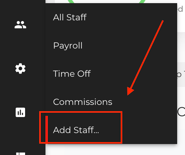 OR
OR 
- Enter the First name and Last name.
- Choose a Staff Role. If you leave it alone, they are created as Limited Staff
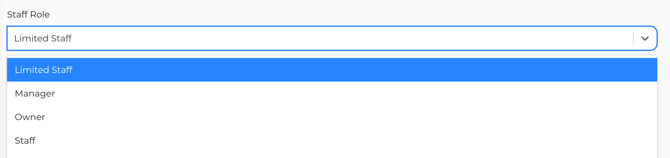
- Add an Email address if they will log in, or if you simply want it on file.
- Fill in anything else you already have. None of it is required.
- Click Create Staff.
You land on their new staff profile, and you can start booking them immediately.
⚠️ Warning: Creating the profile sends no email to the new hire and no announcement to your families. If you want them to be able to log in, see Invite them to log in.
Choose the staff role
The role is what the person can do, not what you call them in the hallway. A piano teacher is usually Limited Staff. Someone at the front desk who enrolls siblings and takes payments is Staff. Giving a new teacher the Staff role because it sounds more senior hands them every family's contact details and billing history.
| Role | Typical hire | What they can do |
|---|---|---|
| Limited Staff | Teacher, instructor | Their own students and their own schedule only. This is the default if you do not change the picker. |
| Staff | Front desk, office admin | Day-to-day work for all families: enroll, take payment, cancel, issue credits, take attendance. Cannot create other staff or see pay rates. |
| Manager | Someone who hires teachers and sets hours | Everything Staff can do, plus creating Limited Staff and Staff, managing availability, and approving time off. Cannot assign the Manager or Owner role. |
| Owner | Owner, director | Financial information, business settings, and services. Only an Owner can create another Owner or a Manager. |
Why: Limited Staff is the setting that keeps a teacher's view to their own students, which is what most schools want and what most teachers expect. Getting it wrong is easy to fix later from their staff profile, but a week of a teacher browsing the whole client list is not something you can take back.
Limited Staff cannot take attendance or cancel their own lessons until you switch those on individually. The toggles sit under the role on the same form — see Customizing Limited Staff Permissions. For the full breakdown of each role, see Roles & Permissions.
What else you can fill in on the same form
None of this blocks Create Staff. Fill in what you have on hiring day and finish the rest from their staff profile afterwards if you need.
| On the form | Why you'd fill it now |
|---|---|
| Email address | It is what the login invitation goes to, and it lets them use Login With Google if it is a Gmail address |
| Available Hours/Days | When they can be booked. Each block needs a location. Without hours, nobody can book them — including you. See How do I enter availability for my staff? |
| Unavailable Hours/Days | Breaks inside hours they already have. There is no need to block a day they were never available |
| Staff Pay Rates | So payroll has a number to work from the first time you run it. See How do I change a current staff member's pay rate? |
| Categorized tags | Instruments, languages, and teaching levels. Families see these when they self-book, and you can filter All Staff by them. See How do I add tags to staff profiles? |
| Profile photo and staff bio | What a family sees next to their name on your booking page |
| Can visitors see this staff? / Can clients see this staff? | Whether they appear on your public and client-facing booking pages. See How do I prevent my teachers from being available for self-booking? |
| Phone, address, birthday, Employee ID, video conference link | Records and payroll matching. Nothing here blocks anything |
💡 Tip: Limited Staff and Staff cannot edit their own availability. If you want Monday's grid to be right, set Available Hours/Days yourself before families start booking.
Invite them to log in
Send the invitation when the person needs to open Opus1.io themselves — to see their schedule, take attendance, post comments, request time off, or check their own payroll.
They need an email address on the profile first. Without one there is nothing to send to.
- Open their staff profile.
- On the action bar to the left of the profile, click the envelope icon. The tooltip reads reset password / send invitation email:
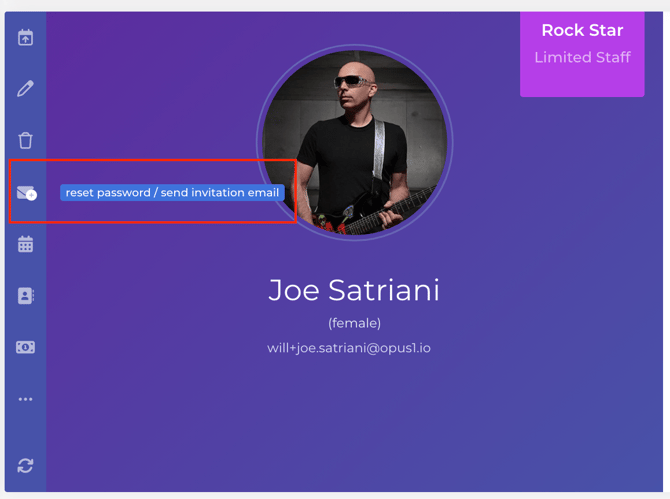
- Confirm.
They get an email from your school with a button that takes them to your login page, where they set their own password.
⚠️ Warning: This also clears any password the person already had. On a brand-new hire that costs nothing. On a teacher who has been logging in for two years, they will be locked out until they use the new link, so only send it again if they have asked for it.
The link is good for seven days. If it expires, or if they never saw the first email, click the same envelope icon again to send a fresh one.
Two things to know if the invitation does not land:
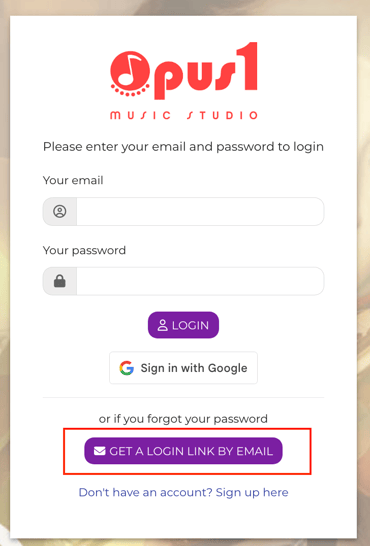
- They can go to your https://yourschool.opus.io/login and click Get A Login Link By Email to receive a separate, shorter-lived login link:
- If their staff email is a Gmail address, Login With Google works instead of a password. It is unavailable on the Starter subscription and in some private browsing windows.
For the full login picture, see How do my teachers and staff log in to my opus1.io?.
Other ways to add someone
They already have a client profile
An adult student who now teaches for you, or a parent you have hired at the front desk, already exists in your school. Do not create a second profile for them, and do not reuse their email address on a new one — Opus1.io will reject it as already in use.
Open their client profile and use make staff member. You land on the staff form, where you set the role, hours, and pay. Their history stays attached to the same person: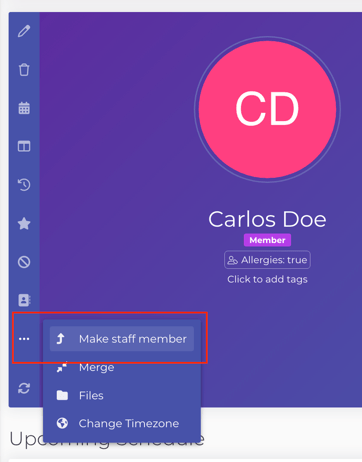
If you find you already created a duplicate, see Deleting / Merging Duplicate Accounts.
You are adding the whole roster
Adding teachers one at a time is right for one or two people. For a full faculty at launch, or a seasonal roster you already have in a spreadsheet, an Owner can use Bulk Import Staff on the All Staff page. It creates basic profiles in one pass, and you finish hours, pay rates, tags, and invitations on each profile afterwards. See How Do I Bulk Import Staff into Opus1.io?.
What creating a profile does not do
- It does not email anyone. Not the new hire, not your families.
- It does not put them on your booking page. That needs availability plus the visitor and client visibility settings.
- It does not give them a login. That is the invitation, and it needs an email address.
- It does not set their hours or pay. Those are fields you fill in, on this form or later.
FAQ
Can two teachers share one email address? No. Each login needs its own unique address, so a shared studio inbox cannot serve two staff members. Give each person their own work or personal address, and keep the shared inbox on your business profile.
Can I change someone's role after I create them? Yes. Open their staff profile, change Staff Role, and click Update Staff. If the person is signed in while you do it, have them sign out and back in so their view matches the new role.
Will families see the new teacher on my booking page right away? No. A new profile is invisible to families until you give them availability and turn on visitor or client visibility. If you have done both and they still are not showing, see Why isn't a teacher showing as available for self-booking?.
The invitation never arrived. What now? Check that the address on the profile is spelled correctly, then ask them to look in spam and in any shared inbox filters. Send it again from the envelope icon. If it still does not arrive, have them use Get A Login Link By Email on your login page instead.
How do I remove someone when they leave? Do not delete the profile — their lesson history, attendance, and payroll records live on it. See Steps to follow when a Teacher leaves the school. for the order to do things in.
Related Articles
- Roles & Permissions — what Limited Staff, Staff, Managers, and Owners can each see and do
- Customizing Limited Staff Permissions — letting a teacher take attendance, post comments, or cancel their own lessons
- How do I enter availability for my staff? — the hours that make a new teacher bookable
- How Do I Bulk Import Staff into Opus1.io? — adding a whole roster at once, for Owners
- How do my teachers and staff log in to my opus1.io? — your login page, Google sign-in, and emailed login links
- Steps to follow when a Teacher leaves the school. — the other end of the same job