![Opus1-3-icon-color-1.png]](https://kb.opus1.io/hs-fs/hubfs/Opus1-3-icon-color-1.png?height=50&name=Opus1-3-icon-color-1.png)
Applies to: Owner / Manager (make the link public); Staff or whoever edits the studio website (copy the address and add the button)
PLUS Feature: No
Plan: All
Last updated: November 5, 2026
Table of Contents
- Overview
- Which link to put on your website
- Make the booking link public first
- Copy your booking address
- Add the Book a lesson button in your website builder
- Embedding the booking calendar is not supported
- Add a Family login link for current families
- Offer more than one program from one button
- Test the button as a new family
- FAQ
- Related Articles
Overview
Most new families find your studio on your own website, and many of them decide at 9pm on a Sunday, when nobody is at the front desk. A booking button lets that parent pick a teacher and a real open time while they are still motivated, instead of filling in a contact form and waiting for a call back.
Why: Without a button, every new enrollment goes through a phone call or an email thread. With one, the booking, the account, and the payment details all arrive in Opus1.io before you open the studio on Monday.
Your website keeps its own address. The buttons send families to your Opus1.io pages, which live at your studio's Opus1.io address. A studio whose website is yourschool.com still takes bookings at yourschool.opus1.io.
A new family does not need an account, an invite, or a password from you before they can look at times. Opus1.io asks them to create an account once they have picked a time, as part of checkout.
Which link to put on your website
Different visitors need different links. A homepage button pointed at the wrong one either asks a new parent to log in or shows them the wrong lessons, and they leave.
| Who is clicking | Button label | Where it points | Accessible by |
|---|---|---|---|
| A new family who wants to try a lesson first | Book a trial | A trial link, such as https://yourschool.opus1.io/w/piano-trials |
Everyone |
| A new family ready to sign up without a trial | Enroll | A link to your ongoing lessons or group classes, such as https://yourschool.opus1.io/w/fall-group-classes |
Everyone |
| A current family checking their schedule or paying an invoice | Family login | Your login page, https://yourschool.opus1.io/login |
— |
| A current family re-enrolling or booking extras | Not on your public site | A separate link you email to current families | Clients only |
In these examples, yourschool is your studio's Opus1.io name — the same one in your browser's address bar while you are logged in — and piano-trials is the name of one self-booking link. Yours will differ.
Most studios need one public booking button and one Family login link. Add the second booking button only if you sell both trials and direct enrollment; to offer several programs from a single button, see Offer more than one program from one button below.
Make the booking link public first
The Book a lesson button needs a self-booking link that visitors can open. New self-booking links in Opus1.io start restricted to logged-in clients, so a link nobody has opened up will send every new family to a login page.
- Go to Settings > Business. If your menu works that way, hover the business logo to reach the business page.
- Open the Self-Booking Links tab.
- Click the edit pencil on the Self-booking links card.
- Find the link the button should open. Each row shows its path, such as
/w/piano-trials, and either Accessible by: Everyone or Accessible by: Clients only.
Everyone is what a website button needs. If the row reads Clients only:
- Click Update on that link. The Edit Link window opens.
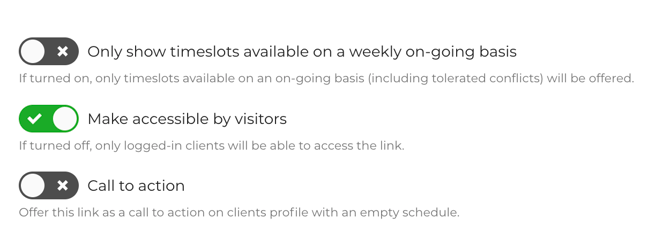
- Turn on Make accessible by visitors.
- Click Update Link.
- Click Update Business and wait for Business updated successfully.
⚠️ Warning: Update Link only closes the window. Update Business is the save. Leave the page before that message appears and the change is lost — the button on your website will keep asking families to log in.
If you have no self-booking links yet, create one first, and turn on Make accessible by visitors before you share it anywhere. See How to create and share a self-booking link under Related Articles.
Copy your booking address
- On Settings > Business > Self-Booking Links, with the Self-booking links card open, right-click the link's path (for example
/w/piano-trials) and choose to copy the link address. - Paste it somewhere you can read it and confirm it starts with
https://and your studio's Opus1.io name, likehttps://yourschool.opus1.io/w/piano-trials.
Clicking the path instead opens the booking page in a new tab. Copying the address bar from that tab gives you the same address.
Always paste the full https:// address. A path on its own, such as /w/piano-trials, only works inside Opus1.io. On your own website, it leads nowhere.
Add the Book a lesson button in your website builder
These steps are the same in Wix, Squarespace, WordPress, and most other website builders. Builders may call a button a link or a call to action.
- Edit the page new families land on. The home page is the usual place; a Lessons or Enroll page also works.
- Add a button.
- Label it with what happens next: Book a lesson, Book a trial, or Enroll. A label like "Client portal" tells a new parent nothing about what they will get.
- Set the button's link to the full
https://address you copied from Opus1.io. - If the builder offers Open in a new tab, turn it on, so the family can come back to your site.
- Publish the page. A saved draft is invisible to visitors.
What the family does after clicking
- Your Opus1.io booking page opens.
- They choose the lesson, teacher, or group class that link offers, and a real open time.
- Opus1.io asks them to create an account or sign in, then to check out.
- They get the standard confirmation email. The lesson is on your schedule and the family is in Opus1.io.
You do not need to add the family first. The booking creates the account.
Embedding the booking calendar is not supported
Some website builders offer to place a booking calendar inside your page with an embed block, an iframe, or a box of HTML. Embedding the Opus1.io booking flow inside Wix, Squarespace, WordPress, or any other site builder is not supported. Use a button that links out to your Opus1.io booking page instead.
Why: The booking flow is built to run on your Opus1.io address. Opus1.io support can troubleshoot that page, but not a copy of it placed inside another company's site builder, so an embed that misbehaves has no one who can fix it.
The one Opus1.io form designed to sit inside a website is the lead capture form, an Opus1 PLUS feature. It collects a family's contact details for follow-up; it does not book a time. See How can I embed the lead capture form in my website? under Related Articles.
Add a Family login link for current families
Families who already take lessons need a different door: their own account, where they see the schedule, pay invoices, and update a card. Add a second, quieter link in your website's header or footer labeled Family login, pointing to your login page:
https://yourschool.opus1.io/login
On that page, a parent types the email address on their profile and clicks Get A Login Link by Email. Opus1.io emails a one-time link that signs them in. Parents with a Gmail address may also see Login with Google, which is not available on the Starter plan. Children's lessons sit on the parent's account, so the parent signs in with their own email.
Why: When you move to Opus1.io, sending families to your website — "click Family login" — gives them one place to remember. If the address ever changes, you update one button instead of re-teaching every family. See How do I tell families we're switching to Opus1.io? under Related Articles for an announcement email you can copy.
Offer more than one program from one button
Each self-booking link offers one kind of booking: private lessons, group classes, or an event. If one button should offer several — piano trials and a beginner guitar group class, for example — build an Opus1.io landing page that lists each link as a card, and point the button at the landing page instead. Landing page addresses use /m/, such as https://yourschool.opus1.io/m/fall-enrollment.
Landing pages appear on the same Self-Booking Links tab, on the Landing page links card. Copy the address the same way.
ℹ️ Note: Every card on the landing page still needs its own link set to Make accessible by visitors. A landing page can open normally and still send a family to a login page when the card they click is Clients only.
Test the button as a new family
You are signed in to Opus1.io as an owner or manager, and signed-in staff can open links a new family cannot. A test from your own browser will always look fine. Test as a stranger:
- Open a private or incognito window, or use a phone that has never signed in to your studio.
- Load your public website and click Book a lesson.
- Your Opus1.io booking page should open with no login screen, showing the lessons or group classes you meant to offer.
- Go back and click Family login. Your studio's login page should open.
If Book a lesson asks the family to log in, the link is still Clients only, or Update Business never saved. See My self-booking link sends clients to a login page under Related Articles.
If the page opens but shows nothing to book, the link is public but a service, teacher, or plan is hidden from visitors. See Why isn't my service showing on my self-booking link? under Related Articles.
FAQ
Do I have to create an Opus1.io account for each new family before they can book? No. On a public self-booking link, a new family browses times first and creates their Opus1.io account during checkout. The booking itself creates the client profile, so there is nothing to set up ahead of time.
My website is yourschool.com. Can bookings still happen at yourschool.opus1.io? Yes, and that is how it is meant to work. The button connects your website to your Opus1.io booking page. Changing your website's domain does not change your Opus1.io address, so the button keeps working as long as it still points there.
What happens to my website button if I rename the self-booking link? Renaming a link in Opus1.io changes its address, and the old address stops working as soon as you click Update Business. The website button, flyers, and ads using the old name break, and landing pages drop the renamed link. If the link is already in use, add a new link instead of renaming the old one.
Can my staff add the booking button? Staff can copy an Opus1.io self-booking link that already exists and paste it into your website if they edit it. Creating a link, or turning on Make accessible by visitors, is an Owner or Manager task.
Should make-up lessons have a button on my website? No. Keep make-ups off the public button so a stranger with the address cannot take a teacher's make-up time. In Opus1.io, current families book make-ups after they log in, usually by clicking Use on a make-up credit in their account.
Related Articles
- How to create and share a self-booking link — build the link this button opens
- My self-booking link sends clients to a login page — fix a button that asks new families to log in
- Why isn't my service showing on my self-booking link? — fix a booking page with nothing on it
- Using Landing Pages in Opus1.io — one page for several programs
- How can I embed the lead capture form in my website? — collect contact details for follow-up (PLUS)
- How do I tell families we're switching to Opus1.io? — announcement email that points families to your Family login link