![Opus1-3-icon-color-1.png]](https://kb.opus1.io/hs-fs/hubfs/Opus1-3-icon-color-1.png?height=50&name=Opus1-3-icon-color-1.png)
Last updated: August 17, 2026
Applies to: Owner / Manager / Client | Plan: All
Feature: Payment Plans, Self-Booking
Table of Contents
- Overview
- Before You Start
- Enabling Packs on Private Lessons
- Enabling Packs on Group Classes
- How Families Buy a Pack
- How Families Spend Their Credits
- What You See After a Purchase
- Expiration and Reminders
- FAQ
- Related Articles
Overview
Opus1.io has always let staff sell a prepaid pack from the shopping cart on a payer's profile. Self-purchase adds the other half: the same pack, exposed on a self-booking link, bought by the family without anyone on your side involved — and, once they have paid, the option to carry straight on into booking their first lesson.
The appeal is for families who want to buy their own lessons without signing up for a weekly commitment. An adult student picking guitar back up, or a parent whose schedule will not hold a standing Tuesday slot, wants lessons but not an ongoing enrollment — and until now, the only way to sell them anything was one lesson at a time, arranged through your front desk. A pack lets them commit to five or ten lessons in a single purchase, made at whatever hour they happen to be thinking about it, and booked as their schedule allows.
ℹ️ Note: Self-purchase does not replace the staff cart. Owner, Manager, and Staff can still sell the same plan from a payer's profile — useful when a family is standing at your front desk, or when a pack is not exposed for self-booking at all. Both routes create the same credit on the same student.
Before You Start
Buying a pack and booking with its credits are two separate steps. The pack plan collects payment and creates visit credits on the student; booking happens afterwards, either immediately in the same flow or whenever the family is ready.
| What you need | Private lessons | Group classes |
|---|---|---|
| Pack plan type | Multiple Visits | Multiple Visits - Pre-paid |
| Self-booking enabled on the pack | Required | Required |
| Service on a self-booking link | Appointment link | Group class link |
💡 Tip: The smoothest path for a family is to buy and book in one sitting. Everything below is easier if you set up with that in mind — one link, one visit to it, pack purchased and first lesson on the calendar before they close the tab.
Enabling Packs on Private Lesson Services
What it does
Exposes a Multiple Visits plan on the service's self-booking page as a purchasable bundle, alongside ordinary lesson booking.
Why you'd use it
For an owner, a pack is how you sell lessons to families who will not sign up for recurring tuition — adult students who want less commitment than a standing weekly slot, or families over the summer when you have paused subscriptions and still want something to sell. The concrete change is that a drop-in student stops being a series of one-off transactions your front desk processes individually and becomes a single invoice, paid before the first lesson.
Setting by setting:
- Enable for Self Booking on the pack — decides whether this is a self-service product or one you sell by conversation. Leave it off for packs you price by negotiation, such as a family rate you do not want published:

- Number of visits in the plan — sets both the price point and how long a family goes before they are back in front of a buying decision. Note that the cost is the total cost for the entire pack, not per lesson/class. The default number of lessons/classes is five, but you can set it to whatever number of visits you'd like:
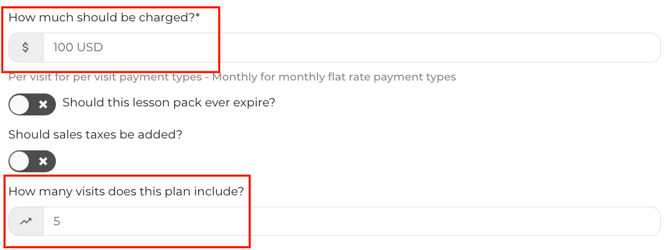
- Which self-booking link the service sits on — a self-booking link is a page you share with families, on your website or by email, that lists only the services you have added to it. Families can buy the pack only from a link the service sits on, so if you keep separate links — one for current families, a public one for new students — this is what decides which group sees the pack at all.
How to configure it
- Go to Services and open the appointment service:

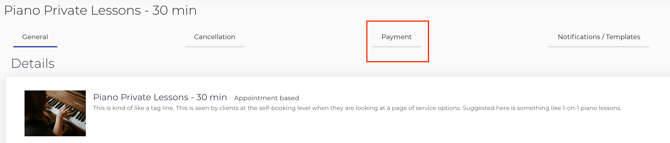
- Open the Payment tab
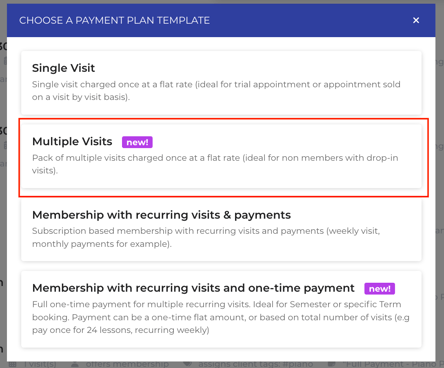
- Create a plan with type Multiple Visits — it charges once, up front, at creation:
- Set the number of visits in the pack
- Turn on Enable for Self Booking on that plan
- Add the service to an appointment self-booking link
💡 Tip: Leave ordinary booking plans enabled too. When a service has both, the self-booking page shows two tabs — one to book a lesson, one to buy a pack — so a family can do either. Packs alone means the family sees only the pack list.
Enabling Packs on Group Class Services
What it does
Exposes a Multiple Visits - Pre-paid plan that families can buy without choosing class dates. The purchase creates credits they use when booking class dates later.
Why you'd use it
For a manager or owner, a class pack collects payment before attendance while letting the family choose dates later. Each confirmed class booking draws from the student's available credits.
How to configure it
- Go to Services and open the group class service:

- Open the Payment tab:
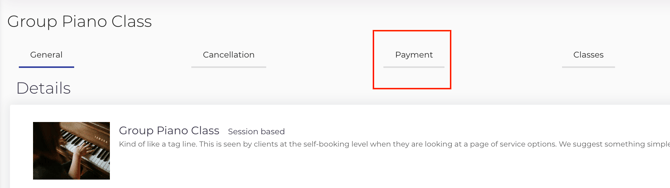
- Create a plan with type Multiple Visits - Pre-paid:
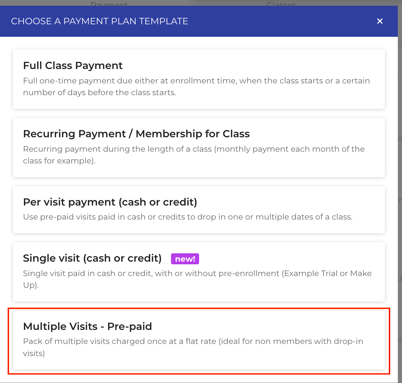
- Set the number of visits included in the pack
- Turn on Enable for Self Booking on the pack
- Add the service to a group class self-booking link
⚠️ Warning: New group class services are created with self-cancellation disabled. If you want families to cancel their own class bookings, you will need to change that on the service — it does not follow from enabling packs.
⚠️ Warning: Prepaid packs are excluded from the waitlist. A family cannot spend a credit to join a waitlist for a full class; credits apply only to a confirmed seat.
Turning On Self-Booking for Several Packs at Once
What it does
Switches self-booking on — or off — across several prepaid pack plans in one pass, instead of opening each plan and toggling it individually.
Why you'd use it
Most schools turning this on already have their packs built. The plans exist, priced and sized the way you want them; the only thing missing is the self-booking toggle on each one. If you carry several packs across several services, that is a long click-through, and the batch update is there to skip it.
How to use it
- Go to your Services page and use a tag to filter for lessons (ex. private):

- Choose Payment Plan as what you are updating:
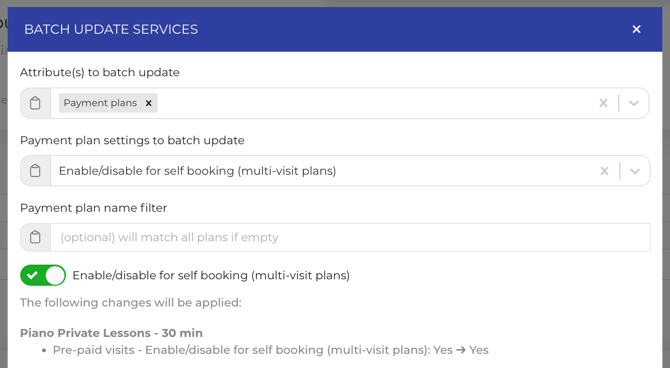
- Choose to enable or disable self-booking
- Apply it to your multi-visit plans
- Repeat as needed for other service tags, such as classes, etc.
ℹ️ Note: The batch update covers multi-visit pack plans only. Other plan types are not included and still need to be enabled one at a time.
ℹ️ Note: Batch updates can only be done by service-type. Appointment-based and group class-based services will need to be batch updated separately.
How Families Buy a Pack
What it does
A family reaches your self-booking link, chooses a pack instead of booking a time, pays by card, and receives credits on the student.
Why you'd use it
For a guardian or account manager, this is the difference between buying more lessons and asking to buy more lessons. They can do it outside your office hours, which is when most people deal with this kind of admin.
The purchase flow
- Family opens your self-booking link and selects the service
- Family chooses Buy a Lesson Pack rather than the booking tab:
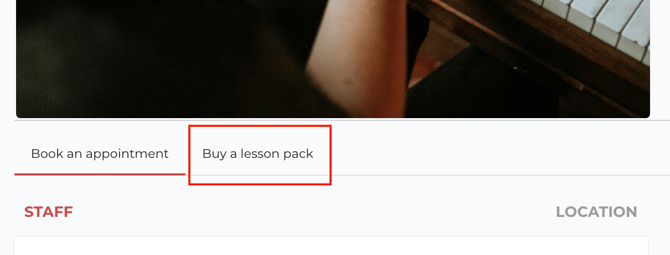
- Family selects which pack they want:

- Family selects which student the credits are for, or adds a new student at this step
- Family pays by card
- Credits appear on that student's account to use later, and the family is also offered the option to continue straight into booking:
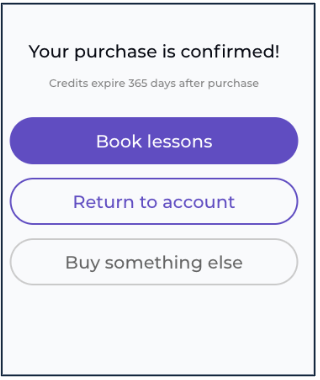
ℹ️ Note: There is no "Lesson Packs" area in the client portal to browse. The self-booking link is the entry point — if the service is not on a link a family can reach, they cannot buy the pack. The portal comes in afterward, for viewing and using credits.
Card is the only payment method for self-purchase.
How Families Book With Their Credits
What it does
Credits sit on the student and are applied at checkout in place of a card. There are two routes into that checkout, and the route the family takes is what determines whether the credit gets used.
Best: book in the same flow, right after buying
As soon as the purchase goes through, the family can carry straight on into booking — no second link, no second visit, no hunting for the credit. Opus1.io sends them directly to the service they just bought the pack for, so all they have to do is pick a time. These are the same screens the Use button leads to, with the credit already applied.
Once the booking confirms, the family lands on their own profile, where the pack shows one fewer visit and the booked lesson appears on the schedule.
This is the most common path in practice.
Next best: Click Use on the credit
For a family coming back later — the sporadic adult student, the one-off booker — the route to point them at is the credit itself.
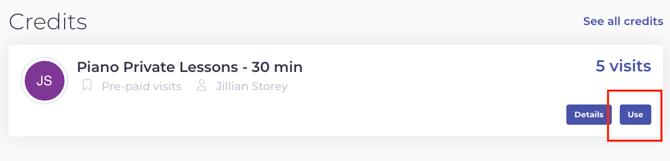
- Open the student's profile and find the pack under Credits
- Click Use:
- Select a lesson time, or one or more available group-class dates
- For a private lesson, select the applicable pack credit at checkout
- Booking confirms and the booked visits are deducted from the available credits
⚠️ Warning: Credits are not selected automatically. Unless the family arrives through the post-purchase flow or through Use on a specific credit, the default payment option is a saved card — so a family with unused credits can pay again by mistake. Point families at the Use button on the credit rather than at your booking link.
⚠️ Warning: Cancelling a lesson that was booked with a credit does not return the visit to the pack. The visit stays spent. Depending on your cancellation policy, Opus1.io may issue a separate makeup or cash credit — but that is a new credit, not a refund into the original pack.
Credits only apply to the service they were bought for. A family holding piano packs will not see them offered when booking guitar.
What You See After a Purchase
A successful purchase — staff-sold or self-purchased — creates a service credit on the chosen student, named after the plan, carrying the plan's visit count and tied to that service. An invoice lands in your payment records.
On the student's profile, the Credits card shows remaining visits. Fully spent packs are marked used, lapsed ones marked expired, and See all credits shows the full history.
ℹ️ Note: Owners and Managers are notified when a family self-purchases. Staff are not. The family gets a receipt plus a confirmation that they bought credits; no SMS is sent.
Expiration and Reminders
Expiration is enforced when a credit is used: a credit past its date cannot be booked against. Families see the expiry date on the credit, and private lesson checkout labels each pack as expiring on a date or never expiring.
You can set an automated expiration date when setting up the payment plan: 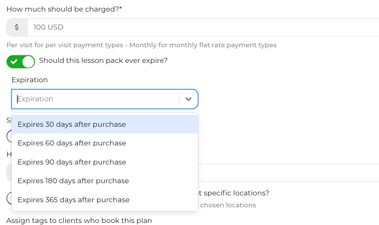
To warn families before credits lapse, turn on unused-credit reminders in the service's notification settings and set how many days ahead to send them. With reminders off, the only signal a family gets is the date shown on the credit itself.
FAQ
Q: Why can't I turn on self-booking for my lesson pack?
A: Check that the plan type is Multiple Visits for an appointment service, or Multiple Visits - Pre-paid for a group class. Opus1.io only offers the self-booking toggle on prepaid pack plans, and the setting sits on the plan list rather than inside the plan editor.
Q: A family bought a pack but can't book anything with it. What's wrong?
A: In most cases they are starting from the wrong place. Have them open the student's profile, find the pack under Credits, and click Use — that carries the credit into checkout. If they are trying to book from your self-booking link instead, see the next question.
Q: A family already has credits and goes to our self-booking link on their own. Will the credit be applied?
A: Only if the link gives them a bookable plan to select. If the service only offers pack plans and recurring memberships, there is nothing on that page for a returning family to choose, so they never reach the payment step. To support this route, keep an ordinary Single Visit plan enabled on the link — the family selects it, and at the payment step Opus1.io defaults to their pack credit rather than a card. This is long-standing behavior and is not changed by self-purchase. Because it depends on how each link is built, we recommend steering families to book in the same flow as their purchase, or to click Use on the credit.
Q: A family cancelled a lesson they'd paid for with a credit. Do they get the visit back?
A: No. The visit stays spent, because it was deducted when the booking was invoiced. Your cancellation policy may issue a fresh makeup or cash credit instead, which is a separate credit on the student rather than a visit restored to the original pack.
Q: Can families buy packs for more than one service?
A: Yes, as long as each service has its own pack plan enabled for self-booking. Credits are tied to the service they were bought for, so a piano pack will not be offered when booking a guitar lesson in Opus1.io.
Q: Do I need to contact Opus1.io support to switch this on?
A: No. Owners and Managers enable it themselves on the payment plan — there is no account-level setting or support request involved.
Related Articles
- How Do I Set Up an Appointment-Based Service? — the shared service settings behind anything families book
- How do I sell my client a prepaid pack of lessons? — selling the same pack from the staff cart
- How do I show only specific payment plans on my self-booking links? — controlling which packs each link exposes
- How do I reorder my payment plans for self-booking? — deciding which pack families see first
- How do I batch update multiple services at once? — how to use service tags to batch update multiple services at one time