![Opus1-3-icon-color-1.png]](https://kb.opus1.io/hs-fs/hubfs/Opus1-3-icon-color-1.png?height=50&name=Opus1-3-icon-color-1.png)
Last updated: July 7, 2026
Applies to: Owner / Manager / Staff
PLUS feature: yes
Table of Contents
- Overview
- What Are Follow-Up Date Tags?
- How to Set or Update a Follow-Up Date
- Last Follow-Up vs. Next Follow-Up
- What You'll See on the Board
- Prospects Conversion Reporting
- Permissions
- Tips for Using Follow-Up Dates Effectively
- FAQ
- Related Articles
Overview
Follow-up date tags are visual indicators on your Prospect Board cards that show when each prospect needs your next outreach. This feature helps you prioritize your sales pipeline by surfacing overdue follow-ups and upcoming tasks—all without opening individual prospect records.
ℹ️ Note: Follow-up date tags require Opus1 PLUS (Prospects Funnel & Management). Users with Owner, Manager, or Staff access can view and manage follow-up dates on the Prospect Board.
Quick Reference Table
| Tag Color | Meaning | When It Appears | |
| 🔴 Red | Overdue | Next follow-up date is in the past | .png?width=520&height=190&name=image%20(2).png)
|
| 🔶 Orange |
Due soon |
Next follow-up date is within the next 48 hours | .png?width=518&height=190&name=image%20(1).png)
|
| none | Future | Next follow-up is more than 48 hours away — date is visible in the prospect detail panel and Prospects Conversion reporting, but not on the board card | 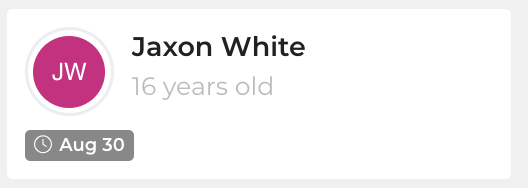
|
What Are Follow-Up Date Tags?
What It Does
Follow-up date tags display directly on prospect cards in your board view, showing the scheduled follow-up date with color-coded urgency. When a next follow-up date is set and the date is overdue or due within 48 hours, the card shows a small tag with a clock icon and a short date (for example, Jun 12). Tags use your business timezone for display.
Why You'd Use It
Without visual indicators, it is easy to let prospects slip through the cracks. Follow-up date tags eliminate the need to click into every record to check when you planned to reach out next. This keeps your team accountable and ensures timely prospect engagement.
What About Future Follow-Up Dates?
If you set a next follow-up date more than 48 hours in the future, no tag appears on the board card. The date is still saved and visible when you open the prospect detail panel, and it appears in Prospects Conversion reporting and CSV export. As the date approaches, the card will automatically show an orange tag (within 48 hours) or a red tag (once overdue).
Separate From Other Card Tags
Follow-up date tags are separate from other red tags on prospect cards, such as campaign Action / Call tags or Email / SMS opt-out indicators. Those reflect campaigns or communication preferences, not scheduled follow-up dates. A prospect can show both a follow-up date tag and a campaign tag at the same time.
How to Set or Update a Follow-Up Date
What It Does
The Next follow-up field stores the date when you plan to contact the prospect again. This date drives the tag color displayed on the board (when the date is overdue or within 48 hours).
Setting a next follow-up date is always a manual step—no campaign or workflow sets it automatically.
How to Configure Them
- Navigate to Clients → Prospects
- Click on a prospect card to open the detail panel:
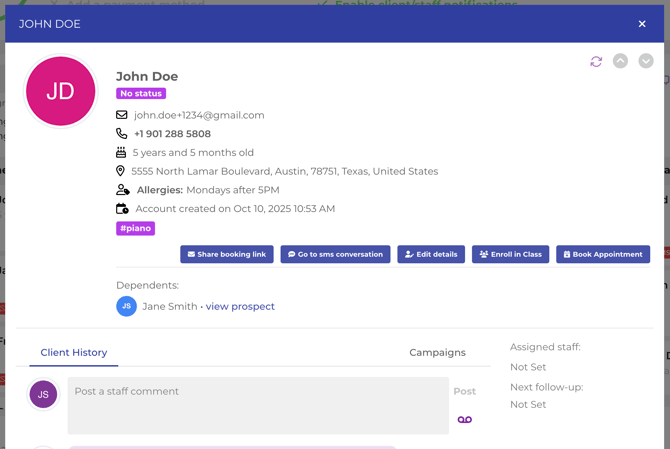
- In the sidebar, locate Next follow-up: (below assigned staff):
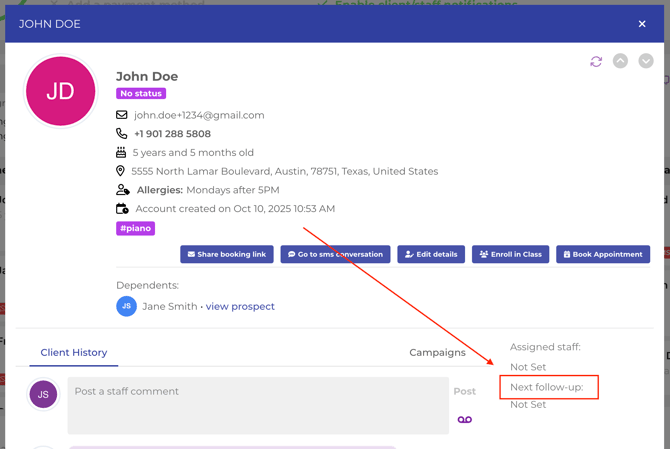
- Click the field to open the date picker
- Choose a date using:
- Quick presets: In 1, 3, or 7 days; or in 1, 3, 6, or 12 months
- Calendar: Pick any date
- Clear: Remove the next follow-up date
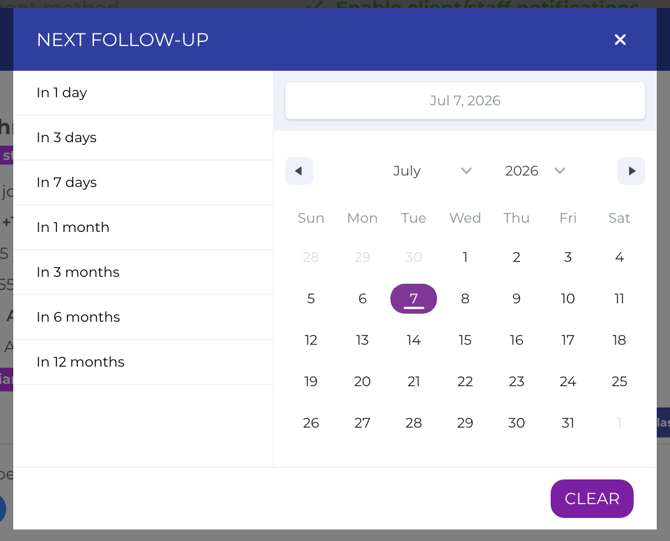
- Confirm the selection. You should see a success message (Client updated)
- Close the panel. The board refreshes. If the date is overdue or within 48 hours, a colored tag appears on the card
💡 Tip: Set follow-up dates during or immediately after each prospect interaction so you never forget to schedule your next touchpoint.
Last Follow-Up vs. Next Follow-Up
Opus1 tracks two different timestamps. Keep the distinction clear when training staff.
| Field | What It Means | How It Gets Set | Can You Edit It? |
| Last follow-up | When staff last posted a staff message or comment to this prospect | Automatic — updates when staff posts via staff messaging (including comments in the prospect detail panel) | No dedicated editor |
| Next follow-up | When someone plans to follow up next | Manual — set in the date picker | Yes |
Important Details:
- Last follow-up does not update automatically for phone calls, SMS, or marketing emails—only for staff messages and comments posted through the staff messaging path.
- Next follow-up in the detail panel header turns red when the date is overdue (same red as overdue board tags).
- Clearing next follow-up removes the planned date; it does not change last follow-up.
Both fields appear in the prospect detail panel header (when set) and in Prospects Conversion reporting.
What You'll See On the Board
Card Indicators
Each prospect card displays:
- Name and age (if available)
- Hashtag tags (prospect tags for filtering)
- Follow-up date tag (when overdue or within 48 hours) — clock icon + short date
- Other tags (when applicable) — campaign Action/Call, Email/SMS opt-out
Toolbar Filters
Use these controls above the board to narrow the pipeline:
| Filter | What it Does |
|
Show only overdue |
Shows prospects whose next follow-up date is in the past |
| Show only actions due | Shows prospects with pending campaign Action or Call stages |
| Show only my prospects | Shows prospects assigned to you |
| Staff dropdown | Filter by assigned staff member(s) |
| Search | Search by client name; use #tagname to filter by prospect tags |
Filter preferences for overdue, my prospects, and similar toggles are remembered in your browser.
There is no follow-up date range filter on the board itself. Use Prospects Conversion reporting to review follow-up dates across a date range.
Detail Panel
Click any prospect card to open the detail panel, where you can:
- Header: View account created date; last follow-up (if set); next follow-up (if set, red when overdue)
- Sidebar: View assigned staff; edit next follow-up; move prospect to top; quick actions
- Tabs: Client history (messages, activities, calls), campaigns, and related tools
Prospects Conversion Reporting
The board is for day-to-day triage. Prospects Conversion is for reviewing follow-up patterns across statuses, time ranges, and staff.
Location: Clients menu → Prospects Conversion
Same Opus1 Plus requirement as the Prospects board.
| Column | Content |
| Last Follow-Up | Date and time of last staff message follow-up, or - if none |
| Next Follow-Up | Planned next follow-up date and time, or - if not set |
Use Export Prospects Conversion Stats as CSV to download both follow-up fields (and other columns) for spreadsheet analysis or manager review.
Clicking a row opens the same prospect detail panel used on the board, so staff can update next follow-up from reporting without returning to the Kanban view.
Permissions
| Action | Owner | Manager | Staff | Limited Staff |
|---|---|---|---|---|
| View follow-up date tags | ✅ | ✅ | ✅ | ❌ |
| Set / update follow-up dates | ✅ | ✅ | ✅ | ❌ |
| Filter by follow-up status | ✅ | ✅ | ✅ | ❌ |
| Access Prospect Board | ✅ | ✅ | ✅ | ❌ |
| View Prospects Conversion reporting | ✅ | ✅ | ✅ | ❌ |
| Enable Opus1 Plus / CRM | ✅ | — | — | — |
| Configure CRM statuses (Settings) | ✅ | — | — | — |
Tips for Using Follow-Up Dates Effectively
- Set follow-ups immediately — After every prospect interaction, set the next follow-up date before closing the detail panel
- Use presets for consistency — "In 3 days" and "In 1 month" speed up scheduling and align the team on common cadences
- Review red tags daily — Make clearing overdue follow-ups part of your morning routine; turn on Show only overdue during standups
- Check the detail panel for future dates — Prospects with follow-ups more than 48 hours out will not show a board tag; open the detail panel or use Prospects Conversion reporting to see upcoming dates
- Combine with Show only my prospects — Individual contributors can run a personal follow-up list without noise from unassigned leads
- Keep campaign tags separate — Red Action / Call tags mean campaign work is due; follow-up date tags mean a calendar follow-up is due
- Coordinate with your team — Managers can review staff follow-up patterns in Prospects Conversion to ensure consistent prospect engagement
FAQs
Q: Why don't I see follow-up date tags on my Prospect Board?
A: Follow-up date tags require Opus1 Plus. Verify your account has Plus enabled and that you have Owner, Manager, or Staff access. Limited Staff users cannot access the Prospect Board.
Q: Why doesn't my prospect show a follow-up tag even though I set a next follow-up date?
A: Board tags only appear when the next follow-up date is overdue (red) or within the next 48 hours (orange). If the date is more than 48 hours away, no tag shows on the card—the date is still saved and visible in the prospect detail panel and Prospects Conversion reporting.
Q: What happens if I don't set a next follow-up date?
A: Prospect cards without a next follow-up date will not display a date tag. The prospect will still appear on your board but won't be flagged for follow-up.
Q: Can I change the 48-hour threshold for orange tags?
A: The 48-hour threshold is a system default and cannot be customized. Red indicates overdue, orange indicates within 48 hours, and dates more than 48 hours away do not show a tag on the board card.
Q: Do follow-up date tags trigger any notifications or reminders?
A: Follow-up date tags are visual indicators only. They do not send automatic notifications. Check your Prospect Board regularly to stay on top of scheduled follow-ups.
Q: How do I clear an overdue follow-up?
A: Open the prospect detail panel and either update the next follow-up date to a future date or clear the field entirely if no follow-up is needed.
Q: What's the difference between last follow-up and next follow-up?
A: Last follow-up updates automatically when staff posts a staff message or comment—it records outreach history. Next follow-up is the date you manually set for your planned next touch—it drives the board tag colors.
Q: Does last follow-up update when I make a phone call or send an SMS?
A: No. Last follow-up updates only when staff posts a staff message or comment through the staff messaging path—not for phone calls, SMS, or marketing emails.
Related Articles
- Prospects Conversion Reporting — review follow-up patterns across statuses and staff