![Opus1-3-icon-color-1.png]](https://kb.opus1.io/hs-fs/hubfs/Opus1-3-icon-color-1.png?height=50&name=Opus1-3-icon-color-1.png)
Last updated: September 2, 2026
Applies to: Owner / Manager / Staff / Limited Staff / Client
Plan: All
Table of Contents
- Overview
- Why You'd Use Calendar Sync
- What Syncs and What Doesn't
- Who Can Do What
- Before You Start
- Step 1: Generate Your Sync Link in Opus1
- Step 2: Add the Calendar
- Show Student Names in Event Titles
- Refresh Rates and Delays
- Troubleshooting
- FAQ
- Related Articles
Overview
Calendar sync lets a staff member or a client see their Opus1 schedule inside the calendar app they already use — Apple Calendar or Google Calendar — without logging in to Opus1 to check it.
Opus1 generates a private feed URL for one person's schedule. That person adds the URL to their calendar app, and from then on the app pulls the schedule in on its own. Nothing is copied by hand.
The subscription is one-way and read-only. Opus1 sends the schedule out; changes made in Apple Calendar or Google Calendar never travel back into Opus1. All rescheduling has to happen in Opus1.
ℹ️ Note: Calendar sync is an export. It sends your Opus1 schedule out to your personal calendar. It does not import an outside calendar into Opus1, and it does not block clients from self-booking over your outside commitments. If that is what you need, you want the busy-time import feature instead.
Why You'd Use Calendar Sync
For teachers and staff. Most people already run their day out of a personal calendar. When the teaching schedule lives only in Opus1, they are checking two calendars and merging them in their head, which is how someone misses a schedule change made three days ago. Putting lessons alongside the rest of the day also cuts down on "what time is my Thursday student?" calls to the front desk.
For clients and families. Parents and students already live in Apple Calendar or Google Calendar. A subscribed feed puts lessons and classes on the calendar they actually check, without anyone copying times by hand. An account manager's feed covers the household: events for that person and their dependents. For an owner, that is a low-effort lever on attendance — a lesson on a parent's phone is harder to forget than a lesson on a portal they log into twice a term.
Calendar sync is not a reliable real-time view. Because it is a subscription rather than a live connection, a same-day change in Opus1 may not appear right away. Treat the synced calendar as a convenience copy for planning ahead, and treat Opus1 as the source of truth for today.
What Syncs and What Doesn't
What syncs
- Appointments, group classes, and other scheduled events from roughly the past month through roughly the next three months — not a full history
- Staff feed (staff toggle on): events where you are the assigned staff, plus events where you or your dependents are the client
- Client feed (clients, or staff with the toggle off): events where you or your dependents are the client, with no teaching schedule
- Event name, start and end time, and location, including the room where a room is assigned
- Canceled, closed, on-hold, staff-canceled, and late-canceled events, carrying a prefix in the title such as [CANCELLED], [CLOSED], [ON HOLD], [STAFF CANCELLED], or [LATE CANCELLED]
What does not sync
- Anyone else's schedule — another teacher, another family, or the school as a whole
- A studio-wide or all-staff feed. Opus1 generates the feed per person, and there is no combined version.
- Time off
- Events outside the past-month through next-three-months window
- Changes made on the calendar-app side. Editing, moving, or deleting a synced event in Apple Calendar or Google Calendar has no effect in Opus1, and the change is overwritten at the next refresh.
Who Can Do What
Anyone with an Opus1 login can sync their own calendar. The control appears only on your own profile, never when you are viewing someone else's.
Before You Start
- Sign in to Opus1 as yourself. The sync link is tied to the account that generates it, and the calendar control is hidden on other people's profiles. If you are helping a teacher or a parent, they need to sign in themselves, or you need to be working as that user, and open their profile.
- Generating a new link invalidates the previous link of the same type. Staff feeds and client feeds are separate: a new staff link does not replace a client link, and a new client link does not replace a staff link. Anyone who already has a working subscription of that type will need to re-add the new URL.
- Links expire after one year. If a calendar that used to update simply stops, that is the likely cause — generate a new link and subscribe again.
💡 Tip: Treat the sync URL like a password. Anyone holding it can see that person's schedule without signing in to Opus1, so keep it out of shared docs and group chats. Generating a new link of the same type is how you revoke an old one.
Step 1: Generate Your Sync Link in Opus1
Staff, Limited Staff, Managers, and Owners
- Open your own staff profile in Opus1.
- Select Sync My Calendar — the calendar icon on the profile action bar:
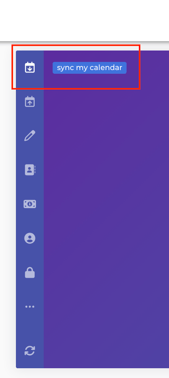
If you have a lot of profile actions, it may sit under the '...' menu. On a phone, use the Sync My Calendar item in the mobile menu. Alt text: Opus1 staff profile with the Sync My Calendar calendar icon highlighted- On — a staff feed: what you teach, plus events where you or your dependents are the client.
- Off — a client feed only. You will not see the lessons you teach.In the Sync my calendar window, review the toggle labeled Sync all your events as staff & client (if unselected only events where you are client will be synced)? It is on by default.
- Select Get Calendar Sync Link.
- Copy the link displayed then click Done
- Open the calendar that you are wishing to sync (i.e. Google)
Clients and Account Managers
- Sign in with the client login and open your own client profile.
- Select Sync My Calendar.
- There is no staff-and-client toggle on a client profile.
- Copy the link displayed then click Done.
- Open the calendar that you are wishing to sync (i.e. Google)
A teacher who also takes lessons has two options: use the toggle on their staff profile, or generate a client-only feed from their client profile. Those produce two different links.
Step 2: Add the Calendar
Apple Calendar
- Open your Apple Calendar app and click File > New Calendar Subscription
- Paste the calendar URL you copied from Opus1
- You will be able to name that calendar
- Click Ok when finished
A working setup shows the calendar name in the sidebar and the lessons in the color you assigned. You can update the settings on that subscribed calendar by finding it in the sidebar > right clicking.
Google Calendar
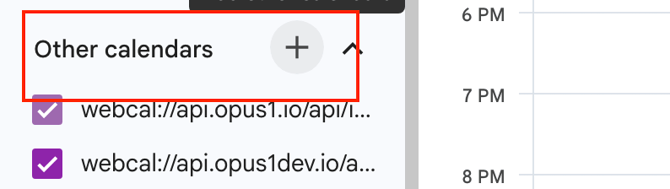
- Open Google Calendar and find Other calendars in the left sidebar.
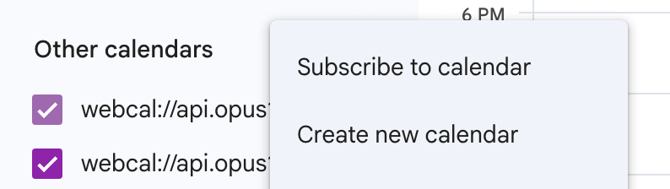
- Select the + icon, then choose From URL:
- Paste the URL you copied from Opus1
- Select Add calendar, then return to the calendar view.
Your Opus1 appointments and group classes now appear in Google Calendar.
To adjust the calendar afterward, select the '...' beside its name in the sidebar. The available settings are name, timezone, URL, permission settings, event notifications, all-day event notifications, other notifications, integrate calendar, and remove calendar.
⚠️ Google Calendar does not let you set a refresh rate. Google decides how often to pull, and in practice that is often many hours and sometimes close to a day. This is the main reason a Google-synced schedule sits out of date longer than a Mac Apple Calendar subscription.
The same URL feed can also be subscribed in Outlook or any other app that accepts an iCal address.
Show Student Names in Event Titles
By default, staff feed titles do not include client names. An owner can change that for the whole school.
- In Opus1, go to Settings → Business → General.
- Enable Include client names in synced calendar events titles and save.

Once it is on, staff feeds carry the student's name in the event title, so a teacher glancing at their phone sees who they are teaching rather than only a service name and a time. Names may be shortened where the list is long. This setting does not affect client feeds. Managers can view business settings but cannot switch this one on.
Think about whether you want student names sitting in staff members' personal calendar apps before enabling it, particularly where those accounts are shared with family or synced to shared devices. For the rest of the settings in this area, see A Guide to Your Business Settings.
Refresh Rates and Delays
Subscribed calendars refresh on the calendar app's schedule, not on Opus1's:
- Apple Calendar on a Mac — you control this. Set Auto Refresh to every 5 or 15 minutes and the gap stays small.
- Apple Calendar on iPhone or iPad — slower, and not adjustable the way it is on a Mac.
- Google Calendar — no control at all. Same-day changes often will not arrive in time to be useful.
Because of that gap, check Opus1 directly for anything happening today, especially after a cancellation, a reschedule, or a substitute assignment. The synced calendar is dependable for next week and unreliable for the next hour.
Troubleshooting
A lesson is missing from the synced calendar. Confirm it in Opus1 first. It may fall outside the past-month through next-three-months window, it may not be assigned to that person, or the calendar app may simply not have refreshed yet. On a Mac, shorten the Apple Calendar Auto Refresh interval. Note that canceled lessons do not vanish — they stay on the feed with a [CANCELLED]-style prefix.
A teacher sees lessons they take but not lessons they teach. The staff-and-client toggle was off when the link was generated, so they have a client feed. Generate a new link with the toggle on, then add that URL.
The calendar stopped updating entirely. Either someone generated a new link of the same type, or the link reached its one-year expiry. Generate a new link and re-add the current address.
I can't find Sync My Calendar. You have to be on your own profile — the control is not shown on another staff member's or student's profile. On a phone, look in the mobile menu rather than the desktop action strip.
The address won't add in Google Calendar. Confirm it begins with https:// and not webcal://.
FAQ
Why doesn't my synced calendar show a lesson that was just booked? Subscribed calendars refresh on their own schedule rather than instantly. On a Mac, Apple Calendar can be set to refresh every 5 minutes; Google Calendar gives you no control and can lag by many hours. For anything happening today, check Opus1 directly.
Can I sync my entire school's schedule into one calendar? No. Opus1 generates the feed for one person, so an owner or manager sees only their own assigned appointments plus their own or their dependents' client events — never every teacher's. To see the full school schedule, use the calendar inside Opus1.
Can a client sync their family's lessons? Yes. From their own client profile in Opus1 they can generate a client feed, which covers their own events along with their dependents' scheduled lessons and classes. There is no staff toggle on a client profile, so the feed never includes a teaching schedule.
If I move an event in Google Calendar or Apple Calendar, does Opus1 update? No. The subscription is one-way and read-only, so edits in your calendar app never reach Opus1 and are overwritten at the next refresh. Rescheduling has to be done in Opus1.
How do I get student names to show on synced events? An owner enables Include client names in synced calendar events titles under Settings → Business → General in Opus1. It applies to staff feeds across the whole school, and it does not change client feeds.
Related Articles
- A Guide to using Opus1.io For Teachers — the wider set of tools a teacher works with day to day
- What do my teachers see when they login? — the in-app schedule view, which stays the source of truth
- How do my teachers and staff log in to my opus1.io? — for staff who can't reach their profile to generate a link
- A Guide to Your Business Settings — where the client-names toggle lives
- Roles & Permissions — what each staff role can reach in Opus1
- Block Lesson Bookings in Opus1 via Your Google, Outlook, or Apple Calendar — allows staff to send busy blocks to their Opus1 calendar