![Opus1-3-icon-color-1.png]](https://kb.opus1.io/hs-fs/hubfs/Opus1-3-icon-color-1.png?height=50&name=Opus1-3-icon-color-1.png)
Last updated: August 31, 2026
Applies to: Owners and Managers (with steps to forward to teaching staff) | Plan: All Feature: Scheduling Meta description:
At a Glance
Your teachers can connect a Google, Outlook, or Apple iCloud calendar to Opus1 so their outside appointments show as private Busy blocks on your studio calendar. Clients can't self-book lessons over Busy time, and your manual unavailable hours and time-off approvals stay exactly as they are.
Teachers set this up themselves on their own staff profile. There's nothing to turn on studio-wide — your job is to tell them it exists and forward the steps at the bottom of this article.
Table of Contents
-
Overview
-
Who Can Connect a Calendar?
-
What Busy Blocks Do on Your Calendar
-
How the Sync Works
-
Which Calendars Work in This Version
-
Fixing or Removing a Connection
-
Studio Tips
-
Instructions to Share with Your Teachers
-
FAQ
Overview
Your teachers have lives outside the studio — day jobs, college classes, doctor's appointments, gigs, school pickup, another studio across town. When those commitments only exist on a teacher's own calendar, clients book lessons right on top of them, and someone on your team spends the afternoon untangling it.
Connect my calendar closes that gap. A teacher links the calendar she already uses — Google, Outlook, or Apple — to her Opus1 profile. From then on, her outside commitments show up on your studio calendar as Busy, and clients can't book over them. She never has to remember to tell you about a conflict, and you never have to enter one for her.
Watch to learn more or read on.
For your studio, this means:
- Fewer double-bookings. Dentist appointments, second jobs, contractor gigs, and other outside commitments become Busy time automatically.
- Less scheduling admin for you. Teachers connect their own calendar instead of emailing you to block every conflict.
- Privacy for your staff. Opus1 shows only a Busy label and a time range. Event titles and descriptions are never stored or displayed — which makes it much easier to get teachers to opt in.
- Availability that stays current. Moved or cancelled appointments update after the next successful sync, once the calendar app has published the change.
- No change to your existing policies. Imported Busy time sits alongside manual unavailable hours and your separate time-off request and approval process.
ℹ️ Note: Connect my calendar is not the same as Sync my calendar. Import brings a teacher's outside appointments into Opus1; Sync my calendar sends Opus1 events out to a phone or calendar app. Teachers can use both at once. Imported events are read-only in Opus1 — the original appointments are managed in Google, Outlook, or Apple.
Who Can Connect a Calendar?
Connect my calendar is self-service. Every staff member — Limited Staff, Staff, Managers, and Owners — can connect a calendar on their own profile.
Other staff with schedule access see a teacher's Busy blocks on the shared calendar, the same way they already see unavailability. As a Manager or Owner, you can also open a teacher's profile to check connection status: connected, last synced, or error.
Nobody can paste a calendar URL on someone else's behalf. Don't work around this — the link is a private feed of that person's personal appointments, and it should stay in their hands.Clients don't interact with this feature. They simply can't self-book during a teacher's Busy time.
What Busy Blocks Do on Your Calendar
On the Shared Calendar
A teacher's outside events appear as Busy, and they're read-only for everyone, including you: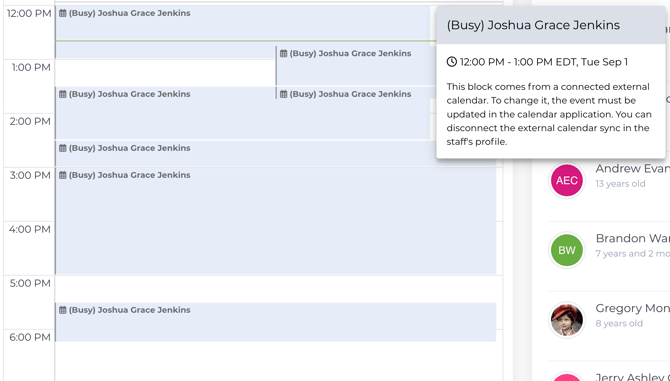
- Nobody can drag, rename, or delete an individual imported Busy block in Opus1. The original event has to be changed in the teacher's calendar app.
- All-day events cover the full day, not just studio open hours.
- Busy blocks still appear even if the teacher has no open booking hours set.
- Imported Busy blocks appear in calendar views, not in upcoming-event lists or group-class calendars.
If someone tries to edit an imported block, Opus1 explains that the event has to be changed in the original calendar app.
During Booking
- Client self-booking: The time is unavailable, so clients can't book over an imported Busy block. Where the teacher has open booking hours, the usual self-booking rules apply around the block.
- Staff or manager booking: Opus1 shows a conflict warning, but staff with the right access can override it, just like with manual unavailable hours. Confirm with the teacher first — you can't see what the conflict actually is.
- Existing lessons: If a new Busy block overlaps a lesson that's already on the books, Opus1 doesn't cancel or change it. The block only affects new booking attempts, so the overlap is yours to review and resolve.
What Doesn't Change
- You can still add, edit, and delete manual unavailable hours.
- Time off is still a separate request and approval process that runs through you.
- Sync my calendar keeps exporting Opus1 events, unaffected.
How the Sync Works
The teacher starts the first import by pasting a URL and clicking Save. The first fetch runs right away. After that, Opus1 fetches the same URL about every 12 hours and updates the Busy blocks.
The teacher's calendar service may publish changes much more slowly than that. Google Calendar's published iCal file can take one to three days to update, and Opus1 can only show what's already in that file. There's no Sync now button. This is the usual reason an appointment "isn't in Opus1 yet," and it's worth telling teachers up front so they don't assume the connection is broken.
If a profile hasn't completed a successful sync for about a day, the link is probably stale or broken. Have the teacher check the URL in their calendar app and save a valid one again, which starts a fresh fetch.
What Updates During a Successful Sync
- New busy, tentative, or all-day events in roughly the next 90 days create Busy blocks.
- Moved events update the Busy block times.
- Recurring events and their exceptions follow the same pattern in Opus1.
- Cancelled, deleted, and free/transparent events don't create Busy blocks — and any existing block for them is removed.
- If a fetch fails because of an invalid URL or a timeout, Opus1 shows an error on the profile. Existing Busy blocks stay put until a later successful sync.
Which Calendars Work in This Version
Opus1 accepts a secret or published HTTPS iCal/ICS subscription URL from Google Calendar, Outlook or Outlook.com, and Apple iCloud Calendar.
Other calendar apps — Fastmail, a generic ICS host, and similar — aren't supported in this version. Opus1 rejects a URL it doesn't recognize, including Opus1's own export link from Sync my calendar.
A few limits worth knowing before you tell teachers about the feature:
- One calendar per person. A teacher who needs both personal and work appointments blocked has to combine those calendars inside Google, Outlook, or iCloud first, then connect the one combined feed.
- Subscription links only, not a one-time downloaded
.icsfile. - School accounts are a common blocker. Google Workspace and Microsoft 365 accounts managed by a school or district often block published iCal links entirely. Those teachers may not be able to use this version.
Fixing or Removing a Connection
Imported Busy blocks stay on the calendar until the feed is disconnected or the source calendar changes. You don’t delete individual Busy blocks in Opus1.
-
The URL is wrong or has stopped working - Have the teacher paste a valid Google, Outlook, or iCloud subscription URL and save. There’s no need to remove the old one first — saving a new URL replaces the connection and starts a fresh fetch.
-
One appointment shouldn’t be blocking bookings - The teacher marks that single event as Free or Transparent in Google, Outlook, or Apple. Once the published file updates and Opus1 syncs, the Busy block disappears. The rest of the feed stays connected.
-
Stop importing altogether - Open the same calendar section on the staff profile and choose Disconnect. Opus1 removes the stored URL and all imported Busy blocks. Manual unavailable hours and time off are unchanged.
-
The teacher can disconnect from their own profile.
-
A Manager or Owner can disconnect another teacher from that teacher’s profile — useful for a stale feed or when someone has left.
-
A teacher has left and their Busy blocks need to come off the calendar. Open their staff profile and disconnect the calendar. You don’t need them to sign in.
Studio Tips
- Roll it out to teachers with outside commitments first. Teachers with second jobs, day jobs, or heavy contract work get the most out of it, and their conflicts cost you the most lessons.
- Lead with the privacy point. Teachers hesitate until they hear that only a Busy label and time range are visible, and that titles and descriptions are never even stored.
- Set expectations about lag. Google can take one to three days to publish a change, and Opus1 pulls roughly every 12 hours after that. Teachers who expect instant updates will report a bug that isn't one.
- Recommend a secret iCal address over a public calendar page whenever possible.
- Ask for one combined feed if a teacher needs both personal and work time blocked.
- Review overlaps yourself. When a new Busy block lands on an existing lesson, Opus1 won't cancel it — that decision stays with you.
Instructions to Share with Your Teachers
Forward the section below to any teacher who wants to connect a calendar. It's written for them.
Step 1: Get an iCal subscription link
Get a secret or published iCal link from whichever app holds your outside commitments.
| Calendar app | Where to find the link |
|---|---|
| Google Calendar | Calendar settings > Secret address in iCal format, or a published ICS link |
| Outlook or Outlook.com | Share or publish calendar > ICS, or a subscription link |
| Apple iCloud Calendar | Calendar sharing > Public, or a subscription URL |
These three are the only services supported right now. Use a subscription link, not a downloaded .ics file. If your work account is managed by a school or district, published iCal links may be blocked — check with your IT administrator.
Opus1 accepts one calendar per person, so if you need both personal and work appointments blocked, combine those calendars in the same app first and connect the combined feed.
ℹ️ Important: Don't paste Opus1's export link from Sync my calendar. That link sends Opus1 events out, and Opus1 will reject it.
Step 2: Save the link in Opus1
- Sign in to Opus1 and open your own staff profile
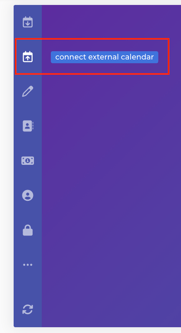
- Open calendar integration — the same place as Sync my calendar — and choose Connect External Calendar:
- Paste the iCal subscription URL
- Click Done
The first import starts right away. Your profile shows the connection status and last synced time. If the URL isn't a supported Google, Outlook, or iCloud subscription link, or it can't be reached, you'll see an error instead.
Your appointments appear on the studio calendar as Busy with a time range only. Titles, descriptions, locations, and attendees are never visible to anyone else, and Opus1 doesn't store them.
Good to know
- Changes take a while to appear. Google and similar services can take one to three days to publish an update to your iCal file, and Opus1 checks about every 12 hours after that. A new appointment won't show up in Opus1 immediately.
- Your appointments are read-only in Opus1. To change or remove one, change it in your own calendar app.
- To stop one event from blocking bookings, mark it Free or Transparent in your calendar app.
FAQ
Q: Do I have to set this up for each of my teachers?
A: No, and you shouldn't. Each teacher connects their own calendar from their own profile using their own private feed link. Your role is to let them know it exists and forward the instructions above.
Q: Is this the same as putting Opus1 on a teacher's phone?
A: No. Sync my calendar sends Opus1 events out to a phone or calendar app. Connect my calendar brings a teacher's outside appointments into Opus1 as Busy blocks. Most teachers end up using both.
Q: Which calendar apps work with this?
A: Google Calendar, Outlook and Outlook.com, and Apple iCloud, using an HTTPS iCal or ICS subscription URL. Other calendar apps aren't supported yet, and Opus1 will reject their links.
Q: Can Limited Staff connect a calendar?
A: Yes. Limited Staff can connect a calendar from their own profile, and the imported Busy blocks keep clients from booking during their outside commitments.
Q: Will my teachers' personal appointments be visible to my other staff?
A: No. Everyone sees a Busy label and a time range. Event titles, descriptions, locations, and attendees never appear in Opus1 and aren't stored there.
Q: Can a teacher stop one appointment from blocking bookings?
A: Yes. They mark that single event as Free or Transparent in their calendar app, and the Busy block comes off after the next sync. There's no way to hide an event from inside Opus1.
Q: How does a teacher disconnect their calendar?
A: On their own staff profile, they open the same calendar section they used to connect the feed and choose Disconnect. Opus1 removes the stored URL and the imported Busy blocks. Manual unavailable hours and time off stay as they are.
Q: Will Opus1 cancel a lesson if a Busy block lands on it?
A: No. Opus1 never automatically cancels or changes an existing lesson. The Busy block only affects new booking attempts, so review the overlap and handle the lesson according to your studio's policy.
Q: A teacher left. How do I remove their calendar connection?
A: Open that teacher’s staff profile and disconnect the calendar from the same section they used to connect it. You don’t need them to sign in. Opus1 removes the stored URL and their imported Busy blocks. Manual unavailable hours and time off stay as they are.
Related Articles
- Set staff availability — Configure recurring availability for teachers
- Schedule lessons — Book lessons around staff availability in Opus1.
- Sync your Opus1 calendar — Export Opus1 events to a phone or external calendar app.