![Opus1-3-icon-color-1.png]](https://kb.opus1.io/hs-fs/hubfs/Opus1-3-icon-color-1.png?height=50&name=Opus1-3-icon-color-1.png)
Last updated: July 8, 2026
Applies to: Owner | Manager
Plus Feature: No
Table of Contents
- Overview
- When to use Batch Duplicate for group classes
- Prerequisites
- How to batch duplicate a group class
- What gets copied and updated
- After batch duplicate: set up each group class
- Batch Duplicate vs. Duplicate
- Tips
- Troubleshooting
- FAQ
- Related Articles
Overview
Most studios that run group classes repeat the same structure across instruments or programs — same class length, same payment-plan shape, same cancellation and waitlist rules, same enrollment emails. Only the name and wording change. Batch Duplicate takes one fully configured group class service and creates copies of it for as many instruments or programs as you need, replacing a single word — like Guitar — with each new name.
Why: Building each group class from scratch means re-entering the same payment plans, policies, and notification templates over and over, and every manual re-entry is a chance to introduce an inconsistency between classes families are comparing side by side. Batch Duplicate removes that risk — configure it once, correctly, and every variant inherits it.
ℹ️ Note: Batch Duplicate copies the service definition only. It does not copy classes (scheduled terms like "Fall 2026 – Tuesdays") or enrollments. You add classes to each new service separately, and this is intentional — each instrument or program usually runs its own schedule and roster even when the policies match.
When to use Batch Duplicate for group classes
Use it once you have a group class service configured the way you want and need parallel services that differ mainly by instrument, level, or program name.
Common examples:
- Guitar Group Class - 45 Mins → Piano, Drums, Voice, Ukulele
- Beginner Guitar Ensemble → Beginner Piano Ensemble, Beginner Drums Ensemble
- Saturday Kids Choir - Level 1 → Level 2, Level 3 (using Level 1 as the find-and-replace key)
| Approach | Best for | Why it matters |
|---|---|---|
| Batch Duplicate | Creating many related services from one template with find-and-replace | One set-up, many correct copies — no repeated manual entry |
| Duplicate | Creating one extra copy of a service (appends [copy] to the name) | Fast for a single one-off variation or a test copy |
| Create from scratch | A service that doesn't resemble any existing template | Avoids carrying over settings that don't apply |
Before you batch duplicate, confirm your template is actually ready — Batch Duplicate multiplies whatever is on the template, including mistakes:
- Service type is Group Class, not Appointment
- Cancellation, waitlist, and enrollment window settings are finalized
- Email and SMS notification templates read correctly for the template instrument
- Terms & conditions revision is linked, if required
- Self-booking visibility matches how you intend to publish the new classes
💡 Tip: Fixing one template is faster than fixing 49 copies afterward. The Batch Duplicate dialog reminds you of this before you run it — take it seriously.
Prerequisites
| Requirement | Details |
|---|---|
| Bookable group class service | The template must be a group class service with booking enabled. Batch Duplicate appears only on services that require booking. |
| Create services permission | Owner and Manager can batch duplicate. Staff and Limited Staff cannot create or edit services. |
| A find-and-replace key in the service name | The word you replace (for example, Guitar) must appear in the template service name. |
| Distinct replacement items | Each item in your list becomes one new service. The reference key cannot also appear in the item list. |
Who can batch duplicate
| Role | Batch duplicate group classes | Create classes after duplicate | Edit Business / Tuition Policy |
|---|---|---|---|
| Owner | Yes | Yes | Yes |
| Manager | Yes | Yes | Tuition Policy yes; most General Business Settings view only |
| Staff | No | Per permissions | No |
| Limited Staff | No | No | No |
How to batch duplicate a group class
1. Open Services
-
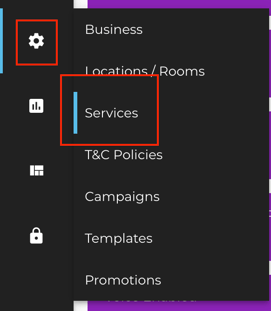
Go to left hand menu > Gear > Services:
-
Find your template group class in list or card view, then click Batch Duplicate on that service row:

⚠️ Warning: If you don't see Batch Duplicate, confirm you're logged in as Owner or Manager and that the service is a bookable group class, not subscription-only.
2. Enter the item list
In Specify the list of items to duplicate for, add one entry per new service — for example, Piano, Drums, Voice
- Type a value and press Enter, or select a previously used value from the dropdown:

- You can add up to 49 items in one batch.
- Case matters for item names — Piano and piano produce different service names and tags.
ℹ️ Note: Opus1.io remembers your item list in your browser for the next time you batch duplicate.
3. Enter the find-and-replace key
In Specify the word to find and replace, enter the exact word in the template service name that each item should replace — for example, Guitar when the template is named Guitar Group Class - 45 Mins: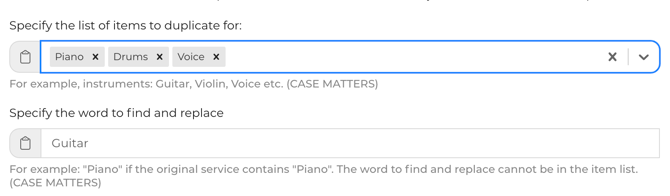
- The key must appear in the template service name.
- The key cannot also be in the item list.
- Case matters for how names are built, both in the preview and in the saved services.
4. Review the preview
Once the item list and key are valid, the dialog shows the exact new service names — for example: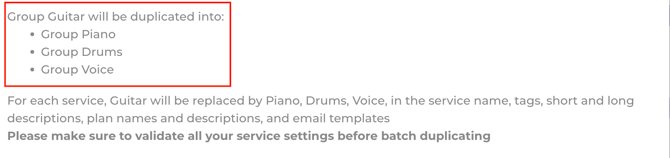
- Piano Group Class - 45 Mins
- Drums Group Class - 45 Mins
- Ukulele Group Class - 45 Mins
5. Run Batch Duplicate
Click Batch Duplicate. On success, you'll see a Service batch duplicated confirmation and the Services list refreshes with the new services.
⚠️ Warning: If the operation fails, no new services are created — it's all-or-nothing. Adjust your inputs, or try a smaller batch and run it again.
What gets copied and updated
Each new service is a full copy of the template with a new ID. It stays a group class service with the same booking, waitlist, duration, and policy settings as the template.
Copied as-is from the template
| Area | Notes |
|---|---|
| Service type | Stays a group class service |
| Payment plans | All plans copy unchanged — flat-rate, membership-style, Tuition Table, location restrictions, and credit-only plans |
| Policies | Cancellation, waitlist, enrollment windows, grace periods, drop-in rules |
| Duration & scheduling | Class duration and service-specific settings |
| Self-booking & visibility | Hidden/visible settings, spotlight, priority, photos |
| Terms & conditions | Same revision link as the template; the linked revision's service count increases |
| Client lifecycle statuses | Statuses applied on book, attend, cancel, waitlist |
| Staff & location defaults on plans | Preserved on each plan |
Updated with find-and-replace
For each item in your list, Opus1.io replaces the reference key with that item in:
| Field | Behavior |
|---|---|
| Service name | Every occurrence of the key is replaced (e.g., Guitar → Piano) |
| Tags | Matching tag replaced; the new tag value is lowercased |
| Short and long descriptions | Key replaced (case-insensitive match) |
| Plan names and descriptions | Key replaced where it appears (case-insensitive match) |
| Assigned client tags on plans | Key replaced with a sanitized form of the item |
| Email / notification templates | Key replaced in confirmation, reminder, cancellation, class end, follow-up, usage-credit reminder, terms-acceptance reminder, and automate-conversion templates where text is present |
💡 Tip: Review notification templates on at least one duplicated service — especially if the key didn't appear in every template field. Find-and-replace only touches text where the key is present; custom wording elsewhere may still reference the template instrument.
Not copied
| Item | What to do instead |
|---|---|
| Classes | Create new classes (terms, dates, capacity) on each duplicated service under Classes |
| Enrollments / subscriptions | Enroll clients into the new classes once they exist |
| The template service | Unchanged — Batch Duplicate only creates additional services |
After batch duplicate: set up each group class
Batch Duplicate finishes the service layer. For each new group class, complete the usual class workflow:
- Create classes. Open Classes for each new service and add your terms — for example, "Fall 2026 – Tuesday 4:00 PM" with start/end dates, capacity, and staff. Classes don't copy from the template on purpose: each instrument or program usually has its own schedule and roster even when policies match.

- Verify payment plans. Open Payment on each new service and confirm plan names and descriptions read correctly after find-and-replace, Tuition Table plans still point at your business tuition policy, and location restrictions still match where that class runs. See [Setting Up Your Tuition Table] if you use tuition-table billing.
- Check notifications. Open the Notifications tab and scan templates for leftover instrument names.
- Publish self-booking. Add each new group class to the appropriate self-booking link or landing page so families can find and enroll. See Using Landing Pages in Opus1.io for promoting multiple class types from one URL.
Batch Duplicate vs. Duplicate
| Batch Duplicate | Duplicate | |
|---|---|---|
| Number of new services | One per item in your list (up to 49) | One |
| Naming | Find-and-replace in the template name | Template name + copy |
| Text updates | Replaces the key across names, descriptions, plans, tags, and templates | No find-and-replace |
| Typical group-class use | Spin up Piano, Drums, and Voice from one Guitar template | Quick one-off copy for testing or a small variation |
Use Batch Duplicate for instrument or program families. Use Duplicate when you need a single extra copy.
Tips
- Perfect one template first. Batch Duplicate multiplies whatever is on the template, including mistakes.
- Put the variable word in the service name. Use a consistent token (Guitar, Level 1, Beginner) so find-and-replace stays predictable.
- Use intentional casing. Piano vs. piano affects display names and tags.
- Plan for classes separately. Budget time to create terms on each new service — duplication doesn't schedule classes.
- Spot-check one duplicate. Open Payment and Notifications on the first new service before creating on all of them.
- Split very large catalogs. If you need more than 49 variants, run multiple batches from the same template.
Troubleshooting
| Issue | Likely cause | What to do |
|---|---|---|
| Batch Duplicate not visible | Wrong role, or service doesn't require booking | Log in as Owner or Manager; confirm the service is a bookable group class |
| "Enter a valid reference key…" | Key missing from the template name, or empty key | Use a substring of the template name exactly as typed — case matters |
| "The reference key cannot be in the item list" | Same word appears in both fields | Remove the key from the item list |
| Error mentioning 49 | Too many items | Run two or more smaller batches |
| New services exist but no classes show on the calendar | Classes aren't copied | Open Classes on each new service and create terms |
| Wrong instrument name in an email | Key wasn't present in that template field | Edit the template on the affected service |
| Batch failed with no new services created | Transient or validation error | Retry; if it persists, try fewer items and contact support |
FAQ
Q: Does Batch Duplicate work on appointment services too?
A: Yes — this article covers group classes, but the same tool appears on other bookable services that show Batch Duplicate on the Services page. See Batch Duplicate Your Services to Multiple Instruments for more help.
Q: Will Batch Duplicate change the actual class duration or schedule?
A: No. Batch Duplicate only replaces the word you specify — it doesn't change duration, timing, or any other configuration. If your new instrument needs a different duration, duplicate and edit that separately before batch duplicating it further.
Q: What happens if a duplicate name already matches an existing service?
A: The dialog validates names before you run the batch — fix any conflict shown in red before continuing.
Related Articles
- How-to: Batch Duplicating Your Services For Multiple Instruments — the existing article on this feature for appointment services
- How-To: Using Service Duplication and Batch Duplication To Create Your Services — Duplicate vs. Batch Duplicate
- How do I update multiple services at the same time?
- How do I enroll my clients into group class services?
- How do I update my services' cancellation policies?
- Creating Self-Booking Links